


- Your cart is currently empty.
Installing Strapi CMS on cPanel: A Step-by-Step Guide


Strapi is an open-source Node.js headless CMS that saves developers a lot of development time while giving them the freedom to use their favourite tools and frameworks. In addition, Strapi allows content editors to simplify the display of content (text, images, videos, etc.) on all devices.
A headless CMS is a back-end content management system built entirely as a content repository, allowing content to be accessed via an API for display on any device. As such, it is particularly suited to websites designed using the Jamstack model, where JavaScript, APIs and Markup work as a whole to facilitate web development and improve the user experience.
If you have a web hosting subscription with NEOSERV and your package supports Node.js, you can install Strapi CMS within the cPanel environment in just a few steps.
Setting up Strapi CMS within the cPanel environment
The basis for setting up Strapi CMS is therefore the Node.js hosting, which you manage via the cPanel control panel. Log in to the control panel (login instructions) and start the process.
The first step you will need to take is to set up your Node.js application. You will find all the details about this in the article How do I create my first Node.js app?
2. Once you have created your Node.js application, you will need to stop it before you start installing Strapi CMS. You can do this by clicking the STOP button.
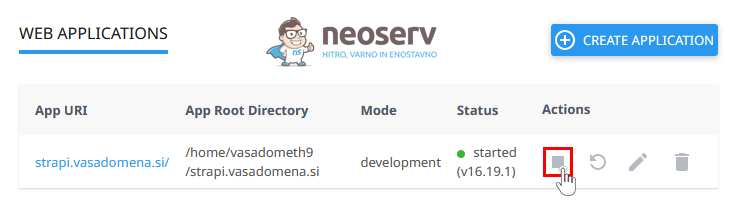
3. Using SSH (CLI), connect to your hosting package (instructions) and use the source command to place yourself in a virtual (node) environment, namely the application root directory. Use the command:
source /home/user/nodevenv/strapi/16/bin/activate && cd /home/user/strapiAdjust the user entry in the above line accordingly, including the directory where your Node.js application is located (in our case, the strapi directory) and the Node.js version if necessary.
4. Create a database using the MySQL Database Wizard tool found in the cPanel control panel. If you need more information, check the instructions for creating a database.
5. Run the npx create-strapi-app@latest . command to start the Strapi CMS installation process. As part of the process, set the desired configuration and enter the necessary database-related data.
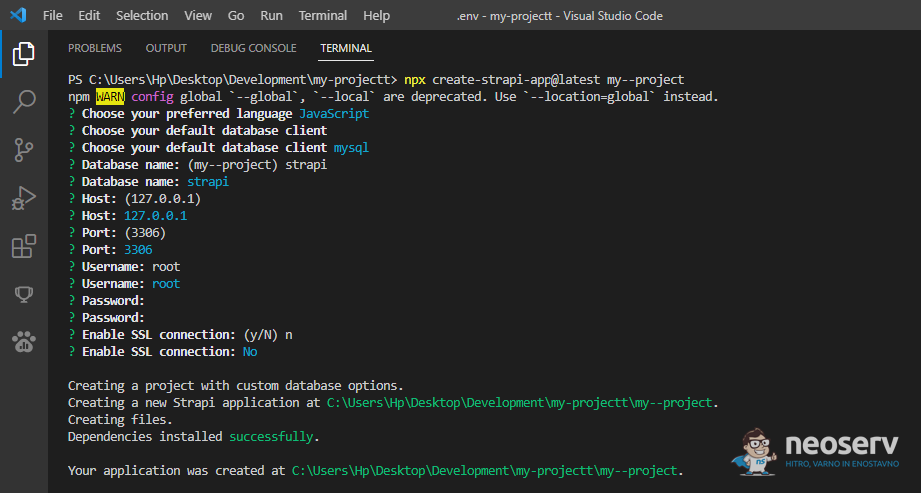
6. Run the npm run build command to start the application build process (still within the node environment – via the CLI).
7. In the existing application folder , create an app.js file, write the code below and save your changes.
const strapi = require('@strapi/strapi');

if (process.env.NODE_ENV == "development")
    strapi({"autoReload": { "enabled": true }}).start();
else
    strapi().start();
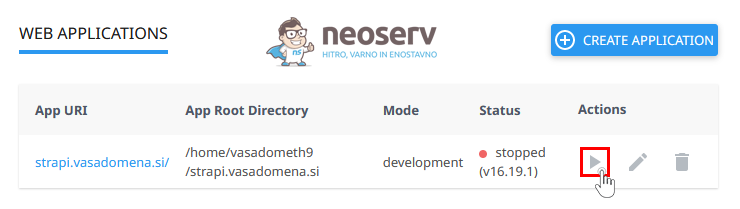
8. The only thing left to do is to launch the application in the cPanel – inside the Setup Node.js App – by clicking on the START button.
At NEOSERV, quality of service is of the utmost importance to us, which is why we guarantee you a stable and seamlessly running Node.js environment. Our servers are powered by powerful processors and SSD disk drives, allowing even the most demanding applications to run quickly. Take a look at our Node.js hosting offer and choose the package that suits your requirements.
COMMENT THE POST
Your comment has been successfully submitted
The comment will be visible on the page when our moderators approve it.