


- Your cart is currently empty.
WordPress Database Cleanup After Removing Jetpack


When you uninstall a plugin on a WordPress website, all files associated with that plugin are deleted. The same is true for data in the database – most records are removed completely. However, this is not always the case. There are also plugins that leave behind some unnecessary “junk” in the database.
One of these plugins is Jetpack. If you find that Jetpack has many more features than you need, and you want to remove the plugin completely, the instructions below will help you to remove the records from the database. You will learn how to remove unnecessary data from the wp_options, wp_postmeta and wp_usermeta tables and how to delete scheduled cron jobs from the wp_cron system.
By optimising or cleaning unnecessary records from the database, you will speed up the performance of your website, while also reducing the chance of errors on the page. We therefore strongly recommend that you take a few minutes to optimise your database.
Before you start editing the database, make sure you have a backup copy. At NEOSERV, we make backups on a daily basis. If you have made changes to the website or received online orders in the online shop in the last 24 hours, we advise you to create a backup manually. You will find instructions on how to do this in this article.
Table of contents
- Cleaning Jetpack records from wp_options
- Cleaning Jetpack records from wp_postmeta
- Cleaning Jetpack records from wp_usermeta
- Clean Jetpack tasks from wp_cron
1. Cleaning Jetpack records from wp_options
The MySQL query below will show you some Jetpack settings that might remain stored in the database after uninstalling the plugin.
SELECT COUNT(CASE WHEN option_name LIKE 'jpsq\_%' THEN 1 END) AS jpsq from wp_options;Delete them with the following command.
DELETE FROM wp_options WHERE option_name LIKE 'jpsq\_%'Here is the WP-CLI version of the above command.
wp db query "DELETE FROM $(wp db prefix --allow-root)options WHERE option_name LIKE 'jpsq\_%'" --allow-rootSome other Jetpack entries in option_name contain the jetpack string.
SELECT COUNT(CASE WHEN option_name LIKE 'jetpack_callables_sync%' THEN 1 END) from wp_options;This will find all rows in option_name that include the jetpack string.
SELECT COUNT(CASE WHEN option_name LIKE 'jetpack%' THEN 1 END) AS jetpack_options from wp_options;Delete all values in option_name with the command below.
DELETE FROM wp_options WHERE option_name LIKE 'jetpack%';Here is another identical WP-CLI command.
wp db query "DELETE FROM $(wp db prefix --allow-root)options WHERE option_name LIKE 'jetpack%'" --allow-rootThe above commands will delete all Jetpack values from the wp_options table.
2. Cleaning Jetpack records from wp_options table
Jetpack can also leave unnecessary entries in the wp_postmeta table. Below we show an example for Relateg Posts cached in the cache.
SELECT COUNT(CASE WHEN meta_key = '_jetpack_related_posts_cache' THEN 1 END) from wp_postmeta;You can delete them with the following command.
DELETE from wp_postmeta WHERE meta_key = '_jetpack_related_posts_cache';You can also use the WP-CLI command.
wp db query "DELETE from $(wp db prefix --allow-root)postmeta WHERE meta_key = '_jetpack_related_posts_cache'" --allow-rootHere’s another example for cleaning up entries related to posts that shouldn’t be sent via email.
SELECT COUNT(CASE WHEN meta_key = '_jetpack_dont_email_post_to_subs' THEN 1 END) from wp_postmeta;Remove unnecessary Jetpack postmeta values with the following command.
DELETE from wp_postmeta WHERE meta_key = '_jetpack_dont_email_post_to_subs';You can also use a more aggressive command and include all meta_key lines that include a jetpack record.
SELECT COUNT(CASE WHEN meta_key LIKE '%jetpack%' THEN 1 END) AS jetpack_postmeta from wp_postmeta;Another WP-CLI version of the command.
wp db query "SELECT COUNT(CASE WHEN meta_key LIKE '%jetpack%' THEN 1 END) AS jetpack_postmeta from $(wp db prefix --allow-root)postmeta" --allow-rootThe command below will delete all Jetpack values in the wp_postmeta table.
DELETE from wp_postmeta WHERE meta_key LIKE '%jetpack%';If you are using WP-CLI, use the following command.
wp db query "DELETE from $(wp db prefix --allow-root)postmeta WHERE meta_key LIKE '%jetpack%'" --allow-rootYou can now proceed to clean up the wp_usermeta table.
3. Cleaning Jetpack records from wp_usermeta
After uninstalling the Jetpack plugin, unnecessary records may remain in the wp_usermeta table. Use the following MySQL command.
SELECT COUNT(CASE WHEN meta_key = '%jetpack%' THEN 1 END) from wp_usermeta;You can also use the WP-CLI command.
wp db query "SELECT COUNT(CASE WHEN meta_key = '%jetpack%' THEN 1 END) FROM $(wp db prefix --allow-root)usermeta" --allow-rootDelete the records using the command below.
DELETE from wp_postmeta WHERE meta_key = '%jetpack%';Still WPI-CLI version.
wp db query "DELETE FROM $(wp db prefix --allow-root)usermeta WHERE meta_key = '%jetpack%'" --allow-rootFinally, see how to remove cron jobs.
4. Cleaning Jetpack jobs from wp_cron
When you remove Jetpack from your website, you may have a whole bunch of cron jobs left in the queue. You can find these scheduled jobs with WP-CLI, using the wp cron event command.
wp cron event listThe results will show all scheduled cron jobs and their details.
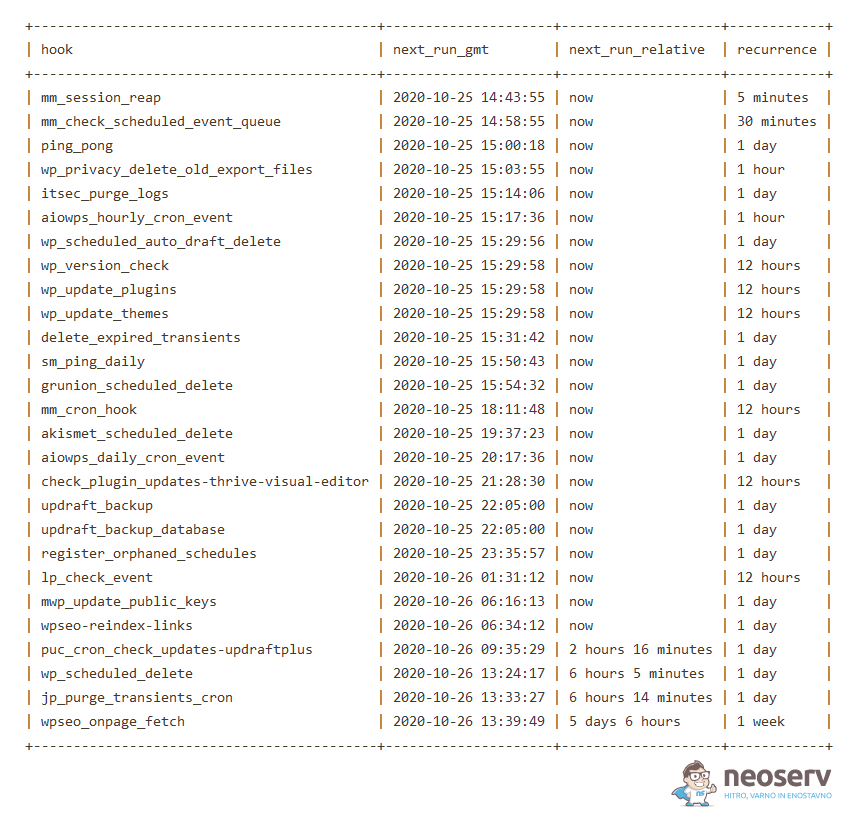
Other records may also appear, such as:
jetpack_display_posts_widget_cron_update
jetpack_clean_nonces
jetpack_v2_heartbeat
jp_sitemap_cron_hook
These cron jobs can be deleted quite easily with the WP-CLI command.
wp cron event delete jp_purge_transients_cronIf you want to delete all Jetpack cron jobs, you can use WP-CLI to find all wp_cron jobs, then display only the ones that include jp_, and then delete them with the xargs command.
wp cron event list --allow-root | grep jp_ | awk '{ print $1 }' | xargs --replace=% wp cron event delete % --allow-rootYou can do the same for all wp_cron jobs that include the jetpack_ record.
wp cron event list --allow-root | grep jetpack_ | awk '{ print $1 }' | xargs --replace=% wp cron event delete % --allow-rootThere should now be no trace of the Jetpack plugin on your WordPress website.
COMMENT THE POST
Your comment has been successfully submitted
The comment will be visible on the page when our moderators approve it.