


- Your cart is currently empty.
LiteSpeed Cache Crawler: A Quick Guide for WordPress


If you have decided to order web hosting from NEOSERV and your website is running on WordPress, you can take full advantage of the LiteSpeed Cache plugin. The plugin works in conjunction with the highly responsive LiteSpeed web server, which is characterised by its speed, scalability and security. And it’s this web server that we use on all hosting packages at NEOSERV.
You can find a lot of information about using the LiteSpeed Cache WordPress plugin in this article, but today we’re going to take a closer look at one of the more interesting features of the plugin – Crawler, which is enabled at the server level on all of our environments.
Sitemap
- What is crawler and how does it work?
- How to manage crawler settings?
- How long does the crawler crawl a web page?
What is a crawler and how does it work?
The job of a web crawler is to crawl and crawl a website. In English, this process is called crawling. The LiteSpeed Cache spider travels around the backend of a web page, visiting subpages that have expired in the cache.
The idea is therefore that the crawler keeps the cached versions of the subpages up-to-date at all times, while at the same time reducing the chance of a visitor encountering a subpage that is not yet cached.
Why is this important?
First, let’s take a look at how the caching process works without using a crawler. The process starts when you visit a web page. When the first visitor, who is not logged in to the WordPress administration, visits a specific subpage, the user’s request reaches the backend of the website, the PHP code is executed in the background and the WordPress displays the subpage to the visitor. At the same time, the sub-page is also cached, which means that it will load faster on the next visit.
This is quite a time-consuming process for the server, which also requires a lot of bandwidth.
But what happens behind the scenes when LiteSpeed’s crawler takes care of the caching? When a spider visits a particular subpage, a request is sent to the backend, WordPress PHP code is executed, which generates a subpage with a special record in the header of the code. This tells the LiteSpeed web server that the request was triggered by a spider, so the subpage is not loaded, but only cached.
The described procedure saves considerable bandwidth and relieves the server.
Another advantage is that the crawler refreshes the expired pages at regular intervals, so the possibility of the user encountering a page that is not cached is significantly reduced. As a result, the website runs faster.
How do I manage crawler settings?
If you have installed the LiteSpeed Cache plugin on your website, you may have already noticed the Crawler element in the WordPress administration side menu, where you can manage the crawler settings.
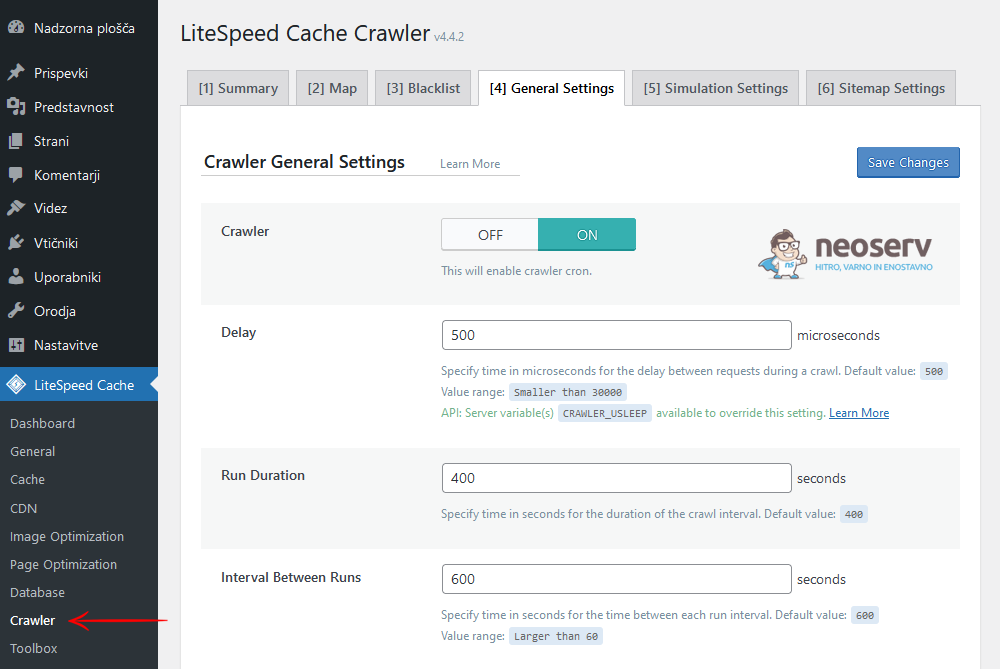
To make sure it works as optimally as possible for your site, here’s a look at what each setting means. The Settings tab is particularly important, as it contains the basic settings for this functionality.
Settings tab
Crawler
Allows you to turn on and off the functionality of a crawler that periodically visits the pages of your website and loads them into cache. When enabled, other settings within the Crawler section can actively manage the spider’s operation.

If you don’t need the feature, or if the content on your website changes infrequently, you can leave it disabled. Otherwise, turning it on will help to display pages to visitors faster, as they will already be loaded in the cache when they visit.
Crawl Interval
This setting determines how often the crawler should start the process of browsing the site. The optimal value depends on how long the whole process takes and how often the content on your website changes.

The time it takes to complete the process, i.e. from the start of the crawl until the spider reaches the last sub-page of the website (including any pauses), can be easily determined. Run the spider a few times and keep track of how long the whole process takes (read more: How long does it take a crawler to crawl a page?).
Once you have a figure, set a slightly higher value. For example, if it takes 3 hours for the spider to check the whole site, you can set the interval to 4 hours (14,400 seconds). If you don’t change the content on the site often, you can keep the default value of 84 hours (302,400 seconds).
Custom Sitemap
In the Custom Sitemap field, you enter the path to the XML sitemap of your website, which the spider uses as the basis for crawling the site. The sitemap therefore tells the crawler which subpages to visit.

If you leave the field blank, the system will look for the default map from your WordPress configuration. By adding a customised map, you can control which content should be cached more often.
You can use a dedicated WordPress plugin, such as XML Sitemaps or Sitemaps by BestWebSoft, to generate the map. If you’re using an SEO plugin, most such plugins already support map generation, for example Yoast SEO and Rank Math SEO.
Server Load Limit
This setting prevents the spider from overloading the server and thus compromising its performance. When the limit is reached, the web browsing process is terminated.

Any process that is using the CPU or waiting for CPU resources adds a value of 1 to the load average when the computer is completely idle.
If the average server load exceeds the value entered, the number of spiders crawling the site is automatically reduced. If there is only one crawling process, it is terminated.
Role Simulation
This function allows the simulation of user roles (e.g. Administrator, Editor, Subscriber), which is useful in cases where the content of the website differs according to the user role. The spider will thus visit the pages from the perspective of the selected role and cache the version of the content.

If your website displays different content depending on who is logged in, you can use this option to improve the experience for all types of users. Otherwise, there is no need to use the feature (leave the field blank), as normal crawling is sufficient.
Cookie Simulation
This setting is designed to simulate certain cookies, allowing the spider to load pages as the user sees them with specific settings (e.g. language selection or currency display).

This feature is useful for websites where you customise the content according to cookies – e.g. multilingual sites or stores with different currencies. So the crawler can visit and cache each version separately.
Map and Blocklist tabs
The Map tab shows a map of the URLs that the spider uses to crawl the site. They are obtained from the site map or created during the crawling itself. Here you can keep track of which pages have been added to the crawl list and in what order the spider visits them.
The Blocklist tab allows you to specify URLs or patterns that the spider should not visit. This prevents certain pages from being included in the crawling and caching process – for example, pages with sensitive data or pages that change frequently.
How long does a crawler crawl a web page?
To determine the optimal crawling interval, you need to know how long it takes a crawler to crawl all the subpages of a website. You can help by manually starting the crawling process.
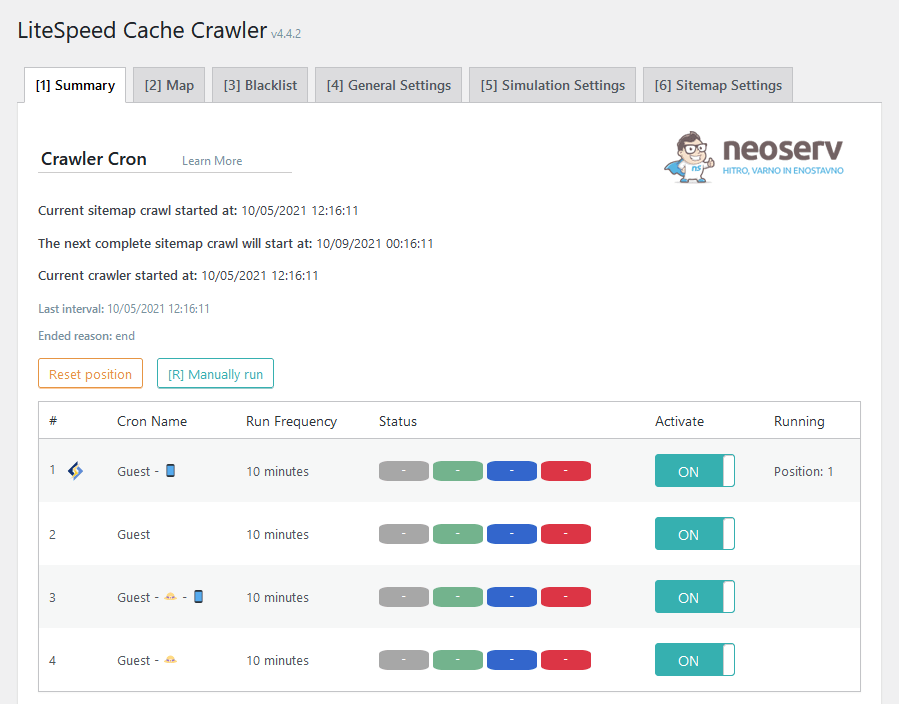
As shown in the image above, navigate to LiteSpeed Cache -> Crawler in the WordPress administration. In the first tab (Summary), click on the Show crawler status button found at the bottom of the page to open a terminal where you can monitor how the spider is “crawling” your website.
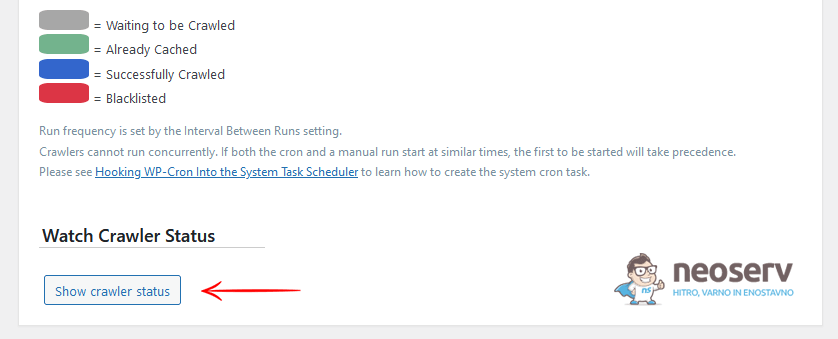
Then start the crawling process by clicking on the [R] Manually run button and watch the crawling process in the terminal.
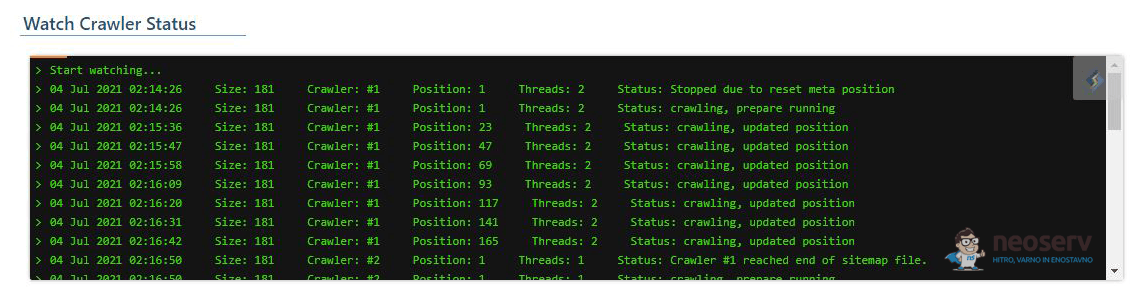
The content displayed in the terminal will, of course, be different from the one shown in our figure. Let us therefore explain what the items in each line mean:
- Size: Number of URLs in the sitemap.
- Crawler: The sequence number of the spider currently crawling the site.
- Position: The sequence number of the URL being retrieved from the site map.
- Threads: The number of concurrent processes currently running to retrieve URLs.
- Status: Shows the current status of the crawler.
Want to take advantage of LiteSpeed Cache Crawler for yourself? Try out lightning fast hosting!

COMMENT THE POST
Your comment has been successfully submitted
The comment will be visible on the page when our moderators approve it.