


- Your cart is currently empty.
How to Display and Log PHP Errors in cPanel

Many of the web applications on which websites and online shops are built are based on the PHP programming language, including the most popular ones such as WordPress, Joomla, Magento, PrestaShop, OpenCart and the like. If you are a web programmer or a website maintainer, you will know that errors can occur during the execution of PHP applications.
PHP errors that occur during the execution of the code can be more or less fatal to the performance of the website. They can cause the site to be completely inoperative, they can slow down the site, they can affect the (non)functioning of only part of the site, or they can have no effect on the functioning of the site itself.
Understanding PHP errors is essential for developers trying to fix them while an application is running. This is where the PHP error log comes in handy – a file that keeps track of errors on a website and tells you which lines of code are causing problems.
Sitemap
- How to activate PHP error display and logging?
- Where are PHP errors logged?
- What do individual PHP errors mean?
- How to activate “Debug Mode” in applications?
How to activate PHP error display and logging?
You can edit the display and logging of PHP errors in the cPanel control panel.
1. Log in to the cPanel control panel(login instructions).
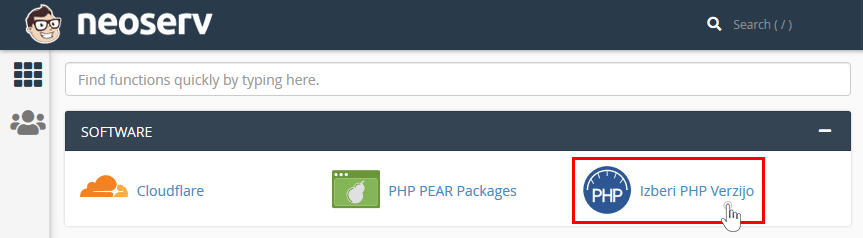
2. Locate the SOFTWARE section and click on Select PHP Version.
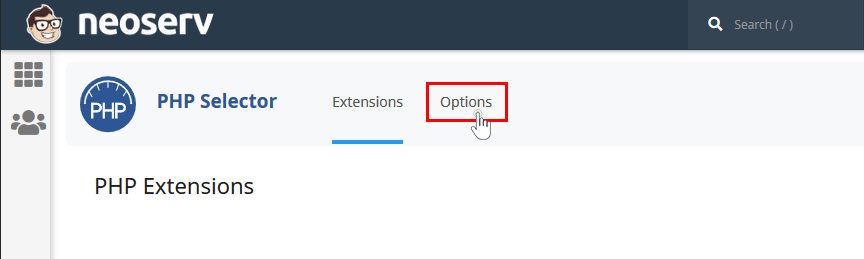
3. Select the Options tab at the top.
4. Add a tick to the display_errors setting. This will activate the function that in case of a PHP error on the web page, it will be displayed to the visitor (e.g. instead of a white/blank page).

5. When setting error_reporting, select E_ALL (you can also select E_ALL & ~E_NOTICE).

By selecting the value E_ALL you will achieve that both PHP errors and warnings are logged. When setting error_reporting, you can also select the value E_ALL & ~E_NOTICE, which will cause the system to log only PHP errors and not warnings.
Where are PHP errors logged?
All new PHP errors (and warnings) will now be logged in the error_log files. These files are created in the folders where the .php files in which the errors occur are located. Many times you will also find the error_log file in the root folder of your domain, as requests are often made via the index.php file.
To access the error_log file, follow this procedure:
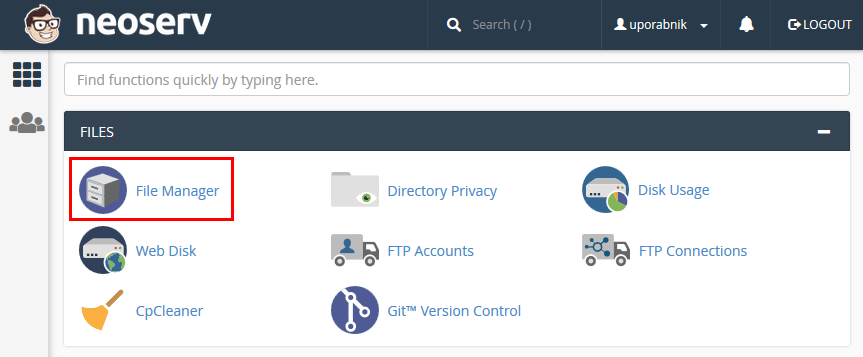
1. In the cPanel control panel, locate the FILES icon section and click on File Manager.
2. To check the PHP error list for the hosting package’s carrier domain, check the public_html folder. Otherwise, browse to the folder of the domain for which you want to get PHP error information.
3. Right-click on the error_log file and select View.
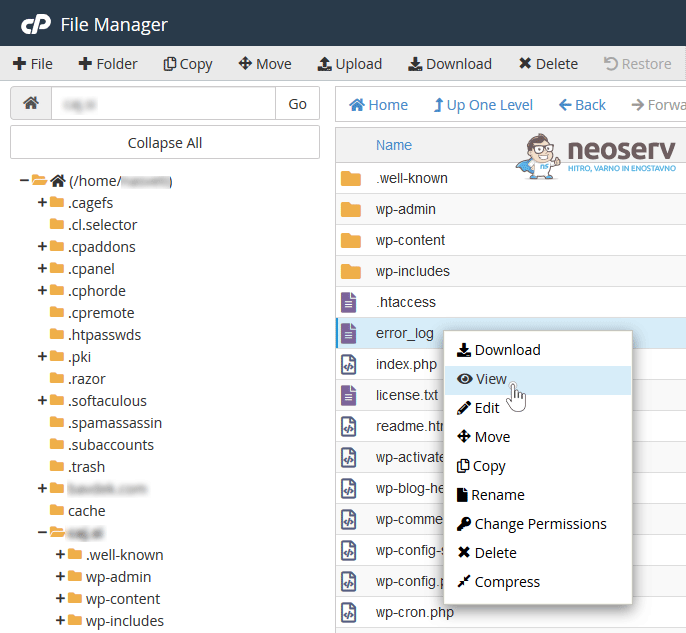
4. You will see the contents of the error_log file. An example can be seen in the following figure.
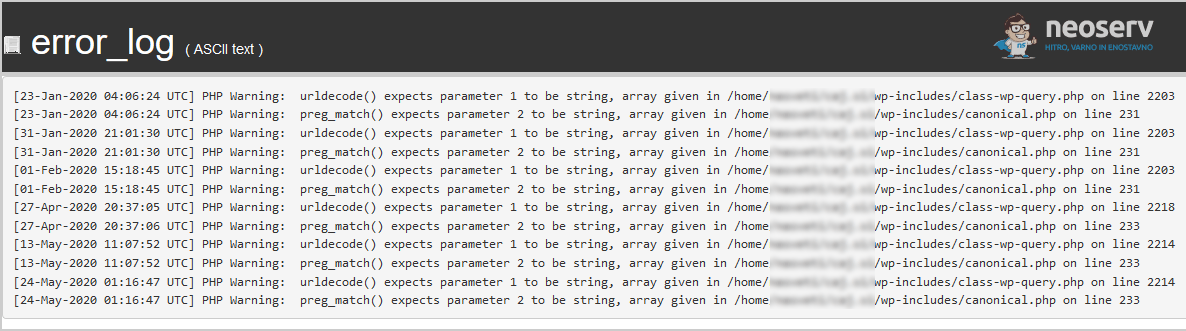
As you can see, the file contains the paths to the files where the PHP errors occurred. The times at which each error occurred are also recorded.
You can also check the Apache error log, which is very rare. You can access this error log via the cPanel control panel. Look for the METRICS icon section and select Errors. You will be presented with an interface containing up to 300 of the most recent entries.
What do the individual PHP errors mean?
For the meaning of individual PHP errors, please contact the programmer or website builder, as they will know best what a particular PHP error means.
Here are three examples of PHP errors:
PHP Parse error: syntax error, unexpected '2' (T_LNUMBER), expecting ')' in /home/user/public_html/wp-config.php on line 34means that the error is related to the writing of the code. Please check the wp-config.php file and correct the code on line 34.PHP Fatal error: Call to undefined function get_header() in /home/user/public_html/wp-content/wp-content/themes/theme/index.php on line 5reports that index.php is trying to call a function that does not exist. So check that the function name is correct.Fatal error: Maximum execution time of 30 seconds exceeded in /home/user/public_html/wp-includes/class-phpmailer.php on line 533indicates that the maximum execution time (30 seconds) has expired. The problem could possibly be fixed by changing the max_execution_time value in the PHP settings or the .htaccess file.
How to activate “Debug Mode” in applications?
In the following, we will look at how to activate Debug Mode in different applications: WordPress, Magento, OpenCart and PrestaShop.
1. WordPress
Are you experiencing errors on your WordPress website? To find out what’s wrong faster, enable the Debug feature. This will make PHP errors visible in the areas of the website where they otherwise occur.
1. In the cPanel control panel, open File Manager and navigate to the folder where your WordPress website files are stored.
2. Right-click on the wp-config.php file and select Edit. If a pop-up window appears, click Edit again in the bottom right corner.
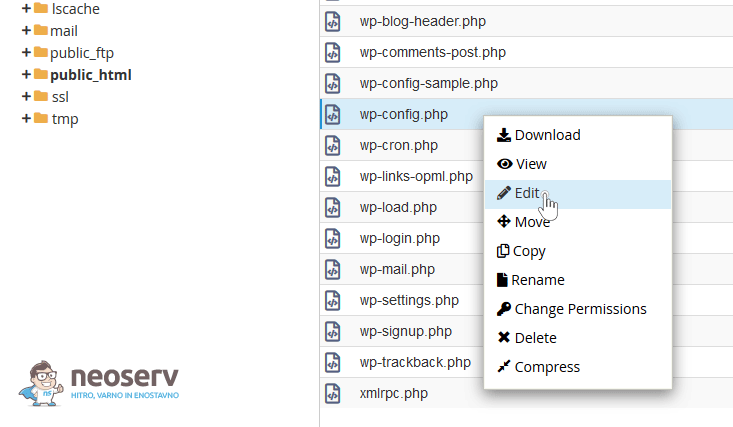
3. In the wp-config.php file, look for the line that says:
define( 'WP_DEBUG', false );Instead of false, use true to make the line look like this:
define( 'WP_DEBUG', true );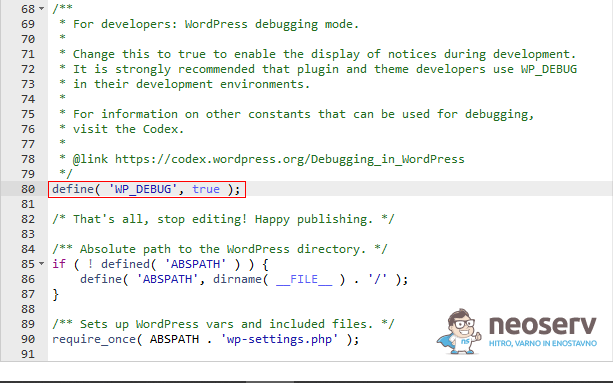
4. If you want the errors to be displayed directly on your web page, but also logged in the debug.log file (located in the wp-content folder), add the following few lines:
define( 'WP_DEBUG_LOG', true ); // Log errors to debug.log
define( 'WP_DEBUG_DISPLAY', true ); // Display errors on website

define( 'WPS_DEBUG', true ); //
define( 'WPS_DEBUG_SCRIPTS', true ); // Use non-minified scripts
define( 'WPS_DEBUG_STYLES', true ); // Use non-minified styles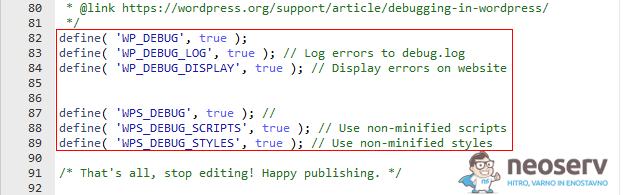
5. Save the change by clicking the Save Changes button in the top right corner.
Once you have fixed the PHP errors, don’t forget to restore the wp-config.php file to its original state.
You can also use a dedicated plugin to help you detect PHP errors on your WordPress website. One of them is WP Debugging, which can be used to achieve a similar result to the one we described in the above procedure, where we edited the wp-config.php file, with just a few clicks.
2. Magento
There are several options for fixing PHP errors in Magento 2. You should know that the platform offers three development modes for setting up an online shop:
- Default Mode,
- Developer Mode,
- Production Mode.
Developer Mode error display
It makes sense to use a developer mode that allows PHP errors to be displayed directly on the web page. It is also a handy way to debug corrupted modules that display a blank page or error 500 on the screen.
To enable Developer Mode, establish an SSH connection to the server and run the following CLI command in the webshop’s umbrella folder:
php bin/magento deploy:mode:set developerDisplaying errors in production mode
If you want to display errors in production mode, which means that visitors can see them, follow this procedure. Open the $Magento2Root/app/bootstrap.php file and remove the comment (#) from the line:
ini_set('display_errors', 1);This will display any PHP errors that occur while loading the Magento store in the browser.
Displaying errors in the var/reports file
When an error occurs, Magento writes it to the var/reports file, but does not display it on the screen by default. You can change the default setting for debugging purposes by renaming the local.xml.sample file (in the $Magento2Root/pub/errors/ folder) to local.xml.
This file contains the settings for displaying errors. It allows you to specify an email address to be notified of new PHP errors.
Template Path Hints
Template Path Hints is a diagnostic tool built into the online store that adds path notation to every graphical template of the Magento platform. You can integrate this tool for both the front-end of your webshop and for the administration.
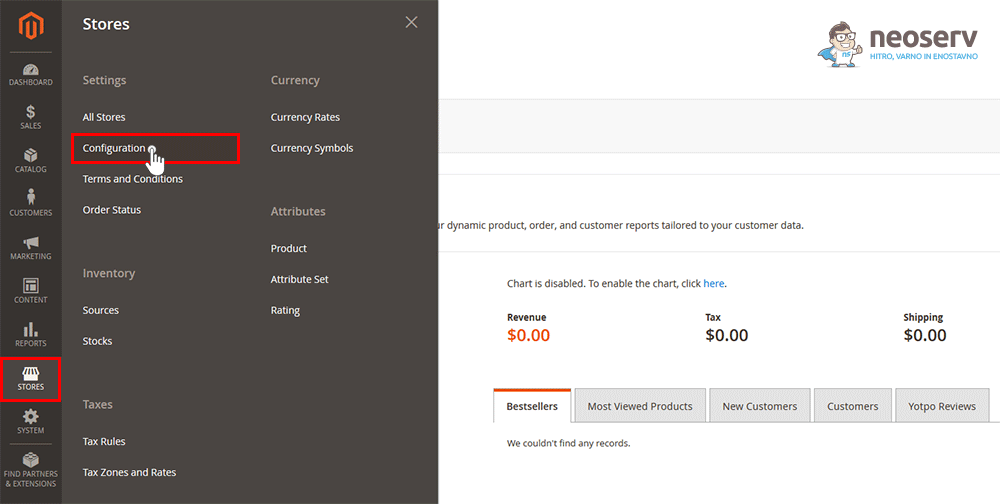
1. In the administration, navigate to STORES and select Configuration.
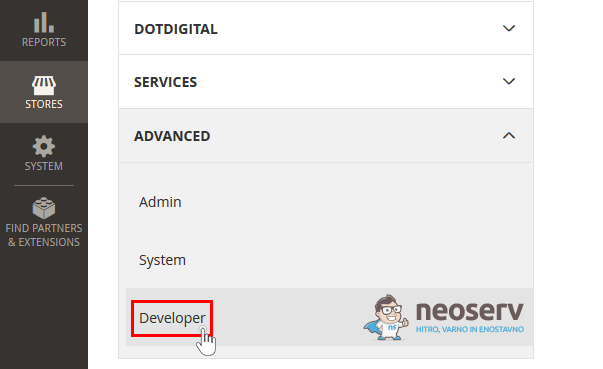
2. On the left hand side (under ADVANCED), click on Developer.
3. In the right menu, expand Debug and enable Template Path Hints for Storefront, Enabled Template Path Hints for Admin and Add Block Names to Hints.
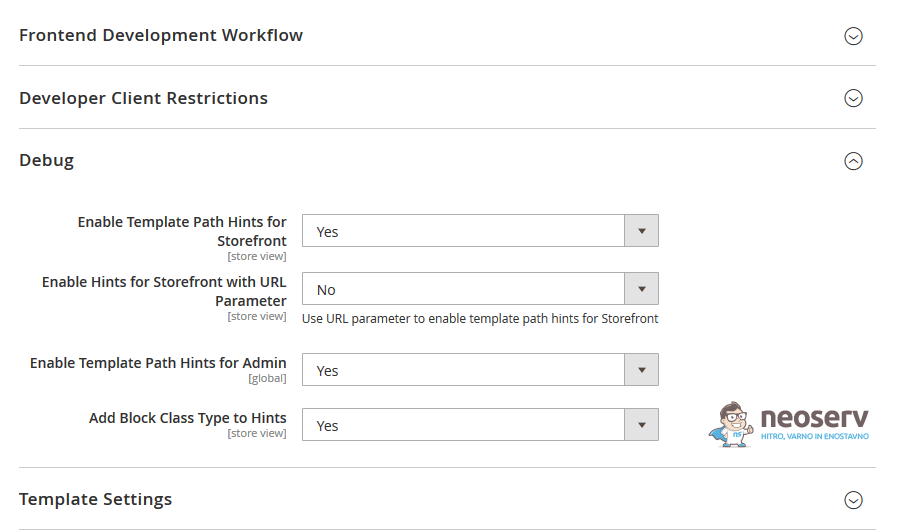
4. Save your settings and you will notice the changes immediately; individual paths will be marked with red boxes.
3. OpenCart
You can edit the display and logging of PHP errors for OpenCart in the admin of the webshop itself.
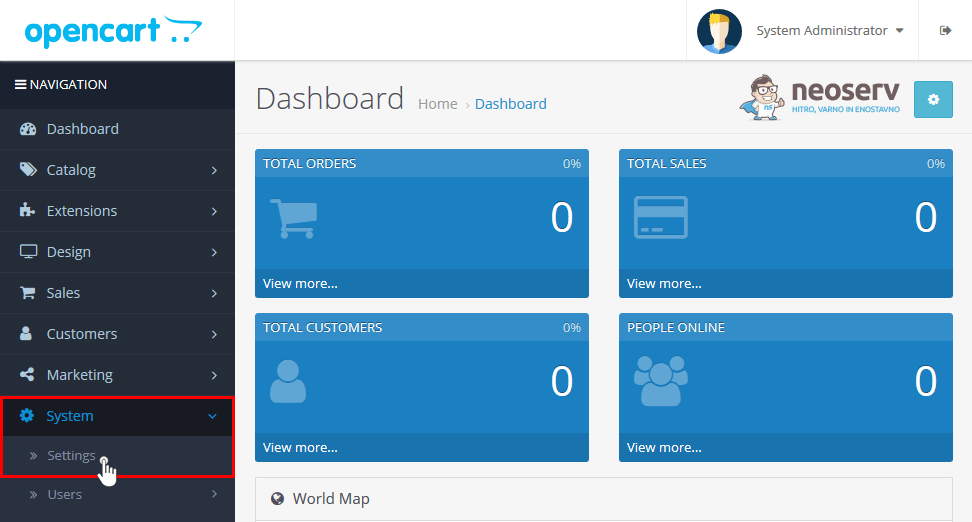
1. After logging in to the administration, click on System in the left menu and select Settings.
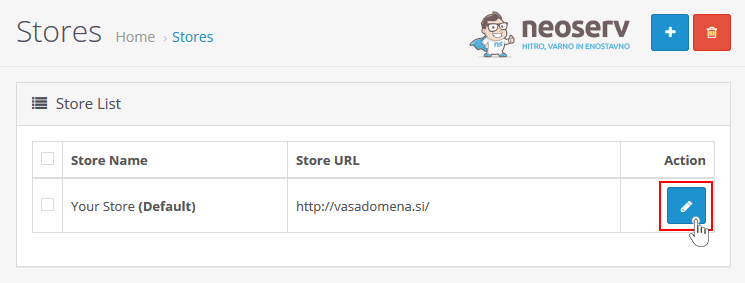
2. In the list of shops, click on the blue Edit icon, which you will find on the far right.
3. Select the Server tab and then find the Error Handling section at the bottom of the settings.
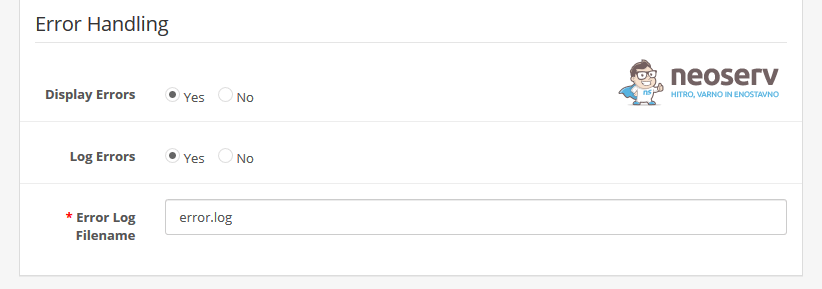
4. Select the desired settings:
- Display Errors – Yes means that PHP errors will be displayed directly on the webshop.
- Log Errors – a Yes value means that PHP errors will be logged to a file whose name is specified one line below (default: error.log). The file will be saved to the webshop’s umbrella folder.
If you enable the Display Errors setting, the errors will also be visible to visitors of your webshop. So when you’re done diagnosing and fixing PHP errors, don’t forget to change the setting back to No.
4. PrestaShop
If you are using PrestaShop 1.7, you can enable PHP error display in the webshop administration. If you are using an older version, you will need to change the setting in one of the configuration files. Let’s have a look at the procedure for the newer and the older version of the webshop.
Displaying errors in PrestaShop 1.7
1. After logging into the PrestaShop administration, navigate to Advanced Parameters and select Performance.

2. Find the Debug mode section and then select Yes under the Debug mode setting of the same name.
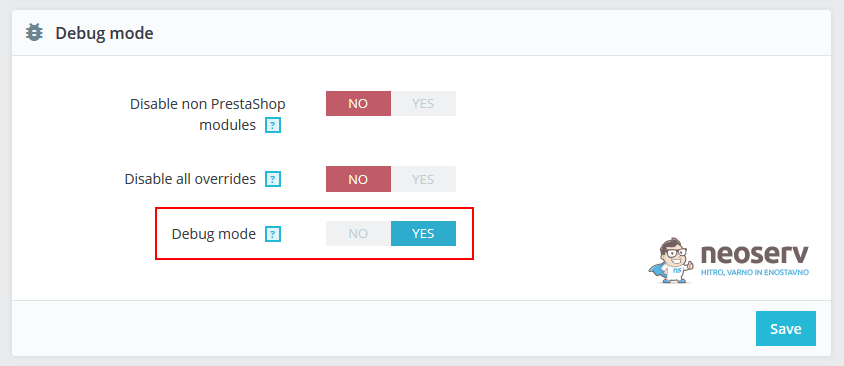
This will enable the PHP debug mode, so you can check your webshop and start debugging. When you’re done, set Debug mode back to No, otherwise any errors will be visible to all visitors.
Displaying errors in PrestaShop 1.5 – 1.6
1. In the cPanel control panel, open File Manager and navigate to the folder where your PrestaShop store files are stored.
2. Open the config folder and locate the defines.inc.php file – right click on it and select Edit.
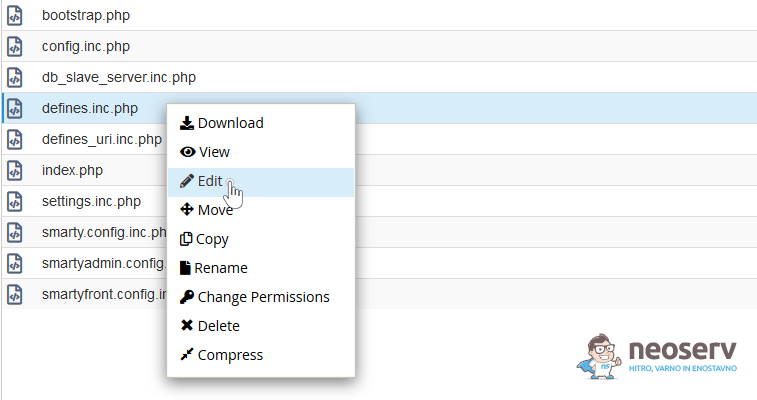
3. Find the next line:
define('_PS_MODE_DEV_', false);and replace false with true:
define('_PS_MODE_DEV_', true);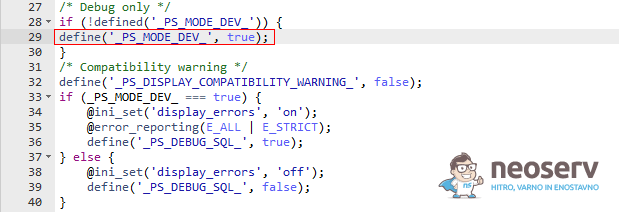
4. Save your changes by clicking on the blue SAVE CHANGES button in the top right corner.
You can now visit the problem pages and error messages will be displayed. Of course, also in this case, when you have finished debugging, change the value back to false.
5. Custom PHP application
Various errors can occur while running a PHP application. It is important for developers trying to troubleshoot a non-functioning application to see these errors. Check below how to display PHP errors and warnings in a custom PHP application.
Quick solution: display all PHP errors
If you want to display all PHP errors and warnings, the fastest way to do this is to enter three lines of PHP code into the application:
ini_set('display_errors', 1);
ini_set('display_startup_errors', 1);
error_reporting(E_ALL);
Explanation of the above code:
- The
ini_setfunction attempts to overwrite the configuration contained in the PHP ini file. - The
display_errorsdirective determines whether errors are displayed to the user or remain hidden. - The
display_startup_errorsdirective is used to look for errors that occur during the PHP startup sequence (thedisplay_errorsdirective does not deal with such errors). - The
PHPsource functionerror_reportingis used to report all types of errors in a PHP script. The constantE_ALLis used as an argument to the function.
Unfortunately, the display_errors and display_startup_errors directives do not display parse errors such as missing semicolons and wrapped parentheses. To achieve this, you will need to adjust the PHP ini configuration.
Configure PHP.ini to display all errors and warnings
If adding the above functions and directives does not display all errors, the PHP ini configuration has some additional directives available:
display_errors = onThe display_errors directive can be set to on in the PHP.ini file. This will display all errors, including syntax and parsing errors, which are not otherwise displayed in the PHP code by simply calling the ini_set function.
The PHP.ini file can be found using the phpinfo() function:
<?php
phpinfo();
?>
The loaded configuration file contains the location of the PHP.ini file.
PHP function error_reporting()
The error_reporting function is a built-in function in PHP that allows developers to specify which and how many errors are displayed in an application. The function sets the error_reporting directive in the PHP ini configuration at runtime.
error_reporting(0);The error_reporting function must be passed the value 0 to remove all errors, warnings, parsing messages and notifications.
error_reporting(E_NOTICE);In PHP, it is allowed to use variables even if they are not declared. This is not best practice, as undeclared variables cause problems when used in loops and conditions. Undeclared variables are displayed in the web application when E_NOTICE is passed in the error_reporting function.
error_reporting(E_ALL & ~E_NOTICE);The error_reporting function allows developers to choose which PHP errors can be displayed. The ~ character means “no“, so the ~E_NOTICE parameter means that no notifications are displayed. The & character means“applies to all“.
error_reporting(E_ALL);
error_reporting(-1);
ini_set('error_reporting', E_ALL);
The above three lines of code also display all PHP errors. The most commonly used expression is error_reporting(E_ALL), as it is more readable.
Displaying PHP errors via .htaccess configuration
You can also use the .htaccess file to enable or disable the directive to display PHP errors.
php_flag display_startup_errors on
php_flag display_errors on
The display_errors directive may need to be configured in .htaccess or PHP.ini, depending on which files are accessible and how the server configuration is arranged. Many hosting providers do not allow changes to the PHP.ini file.
For a quick refresher …
In this post you learned where or how to activate the display and logging of PHP errors in the cPanel control panel. This is the first step if you want to diagnose an error that is occurring on your website.
In addition, you have learned where PHP errors are logged. In this section we have mentioned the error_log file, which is located in the umbrella folder of the web page where the errors occur. We have also briefly presented three examples of what each PHP error means.
In the last part of the article, you learned how to enable“Debug Mode” in some popular web platforms. Specifically, we described the procedures for WordPress, Magento, OpenCart and PrestaShop. This was followed by a detailed explanation of how to include PHP error and warning display in the case of a custom PHP application.
COMMENT THE POST
Your comment has been successfully submitted
The comment will be visible on the page when our moderators approve it.