


- Your cart is currently empty.
How to Remove Malicious Links from Google Search
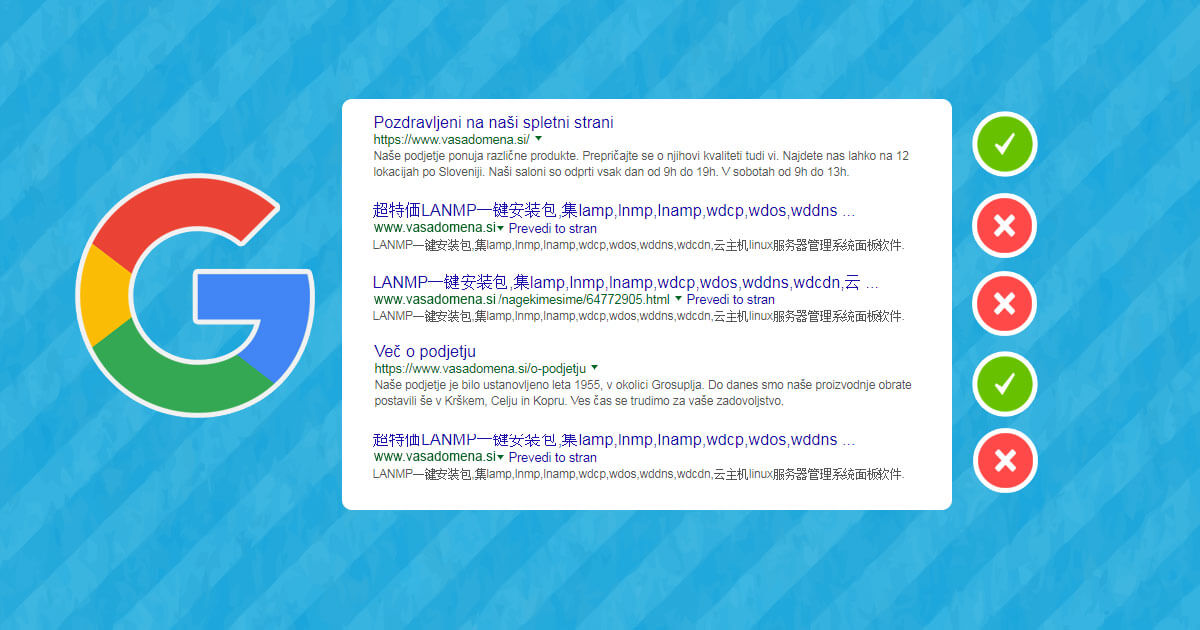

Have you noticed, while checking your website on Google, that suspicious links appear in the list of results that you know nothing about? It is very likely that your website has fallen victim to a web virus. If you have a website logged into Google Search Console, you may have received a security alert there too.
One form of cyber-attack therefore causes a website to generate a mass of content with links to foreign websites. Most of these are sites dealing with sensitive topics, such as pills or other substances traded on the black market. Content in Chinese characters is also very common.
By typing site:vasadomena.si, you can check the indexation of your website in Google search (replace vasadomena.si with your actual domain!) and hope that you will not see a similar situation.
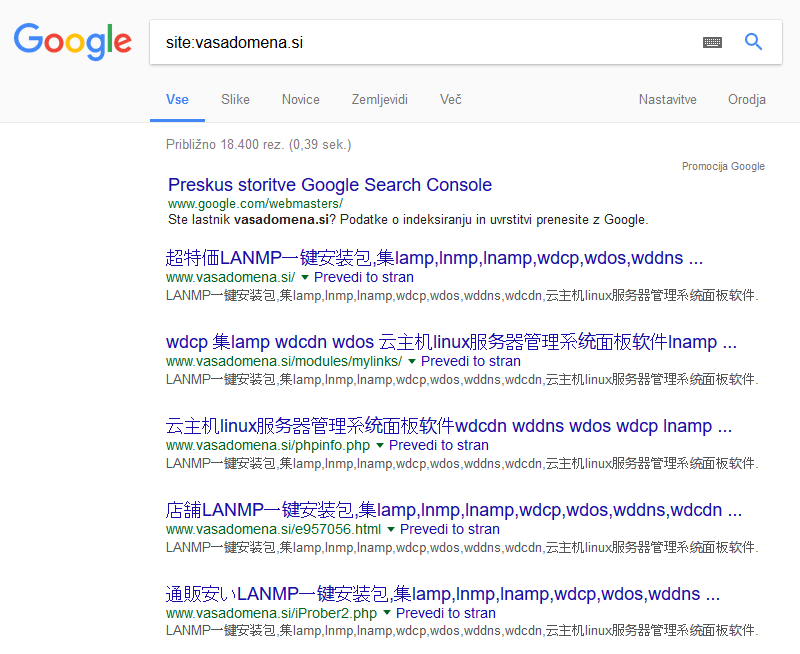
You definitely don’t want this kind of content on your website, as it not only puts you in a bad light, but also damages your website. If you were previously ranked highly and prominently in Google, which gave you enviable traffic, a web virus could be to blame for the drop in visitors. It is therefore vital that you remove it as quickly as possible, as well as any malicious links from the search engine.
Read how to clean up a web virus in our support article. WordPress users will also find the article on how to remove a virus from a WordPress site useful. Only when you are sure that the virus has been eliminated should you start removing links, otherwise new ones may start appearing.
Have you found a virus on your website but don’t have the knowledge or time to solve the problem yourself? You can always contact our professional team who will thoroughly inspect your site and remove the malicious code. Contact us at info@neoserv.si.
Removing malicious links from Google Search Console
Once your site has been cleaned of the web virus, you should see a 404 error or a message that the page does not exist on the automatically generated junk subpages. Although the pages will no longer exist, they will still be visible in Google search for a while. How long they stay there is entirely up to the website and Google. It usually takes a few months before links disappear from the search engine.
Don’t want to wait that long? Don’t worry, you can speed up the process. If you haven’t yet entered your website in Google Search Console, now is the time to do it. First, verify your site, then find Google Index in the left menu and select Remove URLs.
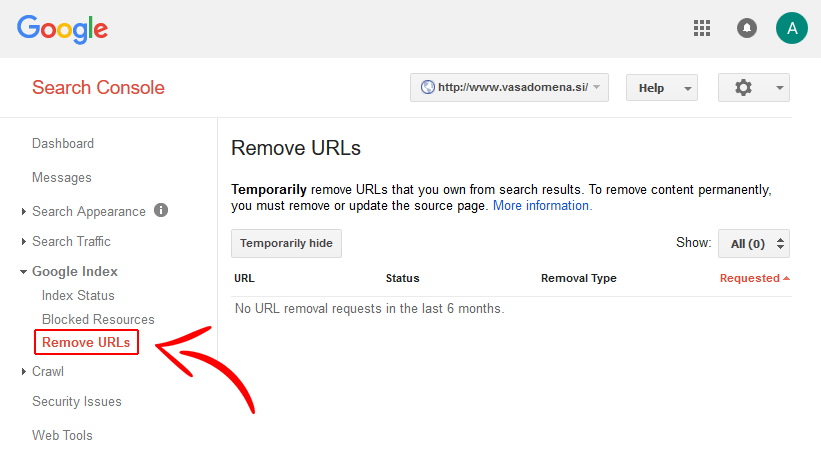
Click Temporarily hide, enter the URL of the unwanted subpage in the box and click Continue. Then select the type of request that temporarily hides the page from the search results and removes it from the cache, and click Submit Request to confirm your selection.
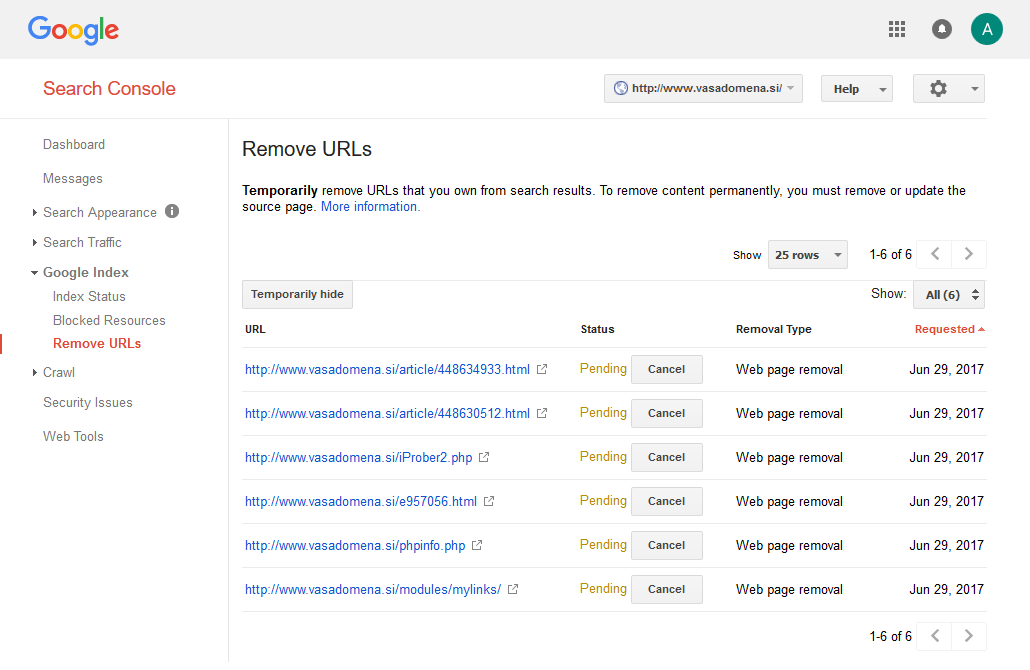
As you need to repeat the process for all malicious links, we advise you to make a comprehensive list beforehand. This will help you get the job done faster and make it less likely that you will forget about any of the unwanted links. After adding a few entries, the Google Search Console will look something like this.
Do not use the URL Removal Tool to delete pages that you added to your website before the web virus occurred, but that were subsequently changed as a result of the web attack. Use URL removal only for pages that you never want to appear in search results.
Once you’re done adding unwanted links, you’ll need to wait a while for Google to process your requests. This means that the links will not disappear from the search results immediately, but you will have to wait a little longer. Usually the process only takes a few hours or days.
Prevent web viruses from attacking you again!
To prevent your website from being affected by a web virus again, you should take various measures to ensure that it is properly secured.
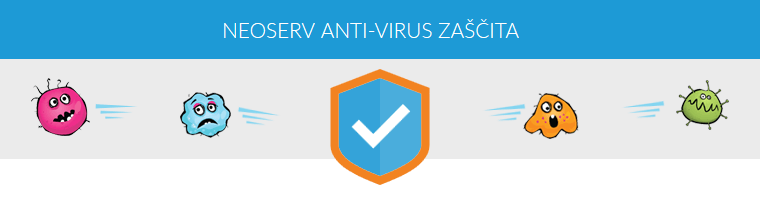
1. Start by moving your site to a reliable hosting provider that prevents the possibility of a web virus at server level. We have so-called NEOSERV anti-virus protection, which detects security holes in websites and automatically patches them. This process is completely invisible to visitors and does not affect the performance of the website.
2. Check whether your hosting package may contain old versions of the website that you no longer use. It is possible that your website builder built your website on a subdomain or directory, and then moved it to an umbrella directory when the site was finished, but did not delete the old versions. Since the old versions are most likely not up-to-date, they could be the reason for the security problem. If you find them, delete them.
3. You’ve probably heard that the best way to protect yourself from the ransomware viruses that have been widely reported lately is to keep your operating system up to date. The same is true for websites. If your web content management system is not up to date, you will be a much easier target for online attackers. It is very important that you regularly update your core system, plugins, graphic templates, etc. Especially if you use WordPress, regular updates will save you a lot of inconvenience.
4. Change all passwords that are in any way linked to the website. Change the password for FTP access, database access, system administration (e.g. WordPress password) and any other users’ passwords. Use an online password generator that will generate strong passwords for you using letters, numbers and special characters.
5. Make regular backups, so that if there is a problem, you can restore your website to the way it was before the web virus attack. If your site is hosted by NEOSERV, you can restore your site to the way it was a day, a week or a month ago with just a few clicks in the cPanel control panel.
COMMENT THE POST
Your comment has been successfully submitted
The comment will be visible on the page when our moderators approve it.