


- Your cart is currently empty.
How to Remove Viruses from a Hacked WordPress Website


WordPress is the most widely used tool for building websites, with 27% of all websites, or more than 60 million websites, built with it. This is great news for WordPress owners, but also for cyber attackers, for whom it is the most common target of attack. Thousands of websites are newly infected every day, and if yours is one of them, this post may help you to resolve the situation.
Signs that a website is infected
Before you start to deal with a website, check whether it has actually been infected. The most common signs that a site is infected are:
- Displaying images and other content that you did not upload.
- Instead of content, a blank white page and an error 500 are displayed.
- The page is redirected to another page that is not owned by you.
- A pop-up window of unknown origin appears on the page.
- The SEO tool records unusual traffic or keywords that have no relation to the content on the page.
- Your hosting provider has suspended your site.
- A large sudden drop in web traffic.
- The site has disappeared from the search results of Google, Bing and other search engines.
A simple test can check whether your page contains unwanted content. Type into Google: site:moja-domena.si (instead of moja-domena.si, enter your site’s domain) and see if Google finds content that shouldn’t be part of your site. If you suspect that your site has been infected, check it with one of the free tools VirusTotal, Quttera or Web Inspector.
How did the website get infected?
To avoid infections in the future, it is important to understand how they usually occur. Here are the four most common causes.
1. Incorrect file permissions set
Setting the right permissions for files in WordPress is crucial. If they are not set correctly, you become an easy target for online attackers. We recommend that you set the following permissions for individual items:
| Element | Permission |
| Folders | 755 |
| files | 644 |
| wp-config.php | 600 |
2. Unupdated WordPress, graphic template or plugins
A common cause of infection is an unupdated site or parts of a site. In addition to improved functionality, user experience and other elements, the purpose of updates is to make the whole website more secure. It is important to always use the latest versions of all parts of the website. Below we will look at how you can update each of these elements.
WordPress
You can easily update the core of your website, WordPress itself, in four easy steps:
1. First, back up your site in case upgrading to the latest version causes errors on your site.
2. Log in to your site’s administration.
3. Under Dashboard, select Updates.
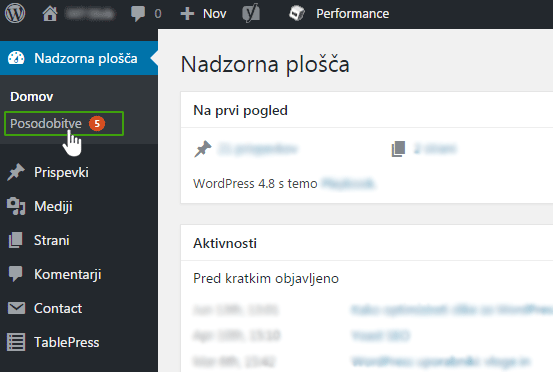
4. If a new version of WordPress is available, select Update Now.
Graphical template
Updating the graphical template is done in a similar way to upgrading WordPress itself.
1. First, make a backup of your site.
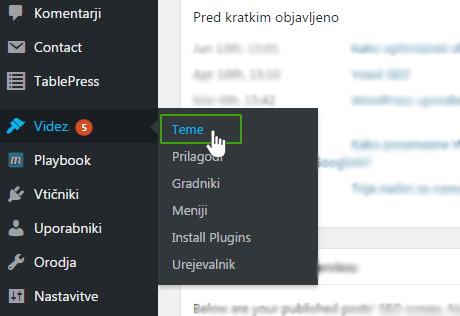
2. Under Appearance, click on Themes and select Update for your graphic template.
Plugins
Regardless of the number and type of plugins, it is recommended that you always use the latest versions of all of them. If a number appears next to the Plugins section, it means that one or more of the plugins needs updating.
1. Click on the Plugins heading and from the list of installed plugins, find the ones that need updating and click on the update now link.
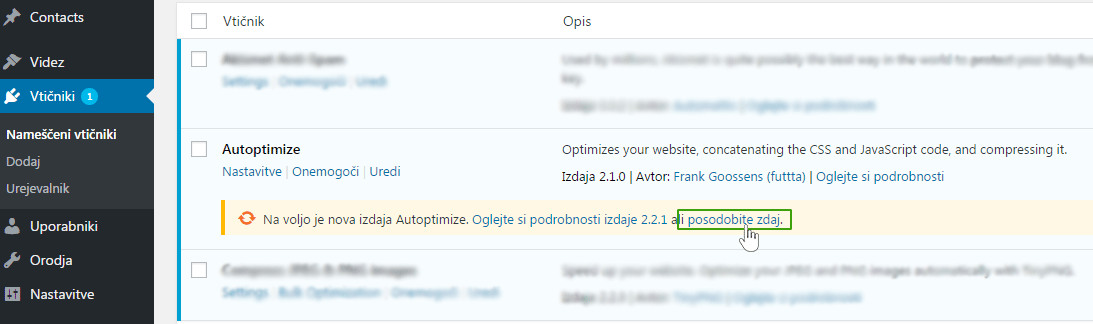
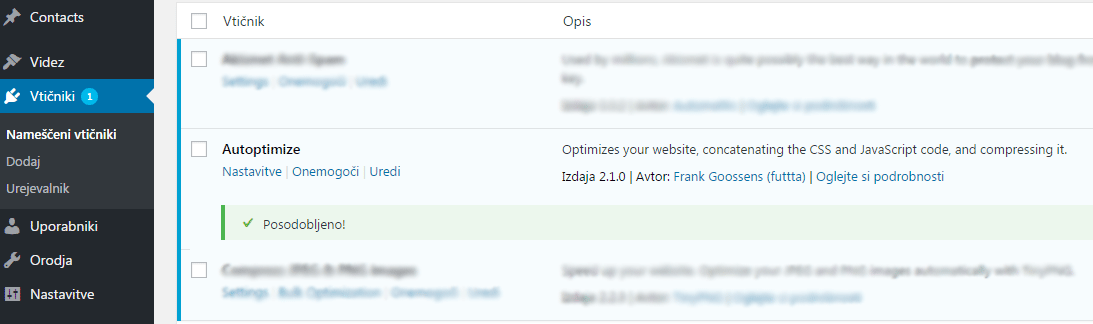
2. When the plugin is updated, WordPress will display a notification:
3. Unreliable hosting
If your website is hosted with a provider that does not offer the most up-to-date servers and software, then the security of your website is also at risk.
If you are hosted with NEOSERV, then you can be worry free as we only use the latest equipment. In addition, we use automatic security checks on the server, we make daily backups of all websites hosted with us, we have a firewall included and automatically set the appropriate file permissions. In addition, we offer expert technical support so that we can help you in the event of an infection if you are unable to resolve the problem yourself.
4. Ineffective username and password
We’ve already written about the importance of using a secure username and password in our post Secure username and password in WordPress.
Let’s reiterate the main rules to follow when choosing a username and password:
- Replace the default username with admin.
- Do not use personal names or dictionary words when choosing a username and password.
- Passwords should be at least 12 characters. It should contain upper and lower case letters, numbers and special characters (e.g. $, ^, €, [, @).
If you have trouble creating a secure password, you can use one of the tools that automatically generate a password for you: Strong Password Generator or LastPass Password Generator.
How do I resolve an infected page?
Once you’ve determined that your WordPress website is infected, it’s time to remove the infected files or parts of it and restore the website to its original state. There are three steps you can take to rescue your site.
1. Install and use an anti-virus program
If you don’t already have a proper anti-virus program installed, this is the first step to saving your website. It is important to clean your computer of malware before you start working on the website itself, otherwise all your work may be for nothing. We recommend that you choose one of the most reliable anti-virus programs:
- Avast, AVG or Avira,
- paid: Kaspersky, ESET NOD32 or McAfee.
2. Back up your site
If you have arranged hosting for your site with NEOSERV, then backups are taken care of, as we make them every day. However, we advise you to use one of the plugins that allow you to make additional backup copies that can be stored on applications such as Google Drive, Dropbox and others. We wrote more about this in our post Top 4 plugins to backup your WordPress site.
3. Clean up your website
Once you’ve completed the previous two steps, it’s time to get to work cleaning up your infected site. There are two ways to do this.
a. Using a plugin
Using a suitable security plugin will detect and clean infected files, which is certainly the easiest method. We advise you to use VaultPress, WordFence or iThemes Security.
Be very careful when using iThemes Security, as the plugin can also place search engine bots (Google, Bing, etc.) on the list of blocked IP addresses. This means that bots are prevented from accessing your website, which can lead to your site not being visible in search engines. You can remedy this problem by adding the IP addresses of the bots in question to the so-called“Whitelist“, a list of allowed IP addresses. Read more here.
b. Handwritten by
An alternative and more complex method is to clean the infected files manually. The procedure itself depends on the type of infection. Delete only the infected file or part of it, otherwise your website may not work. If you do not know whether a particular file is infected, check it with the online tool VirusTotal.
HTML files
WordPress does not normally use HTML files within the site’s overarching folders. If you come across a suspicious HTML file while investigating, it is possible that it has been installed by a web attacker. Remove it from your hosting package and check the website again using the tool mentioned above.
Last modified files
If you notice a change to a file that you have not modified yourself, this may be a sign that it is an infected file. It is likely that only part of the file is infected, so do not delete the whole file as this may compromise the performance of your website.
Infected content on a website
If you see content on your site that has been added by a web attacker, for example:‘hacked by‘ or‘buy cheap‘, look for this content in the core of your WordPress site. Identify the infected file and remove it.
Look for commonly used malicious code
There are many ways in which online attackers infect a website. One way is to use a command to run malicious code. Investigate the code and look out for the following commands:
- exe,
- eval,
- inurl,
- base64,
- base64_decode,
- isadmin,
- iframe,
- gzip_uncompress.
Compare the backup copy of your site with the infected one
If you have followed our advice and made a backup copy of your site, you can compare the contents of the files against each other to detect unwanted changes to the file. This is a time-consuming process and should only be undertaken if none of the above works.
Keep your site secure
You probably don’t want to face a similar problem again, so we advise you to consider the following points to help you effectively protect your website from infection.
- Use only the latest, updated versions of WordPress, graphical templates and plugins.
- Your website should be hosted on the most up-to-date servers.
- Remove all inactive graphic templates and plugins that you are not using.
- Only download graphical templates and plugins from reliable sources.
- Use only one or two administrator accounts, set the author or editor level for other users.
COMMENT THE POST
Your comment has been successfully submitted
The comment will be visible on the page when our moderators approve it.