


- Your cart is currently empty.
Understanding SSL and HTTPS: All You Need to Know

Since 2014, Google has recommended that websites run on the secure HTTPS protocol. This advice was initially mostly followed only by online shops. But that all changed when Google announced that it would rank sites running on HTTPS higher in search results. A further change is expected in October 2017. If a website contains any data entry element (for example, a contact form or newsletter subscription form) and is running on HTTP, the page will be marked Not Secured.
The use of HTTPS is therefore very important for all website owners. In this post, we’ll look at everything you need to know about it and how to activate it using an SSL certificate.
Understanding HTTPS
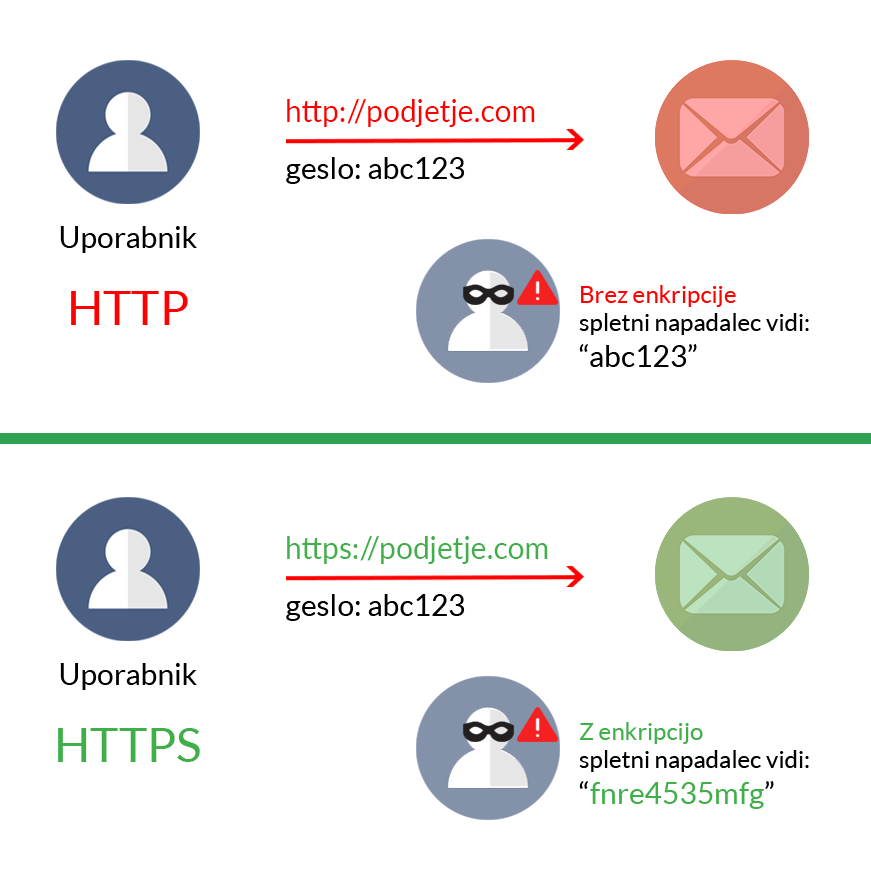
HTTP stands for HyperText Transfer Protocol, which stands for Internet Protocol for Transferring Information over the Web. It is mainly used to transfer data between a server and a user in order to display the desired web content to the latter. This protocol has been used by all websites in the past. Its biggest disadvantage is that the data flows between the server and the browser completely unprotected, making it easy for web viruses to intercept and abuse it.
HTTPS stands for HyperText Transfer Protocol Secure. It is a protocol that has an added security element. When using it, data is encrypted, which is achieved by using an SSL(Secure Socket Layer) certificate. The data is displayed in a readable format only to the user of the website. Even if the data is intercepted by a web virus, it cannot be read due to the encryption.
HTTPS is further protected by theTransport Layer Security(TLS) protocol, which ensures the integrity of the data and prevents it from being altered or otherwise manipulated during transmission. This means that the web user will actually arrive at the website they wanted to visit and will not be redirected to a fake site.
If the website is on the secure HTTPS protocol, this will also be immediately noticeable to web users. A glance at the URL of the website will immediately reveal which protocol the website is using. Some types of certificates also provide additional visual elements or seals to make it even clearer to the user that they are on a secure connection.
Benefits of using HTTPS
We mentioned at the beginning of this article that using HTTPS helps improve search engine optimisation (SEO). We will look in more detail at three important benefits of using HTTPS:
1. Better search engine rankings
On 6 August 2014, Google announced on its official blog that it would rank sites using HTTPS higher. A secured website also generally ranks higher because it is visited by more web users, who trust it more than an unsecured website. More visits also make Google perceive your page as more relevant to other web users, which again ranks your page higher in search results.
2. Building trust
The HTTPS protocol encrypts all communication between your site and the web user, so they don’t have to worry about entering sensitive information, including:
- Personal data,
- usernames and passwords,
- bank details.
Knowing that their data is safe, users will also feel free to download the content you offer on your site or make a purchase if you have an online shop. Using HTTPS will therefore have a positive impact on your online visibility and online sales performance.
3. The possibility of using AMP
AMP stands for Accelerated Mobile Pages and stands for Accelerated Mobile Pages. As mentioned earlier, more and more users are using mobile devices to browse the web, which makes it even more important that your site uses AMP. At its core, AMP is a stripped-down version of HTML that allows a website to load significantly faster on mobile devices, providing a better user experience. If you want to use AMP on your site, then you need HTTPS.
How fast does your website currently work on mobile devices? Test it with mobiReady.
SEO settings after switching to HTTPS
When you make the switch from HTTP to HTTPS, you may encounter certain problems, mainly related to search engine optimisation. Below we will look at the most common scenarios and their solutions.
a. Ensure correct permanent redirects (301).
Once you have made the switch to HTTPS, you will need to ensure that you have proper redirects in place to redirect visitors from the old URLs to the new ones. To do this, add the following code to your .htaccess file:
RewriteEngine On
RewriteCond %{HTTPS} off
RewriteRule (.*) https://%{HTTP_HOST}%{REQUEST_URI} [L,R=301,NO]
If you have a WordPress website and don’t want to deal with any code, you can also use a dedicated plugin (e.g. WP Force SSL) to create redirects.
b. Notify Google that you have made the switch from HTTP to HTTPS.
It’s true that sooner or later Google will detect the change on your site and figure out for itself that you’re using HTTPS, but this can take a long time. So please inform Google as soon as possible after installation that you have started using a secure protocol. To do this, add your secure protocol domain to the Google Search Console:
- https://moja-domena.si,
- https://www.moja-domena.si.
c. Be careful when switching from HTTP to HTTPS.
Google Search Console and other analytical tools can help you to check that the transition is error-free. If they do occur, correct them as soon as possible so that any malfunctioning of the site does not negatively affect SEO.
HTTP to HTTPS migration process
Now that you know all the benefits of HTTPS, it’s time to use it on your website or shop. To make the transition to HTTPS as easy and, of course, successful as possible, we’ve put together a step-by-step guide.
- Order the right SSL certificate for your website on our SSL Certificates page. Not sure which one is right? Contact our support team and we’ll be happy to advise you.

2. If you order an SSL certificate from us, we will install it for you free of charge. If you want to install SSL on your website yourself, please follow these steps.
3. Before switching to HTTPS, we advise you to make a backup copy of your website. If you have a WordPress website, you may find this post Top 4 plugins for backing up a WordPress site helpful.
4. Replace all HTTP web addresses on your site with HTTPS. If you are using WordPress, this is easy to do with one of the dedicated plugins. In addition, make sure you update all the links in your database, using the Better Search Replace plugin.
5. Check all external links pointing to your site. Change those that you can manage from HTTP to HTTPS accordingly.
6. Use the Screaming Frog tool to check that all connections are properly set to HTTPS.
7. Make sure you have permanent 301 redirects. We wrote more about this in the blog post Setting up permanent 301 redirects in .htaccess.
8. Enable HSTS to tell browsers to always use HTTPS. It works in a similar way to 301 redirects, except in this case at the browser level. If your website is built in WordPress, add the following code to the .htaccess file:
# Enable HSTS on WordPress
 Header set Strict-Transport-Security "max-age=2592000; includeSubDomains;
 preload" env=HTTPS
As you can see, it takes some effort and time to get your site to work exclusively on HTTPS. But all the effort will pay off in the end, thanks to all the benefits we mentioned in the first half of this post.
When you start to make the switch to HTTPS, make sure you take enough time to get all the steps right. HTTPS has already become a standard protocol, which means that you will have to use it sooner or later. The longer you wait, the greater the chance that your competitors will overtake you and take away at least some of your potential visitors or customers.
Do you find the whole process of switching to HTTPS too complicated? Contact our technical support and together we’ll find a solution.
COMMENT THE POST
Your comment has been successfully submitted
The comment will be visible on the page when our moderators approve it.