


- Your cart is currently empty.
17 Common WordPress Mistakes Beginners Make

Around 25% of all websites on the World Wide Web are built on WordPress. This number is growing year on year, and with it the number of beginners who are encountering the popular system for the first time. If you’re one of them, today’s article will come in handy, as you’ll undoubtedly make far fewer beginner mistakes than you would otherwise.
Oscar Wilde once wrote: “Experience is the word we humans use to describe our mistakes.” But why should we always learn from our own mistakes when we can learn from others’ mistakes and avoid our own gracefully if we can?
Here are 17 of the most common mistakes in WordPress, usually made by beginners, but sometimes also by “old cats”.
1. Choosing the wrong platform
The first mistake is when choosing the platform itself, as beginners often don’t distinguish between WordPress.org and WordPress.com. Let me briefly outline the main difference.
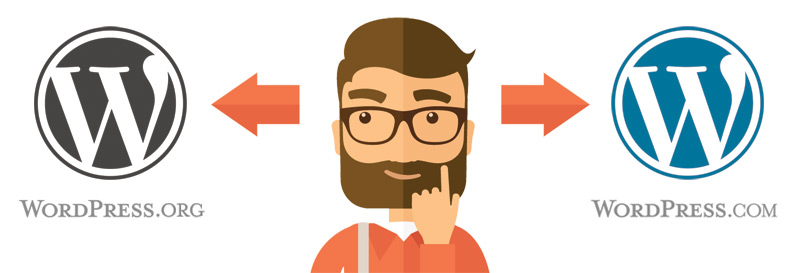
WordPress.org is a community of individuals developing the open source (free) CMS solution WordPress. On this website, it is also possible to download the platform to disk and then install it on a server. To use the system, you need your own domain and you also need to have a web hosting subscription.
WordPress.com is a huge platform hosting millions of blogs. The blogs are mostly accessible on subdomains of wordpress.com, but the system also allows you to use your own domain. In this case, a fee is required to use the platform.
You can read more about the differences between WordPress.org and WordPress.com in this blog post.
Most beginners are attracted by the possibility of setting up a free site on the wordpress.com subdomain, but many disadvantages soon become apparent that force users to use the WordPress system in the true sense of the word. That is, one that is set up on a leased server and requires its own domain.
If you need a website over which you have full control, register a domain and lease quality web hosting. The WordPress.com platform is particularly suitable for bloggers who are only interested in being able to publish their writings free of charge, but have no particular preferences regarding the appearance and functionality of their blog.
With NEOSERV, you get access to the cPanel control panel when you purchase hosting, where you can install WordPress in just a few steps. See here for simple instructions on how to quickly set it up.
2. Using the default administrator name
When installing WordPress, you need to choose a username. The default name is “admin“, which many people do not change. Avoid this mistake as it can cause you a lot of problems. As online attackers are well aware of this error, they use scripts to test all sorts of passwords in combination with the default username. It’s only a matter of time before they manage to break into your website and compromise it with malicious code.
When installing your system, make sure you choose a good password consisting of letters, numbers and special characters.
3. Use the default slogan
Just like you need to change your default username when installing WordPress, it is highly recommended to change your slogan, which in English looks like this:
Another WordPress website / My WordPress blog
In English, you’ve probably come across one of the following:
Just another WordPress site / My WordPress Blog
This is a short entry that is supposed to tell visitors what the blog will be about. For business websites, the text is often used as a company slogan.
We recommend that you change the text when you install WordPress, as it will be visible as a meta description in Google search.
You can also change the slogan directly in the WordPress administration. Find Settings in the left-hand menu and select General. If you don’t think you need the slogan, delete it and click Save Changes.
4. Presence of sample content
After installing WordPress, you will notice that your website already contains a Sample Page and a Sample Post. One very common mistake that beginners make is not deleting these pages. This way, they are found by search engine spiders, which has a negative impact on the ranking of the website in search results – for example in Google.
Delete the sample page and the sample post immediately after installing WordPress. You can find the content in the administration by clicking on Posts and Pages.
5. Website without a favicon
The word favicon refers to the small icon next to the title of a web page at the top of the browser. A favicon, like a logo, is a kind of ID card for a website, so it is advisable to use one.

Paid WordPress graphic templates usually allow you to add an icon directly in the template settings, but most free ones allow you to add a favicon here:
Appearance-> Customize-> Site Identity
6. Using the wrong permalink structure
The structure of permalinks is closely related to the optimisation of web pages. The default setting is linked to the ID of each subpage or post, which means that the links look something like this:
- http://www.vasa-stran.si/?p=1
- http://www.vasa-stran.si/?p=2
- http://www.vasa-stran.si/?p=3
This structure is not friendly to web users or search engine spiders, which also take the link structure into account when ranking search results.
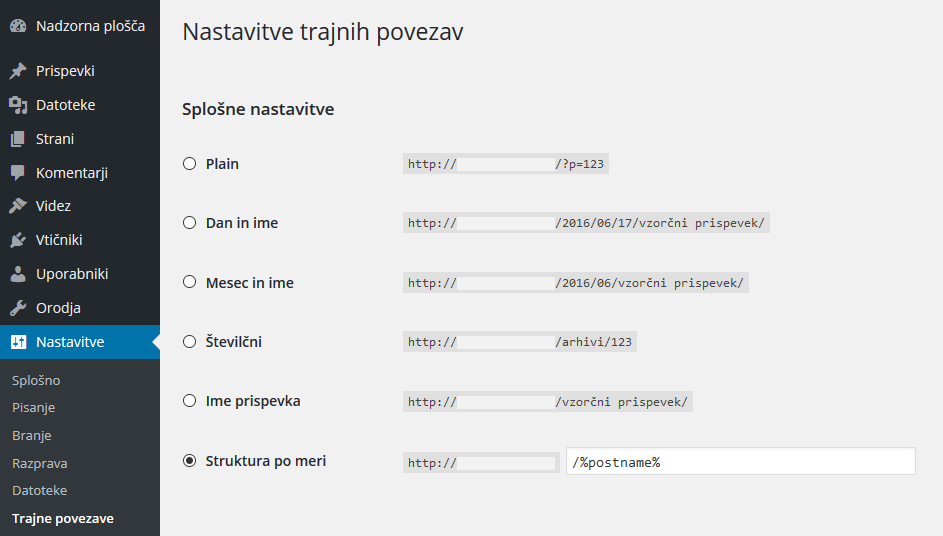
In the WordPress admin, hover over Settings and click on Permalinks, select Custom Structure, enter /%postname% in the field and save your changes.
7. Obtaining a graphic template from suspicious sources
We have helped clients who have rented web hosting from us several times to clean up a web virus on a WordPress site. They usually showed up with a number of subpages added, which contained spam and a whole host of malicious links.
In quite a few cases, it turned out that the compromised graphic template had been downloaded by the client from a suspicious site on the web. In several cases, the template was also downloaded using a torrent client.
You can see a verified database of free graphic templates on the official WordPress.org website, or if you want your site to look even more professional, we recommend buying a template from ThemeForest.
8. Choosing a bad graphic template
Choosing the best possible graphic template that is consistent with the content of your website is crucial. Think carefully before you decide on a template to see if it will meet all your needs. You should also search online for a demo version with sample content, images and other elements added, as this will give you the easiest and quickest way to see what the template can do for you.
Make sure your graphic template is also mobile-friendly!
9. Not using the contact form
WordPress beginners often make the big mistake of only creating a contact details page for communicating with their website visitors, and then including their email address. When it’s just a simple blog, the problem is not so big, but in the case of a business website, there can be many missed opportunities.
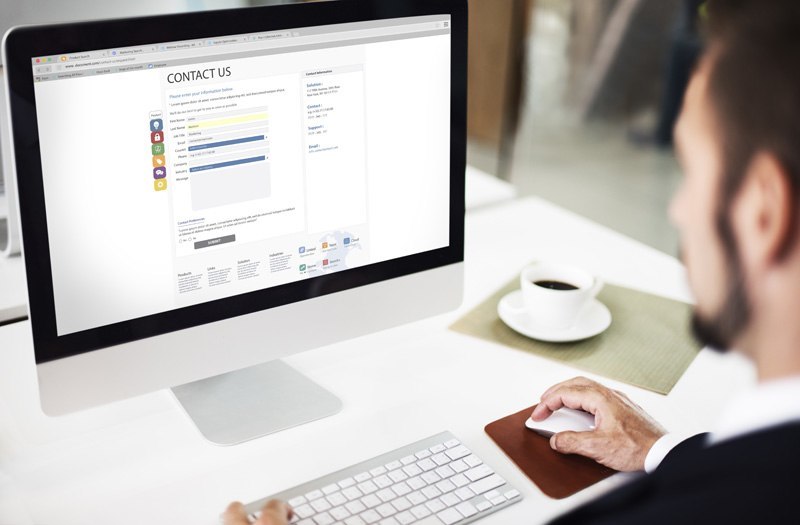
It’s best to place the contact form in the side column of each sub-page, so it’s always visible to visitors. Many people don’t feel like searching for an email address and writing an email, and find it much easier to send a message via the form on the page.
I recommend that you install a contact form on your website using one of the following free plugins: Contact Form 7 or Fast Secure Contact Form.
10. Incorrect copying of content from MS Word and similar programs
There are two disadvantages to producing text in Microsoft Word and similar programmes. Firstly, your computer may stop working while you are writing, so in the worst case your whole work could go wrong. This will not happen in the WordPress editor, which saves what you have written on the fly.
However, there is also a problem when you use the copy and paste function, i.e. when you want to copy all the text from Word into the WordPress editor. This is because not only the text is copied, but also the styles, which results in the source code of the new post containing redundant HTML tags.
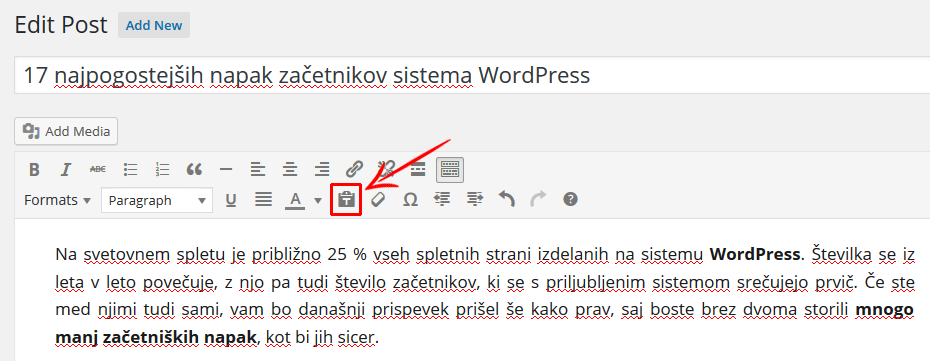
If you still want to copy text from Word to WordPress, click on the button marked with a T at the top of the text editor before copying. This will only copy the text, not the styles.
11. Missing or unoptimised meta tags
The most important meta tags are the title and the description. You can see the meta title (or at least the beginning of the meta title) in a single tab at the top of your browser, as well as in search results in search engines. Meta descriptions also appear in the latter, briefly explaining to internet users what they can expect to find on a particular page and encouraging them to click on it.
Google’s search engine sometimes does not take into account meta information that is manually entered into a web page. Instead, it prefers to show information that it considers more relevant to web users.
The landing page and all subpages require unique meta titles and descriptions. Quality meta tags have a positive impact on the user experience, and the meta title is a more important part of the algorithm that Google uses to rank search results.
Install a website optimisation plugin that (among other things) allows you to add meta tags. The most popular plugin among WordPress experts is Yoast SEO, so it’s a good idea to try it out for yourself.
12. Missing sitemap
A sitemap in .xml format is also an important part of optimisation. It makes it easier for web crawlers to find their way around the site, so there is much less chance of not finding certain subpages. Especially those that are hidden deep inside the website and not linked to from the main menu.
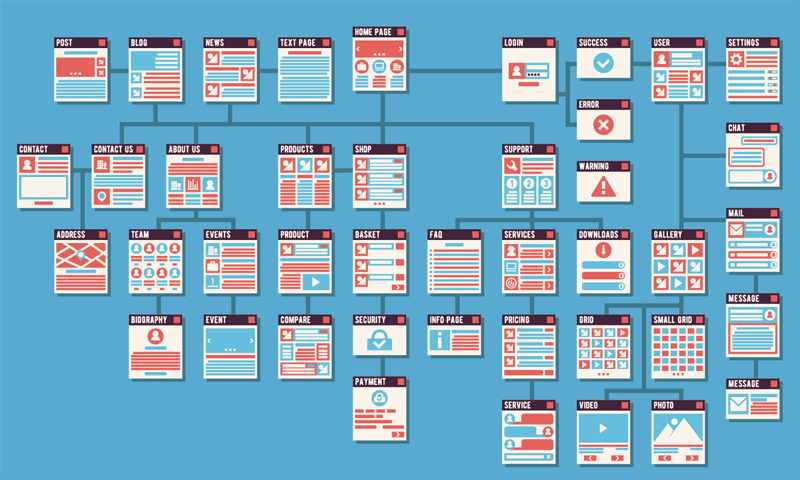
If you have no experience with web page layout, things are probably not clear to you at the moment. Don’t worry, WordPress plugins take care of the sitemap too. And we can recommend Yoast SEO in this case too, as it makes it easy to create an XML sitemap.
Once you’ve installed the Yoast SEO plugin, click on XML Sitemaps and choose what you want to include in your sitemap (pages, posts, categories, etc.).
13. Missing Google Analytics code
Every website owner wants to know how many visitors come to their website, which subpages are visited the most, how long visitors stay, which days of the week they visit the most, etc. Google Analytics does all this and more, and it’s completely free to use. All you need is a Google account.
Google Analytics needs to receive data from your website, otherwise the app would not be able to record any statistics. The data is sent via JavaScript code, which must be added to the source code of each subpage of the website.
Sound complicated again? Don’t worry, many WordPress plugins have been developed for this purpose too.
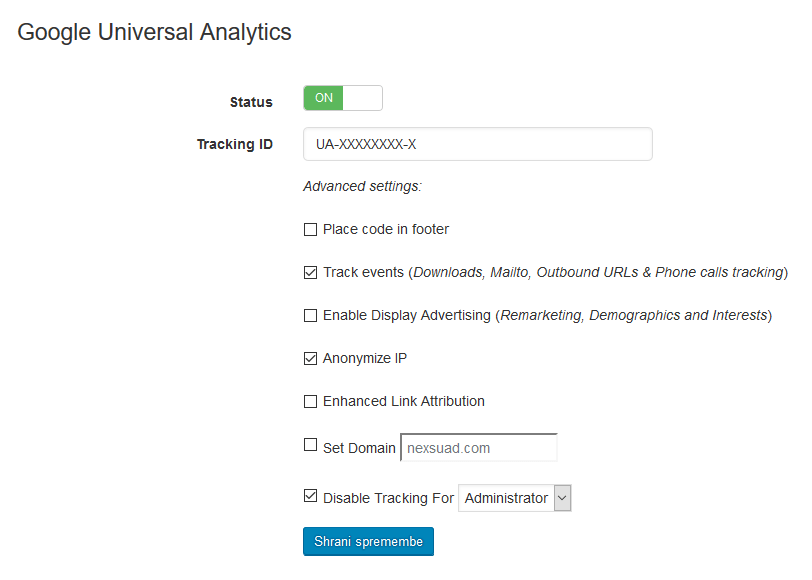
One of the simplest plugins for embedding Google Analytics code into a website is Google Universal Analytics. It contains just a few basic settings that are quite sufficient for both the beginner and the average user.
14. Use of oversized / unoptimised images
It is becoming more important every year to display web pages quickly. Most web users today have neither the time nor the patience to linger on slow pages.
Page load speed is one of the most important elements of Google’s ranking algorithm. Fast-responding pages rank higher, in more visible and more visited places.
Optimised images make a huge contribution to page load speed. Another way of putting it is that too many images are one of the main reasons why websites are slow.
Always reduce images in an editing programme such as Photoshop to the correct size first, then save them for web publishing ( Save for Web & Devices).
I advise you to compress each image before publishing using Kraken.io or TinyPNG. You can also use the WordPress plugin WP Smush, which allows both compression of already published images and live compression.
15. Not using caching
Most WordPress beginners don’t know what caching is, so they don’t even think to install a plugin that does it.
So what does caching mean? First of all, you need to know that WordPress sites are dynamic, as all content, links, metadata, etc. are stored in a database that is linked to the site. Without the use of caching, visitors click through the page and make requests that retrieve data from the database. This is quite time-consuming and the low responsiveness is particularly noticeable when many visitors are present on the website at the same time. Caching allows the creation of static pages that are displayed more quickly, as the entire content is always re-generated and the repeated execution of requests to the database is not necessary.
The most popular plugin for using caching is W3 Total Cache. The default settings usually go a long way to speeding up loading, and I recommend reading this article to speed things up even further.
16. Not updating the kernel, plugins and graphical templates
As WordPress is by far the most popular system for setting up websites, many online attackers have specialised in it. The easiest way to break into a website is through security holes caused by unupdated core, plugins or graphical templates.

It’s understandable that beginners are reluctant to click the Update button in the WordPress admin, for fear of something going wrong. But this is a big mistake. Regular updates keep your website safe, but if it’s not updated, it’s only a matter of time before it’s hacked. So update your website regularly!
If you have edited the graphic template in your own way (e.g. via a style.css file), you will lose all changes when you update it. You can avoid this problem by using a “child” template.
17. Neglecting security
Even if you’ve changed your default username, set a strong password, updated your system, installed plugins and graphic template, your WordPress site is still not completely safe from hacking and web viruses. And while it never will be, installing a security plugin can make it much safer.
Wordfence Security is considered the leader in security plugins, and we recommend installing it. It boasts a lot of functionality, but on the other hand, it is true that for a beginner, setting it up optimally can cause a few problems. That’s why we’ve decided to publish an article soon that will show you exactly how best to set up this plugin.
Get started, just like the experienced web masters!
Would you like to have your own website, but are worried about crashing somewhere? There’s no need for that! WordPress is the perfect choice for beginners who want to set up a blog or a simple website, as well as for businesses who want to present themselves on the internet with a professional website or an online shop.
Even if you have no experience, feel free to go out and create your first website. You’ll make at least 17 fewer mistakes than most beginners, which will undoubtedly lead to a better website, more visibility and, ultimately, success.
The path to your own website is simple:
1. Register a domain that suits you best (and is available for registration). We’ve written a guide to choosing the best domain for you in this article.
2. Get quality web hosting that will make your WordPress site run fast and error-free. We recommend purchasing the Orange or Green package.
3. Find the WordPress installation shortcut in the cPanel control panel and install it on your hosting package with just a few clicks.
4. Log in to the administration of your new website and start editing.
Get to work!
COMMENT THE POST
Your comment has been successfully submitted
The comment will be visible on the page when our moderators approve it.