


- Your cart is currently empty.
How to Deactivate WordPress Plugins? (4 Methods)

Plugins are an important part of every WordPress website. They provide additional functionality such as a contact form, SEO settings, newsletter form, the ability to set caching, custom fields, opening images in a pop-up window and much more.
When we try out new WordPress plugins, we often find that not all of them meet our requirements. In this case, it makes sense to deactivate and uninstall the unnecessary plugins. Usually, a simple deactivation within the WordPress administration is sufficient. But what if the administration stops working because of a problem with a particular plugin?
Sitemap
- Deactivating a plugin in the WordPress administration
- Deactivating a plugin via cPanel
- Deactivating the plugin via phpMyAdmin
- Deactivating the plugin with WP-CLI
1. Deactivating the plugin in the WordPress administration
Once the WordPress administration is running, there is no problem deactivating and removing the plugin.
1. After logging in to the WordPress administration, navigate to Plugins -> Installed plugins in the left menu.
2. For the plugin you want to uninstall, first click on the Disable sign.
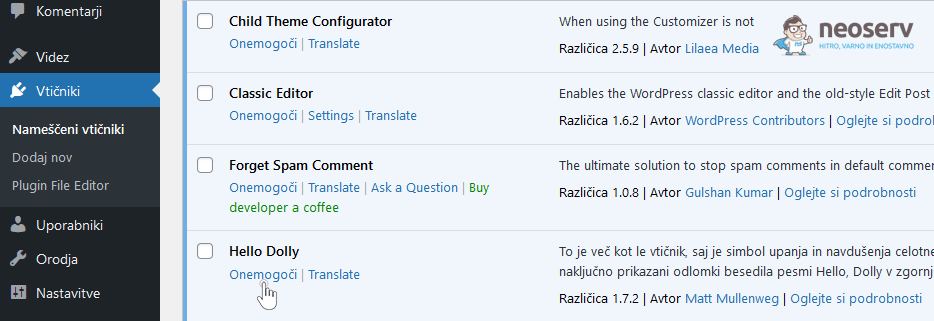
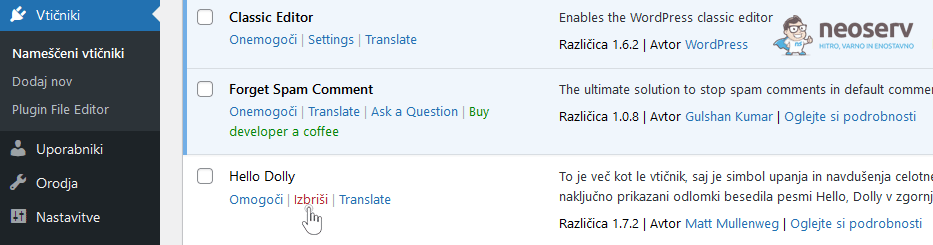
3. Wait a moment, then click Delete on the same plug-in.
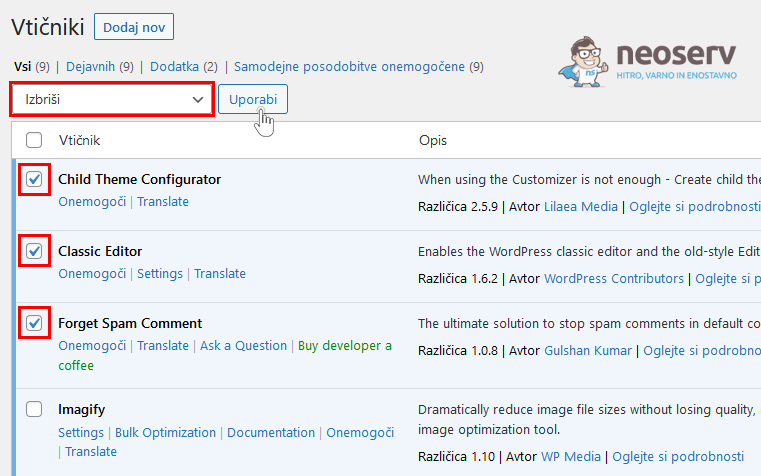
You can also deactivate or remove several plug-ins at the same time. To do this, tick the plugins you want (the box to the left of each plugin name), then select Disable or Delete from the drop-down box above the list of plugins and click Apply.
This is how you delete plugins via the WordPress administration. If you happen to want to reinstall a plugin, just navigate to Plugins -> Add New. Find the plugin, install it and activate it.
2. Deactivate the plugin via cPanel
Did your WordPress administration stop working after installing or updating a plugin? Maybe the whole website? Don’t worry, you can easily fix the problem. One option is via the cPanel control panel.
1. Log in to the cPanel Control Panel (login instructions).
2. In the FILES icon section, click on File Manager.
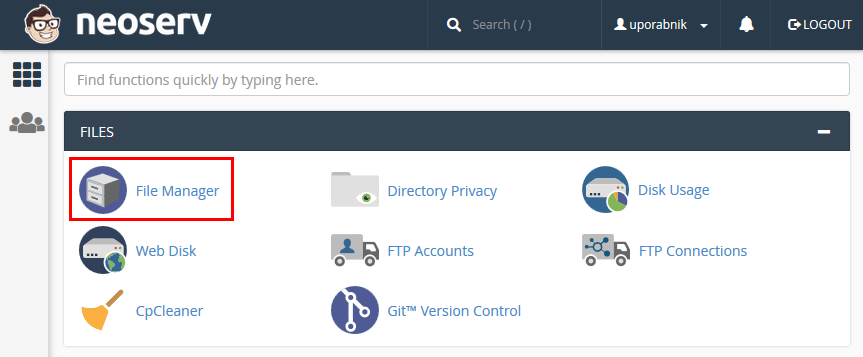
3. In the directory where your WordPress website is stored, open the wp-content/plugins folder. Rename the folder of the plugin that is causing the problem. To do this, right-click on the plugin folder and select Rename.
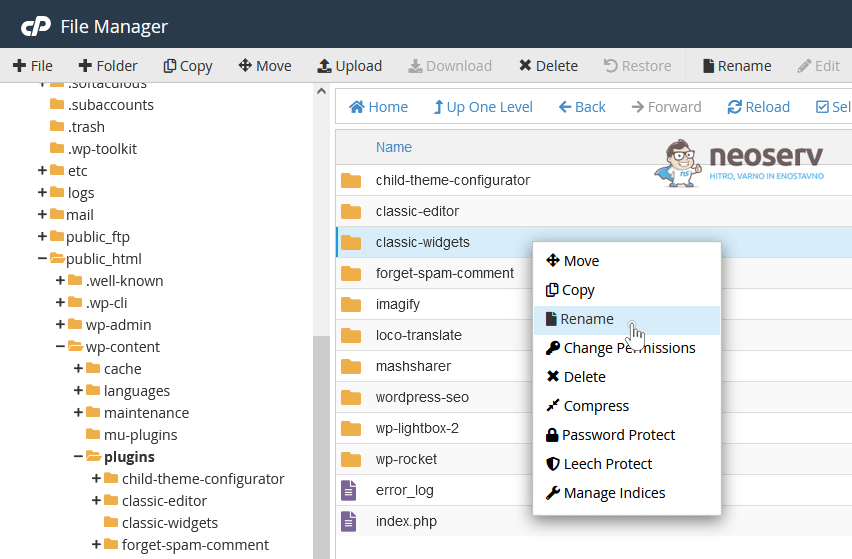
Example: if the problem is caused by the Classic Widgets plugin, rename the classic-widgets folder to classic-widgets.old.
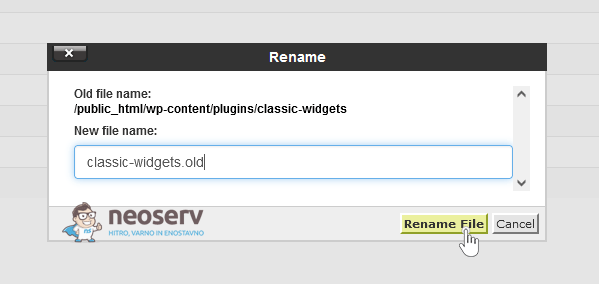
This deactivates the plugin. You can now try logging in to the WordPress administration again.
If the WordPress administration still does not work, we advise you to rename and thus deactivate the other plugins. Preferably one at a time, but in the meantime try logging in to the administration, as this will help you find out which plugin is causing the problem.
GOOD TO KNOW: If you use an FTP client to access your website’s files and folders, you can also deactivate plugins by renaming their folders.
3. Deactivating a plugin via phpMyAdmin
You can also deactivate WordPress plugins via phpMyAdmin. As this method requires you to modify the contents of the database, it is only suitable for more advanced users and you are advised to make a backup of the database before proceeding.
Instructions: https://www.neoserv.com/help-center/create-website-backup
Once you have exported the database to your local device, follow these steps:
1. Log in to the cPanel control panel (login instructions).
2. In the DATABASES icon section, click on phpMyAdmin. The database tool will open in a new tab.
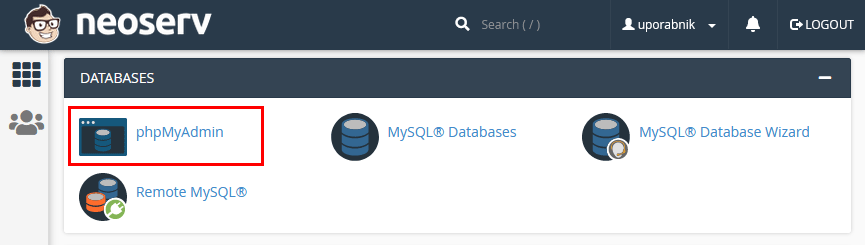
3. In the left column, select the database of your WordPress website.
You will find which database your WordPress website uses in the wp-config.php file. This file is located in the base folder where you installed your website.
4. Select the wp_options table (the prefix can be different) and find the row containing the record active_plugins. You will most likely find it on the 2nd page of the table.
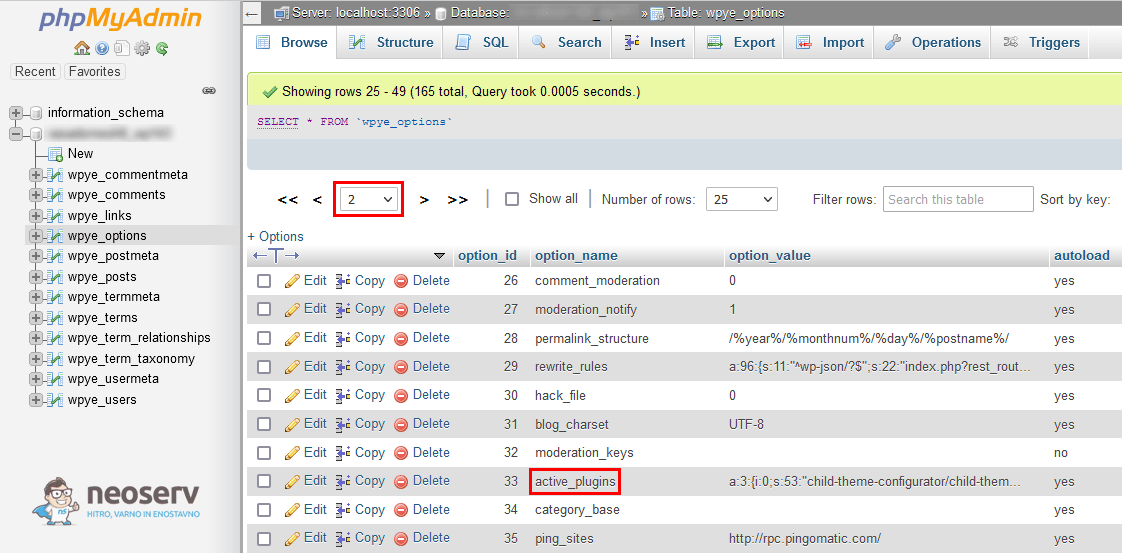
5. Now comes the step to deactivate all installed plug-ins. For the active_plugins row , delete its value ( option_value column). So, highlight the text, delete it and click outside the box with the mouse to save the change.
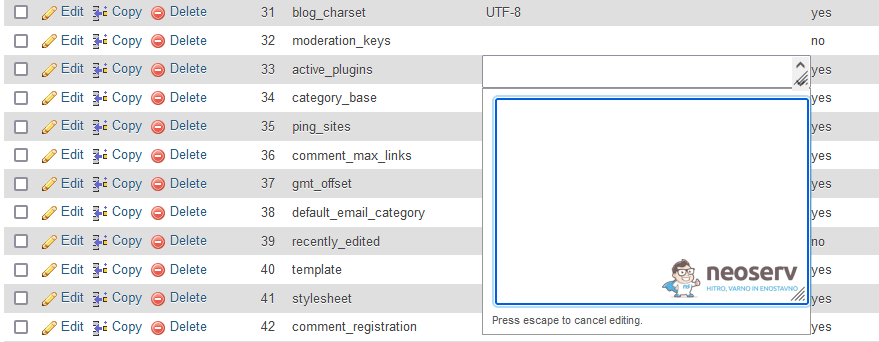
If you only want to deactivate a specific plugin, do not delete the entire record at the active_plugins value. Delete only the part of the record that refers to the plugin, and change the record at the very beginning of the value so that the number represents the new number of active plugins.
Example: the record a:5: at the beginning of the value means that there are 5 active plugins. If you are going to exclude one of them, you have to change the notation to a:4:.
GOOD TO KNOW: If an error occurs while modifying the data in the MySQL database, you can Drop the database tables and use the Import option to re-import the database that you exported to the local device before the procedure.
4. Deactivating the plugin with WP-CLI
WP-CLI is a great tool that allows you to manage your WordPress site via the command line. As it requires some coding knowledge, it is aimed at developers and advanced users. We do not recommend the use of WP-CLI for beginners.
SSH access is required to use WP-CLI. On NEOSERV hosting packages, we allow you to use SSH, which you activate in the My NEOSERV Subscription Centre (instructions on how to activate SSH). The WP-CLI tool is pre-installed, so you do not need to install it manually.
In WP-CLI you can use SSH commands to perform a wide range of tasks, one of which is to deactivate plugins. See below how easy it is to manage plugins via the command line.
A command that displays a list of all plugins (with names, status, available updates and version numbers):
$ wp plugin listA command to deactivate all installed plugins:
$ wp plugin deactivate --allCommand to deactivate a specific plugin (replace pluginname with the name of the actual plugin):
$ wp plugin activate pluginnameIf you are used to typing commands in the terminal, this method will probably be the most convenient for you, as you will be able to quickly deactivate plugins that may be causing problems with the WordPress administration.
COMMENT THE POST
Your comment has been successfully submitted
The comment will be visible on the page when our moderators approve it.