


- Your cart is currently empty.
Django Application on Web Hosting (cPanel)
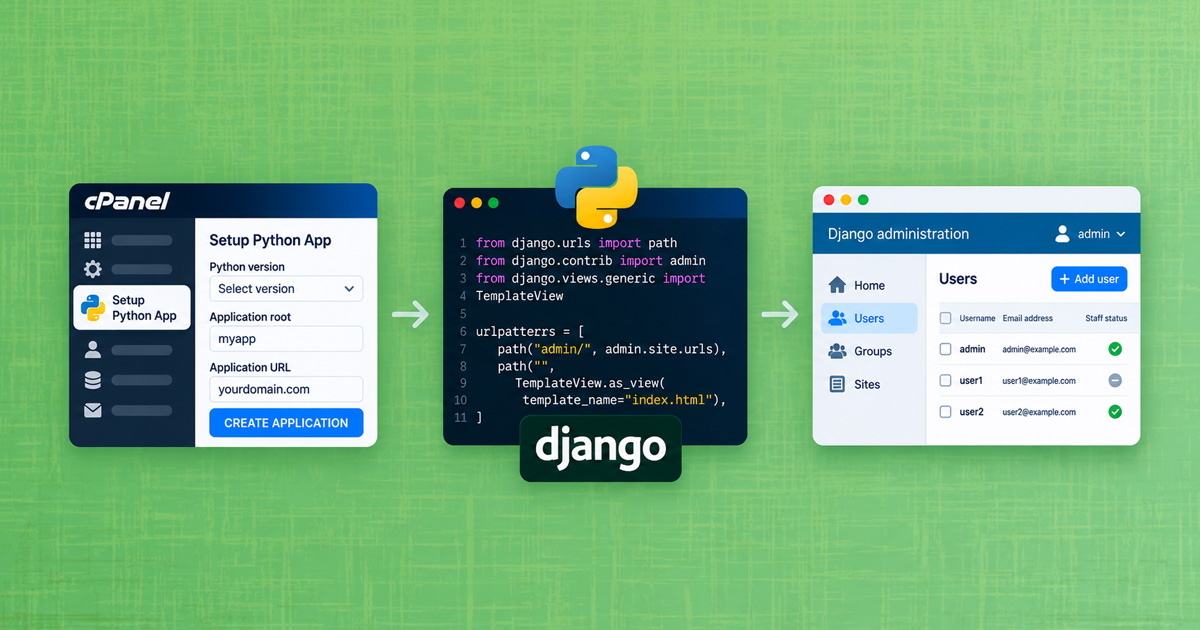

Django is a popular framework for the Python programming language that lets you quickly build powerful websites or applications with an administration interface, user accounts and a database. In this article, we’ll show you how to deploy a Django application on a hosting plan with the cPanel control panel, from creating a Python environment to getting the administration interface working.
By following these steps, you’ll have a Django application that:
- displays your first web page,
- loads the Django administration interface (admin) with all its styles,
- stores data in SQLite, MariaDB (MySQL) or PostgreSQL.
These instructions apply to Django 5.2 and 6.x.
Table of Contents
- What Do You Need
- Create a Python Application in cPanel
- Install Django and Create a Project
- Configure the Project for Your Server
- Set Up the Database, Administrator and Static Files
- Using MariaDB or PostgreSQL
- App in a Subdirectory with WordPress on the Same Domain
- Common Errors
- Pre-Launch Checklist
What Do You Need
To install a Django application on web hosting, you’ll need:
- A hosting plan with the Setup Python App icon (Green, Blue, Red, Reseller and Turbo plans).
- Command-line access via SSH or the Terminal application in cPanel.
- A domain where the application will run. In our examples, we use
yourdomain.comand the usernameusername. Replace both with your own details.
If you’re setting up Python in cPanel for the first time, read our article Python Application on Web Hosting.
Create a Python Application in cPanel
1. Log in to the cPanel control panel.
2. In the Software section, click Setup Python App, then click CREATE APPLICATION.
3. Fill in the fields:
- Python version: select 3.12 or newer. Django 6 requires Python 3.12 or newer.
- Application root: the directory where your application will be stored, for example
myapp. This directory is outsidepublic_html, so the application files aren’t publicly accessible. - Application URL: your domain and, optionally, a subdirectory. In this article, the application runs at the domain root (
yourdomain.com/). - Application startup file: leave blank.
- Application Entry point: leave blank.
4. Click CREATE.
5. At the top of the page, you’ll see a command for activating the virtual environment, for example:
source /home/username/virtualenv/myapp/3.12/bin/activate && cd /home/username/myappCopy this command, as you’ll need it in the next step.
Install Django and Create a Project
1. Connect to your hosting plan via SSH and run the command to activate the virtual environment. Your command prompt will now start with (myapp:3.12), indicating that you’re working in the application’s virtual environment. If you disconnect, repeat the command the next time you log in.
2. Install Django and the library for loading settings from the .env file:
pip install django python-dotenvIf your dependencies are listed in requirements.txt, install them using pip install -r requirements.txt. Don’t upload the venv and __pycache__ directories from your computer to the server.
3. Create a Django project in the application directory (the dot at the end is important):
django-admin startproject myapp .The myapp directory now contains the manage.py file and a myapp subdirectory with the project settings.
4. Create a directory for templates and your first page:
mkdir -p templates/static_pages
echo "Hello world!" > templates/static_pages/index.html
Configure the Project for Your Server
Before running your Django application on the server, you need to configure the secret key, project settings, URL routing and startup file.
Secret Key in the .env File
Keep passwords and the secret key in the .env file in your application directory, not in your source code. Create the file using:
python -c "from django.core.management.utils import get_random_secret_key as k; print('DJANGO_SECRET_KEY=' + k())" > .env
chmod 600 .env
The settings.py File
Open ~/myapp/myapp/settings.py in a text editor and add the following code at the end of the file:
# --- Hosting configuration ---
import os
from dotenv import load_dotenv

load_dotenv(BASE_DIR / ".env")

SECRET_KEY = os.environ["DJANGO_SECRET_KEY"]
DEBUG = False
ALLOWED_HOSTS = ["yourdomain.com", "www.yourdomain.com"]

TEMPLATES[0]["DIRS"] = [BASE_DIR / "templates"]

STATIC_URL = "/static/"
STATIC_ROOT = "/home/username/public_html/static"
What these settings mean:
DEBUG = False: debug mode must be disabled on a publicly accessible website. Otherwise, Django may display code and settings to visitors when an error occurs.ALLOWED_HOSTS: the domains on which the application responds. If a domain isn’t listed, Django returns a 400 error.STATIC_ROOT: a directory insidepublic_htmlwhere Django copies images, CSS and JavaScript. The web server then serves these files directly, without Python.
The urls.py File
Replace the contents of ~/myapp/myapp/urls.py with this code:
from django.contrib import admin
from django.urls import path
from django.views.generic.base import TemplateView

urlpatterns = [
    path("admin/", admin.site.urls),
    path("", TemplateView.as_view(template_name="static_pages/index.html")),
]
The passenger_wsgi.py File
Replace the contents of ~/myapp/passenger_wsgi.py (created by cPanel) with this code:
import os
import sys

sys.path.insert(0, os.path.dirname(__file__))
os.environ.setdefault("DJANGO_SETTINGS_MODULE", "myapp.settings")

from django.core.wsgi import get_wsgi_application
application = get_wsgi_application()
Additional settings from older instructions (such as PassengerPathInfoFix) aren’t necessary.
Set Up the Database, Administrator and Static Files
Run these commands in the virtual environment:
python manage.py migrate
python manage.py createsuperuser
python manage.py collectstaticmigratecreates the database tables (by default, the database is thedb.sqlite3file in the application directory).createsuperuserprompts you for the administrator’s username, email address and password.collectstaticcopies static files topublic_html/static.
Then, in cPanel under Setup Python App, click RESTART for your application. Restart the application after every code or configuration change.
Check that everything works:
https://yourdomain.com/displays the contents ofindex.html,https://yourdomain.com/admin/displays the styled Django admin login page. Sign in using the credentials created withcreatesuperuser.
Using MariaDB or PostgreSQL
SQLite is suitable for smaller projects. For more concurrent users, we recommend MariaDB (compatible with MySQL) or PostgreSQL (available from the Green plan upwards).
Create the database, user and permissions in cPanel (MySQL® Database Wizard or PostgreSQL Databases).
Add the connection details to the .env file:
DB_NAME=username_django
DB_USER=username_django
DB_PASSWORD=your-password
MariaDB (MySQL)
For MariaDB connections, we recommend PyMySQL, a library written entirely in Python that installs without compilation:
pip install pymysqlAdd the following to the end of settings.py:
import pymysql
pymysql.install_as_MySQLdb()

DATABASES = {
    "default": {
        "ENGINE": "django.db.backends.mysql",
        "NAME": os.environ["DB_NAME"],
        "USER": os.environ["DB_USER"],
        "PASSWORD": os.environ["DB_PASSWORD"],
        "HOST": "localhost",
        "OPTIONS": {
            "charset": "utf8mb4",
            "init_command": "SET sql_mode='STRICT_TRANS_TABLES'",
        },
        "CONN_MAX_AGE": 60,
        "CONN_HEALTH_CHECKS": True,
    }
}
The pymysql.install_as_MySQLdb() line makes Django use PyMySQL instead of mysqlclient, which often fails to compile on the server. The init_command setting enables strict mode, which Django recommends for MariaDB.
PostgreSQL
Install the library:
pip install "psycopg[binary]"Then add the following to the end of settings.py:
DATABASES = {
    "default": {
        "ENGINE": "django.db.backends.postgresql",
        "NAME": os.environ["DB_NAME"],
        "USER": os.environ["DB_USER"],
        "PASSWORD": os.environ["DB_PASSWORD"],
        "HOST": "localhost",
        "CONN_MAX_AGE": 60,
        "CONN_HEALTH_CHECKS": True,
    }
}
Newer Django versions require newer PostgreSQL versions: Django 5.2 and 6.0 require PostgreSQL 14 or later, while Django 6.1 requires PostgreSQL 15 or later. You can check the PostgreSQL version on your server in phpPgAdmin.
If you get the error PostgreSQL 14 or later is required when starting the application, use MariaDB or contact us.
After changing the database, run python manage.py migrate and python manage.py createsuperuser again, then restart the application.
For more information about databases, see our article Python Applications and MySQL (MariaDB).
App in a Subdirectory with WordPress on the Same Domain
If your application runs in a subdirectory (for example, Application URL yourdomain.com/app), two adjustments are needed:
1. STATIC_URL and STATIC_ROOT must include the subdirectory name:
STATIC_URL = "/app/static/"
STATIC_ROOT = "/home/username/public_html/app/static"
2. If WordPress (or another system with rewrite rules) runs at the domain root, WordPress will intercept all URLs under /app/ and display its “Page Not Found” page. Only the application’s homepage will work.
Solution: add this line to the end of public_html/app/.htaccess (created by cPanel):
RewriteEngine OnDon’t modify the lines between the DO NOT REMOVE markers.
Common Errors
You may encounter the following issues when using a Django application:
- The page returns a 500 error or doesn’t load: check
~/myapp/stderr.log, where application errors are logged. The quickest way to identify configuration errors is to runpython manage.py checkin the virtual environment. - 400 error (Bad Request): the domain isn’t listed in
ALLOWED_HOSTS. Add both thewwwand non-wwwversions. - The admin interface has no styling: you haven’t run
collectstatic, orSTATIC_URLandSTATIC_ROOTdon’t match the application’s URL. KeyError: 'DJANGO_SECRET_KEY': the.envfile isn’t in the application directory, orpython-dotenvisn’t installed.PostgreSQL 14 or later is required: the server is running an older PostgreSQL version. Use MariaDB.- Changes aren’t visible: restart the application in Setup Python App.
- The first visit is slower: after a few minutes without visitors, the application automatically stops and restarts on the next visit. The first request therefore takes about a second, while subsequent requests are faster.
Pre-Launch Checklist
Check these settings before publishing your Django application:
DEBUG = False; the secret key and passwords are stored in the.envfile with600permissions, not in the source code.ALLOWED_HOSTSincludes your domain.collectstatichas been run, and the admin interface’s styles (CSS) load.- An SSL certificate (HTTPS) is enabled for the domain.
- The SQLite database is stored in the application directory, not in
public_html.
At NEOSERV, we offer Web Hosting with Python and Django support, which you can order in just a few steps. If you need help with the setup, we’re here to help.
COMMENT THE POST
Your comment has been successfully submitted
The comment will be visible on the page when our moderators approve it.