


- Your cart is currently empty.
Creating Your First Python App (Flask) in cPanel
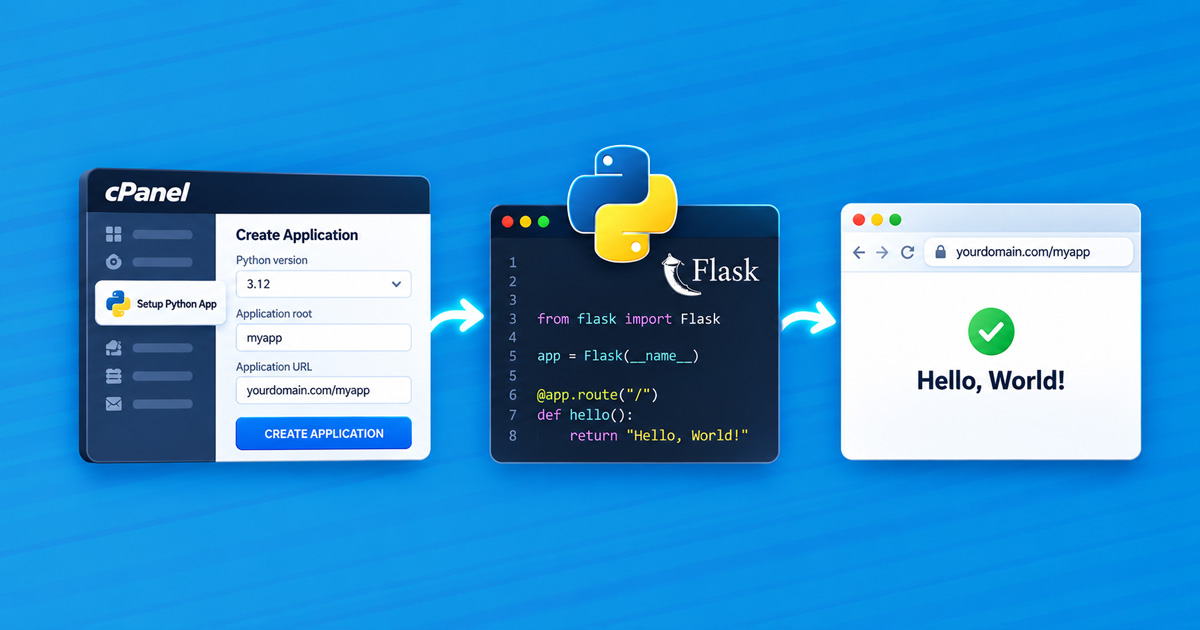

Python is one of the most popular programming languages, and you can also use it to build a web application. In this article, you’ll set up your first Python application on our hosting, step by step. All you need is access to the cPanel control panel; no server administration knowledge is required.
When you’re finished, you’ll have a working application on your own domain using Flask, one of the simplest Python web frameworks.
Table of Contents
- What Do You Need
- Step 1: Create an Application
- Step 2: Install Flask
- Step 3: Prepare the Application
- Step 4: Restart the Application
- When Your Application Needs More Packages
- Where Can I Find Errors
- How Does the Application Run
- What Else Can You Use
- Next Steps
What Do You Need
To set up a Python application on web hosting, you’ll need:
- A hosting plan that supports Python: Green, Blue, Red and any Reseller or Turbo Hosting plan.
- A domain added to your hosting plan.
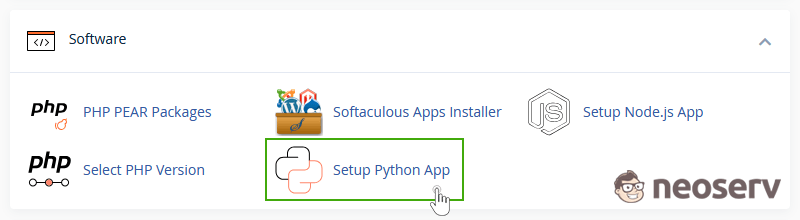
To check whether your hosting plan supports Python, open cPanel. As shown in the image above, the Setup Python App icon should appear in the Software section. If it isn’t there, you can upgrade your hosting plan at any time.
Step 1: Create an Application
1. In cPanel, open Setup Python App and click CREATE APPLICATION.
2. Fill in the fields:
- Python version: select 3.12. Versions from 2.7 to 3.13 are available (and 3.14 on newer servers); we recommend 3.12 for new projects.
- Application root: the name of the folder containing your code, e.g.
flaskapp. The folder is located in your home directory, outsidepublic_html, so the code is not publicly accessible. - Application URL: the application address, e.g.
yourdomain.com/flaskapp. If you leave it blank, the application will be available at the domain’s main address. - Application startup file: leave it blank; cPanel will use
passenger_wsgi.py. - Application Entry point: leave it blank; cPanel will use
application.
3. Click CREATE.
Open https://yourdomain.com/flaskapp. You’ll see “It works!”, which means your Python application is already running. This message comes from the passenger_wsgi.py file created by cPanel.
Step 2: Install Flask
Each Python application has its own virtual environment, where you install packages. This prevents packages installed for one application from affecting others.
At the top of the application’s page in Setup Python App, you’ll find a command for activating the virtual environment, for example:
source /home/username/virtualenv/flaskapp/3.12/bin/activate && cd /home/username/flaskappCopy it, open Terminal in cPanel (under ADVANCED) or connect via SSH, paste the command above and then install Flask:
pip install flaskStep 3: Prepare the Application
In cPanel, open File Manager, navigate to the flaskapp folder and create a file named app.py:
from flask import Flask

app = Flask(__name__)

@app.route("/")
def home():
    return "Hello, world! This is my first Python application."

@app.route("/hello/<name>")
def hello(name):
    return f"Hello, {name}!"
Next, edit the passenger_wsgi.py file. Delete all its contents and enter:
import os
import sys

sys.path.insert(0, os.path.dirname(__file__))

from app import app as application
The server always reads the application variable from passenger_wsgi.py. The code above assigns your Flask application to that variable.
Step 4: Restart the Application
In Setup Python App, click RESTART next to your application. You need to do this after every code change.
Open https://yourdomain.com/flaskapp and https://yourdomain.com/flaskapp/hello/John. If you see the greeting, everything is configured correctly.
When Your Application Needs More Packages
Larger projects have a requirements.txt file listing all their packages.
Create it on your computer with the command pip freeze > requirements.txt, upload it to the application folder and run the following command in the virtual environment on the server:
pip install -r requirements.txtYou can also install packages without using the command line: in Setup Python App, add requirements.txt under Configuration files and click Run Pip Install.
Do not upload the venv, .venv or __pycache__ folders from your computer to the server, as the virtual environment already exists on the server.
Where Can I Find Errors
If the application returns an “Internal Server Error” or doesn’t open, check the stderr.log file in the application folder (e.g. flaskapp/stderr.log). All Python errors are recorded there.
The most common errors are:
-
ModuleNotFoundError: No module named 'flask': the package isn’t installed in the application’s virtual environment. Check that you ransource .../bin/activatebeforepip install.ImportErroror an error inpassenger_wsgi.py: the file or variable name doesn’t match (for example, the file is namedmain.py, butpassenger_wsgi.pycontainsfrom app import ...).
- Code changes aren’t showing up: restart the application (RESTART).
How Does the Application Run
The application doesn’t run continuously. The web server starts it on the first visit and stops it after a few minutes without visitors to conserve resources. The first visit after a period of inactivity therefore takes about a second longer, while subsequent visits are faster.
What Else Can You Use
In addition to Flask, you can use other features when developing your Python application:
- Database: create a MySQL (MariaDB) database in cPanel under MySQL Databases. PostgreSQL is also available starting with the Green plan. For instructions, see Python Applications and MySQL (MariaDB).
- SSH, Git and pip: all are available on hosting plans that support Python.
- Environment variables: enter passwords and keys under Environment variables in Setup Python App, rather than in your code.
Next Steps
Once you’ve successfully set up your first Python application, you can expand your knowledge with the following articles:
- Python Application on Web Hosting: a detailed guide to Flask, Django and FastAPI, hosting plan limitations and solutions to common errors (including for applications built with an AI assistant).
- Django Application in cPanel
- Vue or React Frontend with a Python (FastAPI) Backend
If you run into any problems, contact us. We’ll be happy to help.
COMMENT THE POST
Your comment has been successfully submitted
The comment will be visible on the page when our moderators approve it.