


- Your cart is currently empty.
LiteSpeed Cache for Joomla: Installation and Configuration


We recently published a post on our blog explaining what the LiteSpeed web server, on which all our hosting packages are based, is. If you have read that article, you are already aware that LiteSpeed technology includes plugins for the most popular web systems, which can be used to manage caching functions at server level.
Since by far the majority of individuals and companies choose to build their website on WordPress, we have first introduced the LiteSpeed Cache plugin for WordPress. Of course, there are other popular systems, with Joomla being very close to the top. For all you webmasters and online shop owners who swear by Joomla, we’ve put together instructions on how to install the LiteSpeed Cache plugin and then configure it accordingly.
Table of contents
1. Installing LiteSpeed Cache
The LiteSpeed Cache plugin works on Joomla 3.x or later.
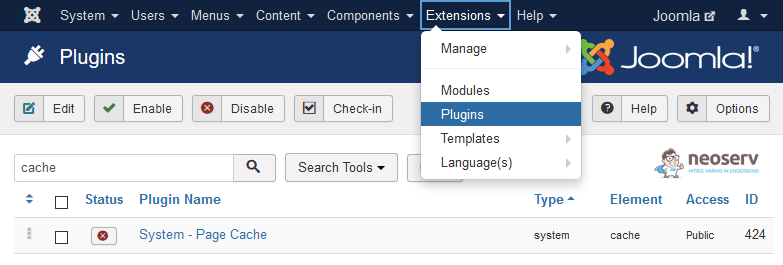
Before installing the plugin, make sure that you have disabled all other caching plugins, e.g. System – Page Cache and JotCache, in the site administration(Extensions -> Plugins).
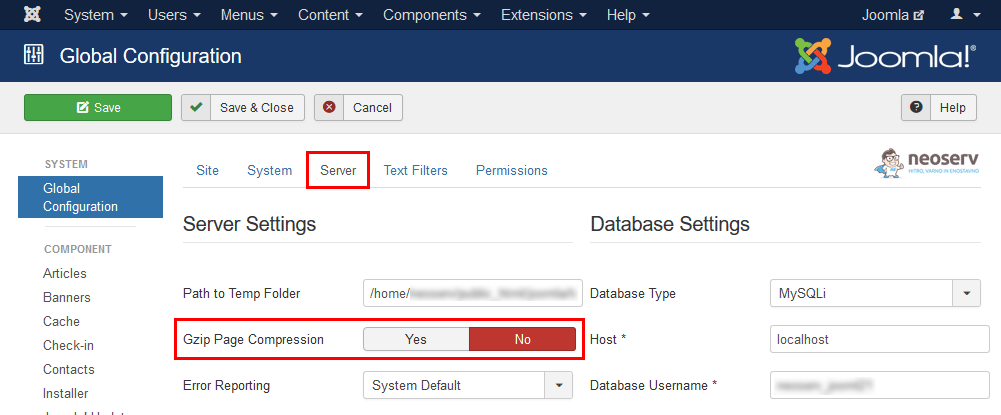
We also advise you to check your gzip settings. To avoid conflicts with the LiteSpeed web server, disable it. You can find it under System -> Global Configuration -> Server tab -> Gzip Page Compression.
So, now you are ready to install LiteSpeed Cache. The latest version of the plugin is available on the official LiteSpeedTech.com website.
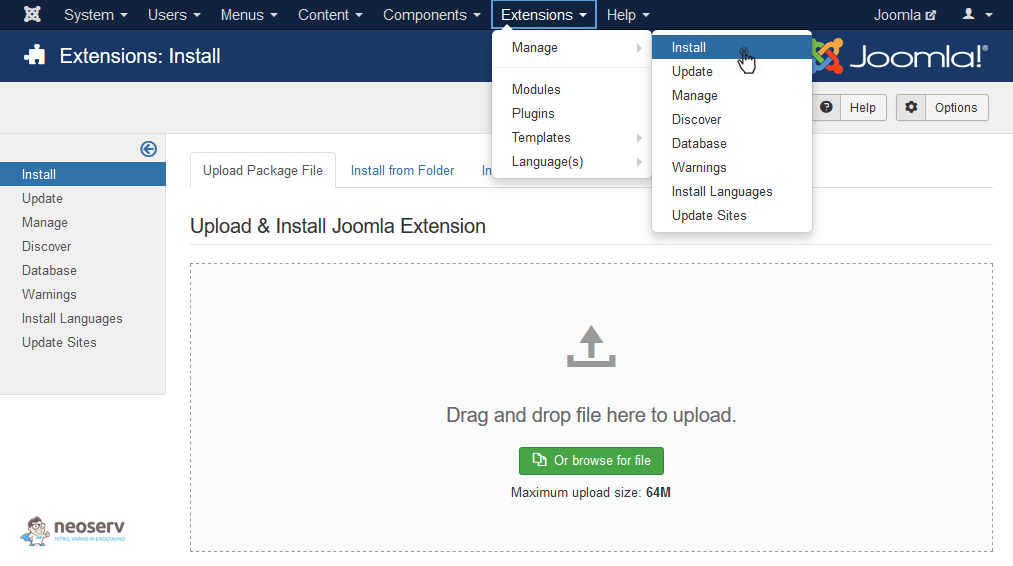
To install the plugin, hover over Extensions in the top menu, then select Install under Manage. Then, under the Upload Package File tab, install the plugin that you downloaded to your computer in the previous step.
After successful installation of the plugin, you should see a notification in a green box.

Before you proceed with the LiteSpeed Cache settings, make sure that the plugin is definitely on after installation. Go back to the Extensions -> Plugins page, search for the new plugin and make sure there is a green tick to the left of its name.
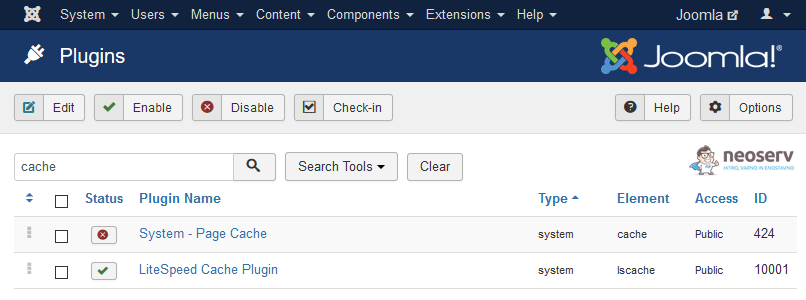
In case LiteSpeed Cache is not enabled, and therefore a red cross appears next to its name, enable the plugin by clicking on the cross.
2. LiteSpeed Cache settings
The developers of the LiteSpeed Cache plugin have provided default settings that match most Joomla websites. This means that in most cases, installing and activating the plugin is sufficient. These steps alone will enable the server-level caching feature, which will greatly speed up the performance of your website.
In case your website has specific requirements, you can customise the plugin settings. See below how to access the LiteSpeed Cache settings in Joomla and learn about some of the more important settings.
2.1 Basic settings
The LiteSpeed Cache plugin settings are accessed via the Joomla administration. First, navigate to System -> Global Configuration, then select LiteSpeed Cache from the side menu on the left.
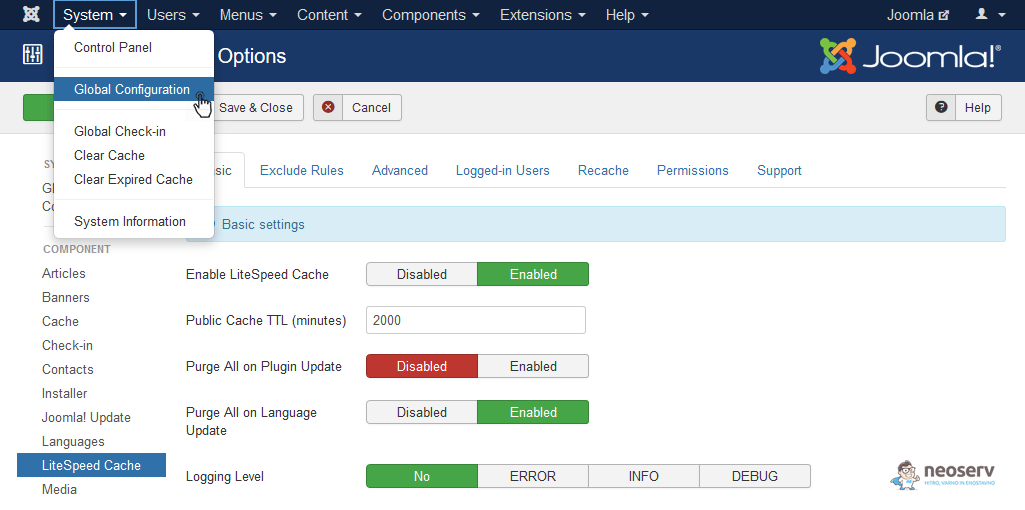
The Basic tab contains the basic settings:
- Enable LiteSpeed Cache: setting to enable/disable the caching function.
- Public Cache TTL (minutes): the time in minutes when the cached web page is still valid.
- Purge All on Plugin Update: option to purge the cache when updating a plugin.
- Purge All on Language Update: option to purge the cache on language updates.
- Logging Level: if you have no problems with the plugin, leave the logging setting off.
We advise you not to change the basic settings, and in particular make sure that the caching function is enabled.
2.2 Other settings
In most cases, you can leave the settings in the other tabs unchanged. However, if you want to experiment a bit with your website, or if you have a Joomla-powered online shop, a quick overview of the other settings and features will come in handy.
Exclude Rules
In the Exclude Rules tab you can specify the Joomla components, menus and URLs you want to exempt from caching.
Advanced
Under Advanced, you can configure ESI(Edge Side Includes). ESI is a markup language that allows web developers to specify parts of a web page to be processed separately from the rest of the page.
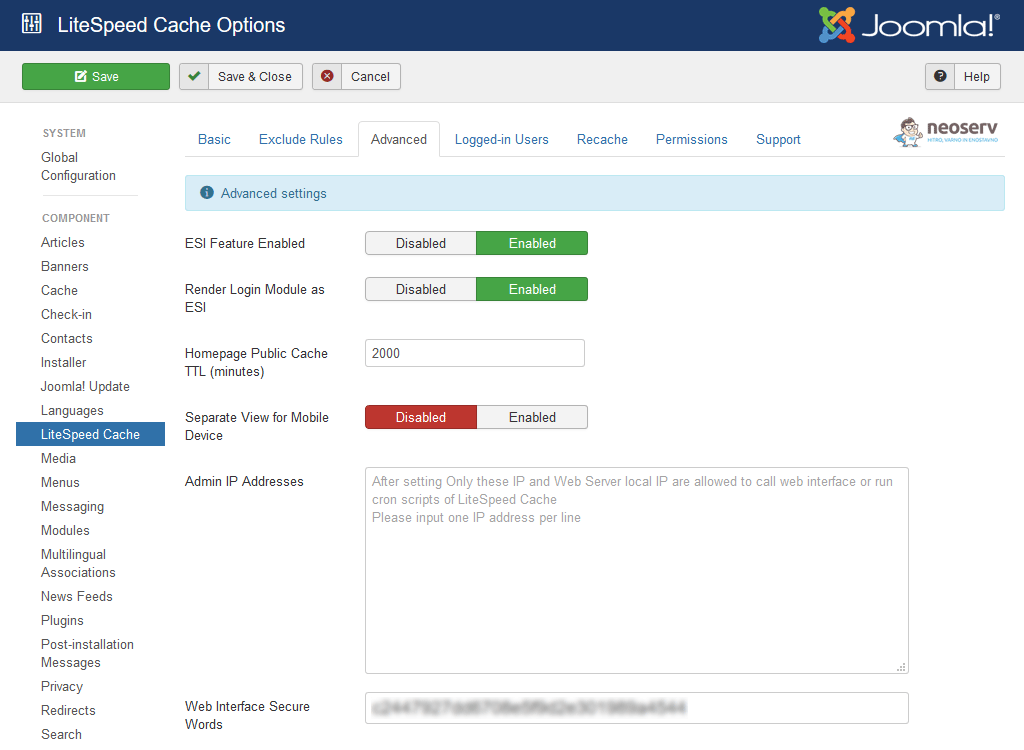
Activating ESI is essential if you want to include caching for your webshop. It allows you to clear the cache via a secure connection outside the administration. It also allows you to set a different TTL for the landing page and separate caching for the desktop and mobile versions of the website.
Logged-in Users
The settings under the Logged-in Users tab relate to caching for users who are logged in to the administration. By default, caching is disabled for logged-in users.
Recache
When a page is cleared from the cache, it takes longer to reload for the first visitor, because only when the visitor visits the cached page again is a static version created. This can be avoided; by activating the Auto Recache function, the LiteSpeed Cache plug-in automatically takes care of prefetching the pages that have been deleted from the cache.
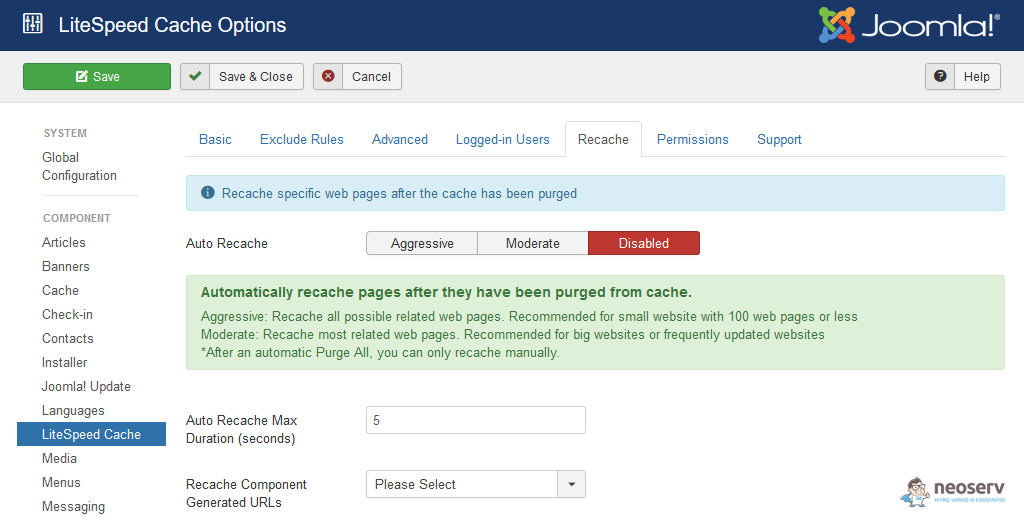
You can opt for Aggressive recaching, which is recommended for smaller websites, or Moderate recaching, which is suitable for larger and frequently updated websites.
Permissions
Under the Permissions tab, there is a standard Joomla page where you can set permissions for specific types of users.
Support
If you need help with the LiteSpeed Cache Joomla plugin, please check the Support tab.
2.3 How do I clear the cache?
Although the default settings for most Joomla websites are set optimally, there are times when the cache needs to be cleared with the click of a button. This can also be easily done in the administration – via the top menu, navigate to Components -> LiteSpeed Cache.
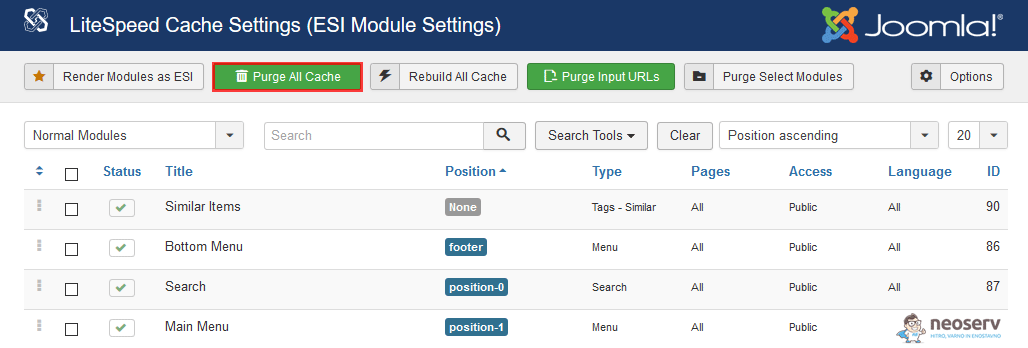
Clear the entire cache by clicking on the green Purge All Cache button. If you only want to purge certain elements of the web page, highlight the modules you want on the left-hand side and then click on the Purge Select Modules button at the top.
We advise you to re-generate static pages after clearing the cache by clicking Rebuild All Cache and save them in the LiteSpeed web server cache.
3. Final word
LiteSpeed Cache for Joomla! CMS is quite easy to use, as it does not include many features that might cause problems for beginners. For most users, simply installing the plugin and occasionally clearing the cache is sufficient. However, as we wrote in the introduction, a prerequisite for using the plugin is the LiteSpeed web server, which is available from NEOSERV on all hosting packages.

Indeed, there’s more! If you want to check how fast your Joomla website is loading, there are various tools available on the internet. We recently published a post on our blog detailing how to test the speed of your website.
Check the speed of your website before and after using the LiteSpeed Cache plugin. We are sure you will be surprised. Positively, of course!
COMMENT THE POST
Your comment has been successfully submitted
The comment will be visible on the page when our moderators approve it.