


- Your cart is currently empty.
PrestaShop Performance Tips: Speed Up Your Online Store


One of the most important elements of a successful website or shop is that it works quickly. We’ve already written about the importance of speed on our blog, including how to speed up WordPress and Magento, and in this post you can find out how to effectively speed up an online shop built in PrestaShop.
What is PrestaShop?
PrestaShop is one of the most popular platforms for creating online stores. More than half a million stores are already running on it. Thanks to its many features, extensions and the fact that it is available for free, the number of users is growing every day. Despite its advantages, it still leaves room for improvement, especially in the area of speed.
Find out how to speed up your PrestaShop store in six steps below. Make sure you have a backup copy of your online shop before you start the steps below. This will allow you to restore it to its previous, working state in case of problems.
1. Merge, compress, use cache
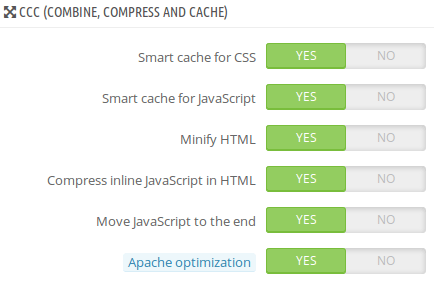
Those of you who use PrestaShop may have come across the term CCC (short for Combine, Compress and Cache). Behind the term is “combine, compress and use cache”. These three points are the starting point to successfully speed up your PrestaShop webshop.
- Combine means to combine several CSS files into one. The same applies to JS(JavaScript) and HTML files. This reduces the total number of files and makes the web browser load the entire store faster.
- Compress means to write all three of the above elements in one line of code. This way the files are smaller and the shop loads faster. For extra efficiency, move the JS to the end of the code, but be careful to test if the webshop still works properly after this procedure.
- Use Cache. To do all three, log into your Prestashop admin and click on Performance in the Advanced Parameters menu. Set the values as shown in the figure below. Once you have set each feature to“YES“, check the performance of your store.
2. Optimise images
Images are one of the key selling points, especially for online shops, but they are also the most slowing factor. To optimise the size of your images, use tools like kraken.io or tinypng.com. Additionally, use icons instead of images (where possible, e.g. to highlight benefits).

Install only the modules you need
PrestaShop allows you to customise your shop as you like, using a variety of modules. But it can quickly become the case that you have a lot of modules installed that you don’t even need.
For the modules you already have installed, make sure they are really necessary for your shop to work effectively. If you find a module that replaces two or more functions, use it and remove the unnecessary ones. This will effectively improve the functioning of your shop. Before you finally remove a module, check that your shop still works properly without it.
In case you don’t know which modules you can and cannot remove, click on Modules in the PrestaShop Dashboard and select Modules & Services. This will give you a preview of all active modules and you can see how often each module is used, how it affects your server resource consumption, etc.
4. Set up the CDN
If your store targets customers from different countries, then it is important that the store loads equally fast in all target countries. You will achieve this by using a Content Delivery Network (CDN). Setting up a CDN reduces browser load times, regardless of the location of the user who wants to visit your online store. We advise you to use Cloudflare.
5. Activate the PrestaShop caching system
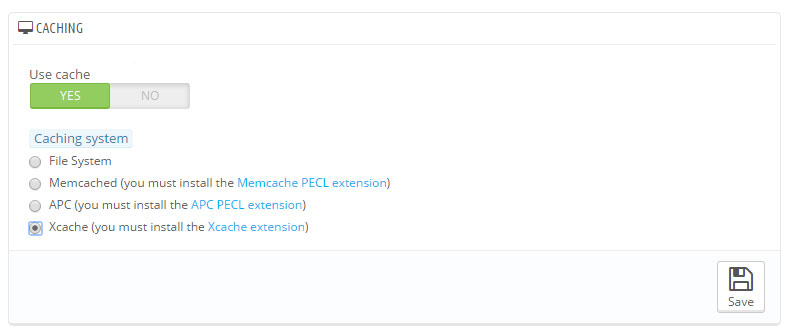
In addition to the caching system that PrestaShop already has built-in, use an additional dedicated caching module, such as APC, Memcached or Xcache. The one you choose is activated in five steps:
- Log in to your PrestaShop store administration,
- click on Performance in the Advanced Parameters section,
- look for the Caching section and select YES,
- under Caching system, select the desired module,
- click on the Save button.
6. Use the latest version of PHP
Did you know that choosing the right PHP version can have a positive impact on the speed of your online shop? The current PHP 7+ version is much faster than PHP 5.6. According to a test we conducted, the test page loaded on average 0.3 seconds faster with PHP 7, the time to first byte was 41% faster and the speed index was 12% better with PHP 7 compared to PHP 5.6. You can read more about the comparison between PHP 5.6 and PHP 7 in the blog post Comparing PHP 5.6 and PHP 7.
To do the early steps effectively, you still need fast and reliable hosting. NEOSERV is definitely the place to go, as we offer hosting on extremely fast SSD servers, which, combined with the above points, will keep your online store up and running as quickly as possible. Order your hosting package and see for yourself the quality.

COMMENT THE POST
Your comment has been successfully submitted
The comment will be visible on the page when our moderators approve it.