


- Your cart is currently empty.
How to Completely Remove a WordPress Plugin

Installing WordPress plugins that add extra functionality to your website is easy. Many of them are freely available via the WordPress administration and it only takes a few clicks to get the plugin installed and active. Deactivating and removing a plugin can also be done in just two clicks. But is this the right way to remove it?
Most of the time not, as uninstalled plug-ins can leave behind a lot of unnecessary data. Some in the form of files and folders, but more often in the form of tables and rows in the database. When you want to achieve a certain functionality on your website and you test several plugins for this purpose, a large number of tables quickly appear, which have a negative impact on the speed of the page and thus on the user experience.
So here are some tips on how to remove plugins in a way that doesn’t leave behind unnecessary data. And since the removal methods depend on the plugin itself, we’ll also take a look at some very popular ones that you may have used, or may still be using, but would like to remove (completely).
Sitemap
- The problem with uninstalling plug-ins
- Why are plugins not being deleted completely?
- Don’t forget to backup!
- Uninstalling popular plugins
- Final Word
1. The problem with removing plug-ins
First, let’s look at the specific example of the Wordfence Security plug-in and see what happens if you delete it using the normal method. We installed this plugin, which is designed to ensure the security of a website, and then immediately deactivated and deleted it.
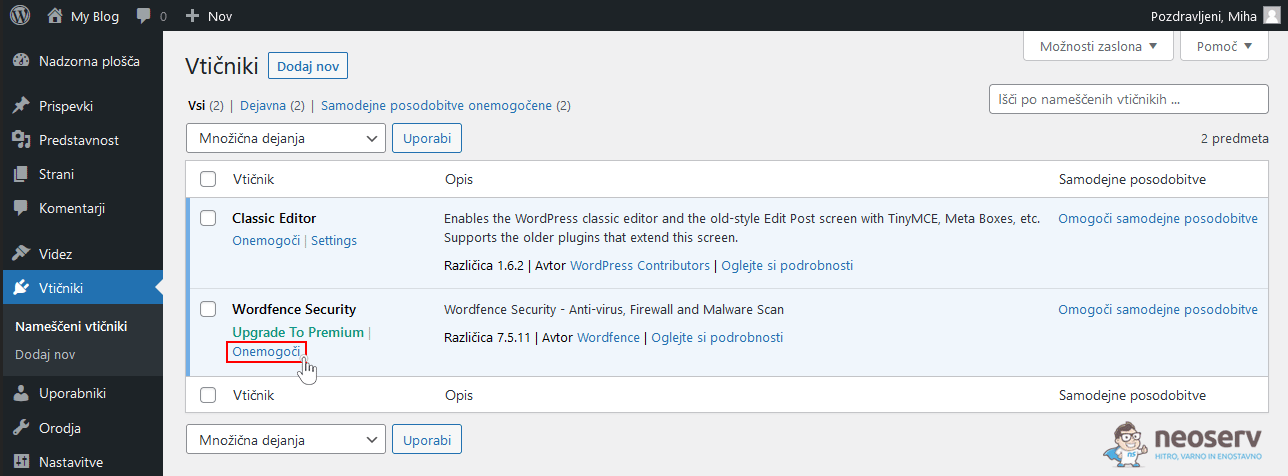
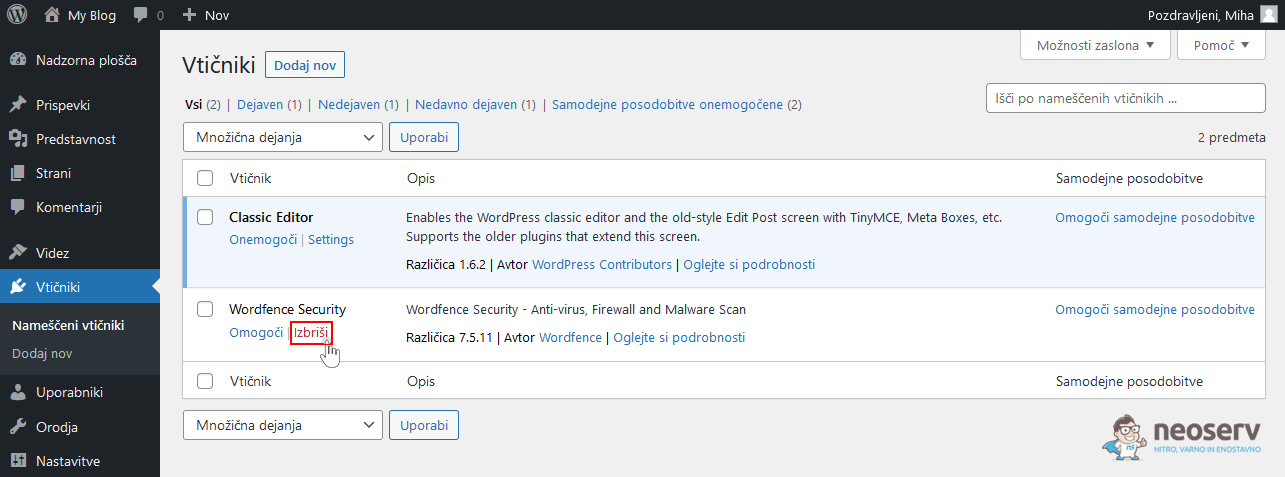
Now let’s see what’s left of it in the MySQL database, which can be accessed via the phpMyAdmin tool available in the cPanel control panel.
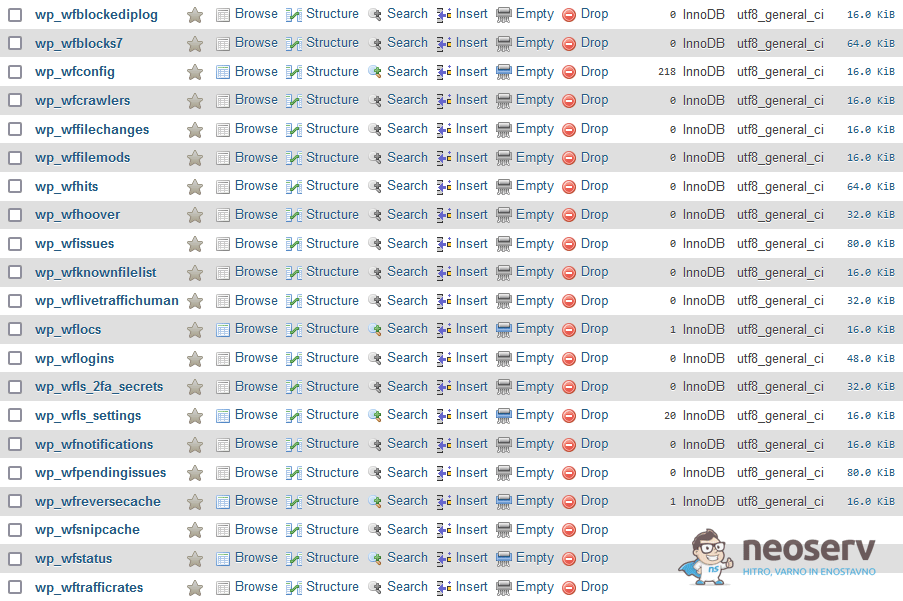
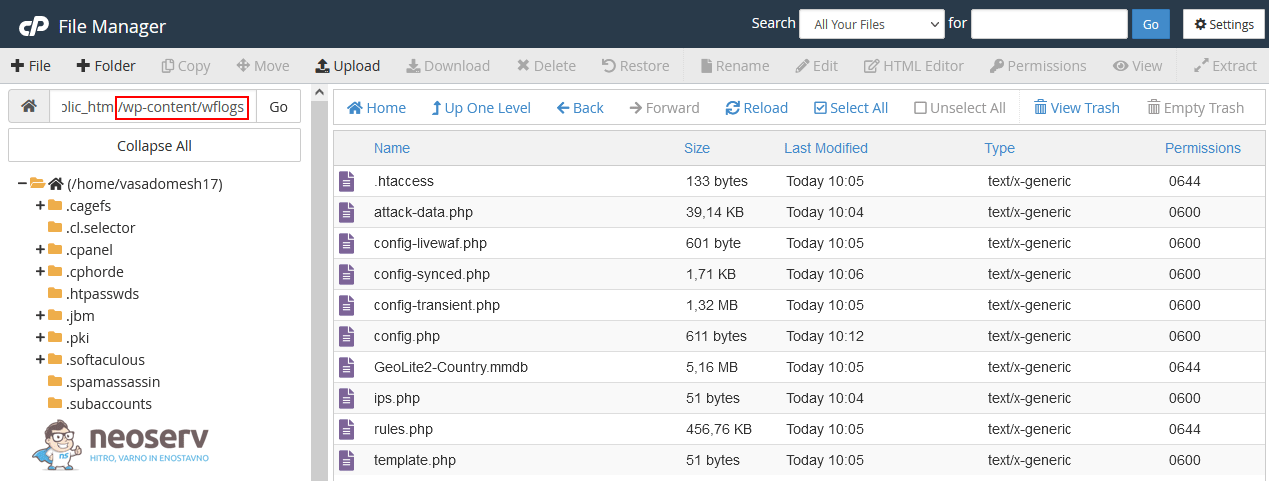
As you can see in the picture above, after the “classic” removal of the Wordfence Security plugin, there are 21 tables left in the database. Actually, that’s not all, there are still a few redundant files left in the wp-content/wflogs folder on the server.
If you’ve been removing plugins in this way for a long time, you’ve probably accumulated a lot of unnecessary files, folders and database tables in your hosting package.
Do you have a lot of plugins deactivated on your website? Deactivated plugins are just inactive, but they still leave a lot of data in the database. This not only compromises the speed of the website, but also its security, especially if the deactivated plugins are not updated. Therefore, it is definitely worth considering completely removing plugins that you do not need.
2. Why not delete plug-ins completely?
Wondering why plugins don’t have the option to be deleted completely after uninstallation? Why do developers program plug-ins in a way that leaves traces in the database and sometimes in files and folders? There are several reasons, but let’s look at the most obvious ones.
1. They want to preserve user settings
The main reason why some database plugins leave behind certain tables is related to preserving user settings. We may delete a plug-in and later decide to reinstall it. Since the settings will already be recorded in the database, they will not need to be edited again.
There may also be situations where we accidentally uninstall a plugin. If this happens, we will not have to worry about losing all the data and settings associated with the plug-in.
2. They are not interested in the functioning of the website
Some developers are of the opinion that the tables that remain in the database after removing plug-ins do not affect the loading speed of the website. If it’s just a plugin or two, there may not be a problem, but in the long run, the database may accumulate a whole series of tables with thousands of rows of data.
Database queries have a big impact on the performance of a website, especially if the developer has not been careful and his plug-in is running a lot of queries. In addition, redundant data and files also affect the space used on the server, which is limited with some hosting packages.
3. They made a mistake
The WordPress.org website contains instructions for WordPress developers. One of the chapters is the “Plugin Handbook“, which explains, among other things, what the programming code is for removing a plugin.
It may happen that the developer does not check or follow the instructions, which may result in incomplete removal of the plugin when clicking the Delete button in the WordPress administration.
However, most WordPress plugins can be uninstalled in a way that leaves no unnecessary data behind. Unfortunately, we have not yet seen a uniform system for complete removal (including data and settings), so procedures may vary.
3. Don’t forget to back it up!
Before you start manually removing plugins, i.e. deleting files and folders and removing rows or entire tables in the database, you need to have a backup copy of the website. This way, if something goes wrong during the deletion process, you’ll be able to restore your WordPress site to its previous, working state.
The good news is that at NEOSERV we understand the extreme importance of backups, which is why we automatically create them for you every night. They are always available to you for free via the cPanel control panel, in the JETBACKUP section. There you will find backups of files and folders, databases, email inboxes, Cron jobs and DNS zones.
Detailed instructions on how to manage your backups can be found here.
4. Uninstalling popular plug-ins
Some plug-ins offer the option to uninstall them completely, but this may be somewhat hidden. For an example, take a look at the Gravity Forms plugin, which allows you to add contact forms to a web page. If we want to uninstall Gravity Forms completely, we need to do this via the Uninstall Gravity Forms button found in the settings of the plugin.
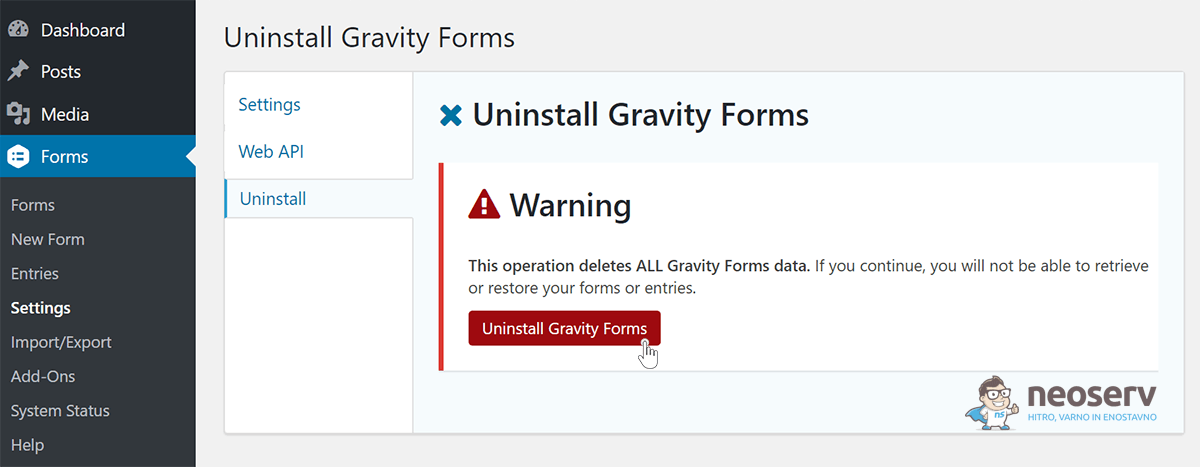
So, when you want to uninstall a particular plugin, we advise you to check its settings first, as there may be an option to uninstall it completely. You can also use Google search and check forums and official plugin documentation for the correct way to delete a plugin.
Let this be a basic guideline, but below you’ll learn more about how to completely remove some of the most popular WordPress plugins at the moment.
WooCommerce
Deactivating and deleting the WooCommerce plugin in the WordPress administration only removes the plugin and its files, while settings, products, orders, pages, etc. still remain in the database.
If we want to remove the WooCommerce plugin completely, including orders, products, etc., we first need to make a change to the wp-config.php file, which is located in the base folder where we installed WordPress. We need to edit this file BEFORE deactivating and deleting the plugin.
1. Open the cPanel control panel (login instructions), locate the FILES icon group and click on the File Manager link.
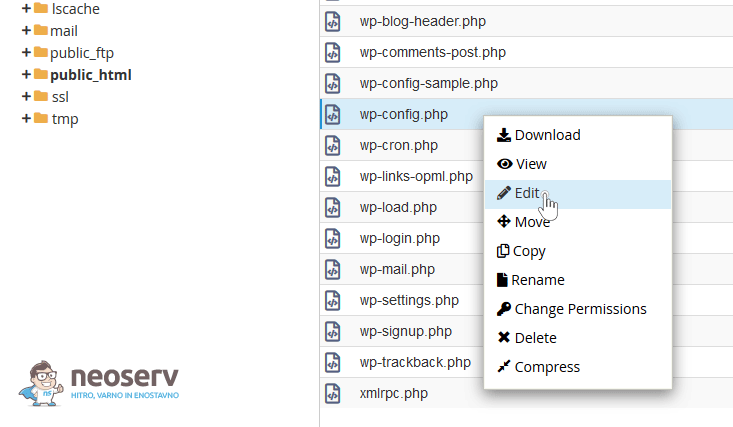
2. Navigate to the root directory of your WordPress website and right-click on the wp-config.php file and select Edit.
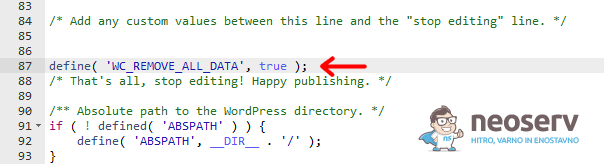
3. Scroll to the bottom of the file and just above the comment /* That's all, stop editing! Happy publishing. */ add a record: define( 'WC_REMOVE_ALL_DATA', true );
4. Save the changes by clicking the Save Changes button in the top right corner.
5. Deactivate and delete the WooCommerce plugin in the WordPress administration.
This removes all data related to the WooCommerce plugin from our website. The line we added to wp-config.php can now be deleted.
Wordfence Security
The Wordfence Security plugin, designed to protect your website, consists of:
- Plugin files (in the
wp-content/plugins/wordfencefolder), - database tables (prefixed with
wf), - firewall settings files (in the
wp-content/wflogsfolder).
If you have set up the firewall with the advanced Extended Protection method in the plugin settings, the plugin will also create a wordfence-waf.php file in the base folder where you installed WordPress. There will also be a few lines of additional code in the .htaccess, .user.ini or php.ini file.
The procedure for removing the plugin, including the files and tables, is quite straightforward.
1. In the Wordfence Security plugin settings, look for the option to delete all files and tables in the database associated with the plugin when deactivating and removing the plugin.
Wordfence -> All Options -> Wordfence Global Options -> General Wordfence Options
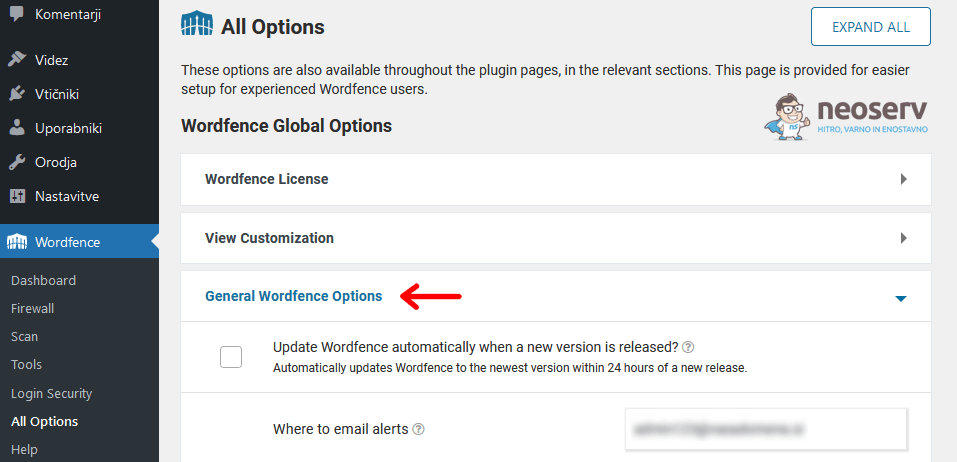
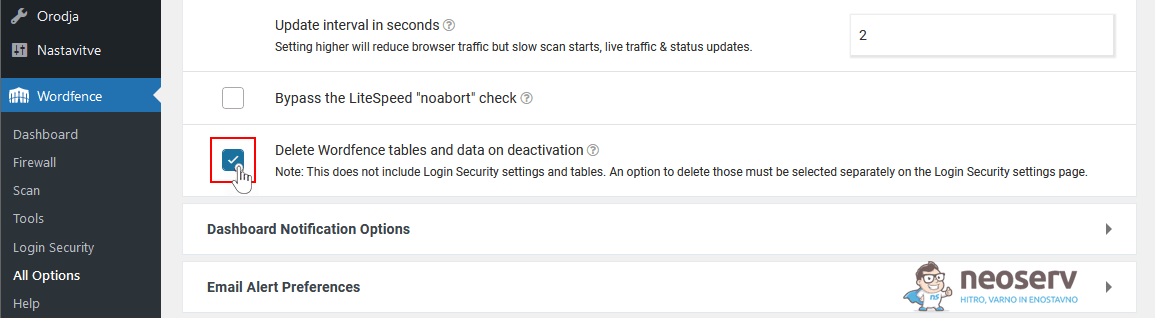
At the bottom there is a box with Delete Wordfence tables and data on deactivation, which you need to tick and then save the changes.
2. Next, we need to activate the setting that will remove the tables related to security for logging in to the WordPress administration.
Wordfence -> Login Security -> Settingstab
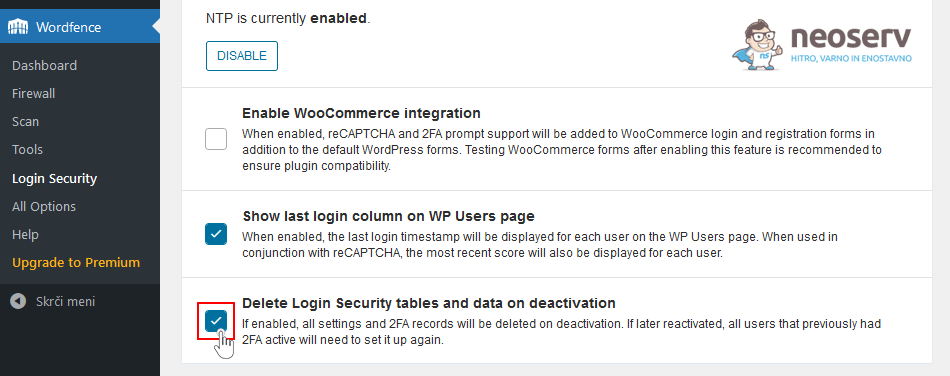
At the very bottom there is a box that says Delete Login Security tables and data on deactivation, which you need to tick and save the changes again.
3. Now we can disable and delete Wordfence Security from the list of plugins.
Did you uninstall a plugin a while ago, but now you just want to clean up what’s left behind? The easiest way to do this is to reinstall the plugin, tick the two aforementioned settings, then delete the plugin. Alternatively, you can delete the wflogs folder and any database tables that the plugin created when it was installed.
Yoast SEO
The Yoast SEO plugin is designed to optimise your website for search engines. The removal process is a bit more complex as it involves deleting the data in the database.
1. If you have the plugin installed, first deactivate and delete it in the WordPress administration – on the plugins list page.
2. Log in to the cPanel control panel (login instructions) and select phpMyAdmin in the DATABASES icon section. The database management tool will open in a new tab.
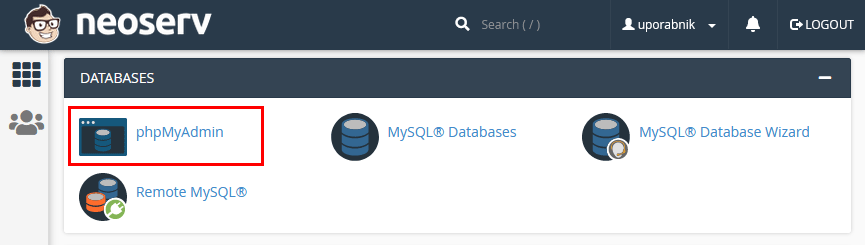
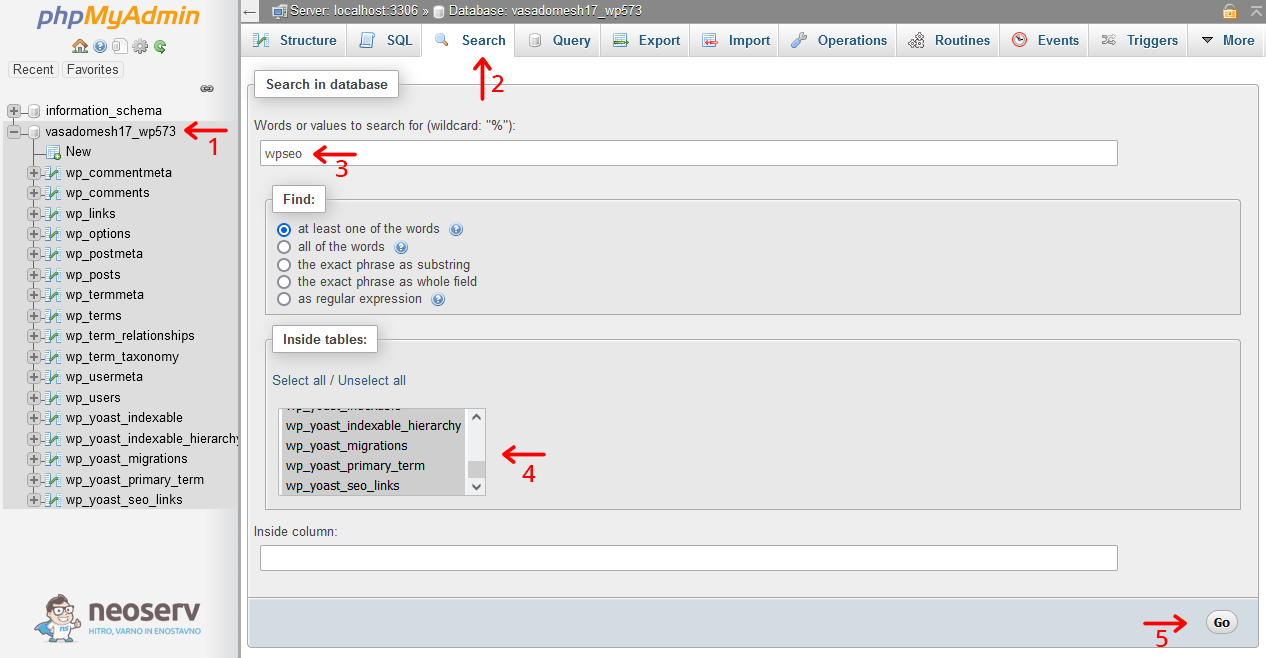
3. On the left-hand side , select the database associated with the website from which you want to remove data related to the Yoast SEO plugin. We’ve written how to find out which database WordPress uses in this article.
4. Select the Search tab at the top, enter the query wpseo in the search box, click Select all, select all tables and click Go (bottom right).
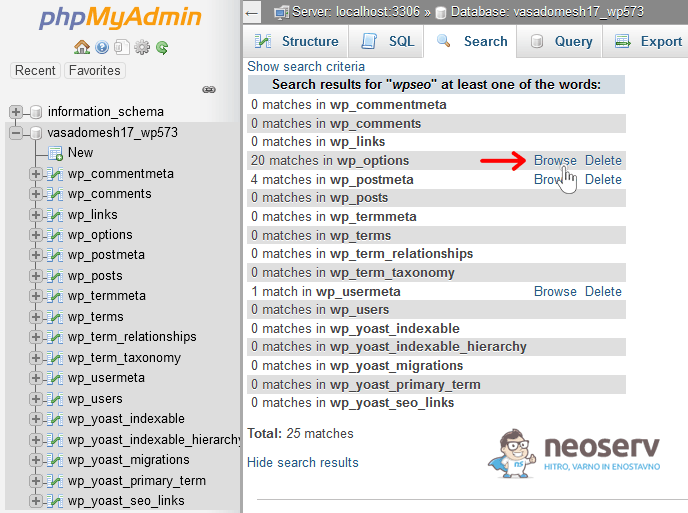
5. The search query will show us which tables contain data that include the wpseo record. Among other things, they are found in the wp_options table, so first click Browse on that table.
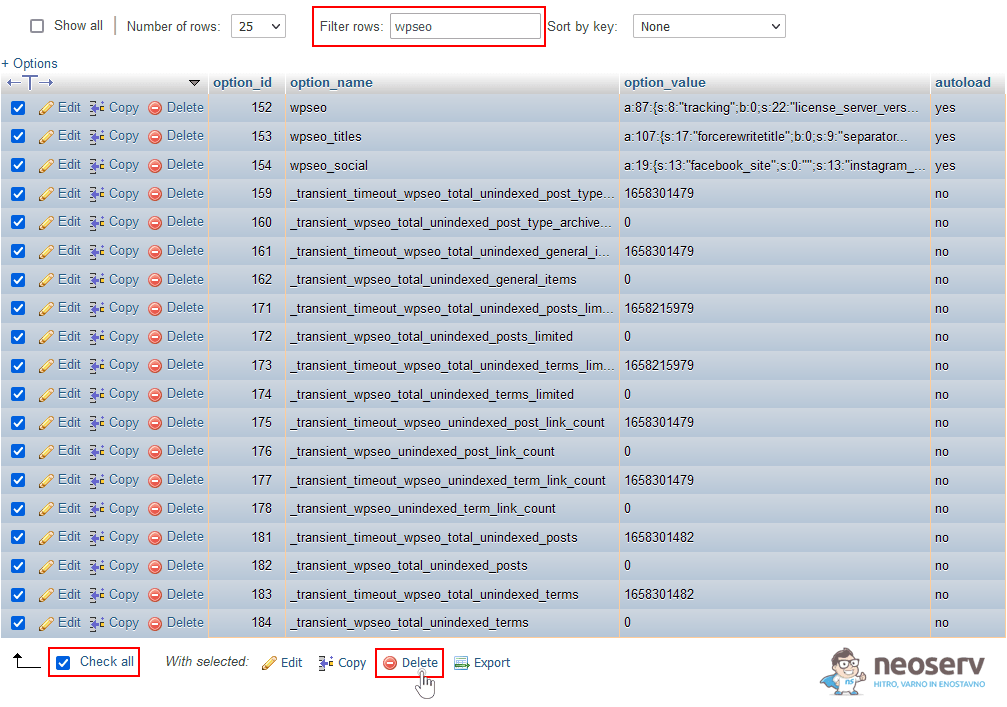
6. In the top box(Filter rows), type wpseo, then click on Check all to select all rows and click on Delete to delete the selected rows. In the next step, click Yes to confirm our request.
7. Repeat steps 4 to 6 a few times, except that instead of selecting the wp_options table, we select the other tables where the wpseo records are located. Delete the rows containing the record in these tables as well.
8. Check in the same way for the wp_yoast record. If it is found in any of the rows, delete it.
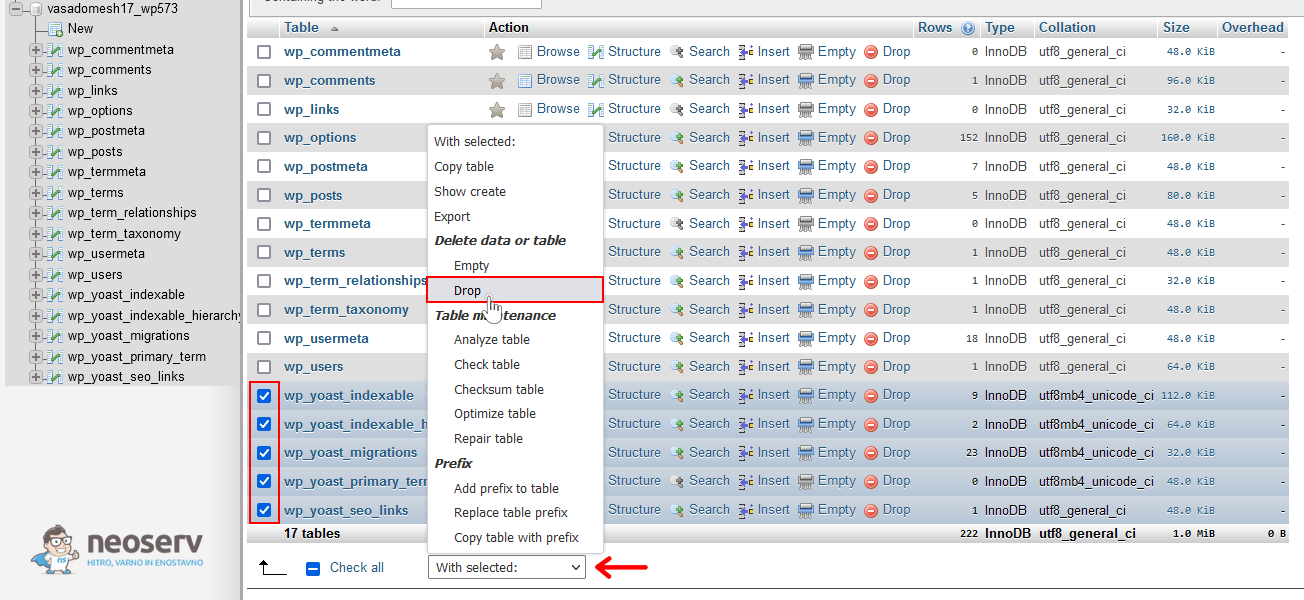
9. You may notice that there are a few more tables in the database (in our case five) created by Yoast SEO. Let’s highlight these tables and delete them using the Drop function. In the next step, we confirm our request by clicking Yes.
The Yoast SEO plugin may have also created a Cron job called wpseo_onpage_fetch. We can check this with the WP Crontrol plugin, which can also be used to remove this task. After installing the plugin, the list of tasks can be found under Tools -> Cron Events.
WP Rocket
WP Rocket is a popular plugin for fast website optimisation. If you decide to use another plugin for this purpose (e.g. LiteSpeed Cache for WordPress), it makes sense to uninstall WP Rocket.
1. First, clear the cache in the WordPress administration. This is done via Settings -> WP Rocket -> Dashboard, where you click on the CLEAR CACHE button.
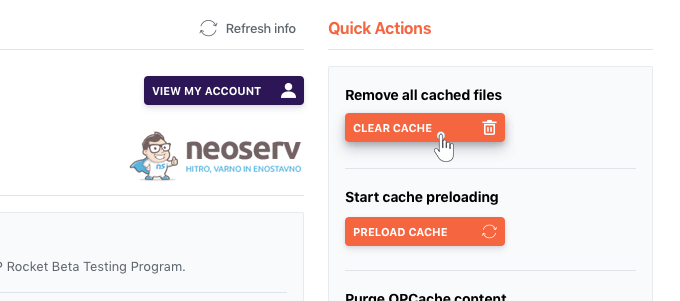
2. On the list of installed plugins page, find WP Rocket, deactivate it and delete it.
3. This should remove the plugin completely, but it may be useful to check a few files and folders manually and remove them if they are present.
- Delete the
wp-content/cacheandwp-content/wp-rocket-configfolders. - Delete the
wp-content/advanced-cache.phpfile. - In the
.htaccessfile, remove everything between the lines#BEGIN WP ROCKETand#END WP ROCKET(including these lines). Save the changes. - In the
wp-config.phpfile, remove the linedefine('WP_CACHE', true);and save the changes. - In the database, open the
wp_optionstable, search for therocketrecord and delete the rows with that record. - In the database, delete the tables created by the WP Rocket plugin (e.g.
wp_ wpr_rucss_resourcesandwp_ wpr_rucss_used_css).
For how to search for rows in the database with phpMyAdmin, see the section where we describe how to remove the Yoast SEO plugin (points 2-6). There you will also find instructions on how to remove each row or table.
WP Super Cache
The WP Super Cache plugin is designed to cache and thus speed up your website. If you want to remove it, you can do so using the following procedure.
1. In the website administration, open the WP Super Cache settings and turn off caching(Settings -> WP Super Cache -> Easy tab -> Caching Off). Save the changes by clicking on the Update Status button.
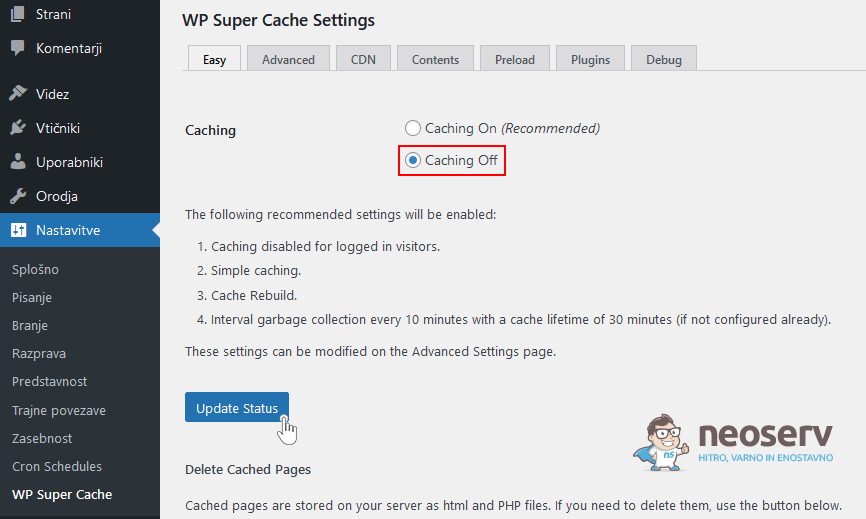
2. Click the Delete Cache button to clear the cache.
3. On the list of installed plugins page, search for WP Super Cache, deactivate it and delete it.
4. Check a few more files and folders manually and remove them if they are present.
- In
wp-config.php, remove the linedefine('WP_CACHE', true); andsave the changes. - In the
.htaccessfile, remove everything between the lines#BEGIN W3TC Page Cache coreand#END W3TC Page Cache core(including these lines). Save the changes. - Delete
wp-content/advanced-cache.phpandwp-content/wp-cache-config.php. - Delete the
wp-content/cachefolder. - Delete the
wp-content/plugins/wp-super-cachefolder.
5. Final word
Have you been uninstalling WordPress plugins so far by just deactivating and deleting them? The next time you want to uninstall a plugin, you’ll probably want to look a little deeper into the process. Most plug-ins have good quality documentation that explains exactly how to uninstall the plug-in completely. Others even have an option in the settings to remove it completely.
So the next time you are deciding whether or not you need a particular plug-in, consider whether you might need it in the future. If you do, it will probably make sense to keep your current settings in the database. Otherwise, just take the time to find out how to remove the plugin completely. This will keep your database clean, and by removing unnecessary files and folders you will also save on hosting package space.
Finally, let’s write it down one more time. Backups are extremely important! Before you start removing rows and tables in your database, it is essential that you have a backup of your database. And when you decide to manually delete files and folders, you must also have a backup of that part of the site.

If you choose to host your website with us, you’ll have peace of mind about backups, as we make them free of charge on a daily basis. In addition, with NEOSERV, your website will be hosted on an extremely fast server located in Slovenia, and you will be able to manage your hosting package via the user-friendly cPanel control panel. And last but not least… our expert support will always be at your disposal – even at night, on weekends and on holidays.
COMMENT THE POST
Your comment has been successfully submitted
The comment will be visible on the page when our moderators approve it.