


- Your cart is currently empty.
WordPress Security: How to Protect Your Website

WordPress is by far the most popular web content management system (CMS) today, as many websites are based on it. It is precisely because of its immense popularity that it is often hacked by hackers, who constantly monitor the development of the system and look for vulnerabilities.
As hacks can have unwanted consequences, such as data theft, adding links to illegal sites, deleting content, redirecting visitors to other sites, etc., it is very important that your WordPress website is properly secured.
Read on to find out how to protect your WordPress system from potential attacks.
Sitemap
- 5 basics to make WordPress more secure
- 5 free security plugins
- Change security keys and salts
- Summary
5 basics to make WordPress more secure
To make sure your WordPress website is properly protected from viruses and hacker attacks, you need to do the basics. Set a strong enough password, choose the right username, prefix your WordPress tables appropriately, use only original graphic templates and plugins, and update all components of your WordPress website regularly.
1. Password
To log in to the WordPress administration, set a strong password that includes upper and lower case letters, numbers and special characters. Never use your date of birth, your name or the names of your loved ones as your password. Be aware that the password name123 or something similar is far from appropriate as it is an easy target for hackers.
Use an online password generator, such as Bitwarden, to help you set your password, and you can also use it to store all your passwords securely. When generating your password, make sure you tick the box to use special characters (!@#$%^&*).
You can read more about choosing a secure password in this article.
2. Username
When installing WordPress, the username is set to admin by default. As online attackers are well aware of this, this is the username they most often try to break into the system with. They often also try to use the administrator username and the domain name.
If you already have WordPress installed and your username is admin, create a new user with “admin” privileges and delete the previous one. If you are just about to install WordPress, change the default username during the installation process.
3. WordPress table prefix
Again, it’s a good idea to change the default value. This means that when you install WordPress with Softaculous, you write a different value (example: dbw5_) in the box where the value wp_ is written.
Do you already have WordPress installed but didn’t change this value when you installed it? No worries. There are plugins that can be used to change the table prefixes in the database after the fact. You can find out more about security plugins later in this article.
4. Using the original templates and plugins
Graphical templates and plugins can be found on many websites. Some will give them to you for free, while elsewhere you will have to pay for them. Never use stolen or “zeroed” templates and plug-ins, as there is a good chance that they contain malicious code that could cause you problems at some point in the future. Not just for you, but also for your hosting provider.
You can find free templates and plugins at WordPress.org, for more graphically and functionally sophisticated paid templates we recommend ThemeForest.net and TemplateMonster.com, and a number of advanced paid plugins are available at CodeCanyon.net.
5. Regular updates
At the beginning of this article, we wrote that hackers are constantly monitoring the WordPress system for vulnerabilities. Developers are also on the lookout for vulnerabilities and release new versions of the system, plugins and graphical templates relatively frequently. To ensure the security of a WordPress website, one of the most important rules is to update all three of these components regularly.
Instructions on how to enable automatic updates within the WordPress administration:
- WordPress core. Click on the
Enable automatic updates for all new WordPress versionslink./Toggle to automatic updates for maintenance and security releases only. - WordPress plugins. On the right side of the list, next to each plugin, there is a link
Enable automatic updates. - WordPress template (free, available at WordPress.org). Hover over the graphical template and click on the Theme Details button, then click on the
Enable automatic updateslink. - Download the .ZIP file of the new version of the graphic template to your computer. Scroll to Appearance -> Themes. Click on the Add New button and then click on the Upload Theme button. Click Browse…, select the .ZIP file of the graphic template and click Install. After installation, confirm the replacement of the old template version with the new one.
Be careful when updating the graphic template, as you may lose previously edited manual adjustments. We recommend that you edit all changes in the “child” template, as this way you will keep the changes after updating the “parent” template. We have written more about this in this article.
5 free security plugins
Have you taken care of the WordPress security basics we described in the previous section? Great, it’s time for the next step. You can get extra protection for your website by installing one of the security plugins below. All of the plugins described above are available free of charge, but there are also paid versions with additional security features.
1. Loginizer
One of the most commonly used plugins to enhance the security of WordPress is the Loginizer plugin. You can install it on your website at the same time as you install WordPress, via the cPanel control panel or the Softaculous interface. Read more about how to install WordPress via Softaculous?
The primary function of the Loginizer plugin is to disable brute force attacks, i.e. successive attempts to log in to the WordPress administration. You can set a value for how many attempts the system should lock after and how long it should remain locked after failed attempts.
The free version of the plugin also allows you to blacklist individual IP addresses or parts of IP addresses to prevent regular attackers from logging in. Alternatively, you can add your IP address to a whitelist to allow only you to log in to the WordPress administration.
The paid version of the Loginizer plugin also provides some more advanced security features, such as two-factor authentication (2FA), the use of reCAPTCHA, the ability to log in via a link sent to the administrator’s email inbox, CSRF protection, and so on.
2. Wordfence Security
The Wordfence Security plugin currently has more than 4 million active installations and a high average rating of 4.7/5.0, which is a testimony to its immense popularity. It is a very comprehensive plugin with a holistic approach that has a major impact on increasing the security of the WordPress platform. The plugin is available in both free and paid versions.
Although the paid version has many additional features and premium support, the free version already provides a high level of WordPress security. The plugin works immediately after installation and licence entry, as the default settings for most websites are already set accordingly.
Here are just a few of the basic features the plugin provides:
- Viewing core files, installed plug-ins and templates, and comparing them with the original files,
- removal of existing malicious codes and other anomalies,
- protecting the website using a firewall,
- the ability to block individual IPs or selected countries,
- disabling successive attempts to log in to the administration,
- notification of hacking attempts to an e-mail address,
- the possibility to activate 2FA to log in to the administration,
- use of the WHOIS search service directly in the administration.
3. iThemes Security
An excellent alternative to the plugin described above is iThemes Security, better known to many under its old name Better WP Security. This plugin also boasts high performance, as evidenced by more than 900 000 active installs and an average rating of 4.6/5.0.
More than 30 features ensure high system security. In addition to scanning for malicious codes and protecting against potential attacks, the plugin also allows you to mask data that could be useful to online attackers to break into your system.
With the iThemes Security plugin you can:
- Change your username without deleting an existing user,
- change the URL of the administration login page and the URL of the administration itself,
- disable the ability to log in for a certain period of time,
- change the WordPress table prefix,
- hide the version of an existing WordPress system.
One of the functionalities of the iThemes Security plugin is the ability to block suspicious IP addresses. The list of blocked IP addresses is mostly used by cyber attackers who use various automated scripts and bots to gain access to your website.
Unfortunately, IP addresses of bots that should not be on the list may also be on the list. In particular, search engine bots (e.g. Google and Bing) that automatically access web pages for indexing purposes. Blocking these bots can lead to a website being dropped from search engines, which can lead to a (significant) drop in website traffic. Therefore, when setting up the plugin, the IP addresses of the search engine bots should be added to the list of allowed IP addresses. You can read more about this here.
4. Sucuri Security
Sucuri Inc. is a world-renowned organisation that has been innovating in online security since 2009. The Sucuri Security plugin, whose ownership has been transferred to GoDaddy, is also available in free and paid versions.
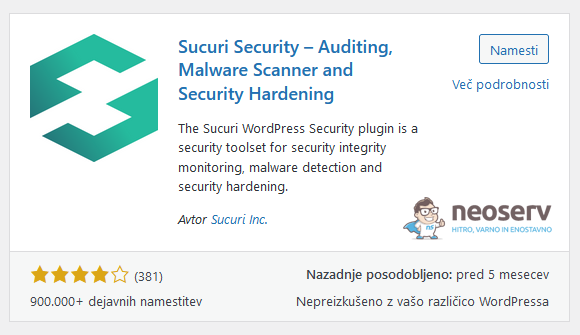
The plugin offers users a wide range of security features to protect WordPress sites:
- Security Activity Overview,
- file integrity monitoring,
- remote scanning of malicious code,
- monitoring the blocked list,
- post-breach security measures,
- security notifications,
- Website firewall (paid version).
5. All-In-One Security (AIOS)
As one of the free security plug-ins with the most features, All-In-One Security (AIOS) offers an extremely intuitive and graphically sophisticated interface. The plugin provides good control over security and includes a basic site-level firewall that automatically protects against online threats.
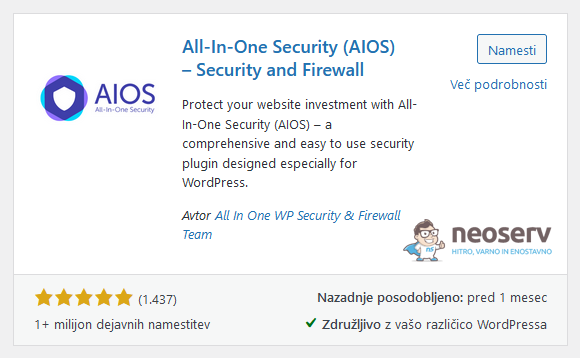
The All-In-One Security (AIOS) plug-in also features many other security features such as:
- Login locking to prevent brute force attacks,
- the ability to block IP addresses,
- file integrity monitoring,
- control of user accounts,
- search for suspicious patterns in databases,
- ability to change folder and file permissions.
Change security keys and salts
Security keys and salts provide an extra layer of password protection for logging in to the WordPress administration. They are random strings of code that encrypt login data using eight variables. This security mechanism is extremely important as it ensures that passwords are resistant to brute force attacks and similar hacking methods.
After logging in to WordPress, browser cookies containing the WordPress login information(wordpress_[hash] and wordpress_logged_in_[hash]) are created and stored on your computer. If a hacker can access your browser cookies, they can also obtain your login details.
With security keys and solos, all your login data is hashed, which means that it is encrypted with a sequence of random strings. These strings are visible, while the actual password is not.
For example: if you use the password moja123stran, using WordPress salt it will be stored as a random string of characters such as 2n-E5Ij_D*mHP8m&+c[d5_r. This way, hackers won’t be able to decrypt your actual password, even though they might have access to your website’s code.
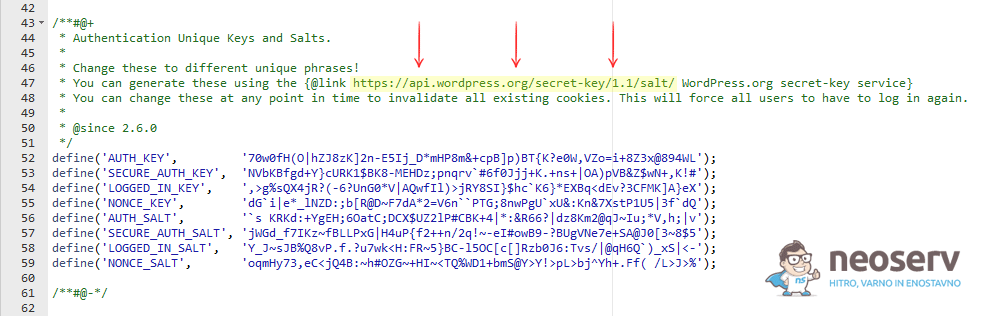
The security keys and salts are stored in the wp-config.php file, which is located in the WordPress system umbrella folder. If you open that file, you will find them within the“Authentication Unique Keys and Salts” section.
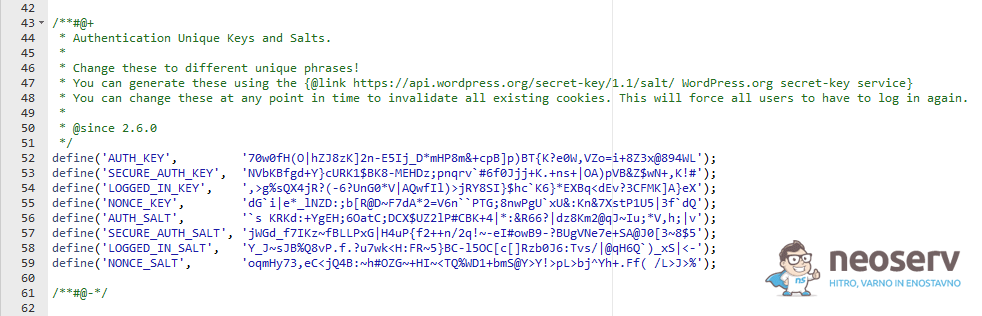
As you can see in the image above, the code description also contains a URL where you can generate new random strings. Below the description, you will find the security keys (first four lines) and the salts (second four lines). To avoid security risks, do not share either of these with anyone.
Why change the security keys and salts regularly?
Although static security keys and salts will already provide you with a relatively high level of protection for your login data, we advise you to make sure that you change them regularly. This will further improve the security of your WordPress website.
All users will be automatically logged out of the WordPress administration when they change their salt and security keys. This is especially useful if you log in to your website via multiple devices or browsers, as the risk of your login details being misused in this way is even higher.
Regularly changing your salt and security keys is therefore an effective way to prevent malicious access to your website administration. There are several ways to change the randomly generated strings – below you will find out how to edit the change manually, how to do it automatically and how to do it using WP-CLI.
Manually changing security keys and salts
The process of manually changing security keys and salts is a bit time-consuming and risky, as it can lead to your website not working if you are not careful. Another disadvantage of this method is that it does not automate the periodic change of keys and salts, as you will always have to change them manually.
Nevertheless, it is worth knowing the procedure, especially if you cannot access the administration of your WordPress site.
1. Log in to the cPanel control panel (login instructions).
2. Find the Files section and click on the File Manager icon.
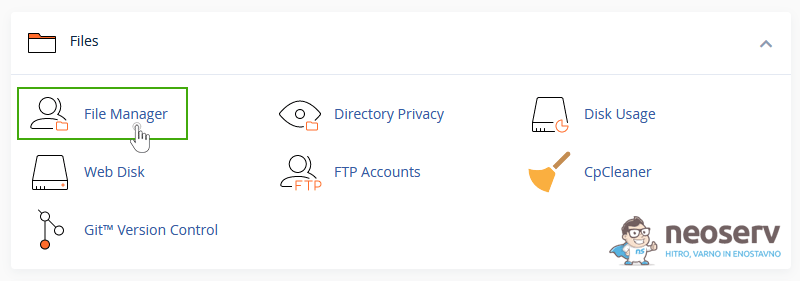
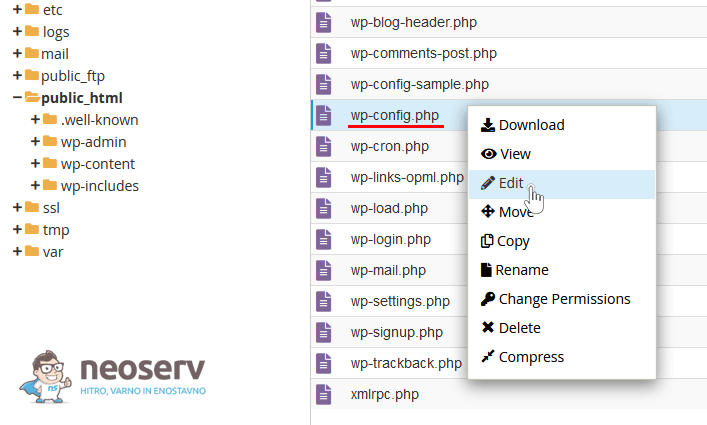
3. Navigate to the folder where you have WordPress installed, then right-click on the wp-config.php file and select Edit.
4. Locate the Authentication Unique Keys and Salts section and copy the URL of the security key and salt generator from the description.
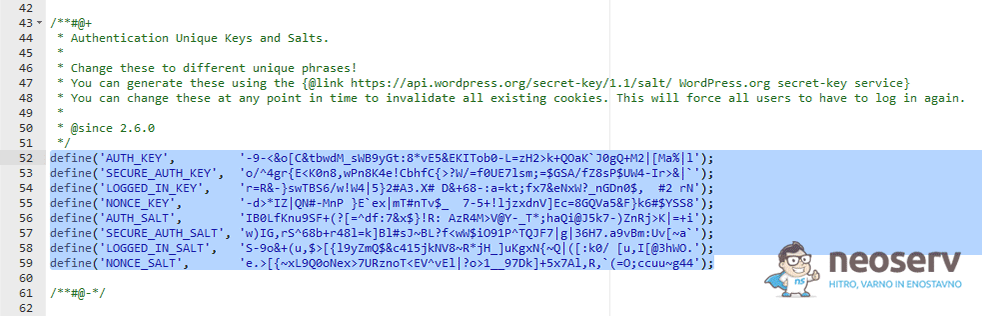
5. Open the link in a new tab, copy the automatically generated keys and salts (you can also refresh the page a few times to generate new ones), remove the old records from the wp-config.php file and replace them with the new ones.
6. Now all you have to do is click the Save Changes button in the top right corner to save your changes.
Change security keys and salts automatically
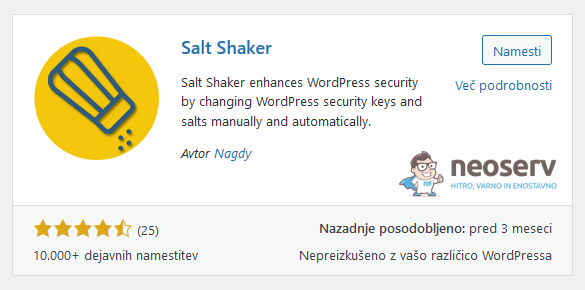
Periodically generating new security keys and salts can be achieved with a dedicated WordPress plugin. One of the most commonly used free solutions is the Salt Shaker plugin. See how easy it is to use it on your WordPress website.
1. After logging in to the WordPress administration, select Plugins -> Add New from the left menu, type Salt Shaker in the search box, and install and activate the plugin.
2. Edit the plugin settings (Tools -> Salt Shaker). Tick the box to automatically change security keys and salt, and choose how often to change it. Confirm the selected settings by clicking on the Save Settings button.
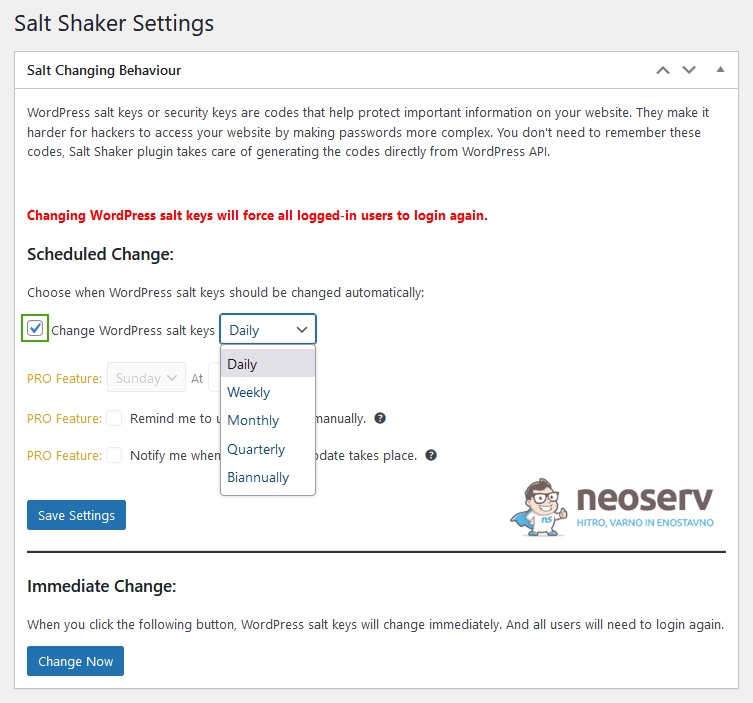
The Salt Shaker plugin also includes functionality for instant replacement of security keys and salt. Clicking on the Change Now button will result in an instant change, which means that all users currently logged into the WordPress administration will be automatically logged out. A re-login will be required to continue.
Change security keys and salts with WP-CLI
Advanced users who want to manage their WordPress website via the command line will definitely benefit from the WP-CLI command to change security keys and salt.
wp config shuffle-saltsTo use WP-CLI you will need SSH access, which is available from NEOSERV on all hosting packages from Green onwards. The WP-CLI tool for interacting and managing WordPress sites is pre-installed, and you can read more about how to use it in this post.
Summary
WordPress is a common target for online attackers, so it’s vital that you protect your website properly. In particular, it’s important that you have a strong enough password that only you know to log in to the administration, and that you make sure you regularly update the WordPress core, plugins and graphical templates. We’ve also spent a few words on choosing a username, prefixing WordPress tables in the database, and the importance of using the original graphical template and plugins.
In the second part, we focused on security plugins, which are also an important part of protecting WordPress websites. We have presented some of the most popular solutions in this area. With the help of these plugins, you can take your website’s security to a much higher level with their free versions, and you can give your WordPress site even more protection with their paid versions.
In the third part of the article, we learned about security keys and salts, which provide an additional level of password protection for logging in to the WordPress administration system. We found that changing the keys and salts regularly prevents brute force attacks and that when they are changed, all users are immediately logged out of the administration. Finally, we presented three different ways to change security keys and salts.
If you think that nothing bad can happen to your WordPress website, or if you don’t even think about protecting your website, we at NEOSERV definitely advise you to get started on WordPress website security as soon as possible. Follow as many of the tips in this article as possible, install one of the plugins described above and make sure your WordPress site is properly protected from hacker attacks today.
At NEOSERV, we understand the importance of effectively protecting WordPress sites from hacks and viruses, which is why all of our hosting packages include advanced NEOSERV Anti-Virus protection that automatically detects security holes in websites and patches them. The process is invisible to visitors and does not affect the performance of the websites.
To keep your website protected, but also running at lightning speed, we recommend that you choose WordPress hosting. Our high-performance servers are powered by ultra-fast NVMe SSDs, with LiteSpeed technology for extra speed. Subscribers receive access to the cPanel control panel, and we also allow you to use free SSL certificates. All for a secure, fast and reliable WordPress website!
COMMENT THE POST
Your comment has been successfully submitted
The comment will be visible on the page when our moderators approve it.