


- Your cart is currently empty.
Excessive Disk Usage Caused by Combined CSS/JS Files
Search results for: ""
The WordPress LiteSpeed Cache plugin provides a number of options to set up caching for your site. However, in some cases, using this plugin may result in your page not displaying correctly. In most cases, the error is not caused by the plugin, but by incorrect CSS or JavaScript (hereafter JS) file settings. Find out how to detect the error and how to fix it.
How to detect if the problem is caused by the LiteSpeed Cache plugin settings?
First, open your website in a browser window with no history logging(incognito). In addition to your domain, enter the following record:
/?LSCWP_CTRL=before_optm
For example, for the domain mojadomena.si, type mojadomena.si/?LSCWP_CTRL=before_optm
To diagnose the problem accurately, follow these three points:
- If your page is not displaying correctly (after you have added the /?LSCWP_CTRL=before_optm record to the domain), then the problem is not related to LiteSpeed Cache caching settings.
- Deactivate the LiteSpeed Cache plugin and re-enter your domain in the browser along with the aforementioned record. If your page is now displaying correctly, the problem is with the setting of this plugin.
To fix the problem, disable CSS and JS optimization, save your changes and clear the cache. - If even if you deactivate the LiteSpeed Cache plugin, your page does not display correctly, then the problem is not related to this plugin.
The space on the hosting package is filling up too quickly
One of the common problems that cause your site to not work is that the LiteSpeed Cache plugin settings are causing the space on your hosting package to fill up too quickly. Check below how to resolve the situation.
Why is the space on the hosting package filling up too quickly?
Some caching plugins have a function to generate CSS or JS files with random strings. Do you have CSS Combine and/or JS Combine enabled in the LiteSpeed Cache plugin? This will cause the presence of random strings to cause a new merged file to be generated for each page on the site.
If your website also has a separate mobile page, new merge files will be created for the mobile pages as well.
New merge files will be created every time you clear the cache on the website. Therefore, many additional files can be created in a short period of time, quickly filling the space on your hosting package.
To prevent space filling, you should exclude random CSS and/or JS strings from the merged files.
Find and exclude the random string
In the following six steps you can find and exclude random CSS or JS strings:
- Open your page with /?LSCWP_CTRL=before_optm in two separate browsers or incognito windows.
- Open the page source by clicking F12.
- Copy the page source into a source comparison tool, for example diffchecker.com.
- You should see a few lines of CSS or JS code coloured red and green. The colour shows the difference between the two pages, you can see where random strings of CSS or JS merged files are generated.
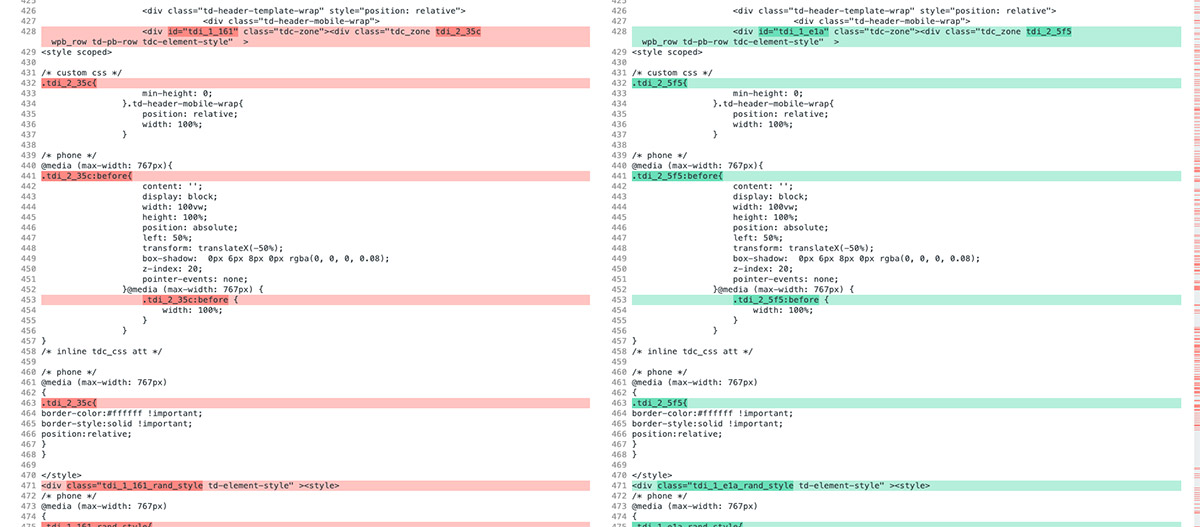
- Enter the common part of the random string in CSS Excludes or JS Excludes in the LiteSpeed Cache plugin settings.
- Run the Purge All CSS/JS command.
After following these steps, the space consumption problem when using merged CSS/JS files will be eliminated.
For further assistance, please call us on 059 335 000 or email us at info@neoserv.si.

COMMENT THE POST
Your comment has been successfully submitted
The comment will be visible on the page when our moderators approve it.