


- Your cart is currently empty.
NEOSERV STUDIO: Setting Up a Multilingual Website
Search results for: ""
With the NEOSERV STUDIO tool, the website can be set up in multiple languages. The procedure for using multilingualism is as follows:
- Set up the website in the primary language.
- Clone the website to another folder by clicking on the button.
- Translate the cloned website into the desired foreign language.
- Add a language selection module to the cloned website.
- Add a language selection module to the website in the primary language.
You do not need separate NEOSERV STUDIO packages for cloned websites. As long as they operate within the same domain, they can be located in folders, for example:
- English website:
https://yourdomain.si/en/ - Croatian website:
https://yourdomain.si/hr/ - German website:
https://yourdomain.si/de/
Below, you can learn more about the process of setting up a multilingual website.
How to create a multilingual website?
In the example presented, we will primarily create the website in Slovenian, directly on the domain vasadomena.si. Then we will check how to clone the website into the folder /en/, translate it into English, and then link the two language versions together.
1. Setting up the website in the primary language
1. Create the website in the primary language. The more complete your website is, the less work you will have later when editing the cloned website.
2. Cloning the website to another folder
1. Click on SETTINGS and select General Settings.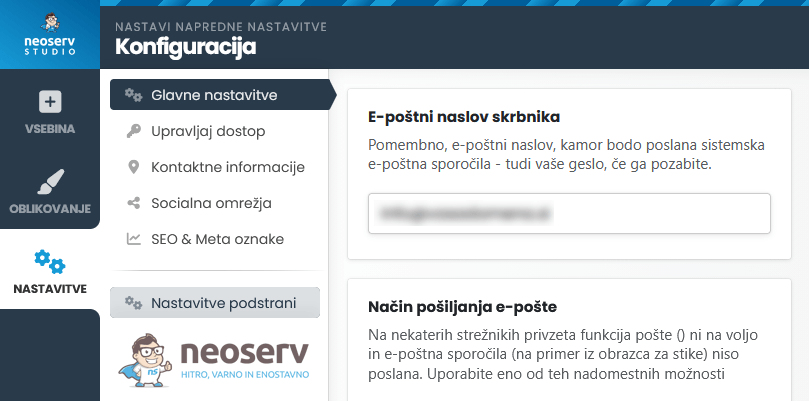
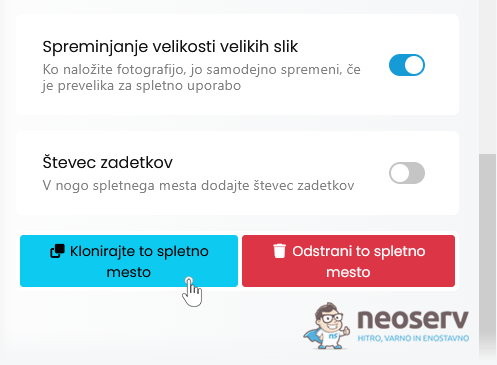
2. Scroll all the way down and click on the Clone this website button.
3. Enter the name of the folder for the new language version in the box. In our case, we will enter en, as we want to create an English version of the website.
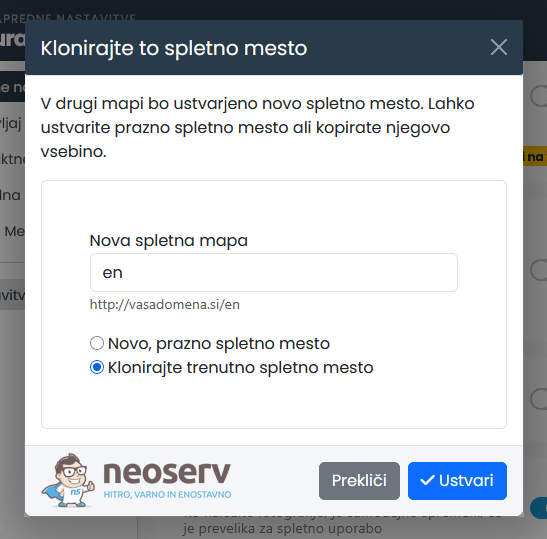
4. Make sure that Clone current website is selected, then click on the Create button.
5. Click on the green Go to new page button.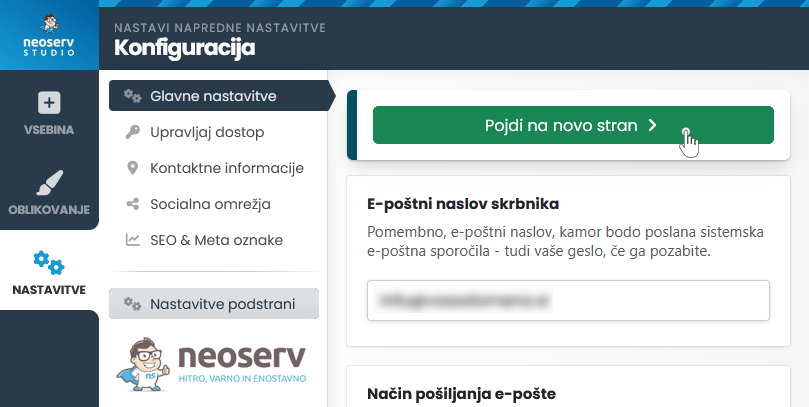
3. Translating the cloned website into another language
1. Translate the entire website, including all subpages, into the desired language. In our case, this will be English.
4. Setting up the language selection module (cloned page)
1. Click on APPS and select the Translations module.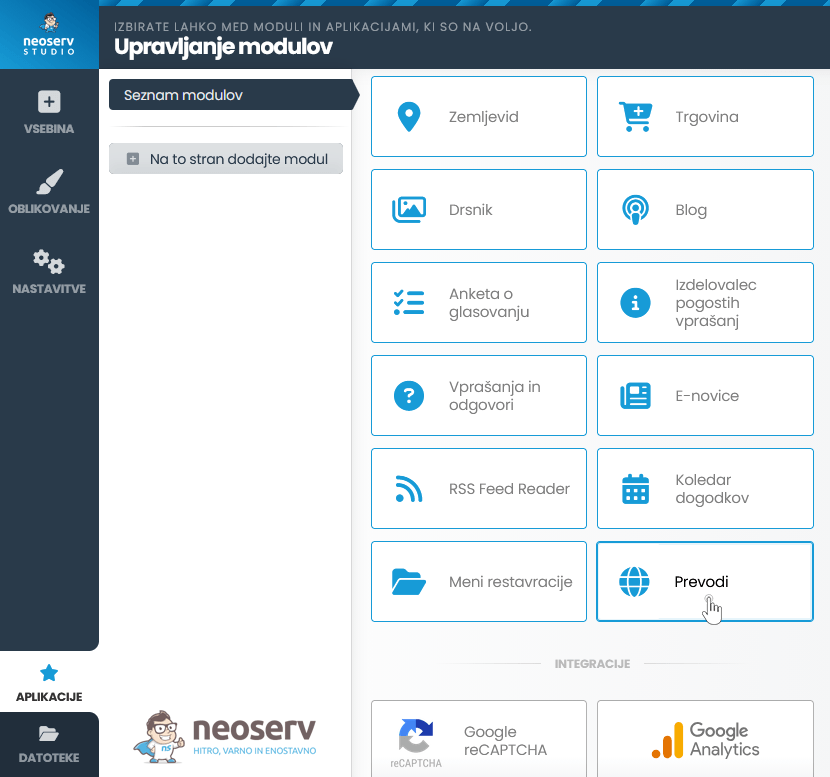
2. Add a new language to the list of available translations and use the drag & drop function to ensure that the order of languages on the English website is as follows:
- English (EN)
- Slovenian (SL)
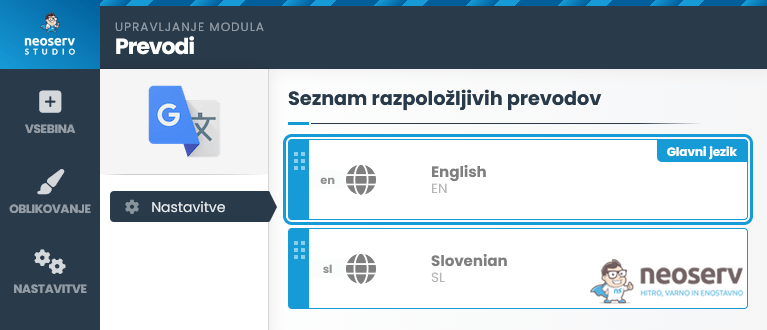
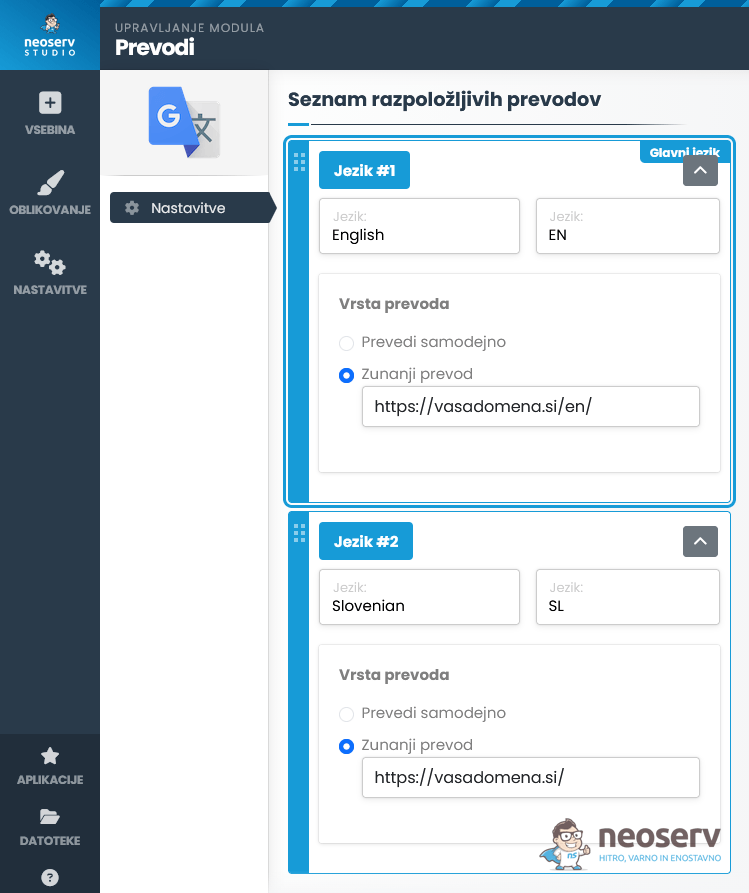
3. Select the External translation option for both elements, then:
- for English, enter the path to the appropriate folder (example:
https://vasadomena.si/en/) - for Slovenian, enter the path to your domain (example:
https://vasadomena.si/)
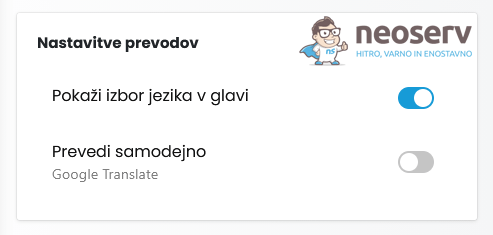
4. Under Translation Settings:
- enable the option: Show Language Selection in Header
- disable the option: Translate automatically
5. Save the settings by clicking on the Save changes button.
6. A language selection module will now be displayed in the header or navigation bar of the English website. Click on Slovenian (SL) to be redirected to the Slovenian version of the website.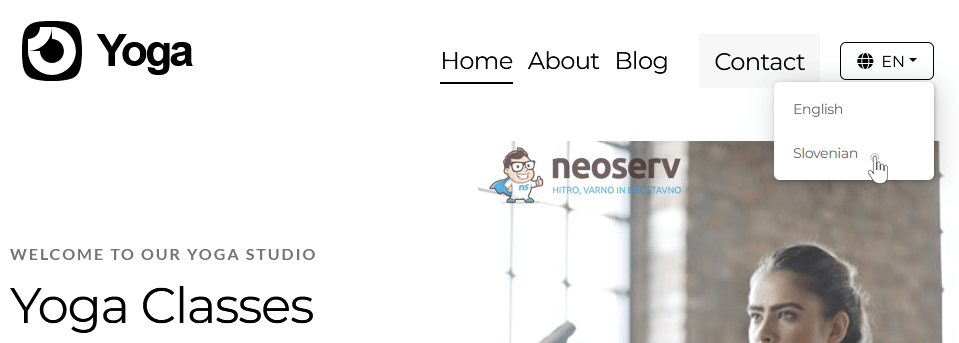
5. Setting up the language selection module (main page)
1. Click on APPS and select the Translations module.
2. Add a new language to the list of available translations and use the drag & drop function to ensure that the order of languages on the Slovenian website is as follows:
- Slovenian (SL)
- English (EN)
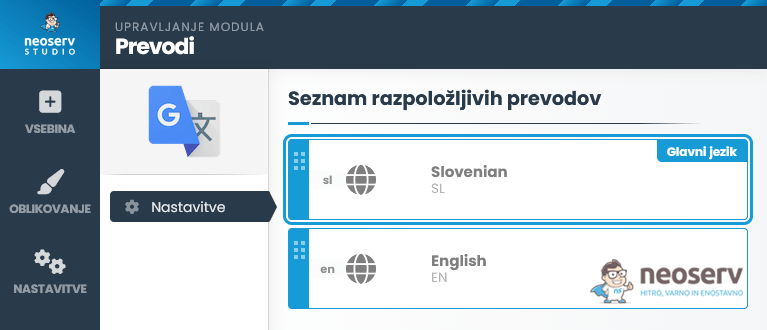
3. For both elements, select the External translation option, then:
- for Slovenian, enter the path to your domain (example:
https://vasadomena.si/) - for English, enter the path to the appropriate folder (example:
https://vasadomena.si/en/)
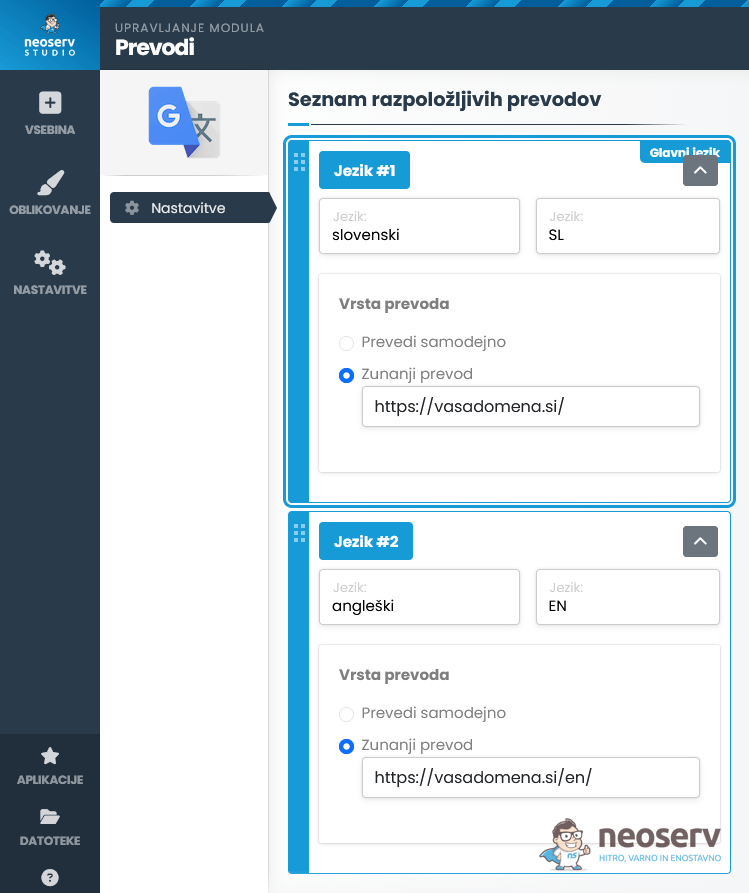
4. Under Translation Settings:
- enable the option: Show Language Selection in Header
- disable the option: Translate automatically
5. Save the settings by clicking on the Save changes button.
6. Now, the language selection module will also be displayed in the header or navigation of the Slovenian page, with the first element being slovenski (SL) and the second angleški (EN).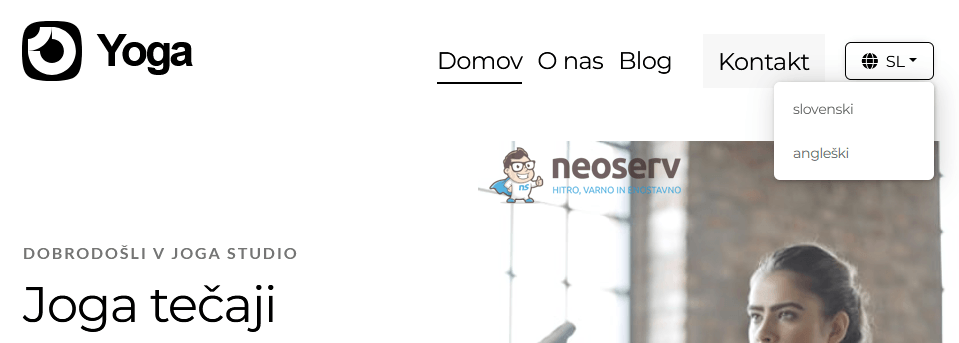
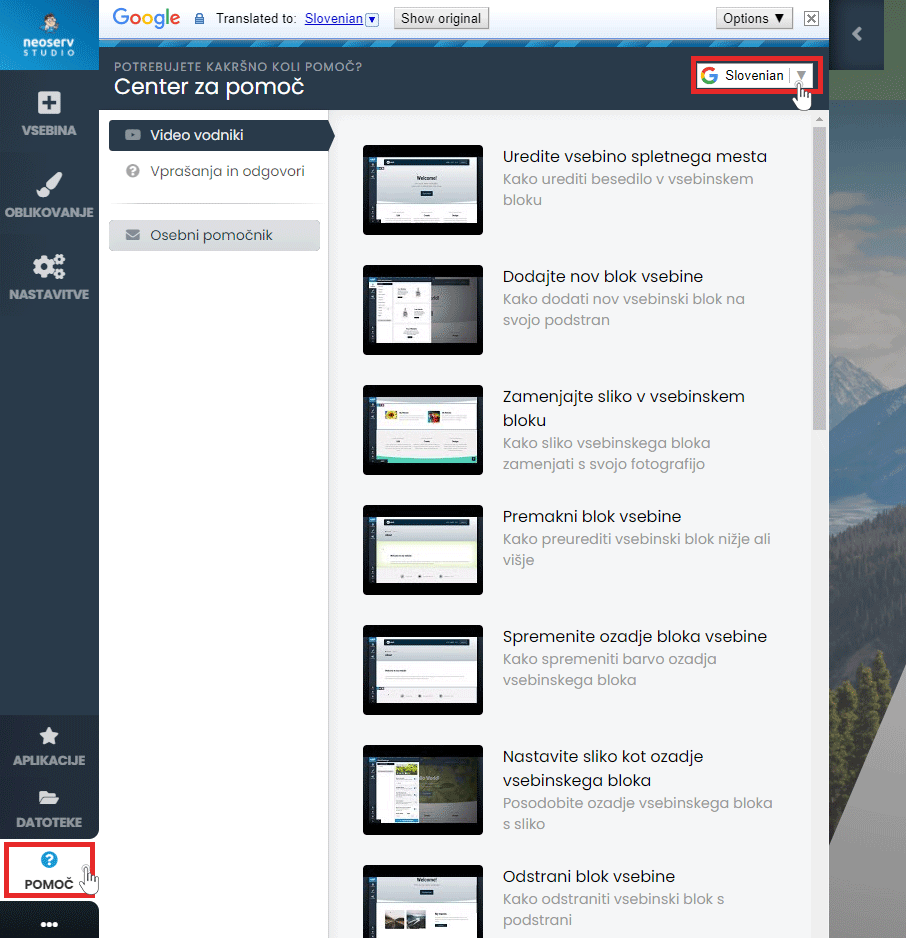
The Help Centre is also available to assist you in creating your page. In the menu, click on the Help button and select the Video Guides or Questions and Answers section. The content is also available in Slovenian.
For additional help, you can call us on 059 335 000 or write to us at info@neoserv.si.

COMMENT THE POST
Your comment has been successfully submitted
The comment will be visible on the page when our moderators approve it.