


- Your cart is currently empty.
How to Clear Browser Cache: Chrome, Firefox, Edge
Search results for: ""
It is advisable to clear the cache when transferring a website to another server, as this will also change the DNS records of your domain. As the browser still has the “old” data stored in the cache, it may redirect you to the wrong server.
In this case, it is necessary to clear the cache in the browser, and sometimes also the DNS records in the operating system (Windows). All records are automatically refreshed within a few hours (usually within 2-72 hours). It is also advisable to clear the cache if you make changes to a web page but do not see them when the page is refreshed.
Check the instructions below for clearing the cache in browsers:
Google Chrome
- Open Google Chrome and press Ctrl+Shift+Delete (shortcut) on your keyboard at the same time.
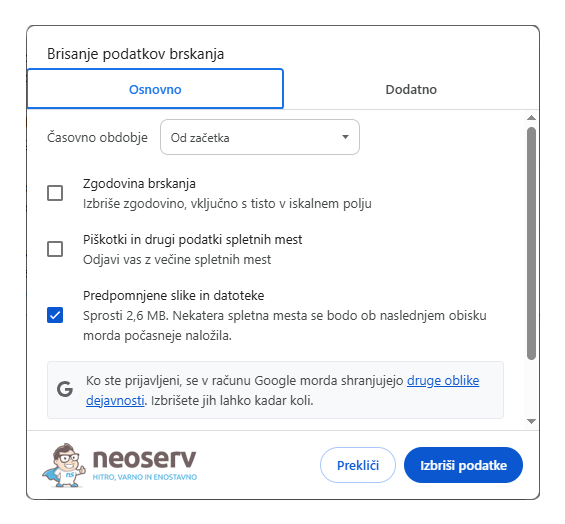
- In the Time range field, select the option From start ( All time).
- Check the Cached images and files checkbox.
- Confirm the deletion of the cache by clicking the Delete Data button.
Mozilla Firefox
- Open Mozilla Firefox and press Ctrl+Shift+Delete (shortcut) on your keyboard at the same time.
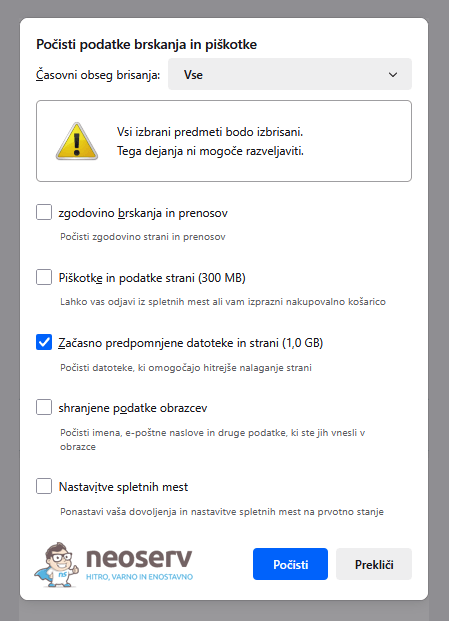
- In the When field, select Everything.
- Tick the Temporary cached files and pages checkbox.
- Confirm the deletion of the cache by clicking the Clear button.
Microsoft Edge
- Open Microsoft Edge and press Ctrl+Shift+Delete (shortcut) on your keyboard at the same time.
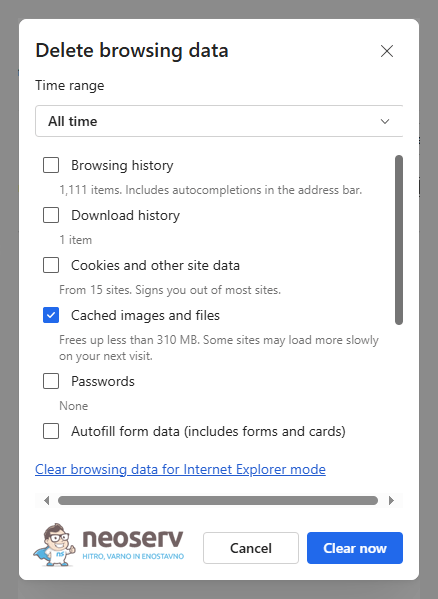
- In the Time range field, select From start (All time).
- Check the Cached images and files checkbox.
- Confirm the deletion of the cache by clicking the Clear now button.
For further assistance, please call us on +386 59 335 000 or email us at info@neoserv.com.

COMMENT THE POST
Your comment has been successfully submitted
The comment will be visible on the page when our moderators approve it.