


- Your cart is currently empty.
How to Increase the Maximum Upload File Size in WordPress
Search results for: ""
WordPress has a preset maximum file size that can be uploaded from 2 MB up to 150 MB. If you want to upload larger files than the preset value, you have the option to change it. Check below the four options on how to do this.
Current maximum file value
First, check the current maximum file size setting. There are three easy steps to do this:
- Log in to the WordPress administration.
- From the menu, click Media > Add New.
- Check the Maximum upload file size value in the bottom left corner.
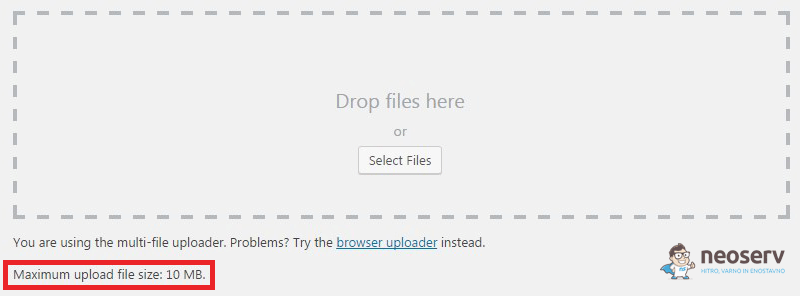
If the preset value is too low, there are four ways to change it.
Edit the functions.php file
Follow these four steps to increase the maximum file size you can upload in the functions.php file.
- Log in to the cPanel control panel.
- In the Files section, click on the File Manager icon.
- Click on public_html and wp-content > themes > open the folder with the theme you are currently using.
- Open the functions.php file and enter the code with the desired values:
@ini_set( 'upload_max_size', '64M' );
@ini_set( 'post_max_size', '64M' );
@ini_set( 'max_execution_time', '300' );
We recommend to fix the value in the Child topic. If you fix the settings in the main theme, the values will be reset again when the theme is updated. In case the functions.php file does not exist in the Child theme folder, create it and enter the above code.
INCREASING LOAD SIZE IF YOU USE WordPress MultiSite (WPMU)
In case you are using WordPress Multisite (WPMU), then edit the setting in the WordPress administration. The setting depends on the settings of the server where your website is uploaded. For example, if your server is set to 20 MB, you cannot exceed this value. However, you can, for example, increase the value from 15 MB to 20 MB. 
Edit the wp-config.php file
One of the ways to edit the settings is to edit the wp-config.php file in four steps:
- Log in to the cPanel control panel.
- In the Files section, click on the File Manager icon.
- Click on public_html.
- Open the wp-config.php file and enter the code with the desired values:
@ini_set( 'upload_max_size', '20M' );
@ini_set( 'post_max_size', '15M' );
@ini_set( 'memory_limit', '15M' );
@ini_set( 'max_execution_time', '300' );
Use a dedicated plugin
The easiest method, for basic WordPress users, is to use a dedicated plugin to increase the maximum file size. Install and use it in six steps. 
- Log in to the WordPress administration.
- Click on Plugins > Add New in the menu.
- Type Increase Max Upload Filesize in the search box.
- Install and activate the selected plugin.
- Open the plugin settings and enter the desired value in the Increase Maximum Upload File Size section.
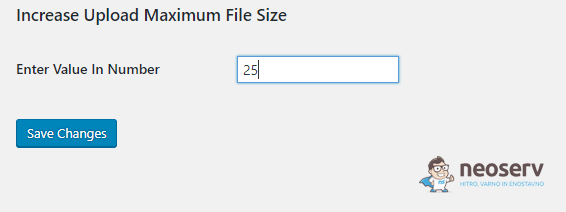
- Save your changes.
This way you have successfully increased the maximum file size you can upload to WordPress.

COMMENT THE POST
Your comment has been successfully submitted
The comment will be visible on the page when our moderators approve it.