


- Your cart is currently empty.
NEOSERV Studio: Adding and Editing Images and Galleries
Search results for: ""
In NEOSERV STUDIO, each graphic attachment has images loaded by default. Find out how to replace them with your own images, how to add new ones and how to create a gallery.
Edit and replace existing images
With a few clicks you can replace an existing image on the page.
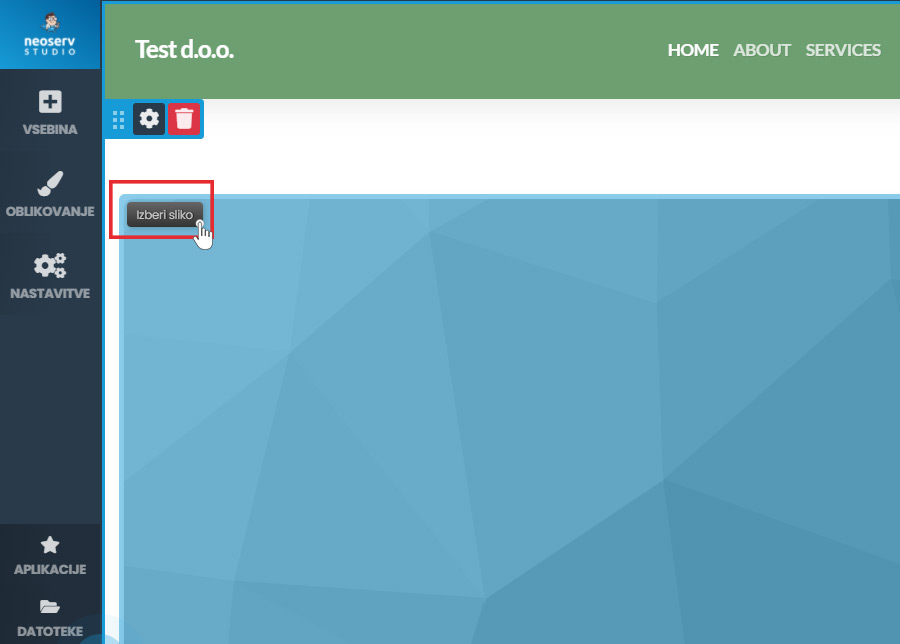
- Click on the image you want to replace.
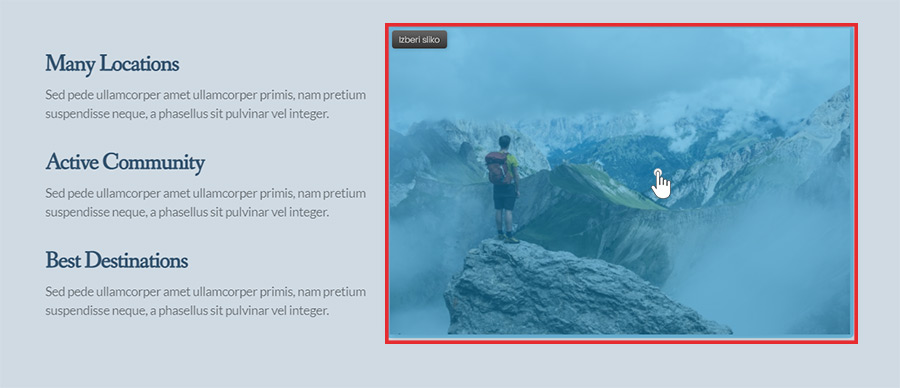
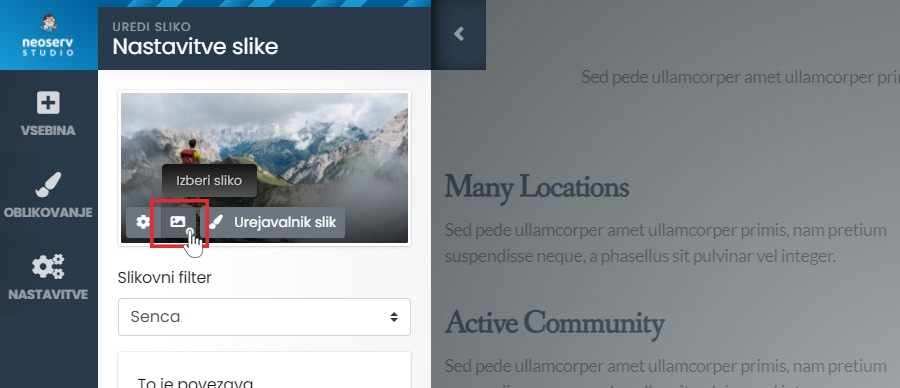
- Click on the Select Image icon.
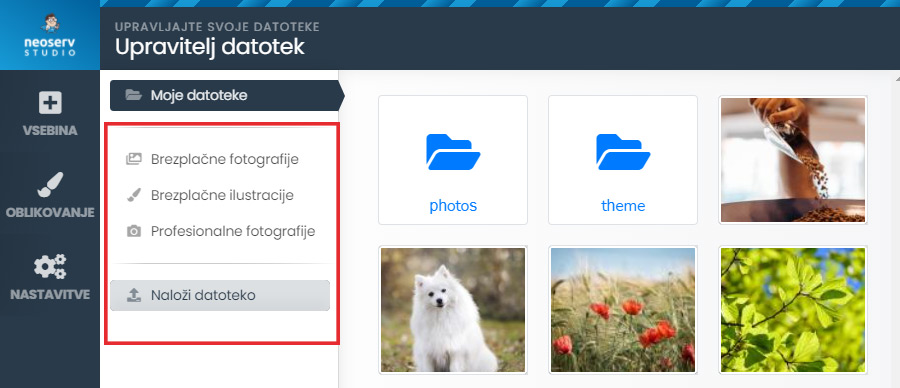
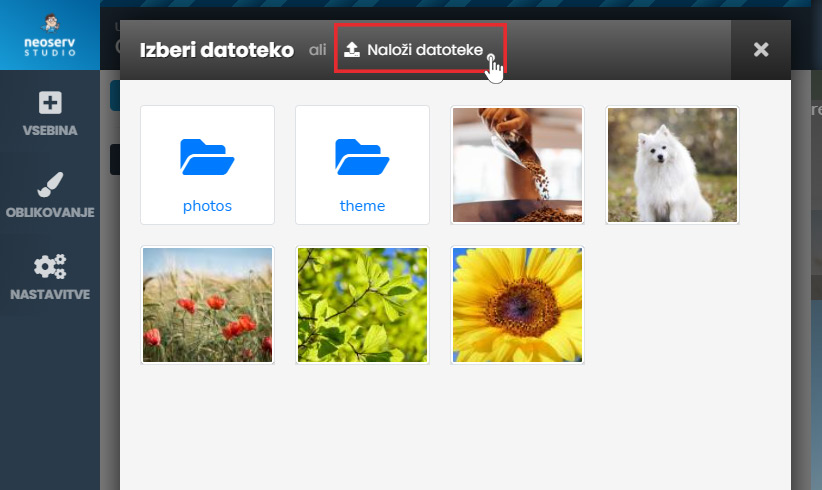
- You can choose between the images that are part of the NEOSERV STUIO editor. To upload your own image, click on the Upload file button.
- Click on the desired image and click on the Save Changes button.
Adding an image
Add and edit a new image in four easy steps.
- From the menu, select CONTENTS > Objects > Add image.
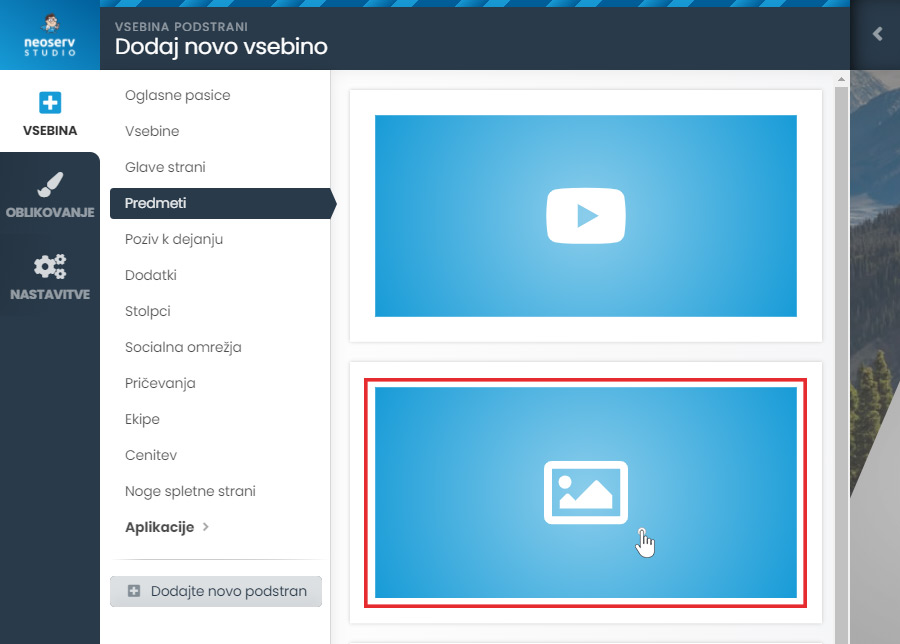
- Click on Select Image and select/upload the image as described in the section above.
- You can also select an image filter or link that will redirect the user to another page when they click on the image before confirming the selected image.
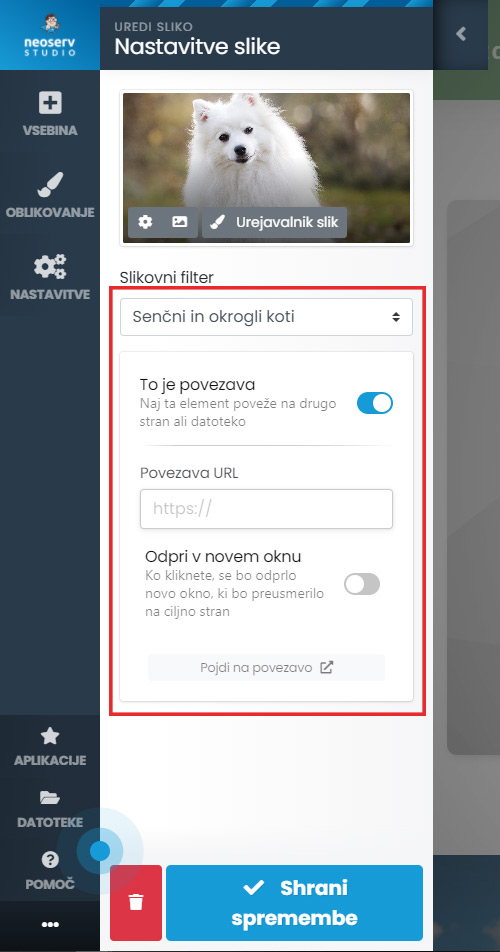
- Click on the Save Changes button.
You have successfully added an image. If the size of the image does not suit you, use a dedicated image editing software to adjust it.
Creating a gallery
Create an image gallery in four steps:
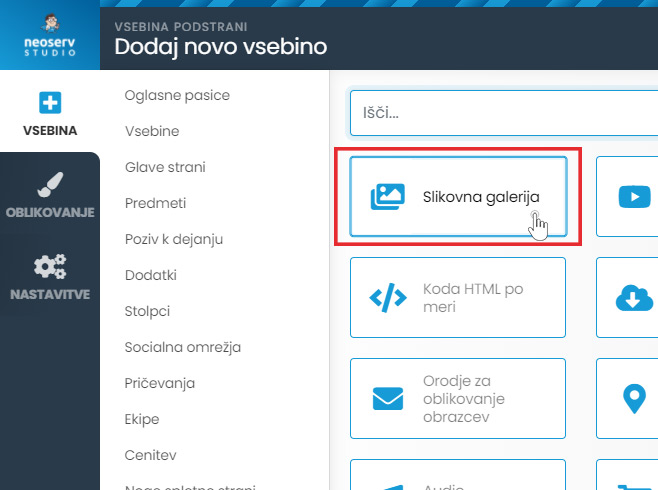
- From the menu, select CONTENT > Apps > Image Gallery.
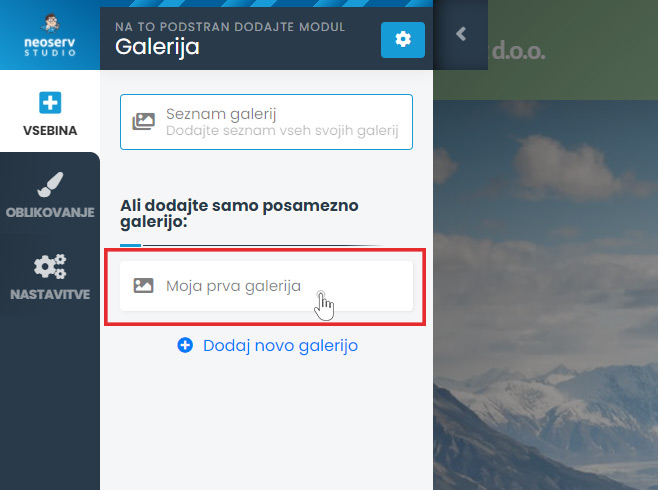
- Click My First Gallery.
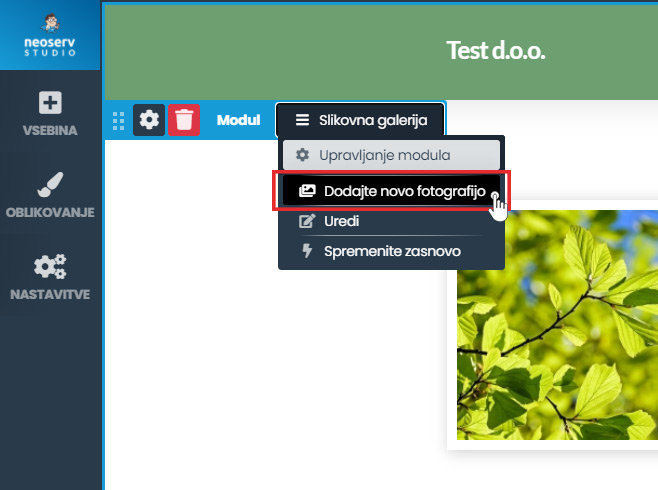
- Click on Image Gallery > Add new photo.
- Click on Upload files and upload the photos you want to add to the gallery.
If you want to remove an image from the gallery, click on Image gallery > Edit and click on the icon of the image you want to remove. In the newly opened window, select “Yes”.

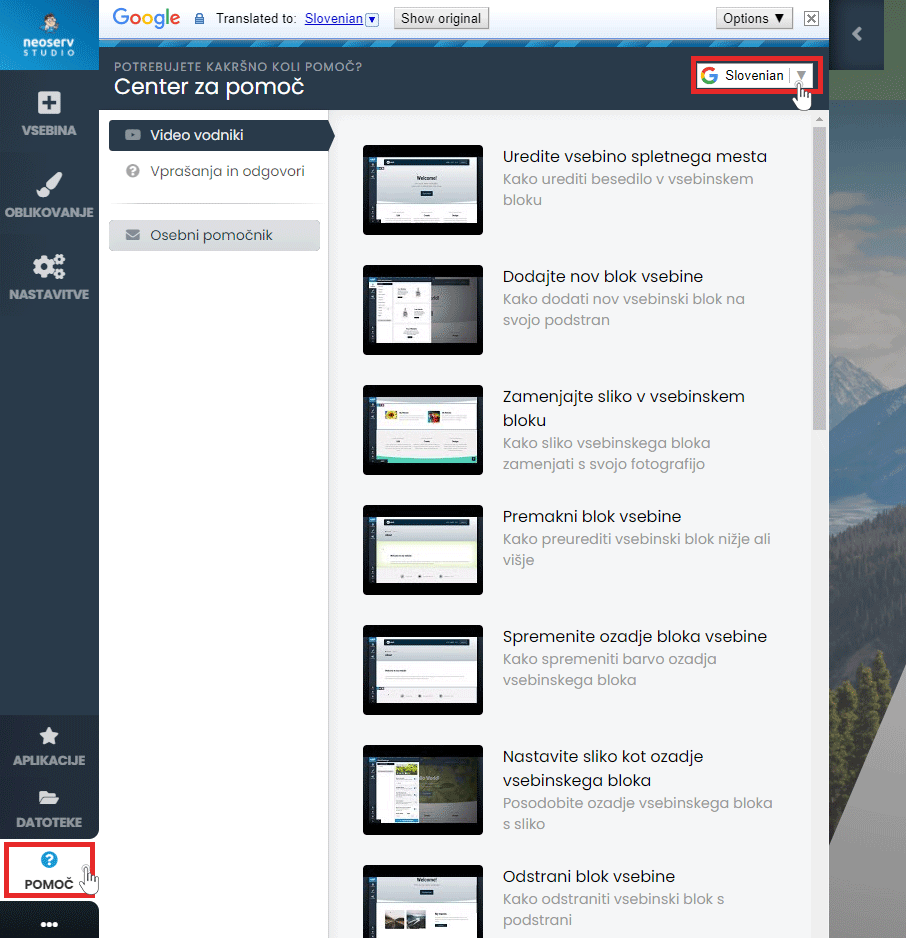
The Help Centre is also available to assist you in creating your page. Click on the Help button in the menu and select Video Guides or Questions & Answers. The content is also available in Slovenian.
For further assistance, please call us on 059 335 000 or email us at info@neoserv.si.

COMMENT THE POST
Your comment has been successfully submitted
The comment will be visible on the page when our moderators approve it.