


- Your cart is currently empty.
NEOSERV Studio: Editing Navigation and Adding Subpages
Search results for: ""
One of the most important elements on the website is the navigation menu. It allows visitors to easily navigate through the website and its subpages.
In NEOSERV STUDIO, every graphic template has a pre-set menu. Your task is to arrange the menu according to your preferences and rename or remove or add new subpages.
Personalisation of the navigation menu
Each menu is divided into two parts. The main part is your Home page, About page, About products, etc. The second part is your Terms and Conditions and Privacy Policy. The latter menu is usually displayed in the footer of the website. Each menu can be edited in two steps.
- Click on SETTINGS and enter the appropriate sub-page names.
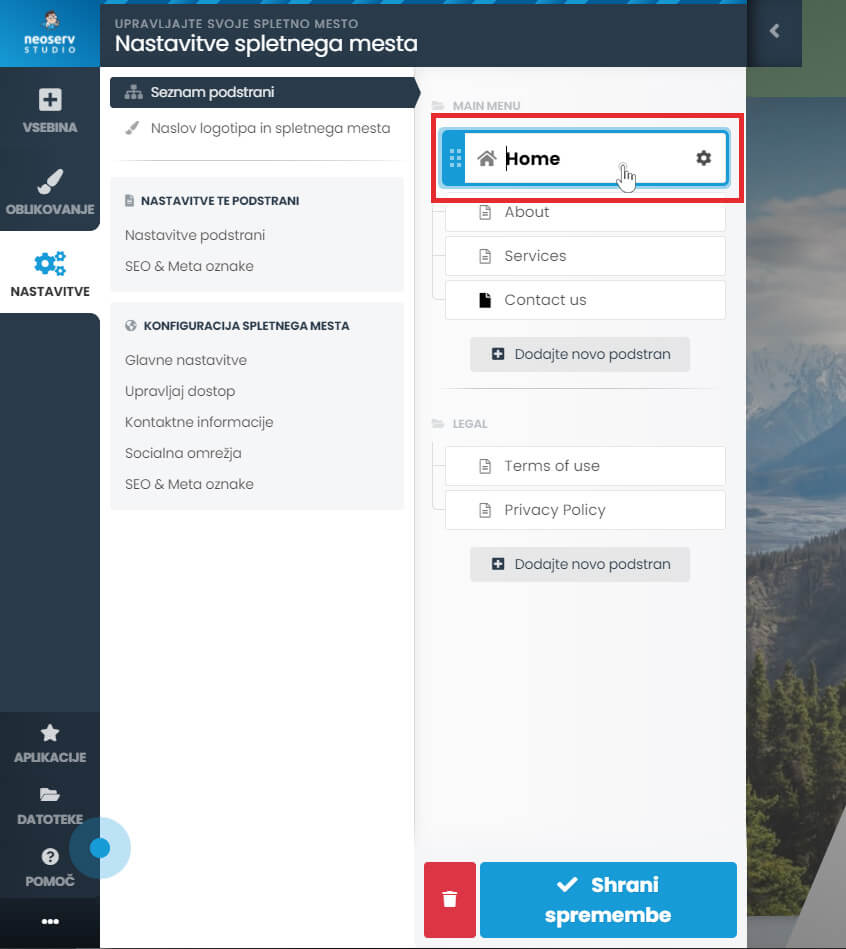
- Click on the Save changes button.
When you change the name in the menu, you also change the URL of the subpage, so be careful when choosing a name.
To remove a sub-page, select SETTINGS > Trash next to the desired sub-page. In the newly opened window, click OK to confirm your choice.

Adding a subpage
Each NEOSERV STUDIO package has a number of subpages that you can add to your website. The process of adding a new sub-page is carried out in four steps.
- Click on SETTINGS > Add new subpage.
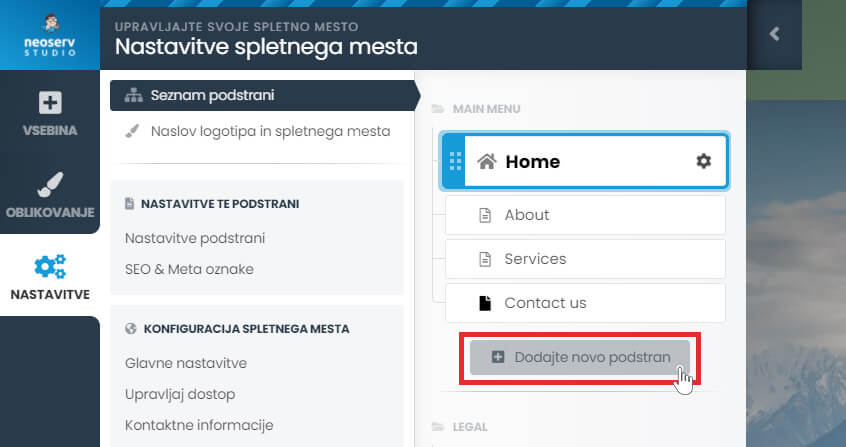
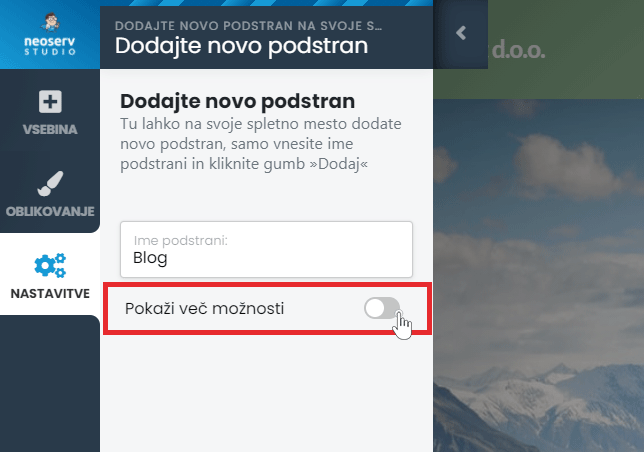
- Enter a name for the subpage and, if desired, set additional options by moving the Show more options button.
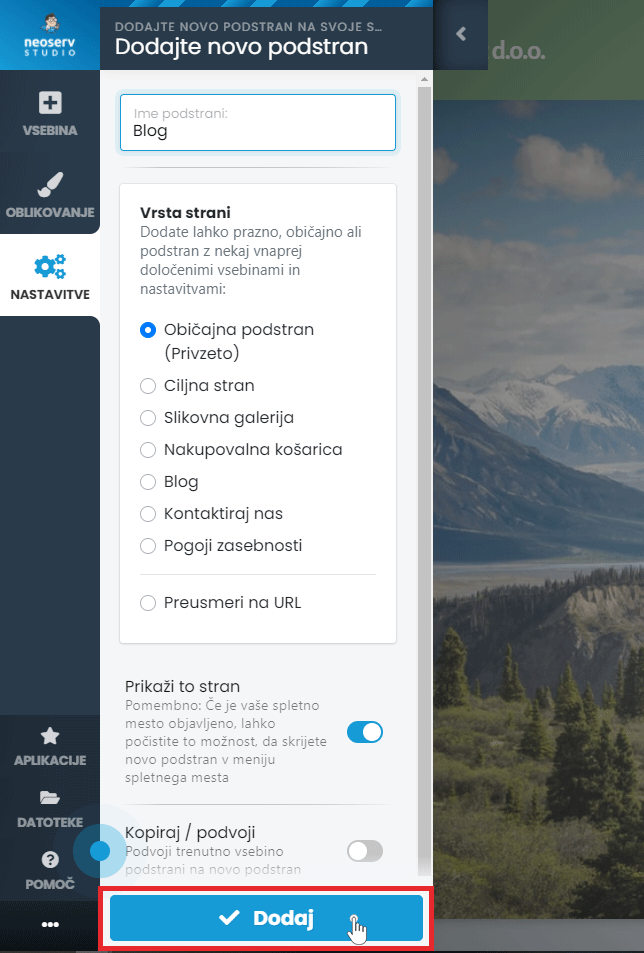
- Select the type and display of the page and duplicate the current page structure if desired.
- Click the Add button.
In case you need more subpages than your package supports, you can easily reward the latter.
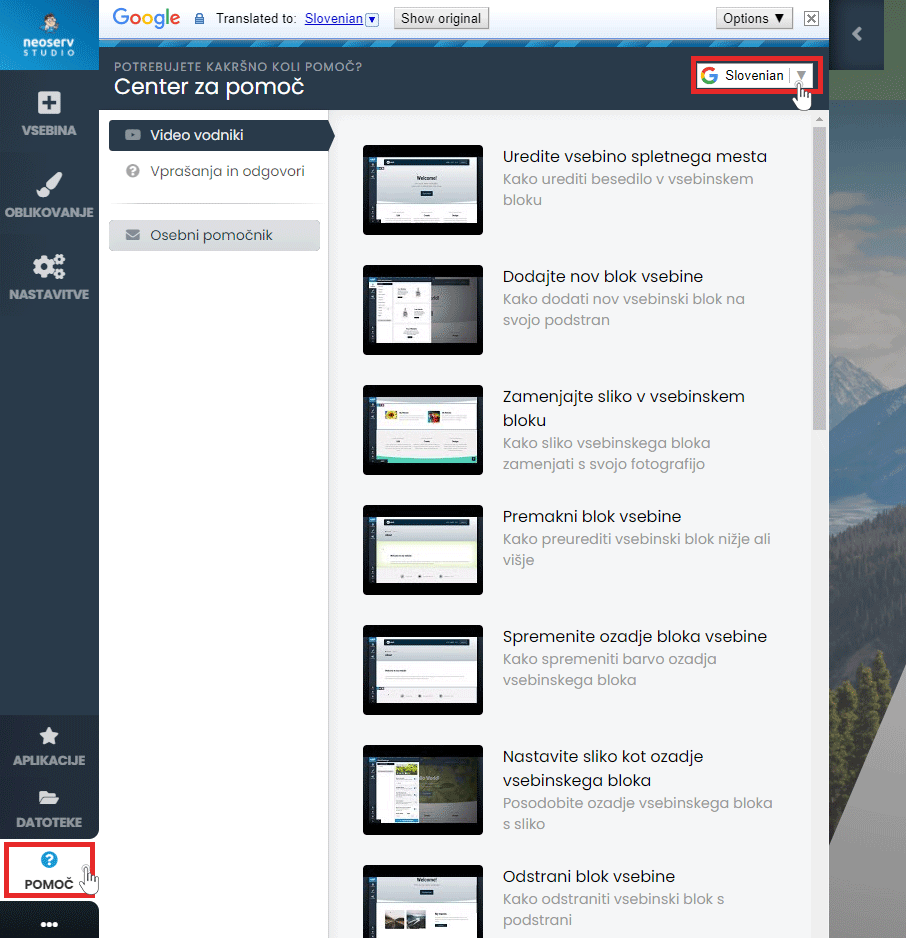
The Help Centre is also available to assist you in creating your page. Click on the Help button in the menu and select either Video Guides or Questions & Answers. The content is also available in Slovenian.
For further assistance, please call us on 059 335 000 or email us at info@neoserv.si.

COMMENT THE POST
Your comment has been successfully submitted
The comment will be visible on the page when our moderators approve it.