


- Your cart is currently empty.
NEOSERV Studio: Creating an Online Store
Search results for: ""
Although NEOSERV STUDIO is originally designed for web development, the PRO and BUSINESS packages also allow you to create a simple online shop. We recommend using this editor if you sell up to 5 products and need some basic webshop features.
If your requirements are greater, we recommend using the green or blue hosting package, in combination with the WordPress and Woocommerce platforms.
Check below how to create and edit the basic features of the NEOSERV STUDIO webshop.
Creating an online shop
- Position yourself where you want to add your store and click on Add new content here. If you want to put your shop on a separate sub-page, do that first.
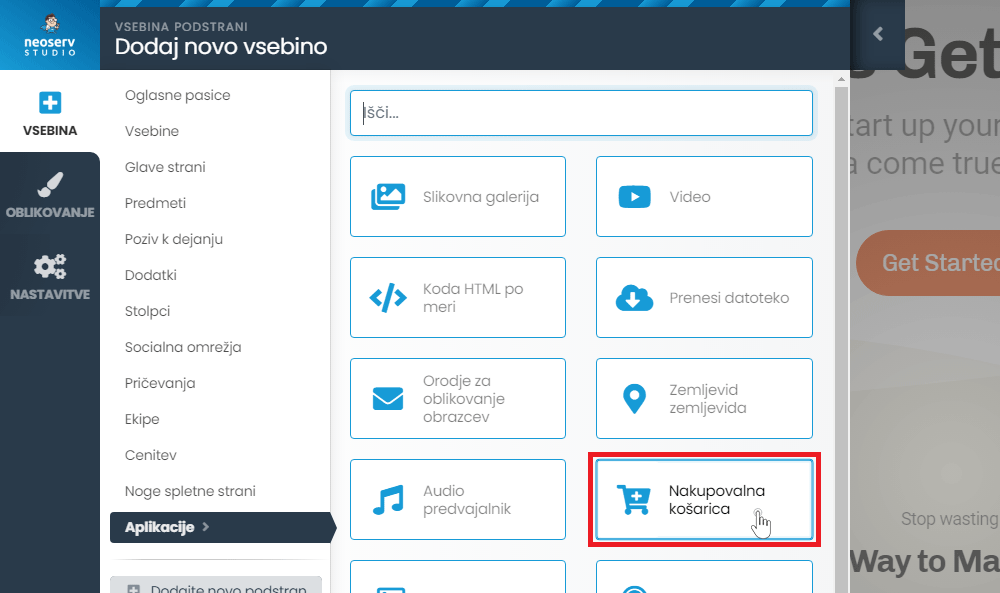
- In the Applications section, click on Shopping Cart.
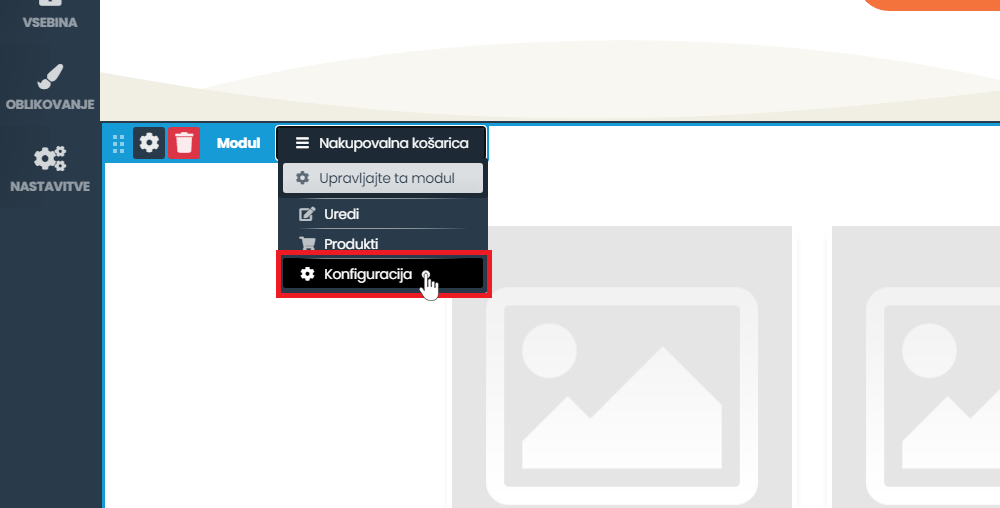
- Click on the Shopping Cart and Configuration button .
- Enter the name of the shop, select the country, currency, currency prefix, tax and other basic settings for the online shop.
- Click on the Save Changes button.
Edit products
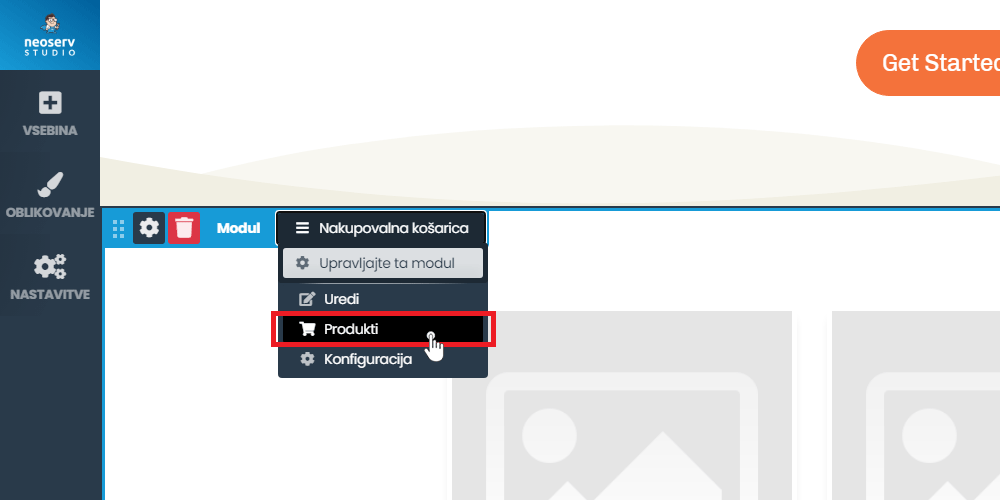
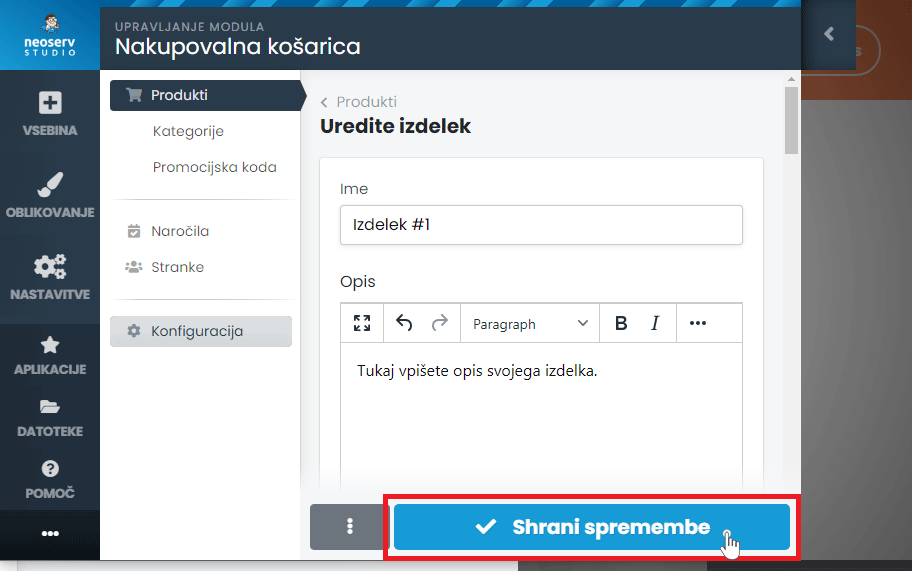
- At the top of the module, click on Shopping Cart and Products.
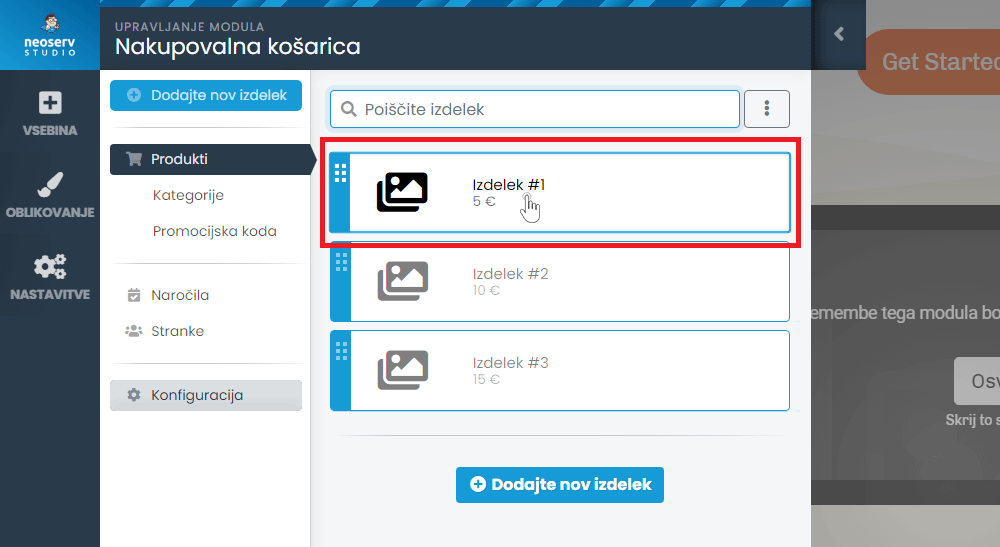
- Click on the desired product to open the options for the selected product.
- Enter the name, description, picture, price, tax and, if desired, the category and other product parameters.
- Click on the Save Changes button.
Adding a product
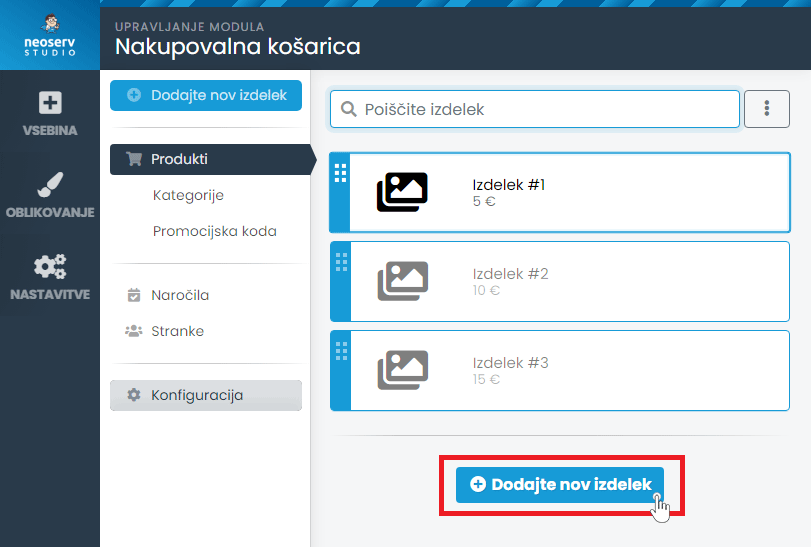
- Repeat step 1 from above and click on the Add new product button.
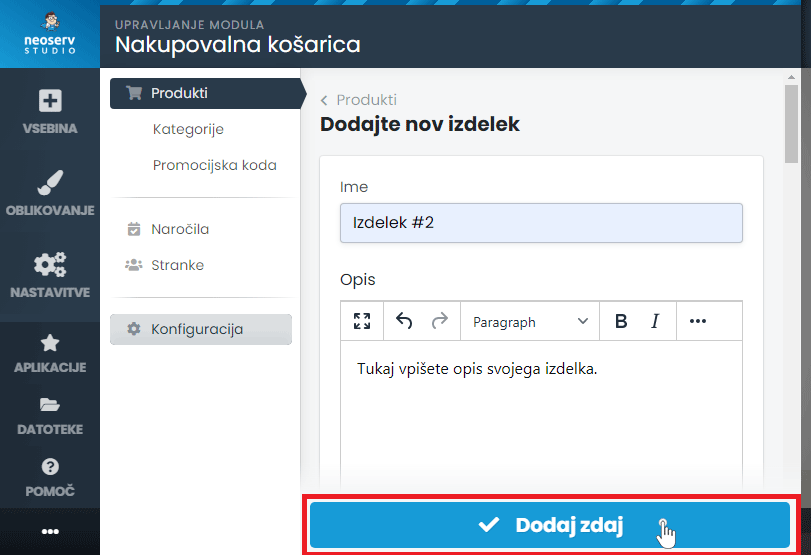
- Enter all the necessary product information.
- Click on the Add Now button.
Delete product
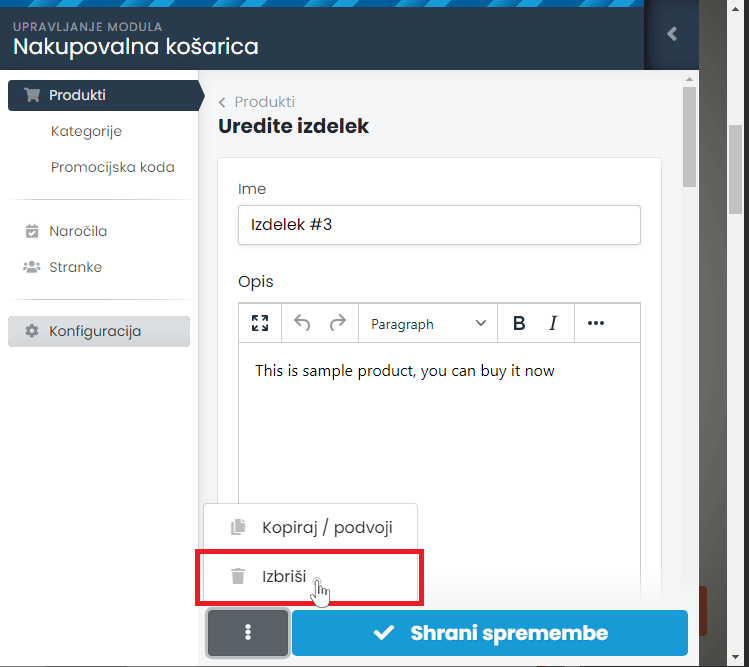
- At the top of the module, click on Shopping Cart and Products.
- Click on the product you want to delete.
- Click on the three vertical dots.
- Select Delete and select OK in the pop-up window.
Product categories
- At the top of the module, click on Shopping Cart and Products.
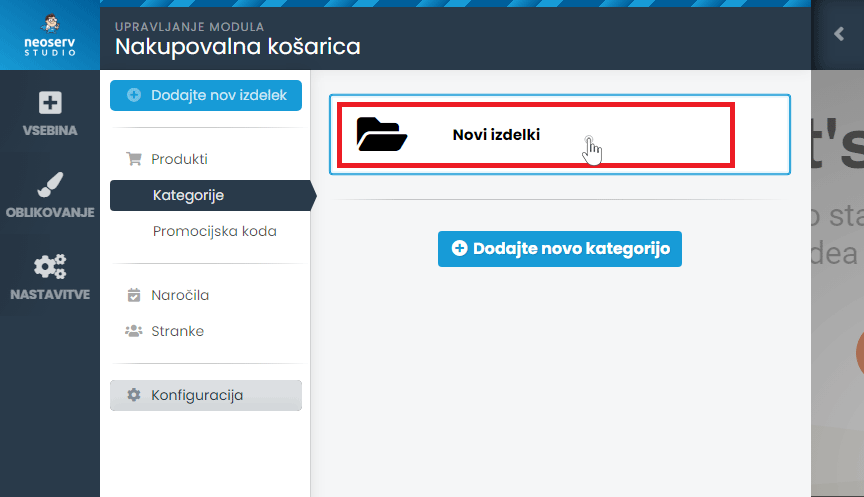
- Select the Categories tab.
- Click on the category you have already created and enter a new name and all the required information.
- Click on the Save Changes button.
To add a new category, follow the first two steps in the above section, click on the Add new category button and enter the necessary details.
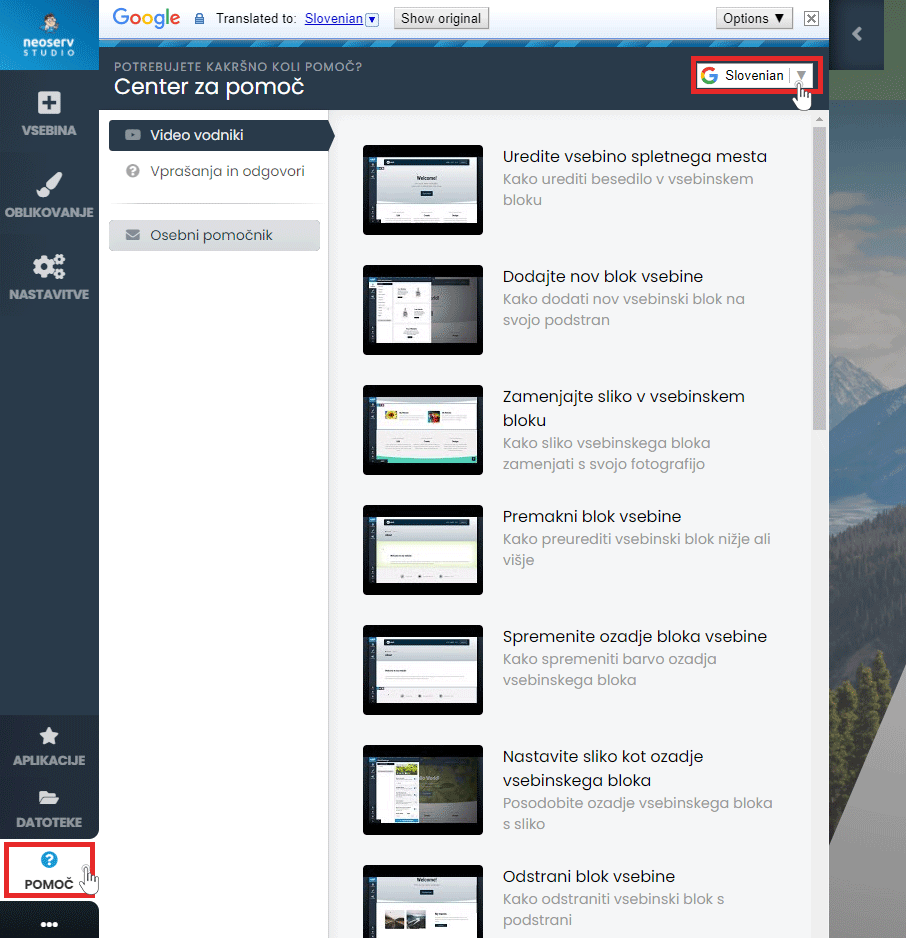
The Help Centre is also available to assist you in creating your page. Click on the Help button in the menu and select either Video Guides or Questions & Answers. The content is also available in Slovenian.
For further assistance, please call us on 059 335 000 or email us at info@neoserv.si.

COMMENT THE POST
Your comment has been successfully submitted
The comment will be visible on the page when our moderators approve it.