


- Your cart is currently empty.
NEOSERV Studio: Page Personalization
Search results for: ""
If you have followed the other steps in the NEOSERV STUDIO website builder so far, then your website is already looking the way you want it to. But it still needs something to add your own touch. Personalisation will make your page stand out from the crowd and help visitors instantly associate it with your company or brand.
Table of contents
1. Colours on the page
In NEOSERV STUDIO you can change the colours of the text, borders, lines and other elements on the page. It is recommended that you use the same colours as your company colours on the website. In case you are making a personal website, use up to three different colours per page.
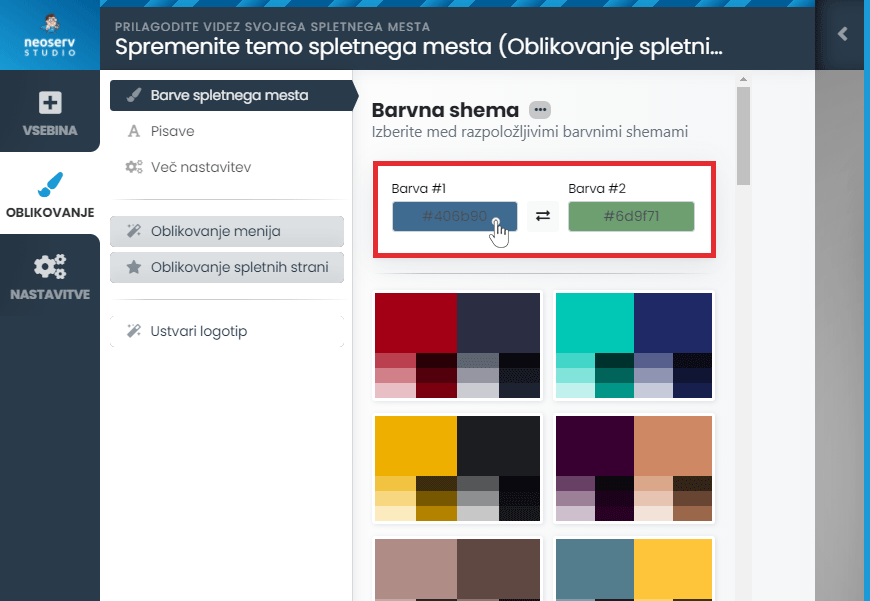
- Click on DESIGN > Site colours.
- You can add the code for the desired colours in the Colour #1 and Colour #2 fields, or click on each field and select a colour using the Colour Picker or Colour of Choice.
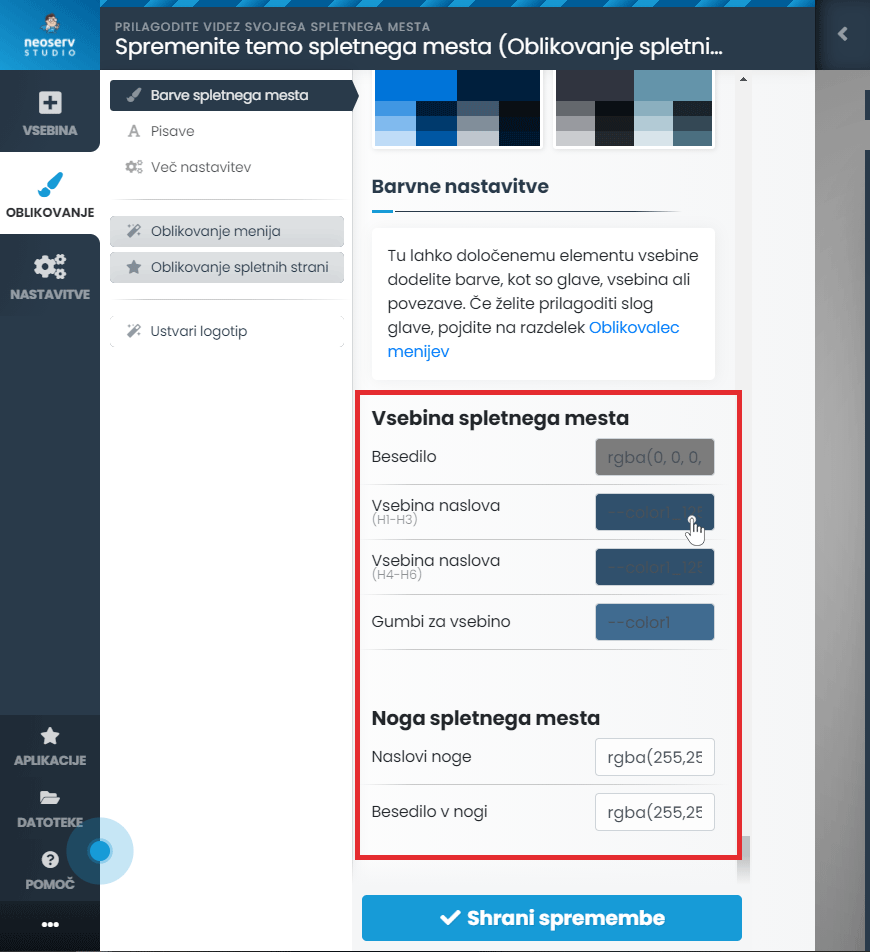
- At the bottom of the list, you can also select the colours of the headings, text and buttons, as well as the website footer colours.
- Once you have selected the colour scheme you want, click on the Save Changes button.
2. Fonts on the page
NEOSERV STUDIO offers you more than 500 different fonts. You can choose primary and secondary fonts and edit font settings.
- Click on DESIGN > Fonts.
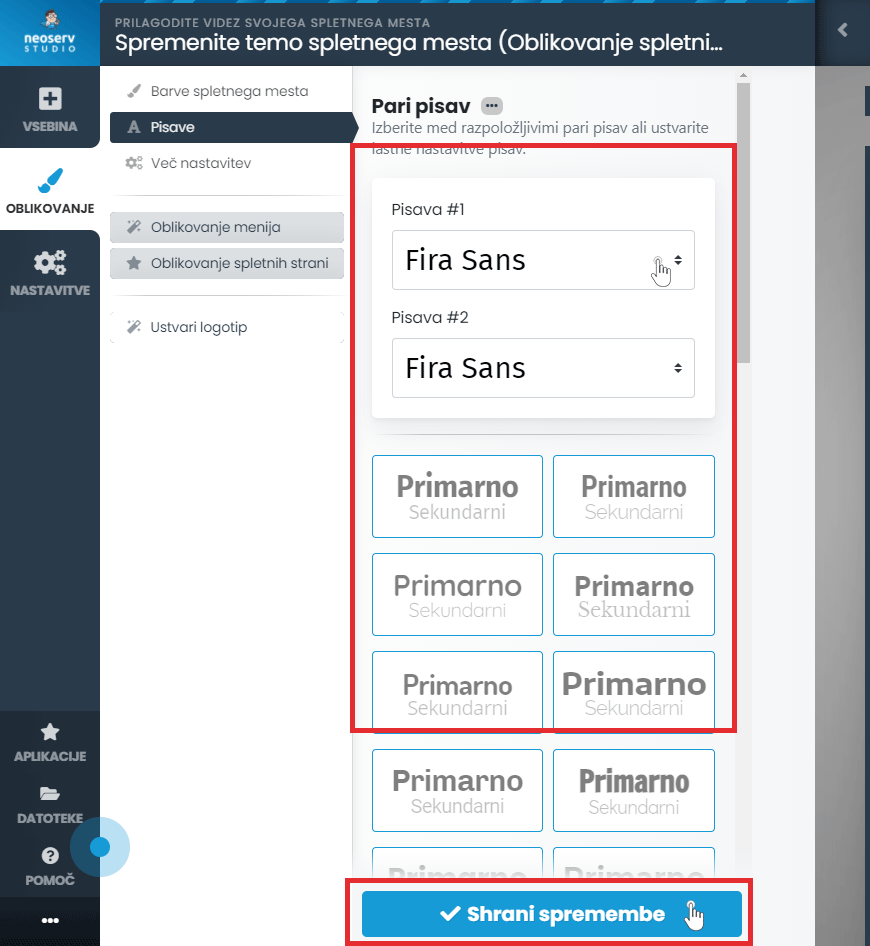
- Select a primary and secondary font and set the properties of each font as desired at the bottom of the list. You can also use any of the predefined font combinations.
- Click on the Save changes button.
3. Formatting the menu
If you are not satisfied with the pre-set menu, there are simple ways to change it.
- Click on DESIGN > Menu design.
- In the Menu Templates section, you can choose from the menus that have already been created.
- Click on the one you want to see how it looks in the preview.
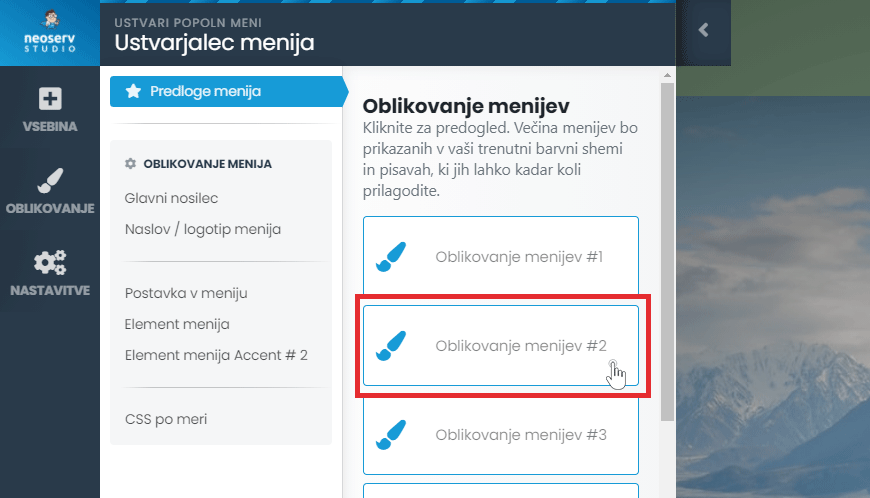
- By clicking on the arrow you can also see the other menus available.
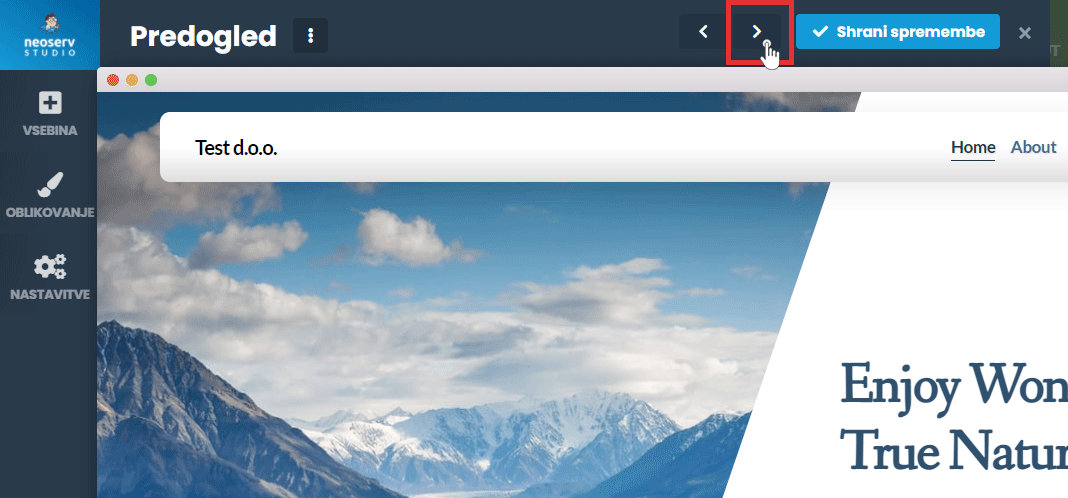
- Once you have selected the one you want, click on the Save Changes button, or on the cross sign if none of them suits you.
- In the additional settings (Main bracket, Menu title/logo, etc.) you can also edit the other settings of the selected menu.
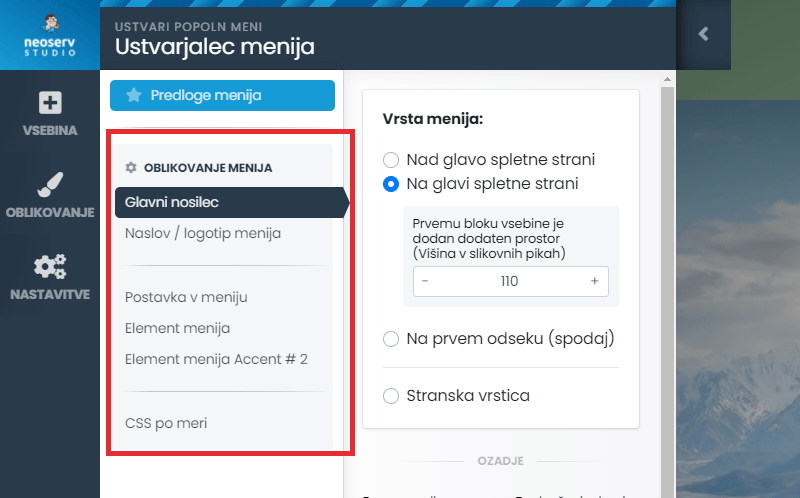
- Save your changes by clicking on the Save Changes button.
4. Additional settings
By clicking on EDIT > More settings, you can set the following additional settings in the NEOSERV STUDIO editor:
- Boxed Layout,
- Dark theme,
- a scroll button to the top of the page,
- animations when scrolling down the page,
- custom code.

Once you have made the change, click on the Save Changes button.
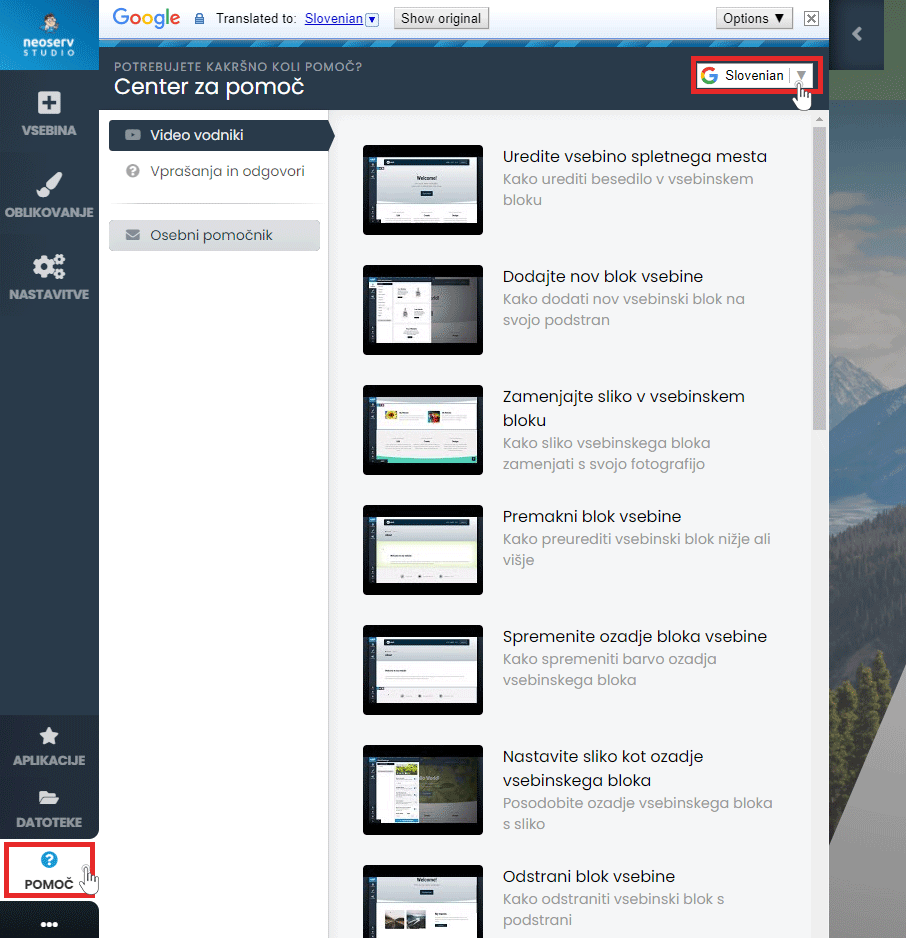
The Help Centre is also available to assist you in creating your page. Click on the Help button in the menu and select either Video Guides or Questions & Answers. The content is also available in Slovenian.
For further assistance, please call us on 059 335 000 or email us at info@neoserv.si.

COMMENT THE POST
Your comment has been successfully submitted
The comment will be visible on the page when our moderators approve it.