


- Your cart is currently empty.
How to Restore Files and Folders with JetBackup 5
Search results for: ""
Has your website stopped working after changes or updates? Don’t worry, you can restore all your website files and folders from backups, which are made on our servers on a daily, weekly and monthly basis. You can do this in the cPanel control panel using JetBackup 5.
How do I restore files and folders with JetBackup 5?
The process for restoring files and folders to a selected date is easy with JetBackup 5.
1. Log in to the cPanel control panel (login instructions).
2. In the Files section, click on the JetBackup 5 icon.

3. On the main page of the JetBackup 5 interface, click on the Home Directory icon.
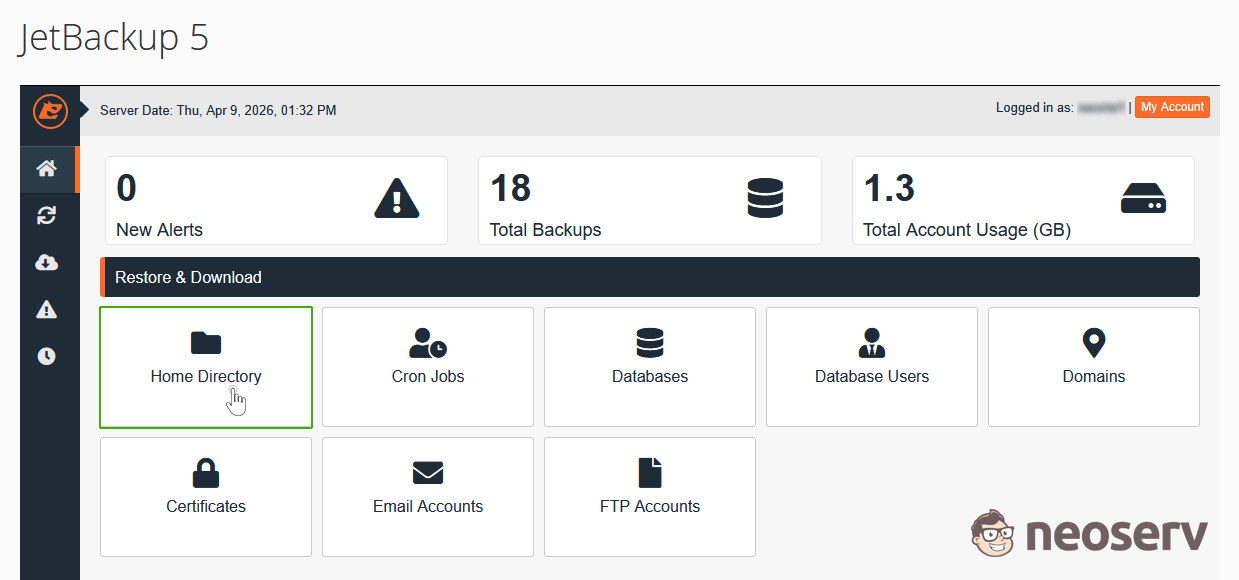
4. From the list, select the date on which you want to restore your website files and folders.

We advise you to choose one of the backups that has Local in the Destination column. In this case, the restore will be performed from a local backup, which will be completed faster than if you had selected Remote.
5. For the selected backup, click on the Change Files Selection button to specify which folders and files you want to restore.

It is very important to select the desired folders and files by clicking on Change Files Selection. Otherwise, during the restore process, all files and folders in your cPanel account will be restored, including system files, which may cause the hosting package to become inoperable.
6. In the top right corner, tick Show hidden Files to also show hidden files and folders.

7. Open the folder where your domain is pointing. Since in our case it is the carrier domain of the hosting package, we will restore all files and folders located inside the public_html folder.

If the website you want to restore from backup is not in the public_html folder, please move to the appropriate folder. You can check which folder your domain is directed to under the Domains icon in the cPanel control panel.
8. Select the files and folders you want to restore. To restore all files and folders within the selected folder(public_html), tick the box above the list. Then click on the Select Files button to confirm the selection of files and folders to restore.

Check whether the selected folder(public_html) might contain subfolders that are not part of the website you want to restore from the backup. It is possible that you have other domains in your hosting package pointing to these subfolders. In this case, do not tick these folders, as you will be restoring your other websites as well.
9. Click on the Restore button.

If you wish, instead of restoring the backup files and folders, you can simply download them to your computer and then upload them to the appropriate folder on the server if you wish (more complex). If you wish to edit this, click on the Download button instead of the Restore button.
10. Click on the Restore Selected Items button.

What does the Merge backup data with live account data field mean? The best way to illustrate the functionality is with a concrete example. Let’s assume that we have marked the entire public_html folder for restoring from backups.
If this box is not checked, during the restore process all files and folders located within the public_html folder are first deleted and then restored from the backup. The state after the restore is identical to the state of the backup.
If checked, during the restore process all files and folders located in the backup shall be overwritten over the existing files and folders in public_html. In this case, any additional files and folders that were added to the public_html after the restore point will remain present.
11. Wait for the restore from the backup to complete. You will be alerted to a successful restore by the status Completed in the right column of the Queue section.

For websites that contain databases (MySQL) in addition to files and folders, these must also be restored on the same date as the files and folders. To find out how to do this, see Restoring MySQL databases from backups – JetBackup 5.
For further assistance, please call us on 059 335 000 or email us at info@neoserv.si.

COMMENT THE POST
Your comment has been successfully submitted
The comment will be visible on the page when our moderators approve it.