


- Your cart is currently empty.
Chrome Remote Desktop for Remote Support
Search results for: ""
Need help setting up your email client? We at NEOSERV are happy to help. In addition to instructions on how to use email, we also offer remote support with Chrome Remote Desktop.
Remote support is done by having one of our technicians temporarily connect to your computer via a secure connection and perform the necessary steps. This avoids lengthy explanations over the phone and the problem is usually fixed within minutes.
You can find information on how to set up your email clients here. As the local settings on your device (computer, smartphone, etc.) are not managed by your hosting provider, the assistance is considered an additional service and will be charged according to the current price list (€14.99).
Below we guide you through the installation process of Chrome Remote Desktop.
Installing Chrome Remote Desktop
1. Open a web browser (we recommend Google Chrome) on your computer.
2. Log in to your Google account and visit the Chrome Remote Desktop (Remote Support) link.
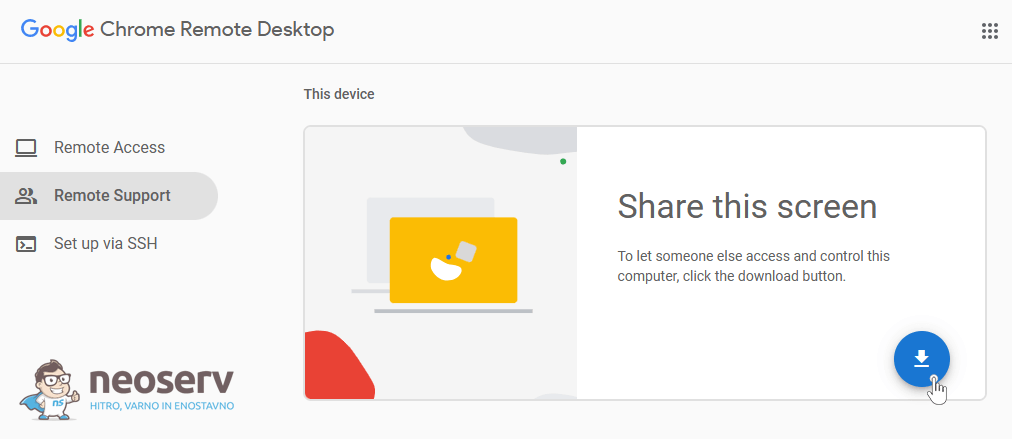
3. Make sure you have the Remote Support tab selected on the left-hand side, then click on the blue download icon in the right-hand“Share this screen” box.
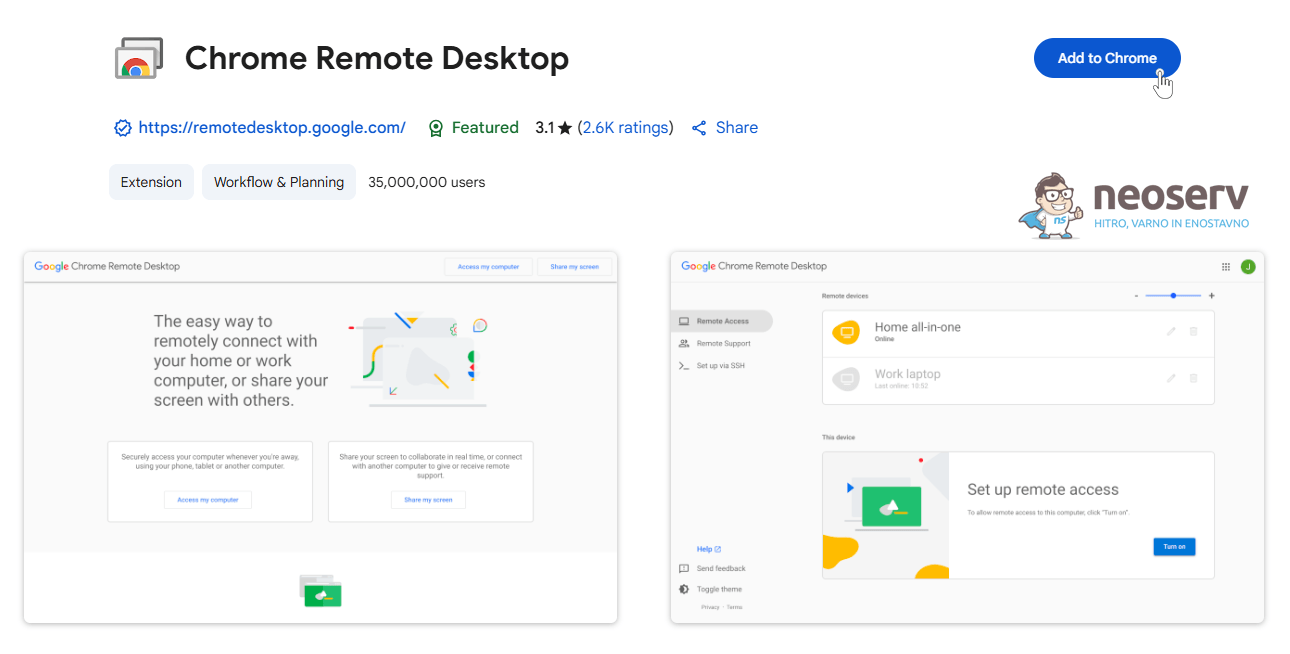
4. A new window will open and you can click on the Add to Chrome button to install the extension.
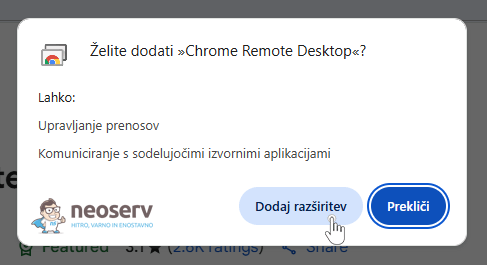
5. Confirm the installation of the Chrome Remote Desktop extension by clicking Add extension.
6. You will see two notifications:
- that the Chrome Remote Desktop extension has been added to the Google Chrome web browser,
- that you have downloaded the chromeremotedesktophost.msi file to your device.
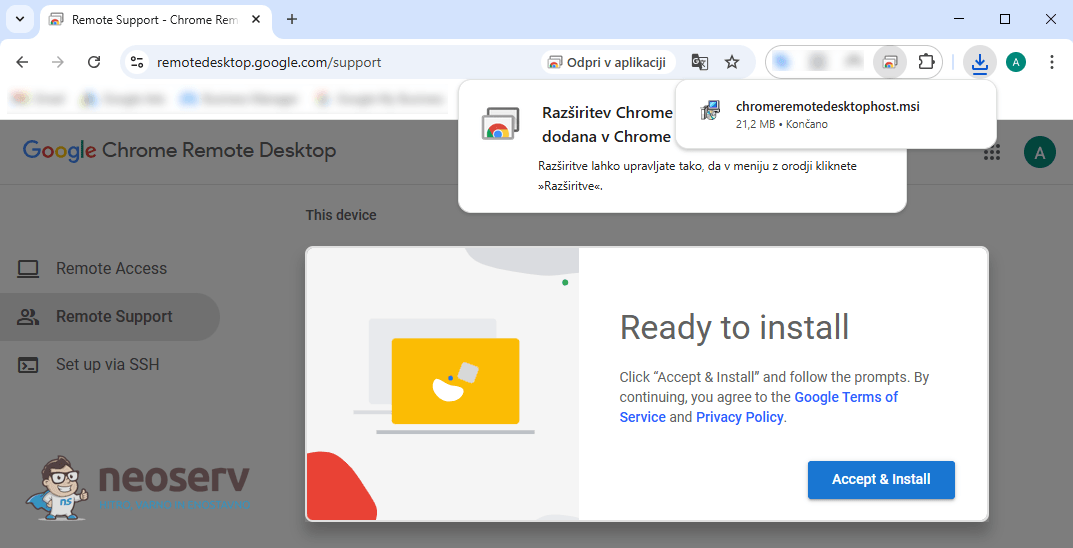
7. In the“Ready to install” box, click on the Accent & Install button.
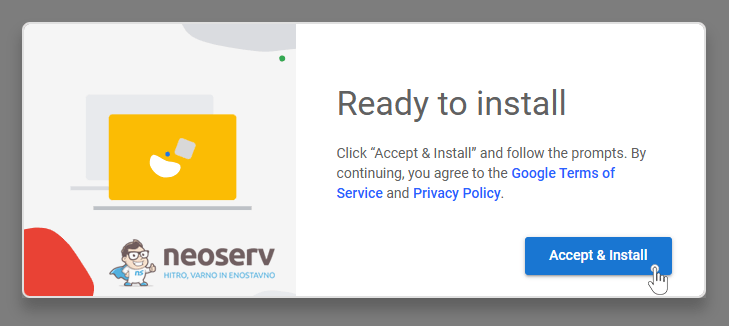
If you see the message “Could not launch the installer. Please try again later.“, reload the page by clicking the Refresh icon (or press F5 on your keyboard).
8. Double-click on the file chromeremotedesktophost.msi, which can be found in the Downloads folder.
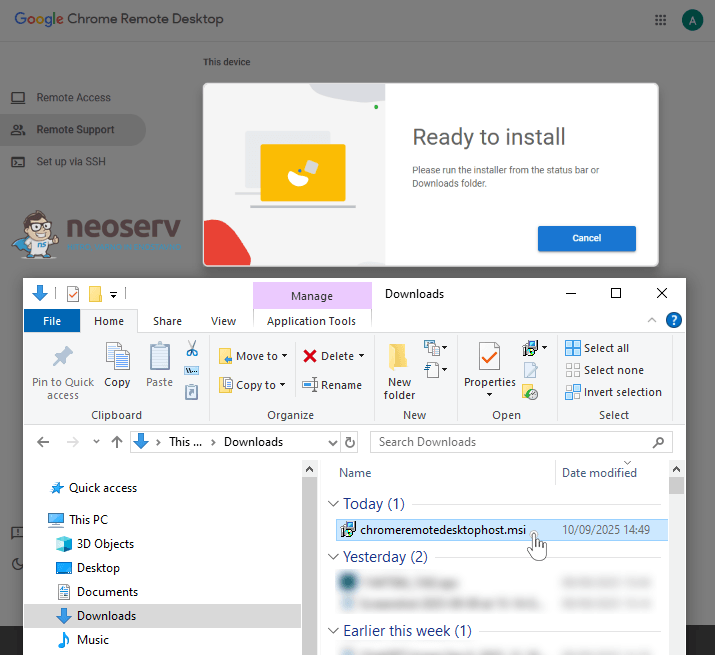
Note: After opening the file, you will receive a system notification if you allow Google Chrome Installer to make changes to your device. Confirm your permission and wait for the installation process to complete.
9. You will now see a “Share this screen” box in your browser – click on the Generate Code button.
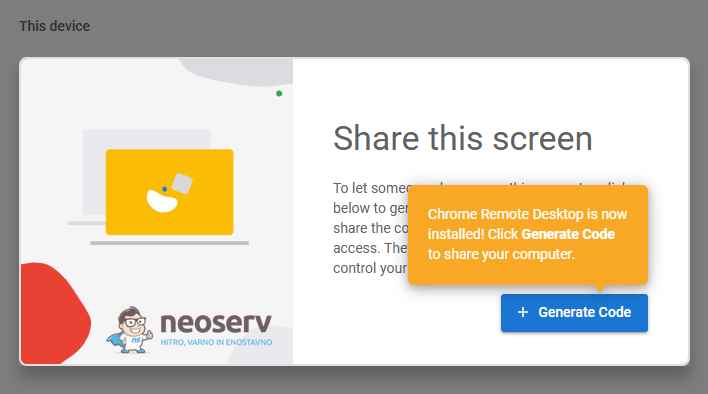
10. Wait a moment for the app to generate the 12-digit code, then pass it to us to connect to your computer.
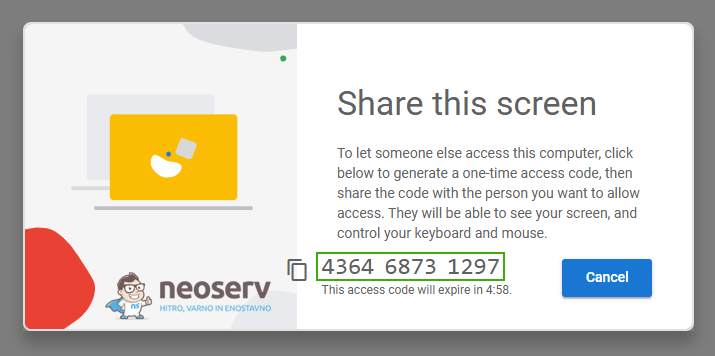
Now that the connection is successfully established, our technician will make the necessary changes and notify you when he is finished. When the work is complete, we will disconnect the connection. You can then close the application and remove it from your computer if you wish.
If, during remote assistance, the cause of the problem turns out to be related to the email server and not to settings on your device, you will not be charged for the intervention. The error will be immediately forwarded to the server administrator who will take care of it.
For further assistance, please call us on 059 335 000 or email us at info@neoserv.si.

COMMENT THE POST
Your comment has been successfully submitted
The comment will be visible on the page when our moderators approve it.