


- Your cart is currently empty.
Outlook Error 0x80040119 – How to Fix It
Search results for: ""
Outlook error 0x80040119 is one of the more common errors that prevents users from sending and/or receiving emails. It is most often caused by corrupted data files (PST), incorrect account settings, or problems with the Outlook email client installation itself.
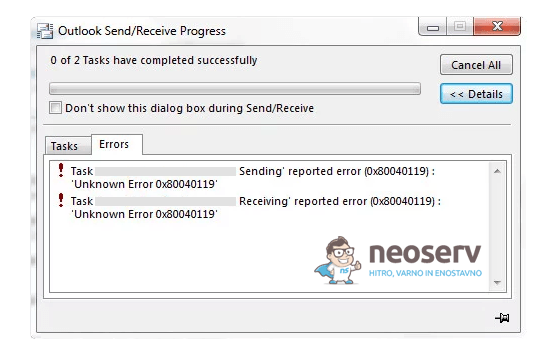
The Outlook error 0x80040119 message usually appears in one of these forms:
Task 'naslov@vasadomena.si - Sending' reported error (0x80040119) : 'Unknown Error 0x80040119'

Task 'naslov@vasadomena.si - Receiving' reported error (0x80040119) : 'Unknown Error 0x80040119'
Task 'naslov@vasadomena.si - Sending' reported error (0x80040119) : 'The message cannot be saved to your IMAP e-mail account Sent Items folder, because Outlook is offline or the e-mail server doesn't allow items to be saved to the Sent Items folder.'Although the error message is very general and vague, the problem is well known and can usually be quickly resolved with a few simple steps. Below, you will learn four methods that can help you fix Outlook error 0x80040119.
Table of contents
What causes Outlook error 0x80040119?
Outlook error 0x80040119 may occur while setting up an email account or while sending or receiving/synchronising email. The problem often causes Outlook to stop sending and receiving messages on the affected account, especially with IMAP configurations.
The most common causes of Outlook error 0x80040119 are:
- Corrupted PST file. The main reason for the error is a corrupted Outlook data file (.PST). When it is corrupted, Outlook cannot communicate properly with the email server.
- Corrupted Office installation. The error can also occur due to an incomplete or corrupted installation of Microsoft Office.
- Problem with email account. With third-party accounts (e.g. Gmail, Yahoo), there may be an issue with the account settings themselves, which blocks the sending or receiving of emails.
- Antivirus programme interference. If you are not using Windows Defender but an external antivirus programme, it is possible that overly aggressive rules are preventing communication between Outlook and the email server.
How to fix Outlook error 0x80040119?
The solution to the problem depends on the cause of error 0x80040119. We recommend that you follow the methods below in the order listed in the article and check whether the Outlook error has been successfully resolved.
Method 1: Repair the PST file
A corrupted data file (PST) is the most common cause of error 0x80040119. In this case, you should use the Inbox Repair Tool (ScanPST.exe), which allows you to check and repair the file.
1. Close Outlook.
2. Open File Explorer and locate the tool ScanPST.exe. It is usually located in the folder:
C:\Program Files\Microsoft Office\root\OfficeXX
3. Run the tool and select Browse, then locate the PST file. It is usually located in the folder:
C:\Users\user\Documents\Outlook Files
4. Click Start to begin the analysis.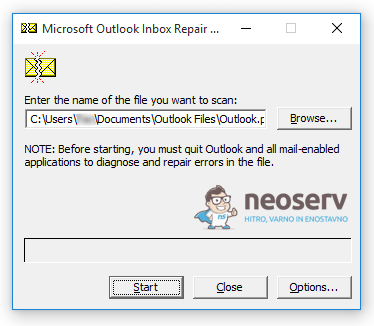
Although the Inbox Repair Tool does not usually cause data loss, we recommend that you make a backup copy of the PST file before starting the repair process.
5. If the tool finds any errors, click Repair.
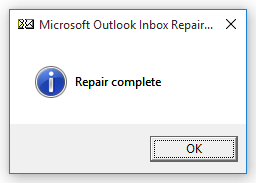
6. Once the process is complete, restart Outlook.
Did this process fail to resolve the 0x80040119 error? Try the next method.
Method 2: Repair your Office/Outlook installation
If the Outlook PST file is not damaged, the problem may be with the Office package installation itself.
1. In Windows, open Control Panel -> Programs and Features.
2. Find Microsoft Office and click Change.
3. Select Quick Repair for a quick fix.
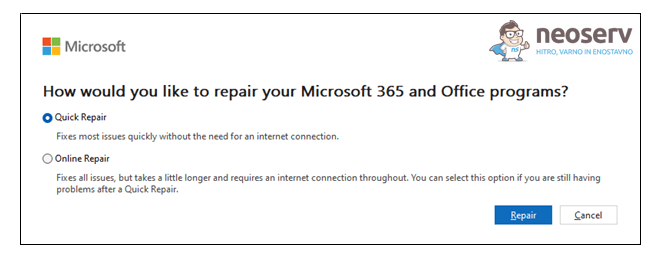
4. If the error persists, run Online Repair.
5. Once the process is complete, restart your computer and test Outlook.
This method is effective if the damaged parts of Outlook are system components that ScanPST cannot repair.
Method 3: Repair your email account in Outlook
If you are using a third-party email account (e.g. Gmail or Yahoo) in Outlook, error 0x80040119 may occur. This occurs when there is a synchronisation error, causing your email to become “stuck” and preventing you from sending or receiving messages.
1. Open Outlook and click File in the top bar.
2. In the menu, select Account Settings -> Account Settings.
3. Click on the E-mail tab.
4. Select the account that is causing the error and click Repair.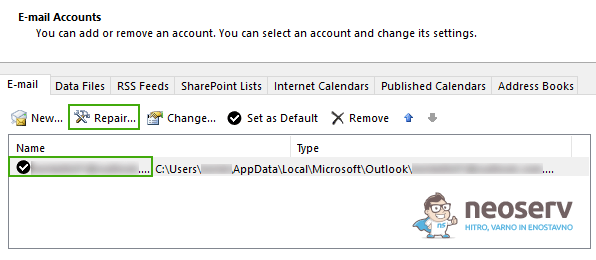
5. Follow the instructions on the screen to complete the repair process.
6. Restart your computer and check if the problem is resolved.
If Outlook error 0x80040119 still occurs, proceed to the next method.
Method 4: Remove conflicting AV programmes
In some cases, error 0x80040119 is caused by overly strict antivirus programmes, which can prevent Outlook from communicating with the email server. McAfee and Kaspersky are two commonly mentioned programmes. In this case, the solution is to remove the antivirus programme.
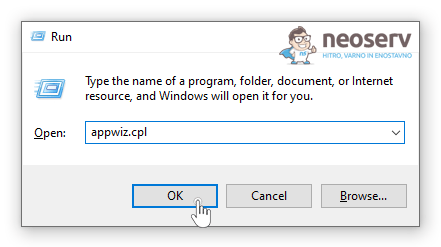
1. Press the Windows + Rkeys simultaneously to open the Run window.
2. Enter appwiz.cpl and click OK.
3. Find the antivirus programme you want to remove in the list.
4. Right-click on it and select Uninstall.
5. Follow the instructions to uninstall the antivirus programme.
6. After uninstalling, restart your computer and check if Outlook error 0x80040119 has been resolved.
If the problem is successfully resolved, consider switching to the built-in Windows Defender protection or using an antivirus programme with less strict rules.
For additional assistance, you can call us at +386 59 335 000 or write to us at info@neoserv.com.

COMMENT THE POST
Your comment has been successfully submitted
The comment will be visible on the page when our moderators approve it.