


- Your cart is currently empty.
Synchronizing the Sent Folder (IMAP) on All Devices
Search results for: ""
It often happens that email clients synchronise the “Sent” folder incorrectly.
What is the actual reason why this synchronisation does not work properly?
- Check that you are using the IMAP protocol on all devices.
- Set your email client to synchronise the “Sent” folder with the server and not via a local folder.
- Also check the path of sent messages to make sure it points to the same “Sent” folder.
When you add your email address to your email client, first check where the “Sent” folder points to, making sure that the correct path is “Sent” and not, for example, “Sent Messages”.
You can check this by following the steps below.
iPhone and iPad
- Launch “Settings”.
- Under the IMAP field, select your account.
- Select your account under the IMAP field.
- Select “Mailbox Behaviours” and then “Sent Mailbox”.
- Check that the “Sent” folder is marked as “On the Server”.


Apple Mail
- Open the Mail application.
- Select Mail -> Preferences -> Accounts -> Mailbox Behaviours.
- Check the “Store sent messages on the server” box, which should be ticked, and save your changes.
- After making the change, check Mailbox -> Use This Mailbox For -> Sent.


Mozilla Thunderbird
- Open Mozilla Thunderbird.
- On the left side, right-click your email account and select Settings.
- In the left menu, select Copies & Folders.
- Under When sending messages, automatically, make sure that Place a copy in is enabled.
- Select Other and from the drop-down menu select the Sent folder located under your IMAP email account.
- The settings are saved automatically, so you can close the settings window.
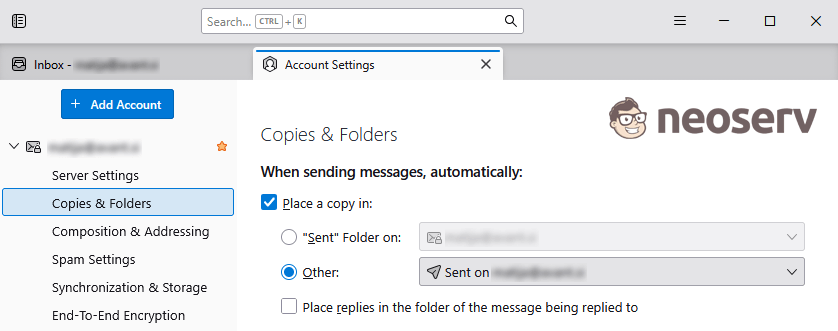
When selecting the folder, make sure you select the Sent folder under your email account and not the Sent folder under Local Folders. Messages stored in a local folder are not synchronized with the mail server.
MICROSOFT Outlook
- Select Tools -> Account Settings, the “Email” tab -> Change -> More Settings.
- In the Folders field, select “Choose an existing folder” -> Sent.

The option to manually select the Sent folder for automatic synchronisation with the email server is available in older versions of Outlook (2007 and 2010), but not in newer versions (2013 and 2016). If you are using a newer version, see the instructions: Outlook problem with synchronising the Sent folder (IMAP).
Android
- Select Settings -> Account Settings -> Folders.
- In the “Sent folder” field, select the “Sent” folder.

For additional help, you can call us at 059 335 000 or write to us at info@neoserv.si.

COMMENT THE POST
Your comment has been successfully submitted
The comment will be visible on the page when our moderators approve it.