


- Your cart is currently empty.
All Emails Disappeared from My Inbox
Search results for: ""
Have you ever had all your mail disappear from your inbox? Don’t worry, it was probably just stored on one of your devices that you use to access your messages, so it’s unlikely that it’s lost.
You’re probably wondering how this happened in the first place. The reason is usually that you are viewing your mail on one of your devices (computer, tablet, phone) through a programme such as Outlook, and you are using the POP protocol to connect to the server. This transfers all messages from the server to your device, which does not in itself make the mail disappear. However, it is usually set by default to automatically remove mail from the server after 14 days.
In case you use the IMAP protocol on some devices, which always establishes a synchronous state with the server, this means that mail on these devices will also disappear as it will be removed from the server.
Where do I check this setting?
You can check this setting in the email account settings of your email client (Outlook, Thunderbird, etc.). The way to the settings depends on which email client you are using.
IMPORTANT: You must check all the devices you use to access this email account and all the email clients where you use this mailbox. This is because you can have an email account added to multiple clients on one device (for example, Microsoft Outlook and Mozilla Thunderbird).
You can access this email account setting as described below (select the application you are using from the list):
Microsoft Outlook
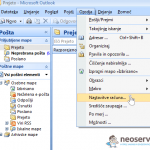
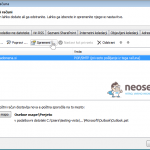
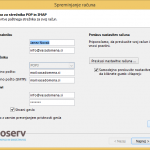
- Older Outlook (including Outlook 2007): selectTools-> Account Settings from the menu, select the desired email account from the list and click Change.
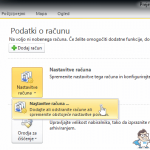
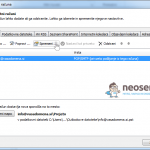
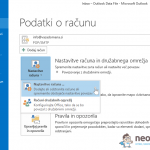
- Newer Outlook (from Outlook 2010 onwards): From the menu, select File -> Account Settings and click on the new Account Settings box. Then select the desired email account from the list and click onChange.
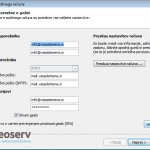
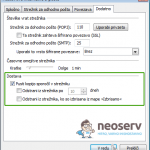
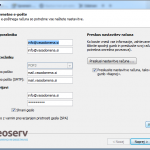
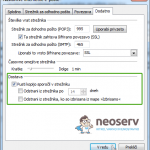
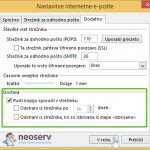
Then click on the More Settings button and click on the Advanced tab.
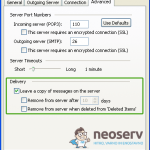
In the Delivery section, make sure that Leave a copy of messages on the server is ticked.
If you do not have this option ticked, it means that the messages are not stored on the server and are only downloaded directly to your computer.
If this option is ticked, the messages are also stored on the server. However, if you also have the option “Removefrom server after” ticked, the messages will be removed from the server after a certain number of days. The default value is 14 days.
If you do not want messages to be deleted from the server, tick the Leave a copy of messages on the server option and untick the Removefrom server after option.
ENGLISH
- Outlook 2003
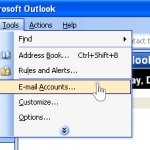
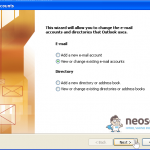
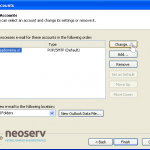
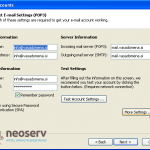
- Outlook 2007
- Outlook 2010
- Outlook 2013


Mozilla Thunderbird
Select your email account from the list on the left, right-click on it and select Settings. In Settings, locate your email inbox and select Server Settings. InServer Settings , make sure Leave messages on server is ticked.
If you do not have this option ticked, it means that the messages are not stored on the server and are just downloaded directly to your computer.
Also check whether you may have the “For at most … days” option ticked. If you do, the messages will be removed from the server after a certain number of days. The default value is 14 days.
If you do not want messages to be deleted from the server, tick the Leave messages on server option and untick the ‘For at most … days’ option.
ENGLISH


Mac Mail
In the tab, select Mail -> in the menu, select Preferences -> on the left-hand side, select your email account and click the Advanced tab.
Make sure you have the Remove copy from server after retrieving a message option ticked. If this option is ticked, it means that messages will be removed from the server after a certain period of time (you can specify how long after which messages will be removed on the next line. The default setting is 1 week.
If you do not want messages to be deleted from the server, untick the Remove copy from server after retrieving a message option.
ENGLISH


Android
In your email account, click on the menu icon in the top left corner to open additional options. Click on the settings icon located in the top right corner. Then select your email account from the list of email accounts and click on the ‘Server Settings‘ option in the ‘Advanced Settings‘ section.
Then look for Delete email from server, select Never and click Finish to save the new settings.
IMAGES


iPhone
Go to Settings -> “Accounts & Passwords” and select your account. Then click on Advanced and make sure Remove: Never is ticked under Delete Messages.
CLICK


Other
Search your email inbox settings and see if there is an option to checkLeave a copy of messages on the server and do not delete them. If you can’t find it, you can contact our support team for help.
How to proceed?
You can decide what to do next:
- You want your messages to stop being deleted from now on, but you don’t need to transfer messages back to the server (and thus to all your devices).
In this case, the solution is to uncheck this option on all devices that use the POP protocol and have the option to delete messages from the server after a certain period of time checked, or to check that messages are never automatically deleted from the server (follow the instructions in the previous step “Where do I check this setting?“). - You want to stop messages being deleted from now on, but you also want to arrange for messages to be transferred back to the server (and thus to all your devices).
In this case, you should also uncheck this option on all devices that use the POP protocol and have the option to delete messages from the server after a certain period of time checked, or check that messages are never deleted automatically from the server (follow the instructions in the previous step “Where do I check this setting?“). The quickest way to restore email messages on the server is to restore them from backups, which are made on the server on a daily, weekly and monthly basis. You can help yourself with these short instructions. - Once the emails have been restored, check that you have restored all the messages. If the messages (or part of the messages) were deleted from the server before the backup was made, you will need to manually upload the messages back to the server from your computer or device where all the emails are located. In this case, you can use the indicative instructions below. Although the instructions describe how you can transfer mail from another hosting package to your hosting package with us, the procedures are virtually identical in both cases. The only difference is that in this case you are transferring mail from your computer back to the same server, so you create an IMAP account in addition to your POP account and enter the details of your hosting package with us for both email accounts.
We are also always available by phone or email for any further questions.

COMMENT THE POST
Your comment has been successfully submitted
The comment will be visible on the page when our moderators approve it.