


- Your cart is currently empty.
Outlook Error 0x80040600 – How to Fix It
Search results for: ""
MS Outlook, part of the Microsoft Office suite, is one of the most popular desktop email clients. It has many useful features and is easy to use. Despite its simplicity and many advantages, some users occasionally encounter problems. One of the most common is error 0x80040600, which in most cases prevents receiving and sending emails, and sometimes even reading them.
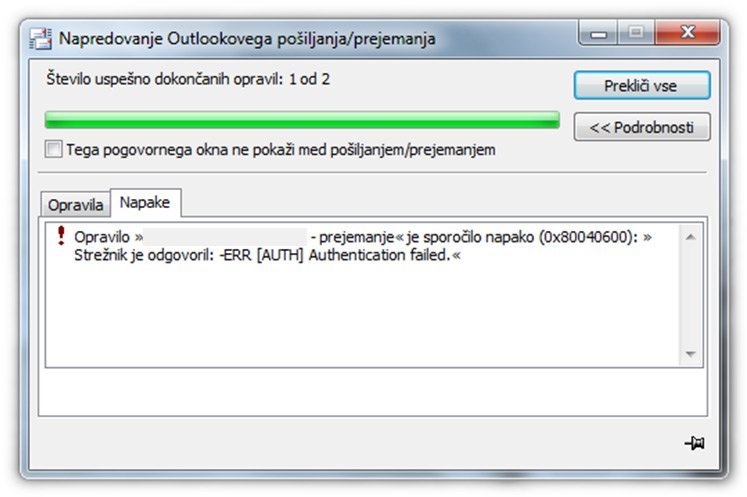
If you see the notification shown in the image above when you click Send/Receive, don’t panic. The problem can most likely be fixed very quickly.
Is Outlook giving you error 0x80040119? Again, you can help yourself by following the procedure described in this guide.
What does error 0x80040600 mean?
Error 0x80040600 indicates that thePersonal Storage Table (PST) file may be corrupted or damaged. This is the file where all received and sent emails, calendars, contacts, notes, tasks and so on are stored.
There are various causes of file corruption. Most often it is a bug in the program, but it is also possible that the problem is caused by a virus, incorrect closing of the program, the size of the PST file, sharing the file on different networks or something else.
How to fix the error?
If you encountered error 0x80040600, we recommend that you first try restarting Outlook. If this does not fix the problem, restart your computer. And if the error is still present even now, you will need to use the PST file repair tool – Inbox Repair Tool (SCANPST.exe). The mentioned tool is part of the Outlook software, which means that you already have it on your computer.
Then try to fix the error by following the steps described below.
Step 1: Check where the PST file is located on your computer
In the top left corner of your Outlook email client, click on the File tab. Under the Info section, you will find the Account Settings button. Click on it and select the first option – Account Settings…. .
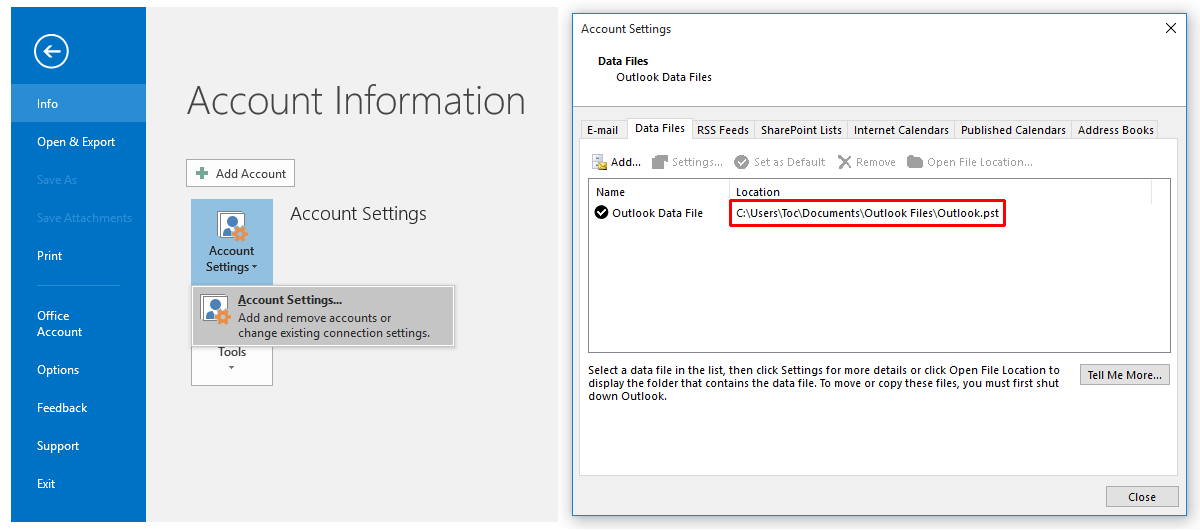
You will be taken to a small window with several tabs. In the first tab, E-mail, select the account for which you want to specify the location of the PST file. Then click on the second tab, Data Files. This tells you where the PST file you want to restore is stored.
Make a note of the exact location of the PST file, as you will need it in the next step.
Step 2: Run the SCANPST.exe tool and repair the PST file
Close MS Outlook and locate the SCANPST.exe tool on your computer. Depending on your operating system and email client version, it depends on where the tool is located.
Outlook 2016
Windows (32-bit).
Windows (64-bit): C:\Program Files (x86)\Microsoft Office\Office16\
Outlook (64-bit): C:\Program Files\Microsoft Office\Office16\
Office 365, Outlook 2016 Click to Run
Windows (32- and 64-bit): C:\Program Files\Microsoft Office\root\office16\
Outlook 2013
Windows (32-bit): C:\Program Files\Microsoft Office\Office15\
Windows (64-bit): C:\Program Files (x86)\Microsoft Office\Office15\
Outlook (64-bit): C:\Program Files\Microsoft Office\Office15\
Office 365, Outlook 2013 Click to Run
Windows (32- and 64-bit): C:\Program Files\Microsoft Office 15\root\office15\
Outlook 2010
Windows (32-bit): C:\Program Files\Microsoft Office\Office14\
Windows (64-bit): C:\Program Files (x86)\Microsoft Office\Office14\
Outlook (64-bit): C:\Program Files\Microsoft Office\Office14\
Outlook 2007
Windows (32-bit): C:\Program Files\Microsoft Office\Office12\
Windows (64-bit): C:\Program Files (x86)\Microsoft Office\Office12\
Once you have located the SCANPST.exe file, double-click on it to open the PST file repair tool. In the window above, enter the path or location of the PST file you noted in step 1. Click on the Start button.

Make a backup copy of your PST file! You can create it manually, or the Outlook Inbox Repair tool offers you this option during the process (after the initial analysis).
The tool will first analyse your PST file. Once the analysis is complete, you can view the details and proceed to the next step. Click on the Repair button to start the process of repairing the corrupted PST file. If the latter is large (e.g. more than 2 GB) and your computer is slower, the process may take a little longer.
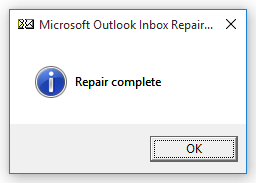
If everything goes as expected, you will see a window that says “Repair complete“. Click OK to close the window, then restart Outlook and see if you can receive and send emails again.
For further assistance, please call us on 059 335 000 or email us at info@neoserv.si.

COMMENT THE POST
Your comment has been successfully submitted
The comment will be visible on the page when our moderators approve it.