


- Your cart is currently empty.
Outlook Error 0x8004210A – How to Fix It
Search results for: ""
Did you receive error 0x8004210A while receiving or sending an email in Outlook? This error means that the process of sending/receiving an email has been interrupted due to waiting for the email server to respond. Check below how to fix this error.

Fix error 0x8004210A in six steps
- If you are using Outlook 2003 or 2007, click on Tools -> Account Settings.
If you are using Outlook 2010 or 2013, click on File -> Info -> Account Settings -> Account Settings.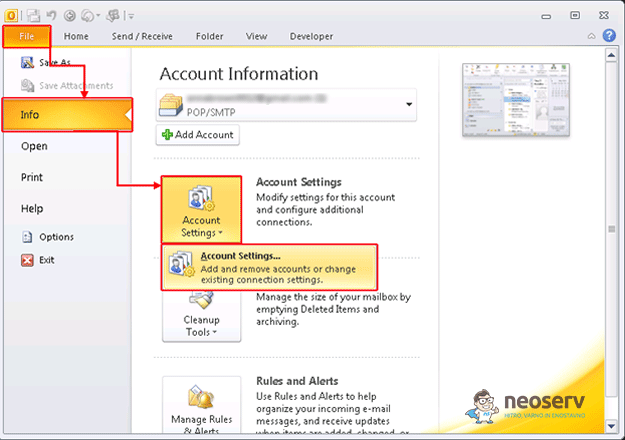
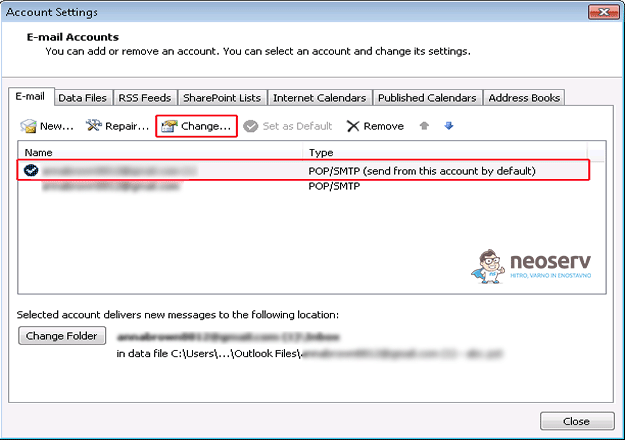
- Double-click on the email account where the error is occurring. Or click on the button where the error occurs and click on the Change button.
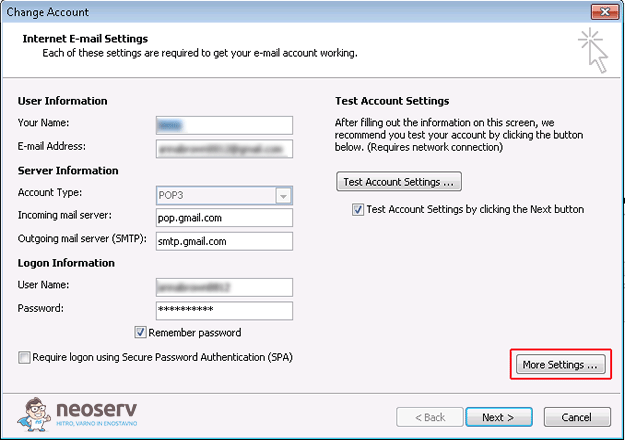
- Click on the More Settings button.
- Open the Advanced tab.
- Under Server Timeouts, increase the server timeout.
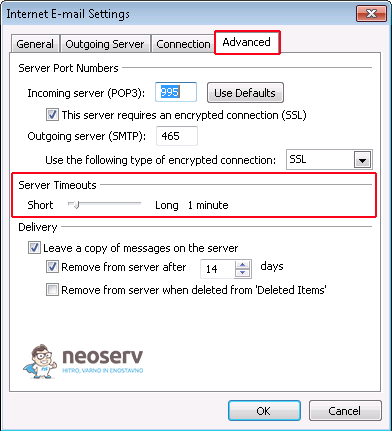
- Click OK.
Additional options to correct error 0x8004210A
In case the error still occurs try the steps below. After each step , test whether error 0x8004210A is resolved.
- Enable Internet access to the following ports:
- if using SSL connection: 995
- if using a non-SSL connection: 110
- Disable your antivirus.
- Remove all suspicious messages from your email inbox.
- Repair the PST file. For specific information on this step, please contact Microsoft Support. Before you take this step, we recommend that you back up your current email account.
- If none of the above steps helps, please recreate your email account.
For further assistance, you can call us on 059 335 000 or email us at info@neoserv.si.

COMMENT THE POST
Your comment has been successfully submitted
The comment will be visible on the page when our moderators approve it.