


- Your cart is currently empty.
Outlook Error 0x800CCC78 – How to Fix It
Search results for: ""
Did you get an Outlook error 0x800CCC78 while sending an email? Follow the steps below to successfully resolve this error.
Setting up the SMTP server
- Open Outlook and select Tools and Account Settings.
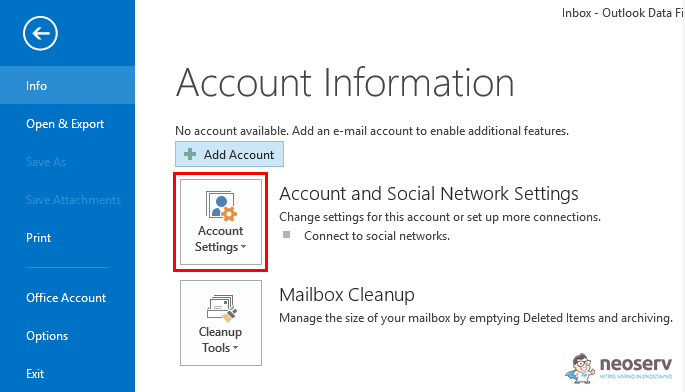
If you are using an older version of Outlook, you can access this setting by clicking on:
File -> Info -> Account Settings. - Select the E-mail tab and click on your e-mail address.
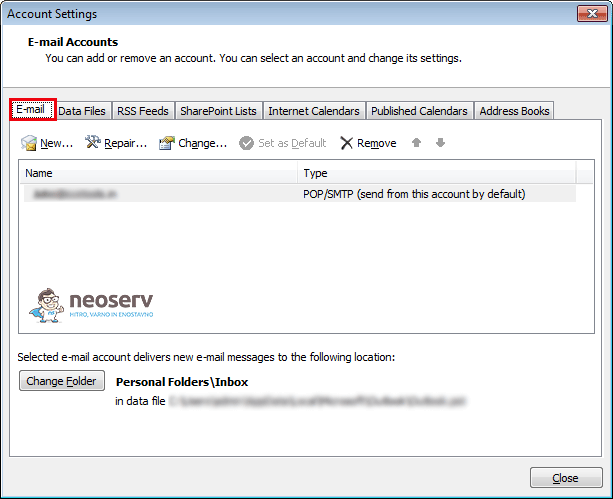
- Click on the More settings button in the bottom right of the pop-up window.
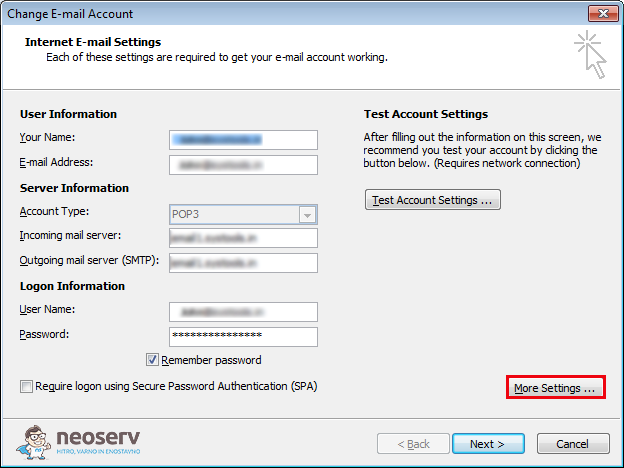
- Select Outgoing.
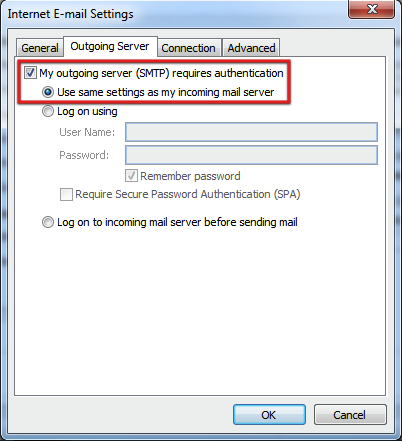
- In the newly opened window, select the Outgoing Server tab.
- Tick My outgoing server (SMTP) requires authentication and select Use same settings as my incoming mail server.
- Click OK.
Close and restart Outlook and check that you can now send your e-mails.
If the error still occurs, follow the next six steps.
- Open Outlook again and select Tools and Account Settings.
- Click on the Change … tab and select your e-mail address.
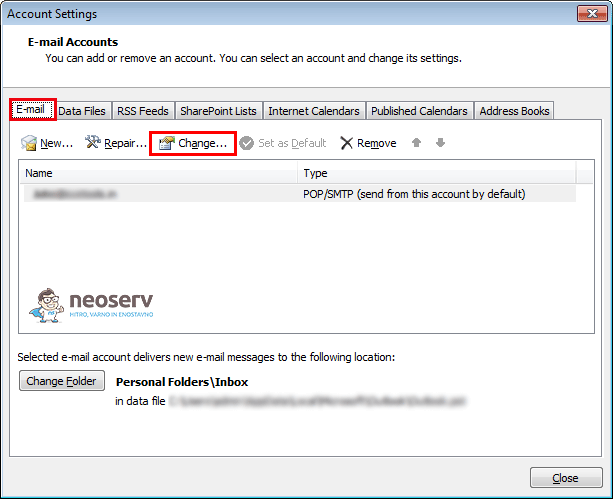
- Click on the More Settings … button.
- In the newly opened window, click on the Advanced tab.
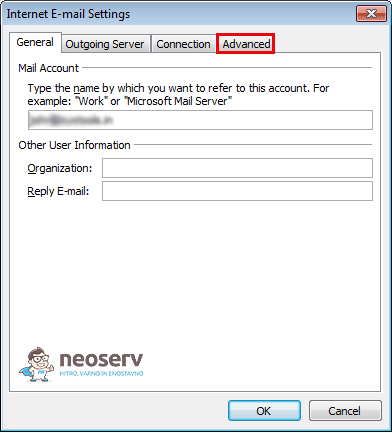
- In the Outgoing server (SMTP) section, click the ” Send to ” button. In the Outgoing server (SMTP) section, enter the value 26.
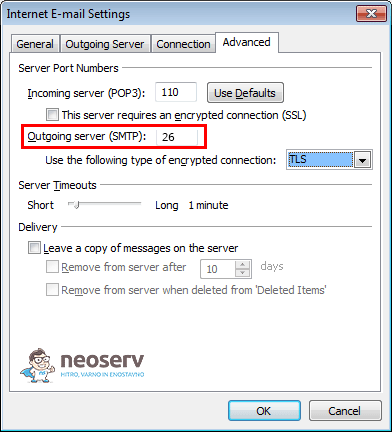
- Click OK.
You can now try to send the email again. Outlook error 0x800CCC78 should have been resolved and your message sent successfully.
For further assistance, please call us on 059 335 000 or email us at info@neoserv.si.

COMMENT THE POST
Your comment has been successfully submitted
The comment will be visible on the page when our moderators approve it.