


- Your cart is currently empty.
How to Repair a Corrupted Outlook PST File
Search results for: ""
With the Inbox Repair tool (scanpst.exe) you can diagnose and repair errors in your Outlook data file. This tool is most commonly used when:
- you get a notification that Outlook cannot open a data file,
- you get a notification that Outlook cannot open folders,
- you think that an Outlook data file is corrupted.
How to repair Outlook data file (pst)?
The repair can be done in nine steps:
- Open Outlook > File> Info> Account Settings> Account Settings ….
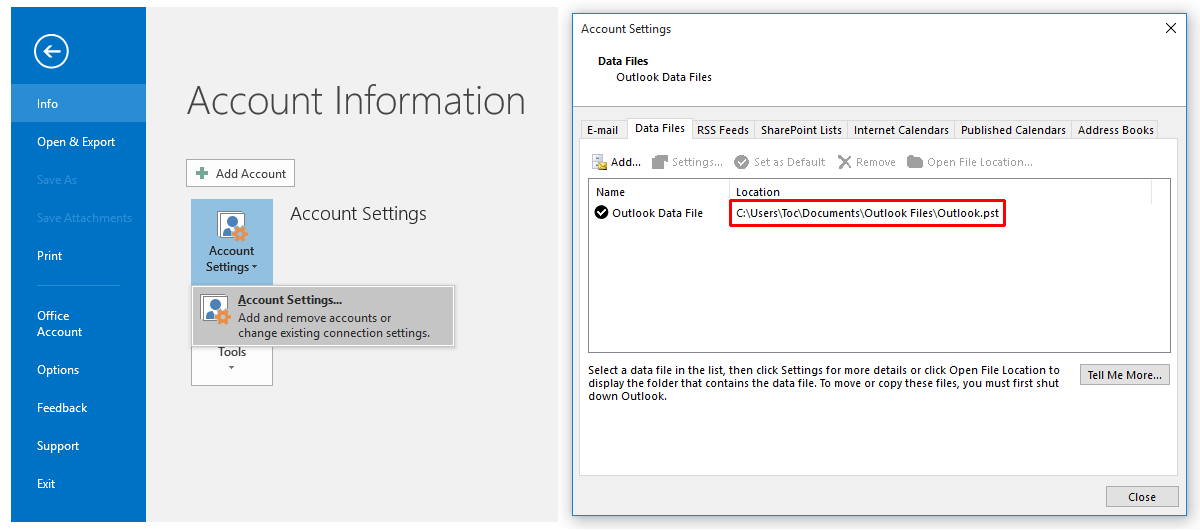
- In the newly opened window, click on the E-mail tab and select the account for which you want to specify the location of the PST file.
- Click on the Data Files tab to check where the PST file you want to restore is stored.
- Close Outlook and run SCANPST.exe. Where it is located depends on the version of Outlook you are using:
– Outlook 2019: C:\Program Files (x86)\Microsoft Office\root\Office16
– Outlook 2016: C:\Program Files (x86)\Microsoft Office\root\Office16
– Outlook 2013: C:\Program Files (x86)\Microsoft Office\Office15
– Outlook 2010: C:\Program Files (x86)\Microsoft Office\Office14
– Outlook 2007: C:\Program Files (x86)\Microsoft Office\Office12 - Open scanpst.exe.
- Select Browse to select the PST data file you want to check.

- Select Start to start the scan. IMPORTANT Before you make a change to a PST file, make a backup copy of it.
- If the scan reports an error or errors, select Repair to start the process of repairing the data file. When the procedure is complete, click OK.
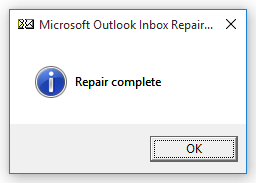
- When the repair process is complete, start Outlook with the data file you have just repaired.

For further assistance, please call us on 059 335 000 or email us at info@neoserv.si.

COMMENT THE POST
Your comment has been successfully submitted
The comment will be visible on the page when our moderators approve it.