


- Your cart is currently empty.
How to Improve TTFB and Boost WordPress Speed

We’ve written about the importance of website speed on the NEOSERV blog many times. Since by far the majority of website owners use WordPress, we’ve mostly focused on WordPress. Today, we’re going to focus on optimising the speed of this system, by answering the following three questions:
- What is TTFB and why is it important?
- How to measure TTFB using different tools?
- How to optimise TTFB on a WordPress website?
Before we delve into the now three times written acronym, let’s briefly refresh your memory on why it is IMPERATIVE to keep your website running as fast as possible.
- A fast website will help you make a great first impression on your visitors.
- Visitors will associate a fast site with higher quality and more trust.
- As a result, they will stay longer on the website and check out more content, products, etc.
- Many studies of large online retailers have shown that fast online shops sell more.
- Speed is an increasingly important factor influencing the visibility of a page in Google search.
At a time when there is increasing competition online, you simply cannot afford to have your website – or more importantly, your online shop – running slowly. This is where the speed factor of TTFB, which is all too often overlooked, comes into play.
What is TTFB and why is it important?
The acronym TTFB is derived from the English acronym Time To First Byte, which can be translated into Slovenian as Time To First Byte. In the rest of this article we will stick with the acronym, as it is well known among system administrators and other webmasters.
TTFB is the time it takes for a web browser to receive the first byte of data from the server hosting a web page. The longer it takes to receive the first byte, the longer it takes to display the web page to the user.
When calculating the TTFB, a three-step process must be followed:
- Sending the request to the server: When an Internet user visits your website, their web browser forwards an HTTP request to the server on which you host your site. The following HTTP server can affect the latency of the page display:
- DNS lookup times,
- the geographical distance of the server from the visitor’s location,
- the speed of the web connection,
- complex firewall rules, HTTP server rules (.htaccess), etc.
- Processing the request: Once the request is sent, the server has to process and respond to it. Again, various delays may occur, for example due to:
- slow database queries,
- too many different scripts,
- first response caching turned off,
- non-optimised page source code or a poor WordPress graphic template or plugin,
- server resources not being up to date (e.g. due to I/O requests or memory limitations).
- Server response to browser: When the server processes the request, it sends a response to the web browser of the visitor to the page. It also sends the first byte. This step is the one where the latency is most affected:
- the speed of the Internet connection on the server side,
- the speed of the Internet connection on the visitor’s side.
Is it important to keep the time to first byte as low as possible? Of course it is! Since TTFB directly affects the speed at which a web page is displayed to a visitor, it can have a significant impact on the quality of the user experience.
A better user experience means happier visitors who stay longer and return more often. Fast-acting online shops with low TTFB have higher conversion rates and the quality of the user experience also has a significant impact on the visibility of the website in Google search.
How to measure TTFB using different tools?
Are you interested in how much TTFB your WordPress website is achieving? You can check this very easily using online tools. Here are some of the most popular ones.
1. Google Chrome DevTools
One of the easiest ways to check the TTFB of a website is to use Chrome DevTools, which is part of the Google Chrome web browser. Follow this procedure:
- Launch Google Chrome on your desktop or laptop and open your website.
- Right-click anywhere on the web page and select the Inspect option below. This will open Chrome DevTools. The keyboard shortcut to the tool is the F12 key.
- In Chrome DevTools, select the Network tab and press the F5 key to refresh the web page. You will be shown the time it takes for each item to load in your web browser.
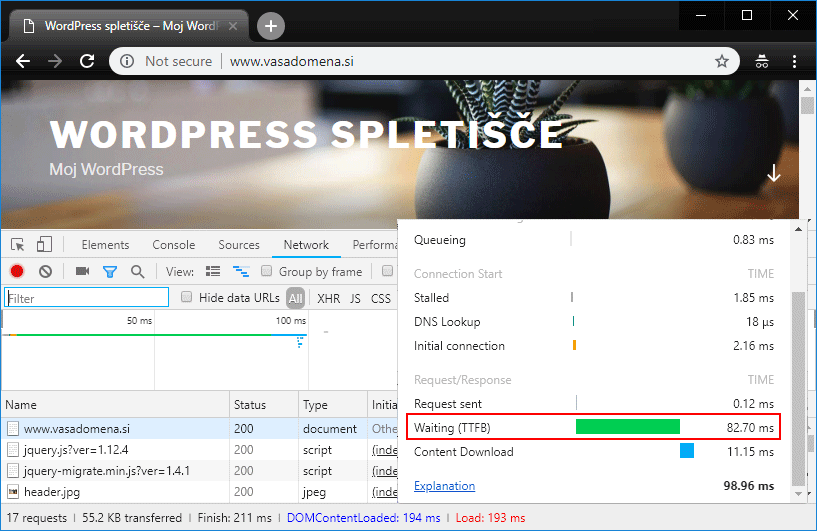
- On the right-hand side of the first row ( Waterfall column), hover your mouse over the coloured graph. As you can see in the image below, you will see TTFB among several other data. Also of interest is the data at the bottom (shown in red), which tells you how long it takes for a web page to load completely.
2. Pingdom Tools
Pingdom is a very popular online tool to check the speed of your website. All you need to do is:
- Visit the Pingdom Tools website.
- In the first box, enter the URL of your website, in the second box select the location closest to your server and click on the green START TEST button.
- Wait a few moments for your query to come up and for the tool to run the test.
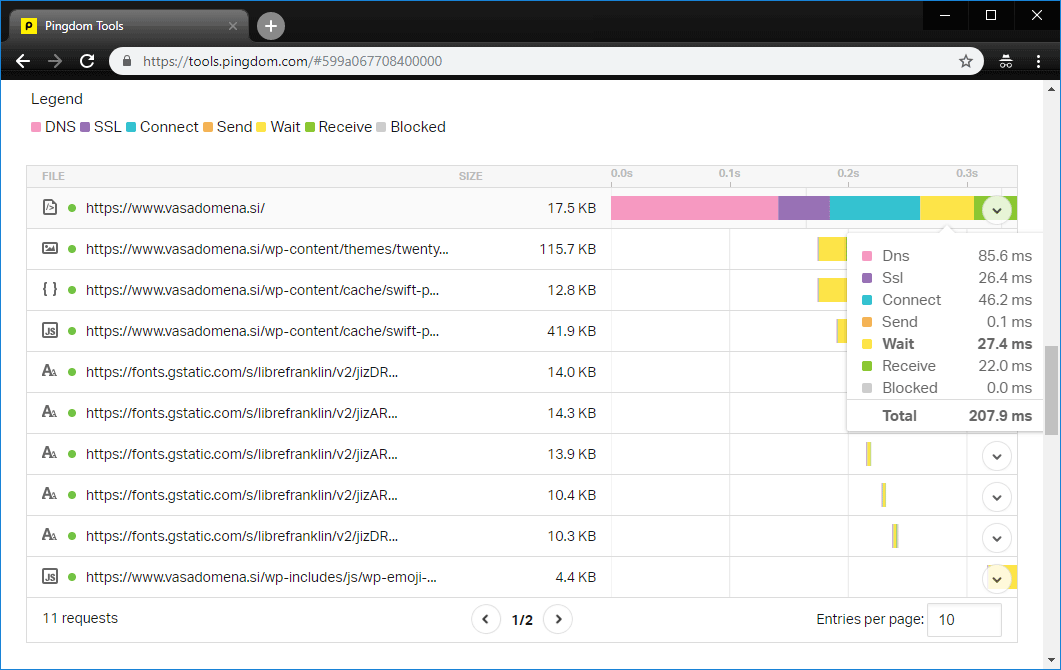
- In addition to the results displayed in a larger font (overall speed rating, page size, total load time, number of requests), you will also see a waterfall graph displaying the speed slightly lower down. If you hover over the highest coloured part of the graph, you will also see TTFB. It will be displayed as Wait time.
3. Sucuri Load Time Tester
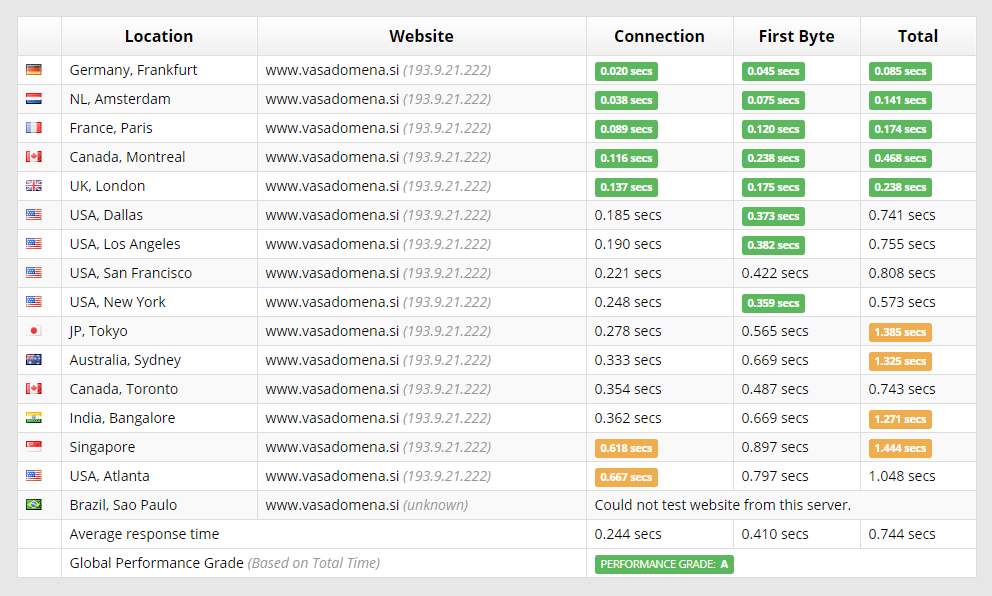
The Sucuri Load Time Tester is a web-based tool that allows you to check different response times on several geographically dispersed servers. You can test the connection time, TTFB and the total time it takes to display the entire web page.
You can also test the time to first byte with a number of other web tools, such as Byte Check, WebPagetest or Key CDN. For tools that allow you to choose a location, make sure you choose the one from which the majority of visitors come to your website.
How to optimise TTFB on a WordPress website?
Have you tested the TTFB of your WordPress site and found that the measured time is more than 500 ms? Do most web tools colour your result yellow, maybe even red?
Don’t worry, your website most likely has a lot of room for improvement. If the result is not green after the proposed changes, it will certainly be much better than it is at the moment.
Here are nine tips for improving TTFB. Follow as many of them as you can, as this will help you speed up your website and have a positive impact on the user experience.
Host your website on a fast SSD server
As TTFB is directly dependent on server responsiveness, it is very important that your website is hosted on a fast-response server with optimised software.
At NEOSERV, we are well aware of the importance of top quality servers, which is why we guarantee our clients:
- Hardware environment with powerful Intel XEON processors and modern SSD disk drives,
- a large amount of working memory – all servers are equipped with at least 128 GB of RAM,
- the CloudLinux operating system, which ensures that server capacity is evenly distributed,
- the use of the HTTP/2 protocol (via HTTPS), which allows much faster website performance.
You can see how much faster websites run on NEOSERV servers in our case studies. In them, we tested the response times and loading speeds of the entire page before it was transferred to our server, immediately after the transfer and after a basic speed optimisation was performed.

TTFB is also affected by the location of the server. The smaller the distance between the server and the visitor, the lower the time to first byte. For websites that want to reach users from remote or different geographical locations, the problem is solved by using a CDN. You will learn more about this in point 8 of today’s article.
2. Use the latest PHP version
TTFB is mistakenly seen by many as a metric that is only related to server performance. In reality, a high response time does not necessarily mean that the server is slow or overloaded. In the case of WordPress and similar systems, the dynamic display of pages enabled by the PHP programming language also has an impact on TTFB.
The latest version of PHP is significantly faster than older versions, e.g. 5.6, as it allows for improved code processing and more efficient caching. This results in a correspondingly lower TTFB.
See the following two figures showing TTFB using PHP 5.6 (Figure 1) and PHP 7.2 (Figure 2).
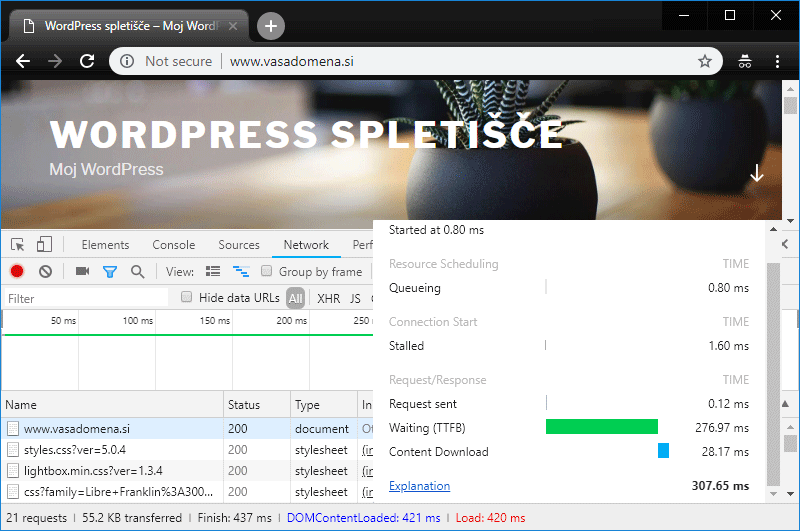
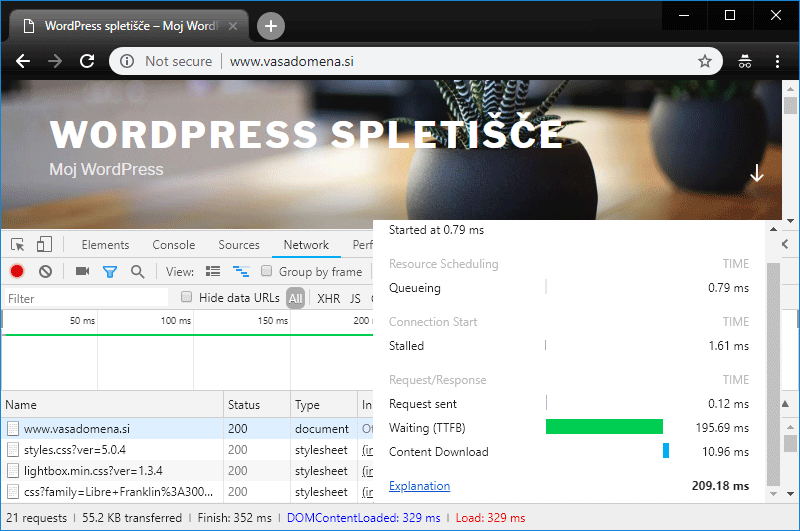
If you host your website with NEOSERV, you can very easily check which PHP version you are using. You can also change version with just a few clicks. See the instructions on how to do this.
We advise you to set the latest PHP version. After the change, don’t forget to check that your website is working properly. It may be that the active graphic template or one of the plugins does not support the newer PHP functions. These problems are very rare, as they occur mainly with outdated themes and plugins.
3. Enable opcache (PHP level caching)
Have you followed the instructions on how to check or replace the PHP version? Then you’ve probably noticed the long list of extensions in the cPanel control panel – the PHP Selector tool. Among them is the opcache extension, which enables PHP-level caching.
In the figures below you can see what the TTFB is when using PHP 5.6 with the opcache extension included (Figure 1) and what it is when using PHP 7.2, also with the opcache feature included (Figure 2).
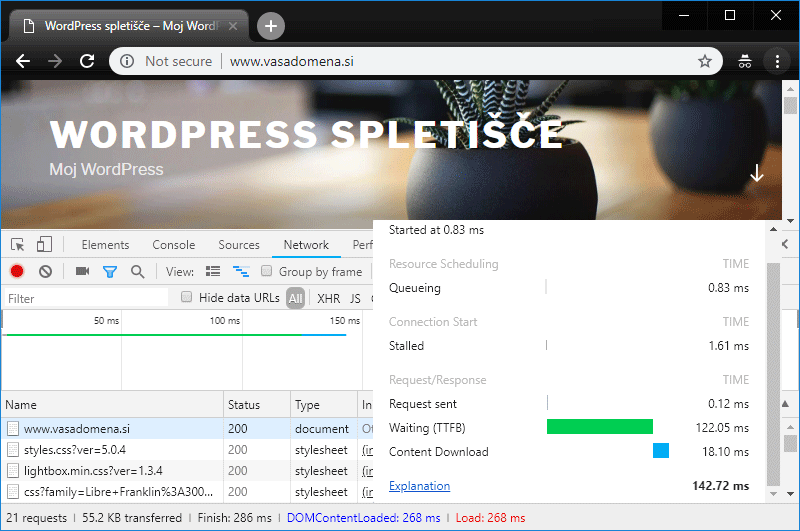
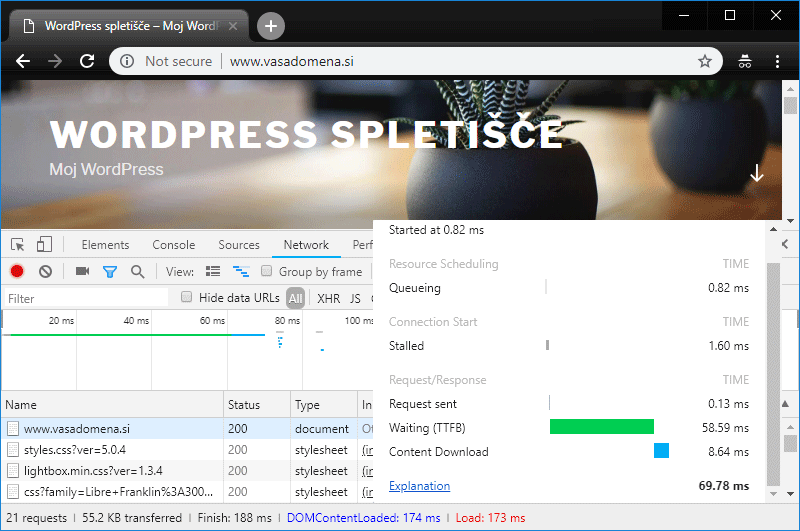
So how to improve TTFB? Log in to the cPanel control panel and make sure the opcache extension is enabled. If not, turn it on and save your changes by clicking the Save button.
4. Use a graphical template with optimised programming code
How fast your website works depends a lot on the graphic template you choose and the quality of its programming code. The more complex the theme, the longer it takes WordPress to compile a single page from a number of PHP files and display it to the visitor. This is why the choice of graphic template also has an impact on TTFB.
When choosing a WordPress graphical template, try to find one that does not use unnecessary loops and calls to server-intensive functions. If you don’t have this knowledge, here’s what you can do:
- Make sure that the graphical template is created by a proven team with a good reputation.
- Check comments from existing and past users.
- Test the speed of the demo version of the graphical template using various online tools.
5. Use only the plugins you really need
Similarly to the graphical template, WordPress plugins also have an impact on how (quickly) the system will build your website and serve it to the visitor. This is because plugins are additional PHP code that WordPress has to read and process.
Generally speaking, the more plugins you have installed, the more queries will be executed behind the scenes. At the same time, you should know that one poorly programmed plugin can increase TTFB more than ten uncomplicated plugins with optimised programming code.
We advise you to check which plugins you are currently using. Disable and delete the ones you do not need.
You can use the Query Monitor plugin to help you find out how “greedy” individual extensions are. This plugin allows you to view all the queries that are executed when you visit a website. You can also filter the queries by component: WordPress core, plugin 1, plugin 2, …, graphical template.
6. Include a page caching plugin
Using the WordPress page caching plugin can significantly reduce the time to first byte. Caching the page on the server is positive because it “skips” most of the database queries, running complex PHP loops, building the graphic template and so on. The web page is cached in HTML format, so the system can display it much faster.
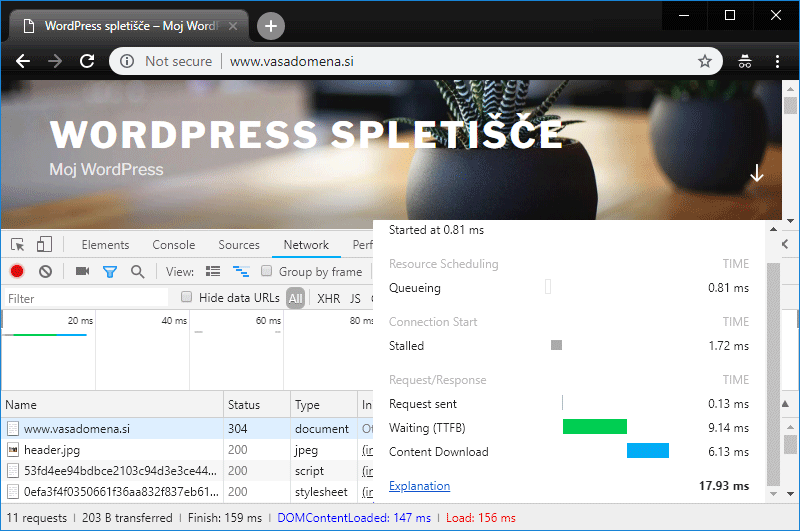
As you can see in the image above, the difference in TTFB after installing the caching plugin is remarkable. We used the free Swift Performance Lite plugin, but the more well-known ones include WP Fastest Cache, WP Super Cache, W3 Total Cache (a bit more complex to set up) and WP Rocket (paid). It’s best to try them out and choose the one that suits you.
7. Change the default Cron job settings: wp-cron.php
Cron jobs allow you to automatically execute predefined tasks on your server. In WordPress, wp-cron.php plays an important role by automatically publishing scheduled posts, checking for updates to graphic templates and plugins, sending email notifications and some other tasks.
By default, WordPress is configured to call wp-cron.php whenever someone visits your website. There’s nothing wrong with this if your website doesn’t get many visitors. However, it is different when you have a heavily visited website, as constantly checking whether an automated task needs to be performed can lead to excessive use of server resources. In this case, the website loads more slowly and TTFB can also increase.
Is your website one of the more visited? There is no need to perform a system check of automated tasks so often. We advise you to take a look at the simple instructions on how to set wp-cron.php to run less frequently – at predefined intervals.
8. Use CDN on “global” websites
If you want to reach users on a global scale with your website, you can reduce TTFB by using a Content Delivery Network( CDN ). A so-called Content Delivery Network is a network of servers spread around the world. The basic task of these servers is to serve a web page to a visitor from the server geographically closest to the visitor. A page may also be loaded from several servers simultaneously.
For websites targeting foreign visitors or visitors from different geographical locations, the use of CDNs allows for lower response times and thus faster website displays. The largest CDN service providers also have advanced security systems to protect against malicious scripts, spammers and DDoS attacks.
At NEOSERV, we’ve made it easy to use the CDN of one of the most popular providers , Cloudflare, which currently boasts 154 data centres on six continents. The service is free and can be activated directly via Cloudflare.com.
If you have a web hosting lease with us and your website is intended for visitors from Slovenia or another European country, we advise you not to use the CDN service.
9. Install an SSL certificate on your website
Did you know that websites run faster on an HTTPS connection? Of course, we have taken care of this for you and have already set up HTTP/2 support on all our servers some time ago.
You can secure your HTTPS connection (example: https://www.vasadomena.si/) by installing an SSL certificate on your website. Once the certificate is installed, your site will work over the much faster HTTP/2 protocol, which is an upgrade of the older and slower HTTP/1.1 protocol.
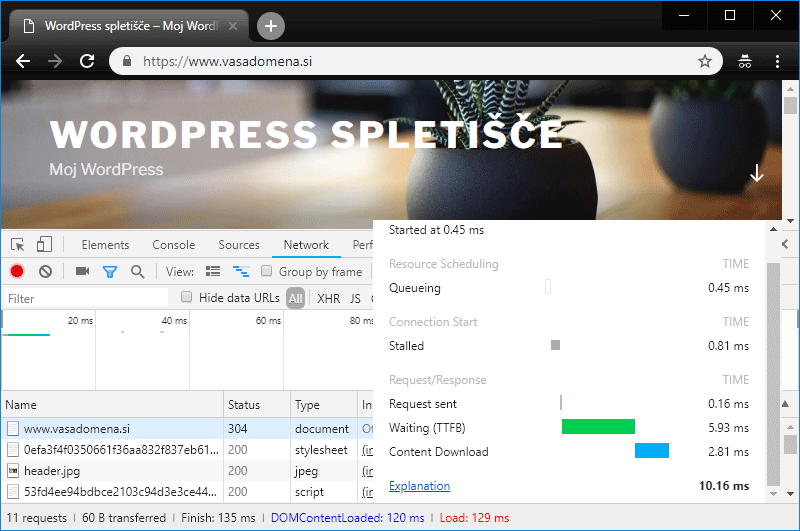
As you can see in the image above, TTFB is even lower after installing an SSL certificate. In our test, the time to first byte was 9.14 ms on an unsecured HTTP connection (see figure under point 6) and 5.93 ms on a secured HTTPS connection. The difference in milliseconds is not really significant in absolute terms (3.21 ms), but it is quite different if we look at the difference in percentage terms (35.12%).
In our article “It’s high time to install an SSL certificate”, we outlined the main reasons why it is important to install a certificate on your website. If your website is still located at the http:// link, we strongly advise you to get an SSL certificate as soon as possible.
Do you have a hosting package with us? If so, we will install an SSL certificate from the world’s largest issuer, Sectigo (formerly known as Comodo CA), on your website free of charge!
Optimise your TTFB and get ahead of the competition!
Although there are other, often more complicated ways to optimise TTFB, it’s the ones you’ve learned about today that will give you the biggest impact. Many of today’s tips can be applied regardless of the system your website is based on:
- Hosting on fast-responding SSD servers with an optimised software environment,
- setting up the latest PHP version with the opcache extension included,
- using a minimum number of plugins and other extensions,
- choice of fast-running graphic templates from verified vendors,
- setting up page caching (possibly including database and object caching),
- use of CDN on websites with geographically dispersed visitors,
- installing an SSL certificate and choosing a hosting provider with HTTP/2 support.
At first glance, it probably looks like a lot of work to optimise TTFB, but in reality you can get all of this sorted very quickly. Take your time and go from point to point. Your website will soon be running faster, improving your user experience and giving you a nice competitive edge.
Believe us, it will pay off!
COMMENT THE POST
Your comment has been successfully submitted
The comment will be visible on the page when our moderators approve it.