


- Your cart is currently empty.
WordPress Admin Speed Optimization: 14 Quick Tips

Slow WordPress administration is certainly one of the most annoying problems that many website owners or editors face. Who has time to wait for several seconds after each click in the administration for a new page to appear? Posting an article, installing a plugin, changing site settings or simply deleting an unwanted comment… every little thing takes a (too) long time.
Are you one of those who find yourself with grey hairs because of WordPress administration? Do you find your website runs at a solid speed, but back-end work is almost impossible? There’s definitely a reason for the slowness, you just need to find it and fix it. And there may even be more. To save you from a situation you don’t envy one bit, here are 14 tips to speed up your WordPress administration.
Sitemap
- Check your internet connection speed
- Choose a reliable web hosting provider
- Make sure only the administration is slow
- Activate a newer PHP version (cPanel)
- Disable database and object caching
- Check for any problems with WordPress updates
- Remove plugins that require a lot of processing power
- Deactivate “WooCommerce Admin”
- Remove unnecessary plugins and graphic templates
- Optimise the WordPress database
- Use the Heartbeat Control plugin
- Reinstall the wp-admin and wp-includes folders
- Set the appropriate Cloudflare rules
- Check the speed of administration with another graphical template
1. Check the speed of your internet connection
Before proceeding, make sure that the slowness is not caused by your internet connection. If you are connected to WiFi or if you share your internet connection with someone else, this could be the cause of the problem.
Open a few random web pages and quickly click through them.
- You can open them, but the response time on all of them is incredibly slow? Get a better internet connection or upgrade your web access package.
- Can’t even access the websites? It’s more than obvious that there’s something wrong with your internet connection. To start, reset your modem or router.
If you’ve realised that the problem is actually with your internet connectivity, but you don’t know how to fix it or can’t fix it yourself, contact your internet service provider.
2. Choose a reliable web hosting provider
One of the most common reasons for slow WordPress administration is related to slow web hosting. Unfortunately, there are still a number of hosting providers that host websites on outdated, un-updated and, above all, overloaded servers.
At NEOSERV, we are constantly working to ensure that our infrastructure is top-notch. We were also one of the first in Slovenia to upgrade our servers with SSD disk drives. You can read more about the performance and components of our servers, as well as the optimised software, here.

We provide lightning-fast WordPress hosting with cPanel, and you can install a free SSL certificate on your website with just a few clicks. The use of an SSL certificate, which allows data to be transferred via the secure HTTPS protocol, also has an impact on the speed of your website.
3. Make sure that only the administration is slow
Are you sure that only your WordPress administration is slow? If the whole website is slow, including the part that is visible to visitors, you need to take a different approach to fixing the problem.
In this case, we recommend you check out our article “How to speed up a WordPress website?“. As you’ll see, this guide does have some points in common with today’s article, but by no means all of them.
4. Include a newer version of PHP (cPanel)
The choice of PHP version has an important impact on both the security and the speed of your WordPress website. However, we notice that especially clients who have subscribed to a hosting package for several years have not yet replaced their PHP version with a newer version.
The change is easy to make, as it can be done with just a few clicks in the cPanel control panel. You can find the instructions here, but we would also like to remind you here to check your website thoroughly after changing the PHP version.
5. Disable database and object caching
One of the most popular WordPress caching plugins is W3 Total Cache. This plugin does a pretty good job, but only if it is configured correctly. Do you use it yourself?
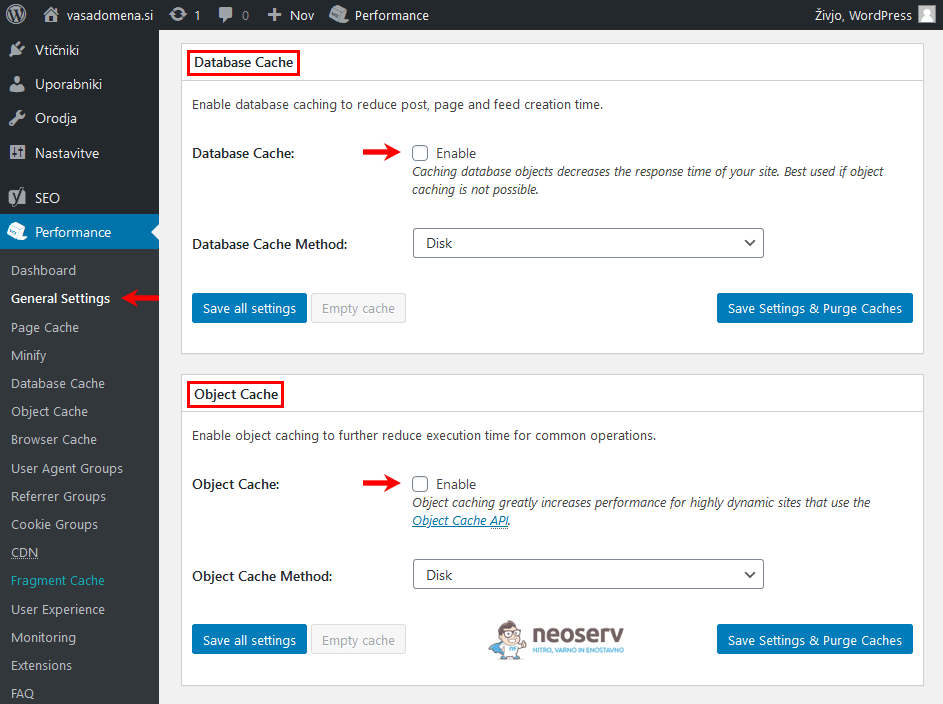
Take a look at the plugin’s General Settings and see if you have any of the following options enabled:
- Database Cache
- Object Cache
Database and object caching is a load on the server’s memory instead of the database itself. If you have any of these features enabled, turn them off and then click Purge All Caches to clear the cache.
We recommend using the WP Super Cache plugin rather than the W3 Total Cache plugin. If you’ve been following our case studies, you’ll have seen that we use the latter to speed up WordPress sites ourselves. Combined with a CSS/JS minification plugin (e.g. Merge + Minify + Refresh), it’s a solution that’s both easy to use and extremely effective.
6. Check for any problems with WordPress updates
Have you noticed slower administration performance after updating the WordPress core, one of the plugins or the graphic template? If so, there are several possible causes:
- An error occurred during the update that slows down the administration.
- The updated plugin is not compatible with an older version of the WordPress core.
- The updated WordPress core is not compatible with an outdated version of the plugin.
- There is an incompatibility between two plugins.
- Administration is slowed down by incompatibility between the plugin and the graphical template.
- The problem is the connection between the graphical template and the WordPress core.
If you have your web hosting arranged with us, backup copies are always available in the cPanel control panel. With just a few clicks, you can restore your website to its previous state and then gradually test exactly which update caused the problem.
You may also find the article on how to create a WordPress test environment useful here. Especially when you need to perform a large number of updates at the same time, the testing option will definitely come in handy.
7. Remove plugins that require a lot of processing power
Most WordPress plugins have only a small impact on the speed of the administration (or the website as a whole), but unfortunately there are a few plugins that have been known to slow down a website significantly. These include plugins for displaying linked articles and various statistics, as well as those that provide chat functionality, calendars, some “page builders”, and plugins that perform running scans or other processes.
Plugins that require a lot of processing power include WPML, WooCommerce, Wordfence, Backup Buddy, Broken Link Checker, Digi Auto Links, Divi Builder, Google XML Sitemaps, Jetpack, NextGEN Gallery, Revolution Slider, Similar Posts, Slimstat Analytics, SumoMe, Talk.To, VaultPress, WordPress Related Posts, WordPress Popular Posts, WP Bakery, WP Stats, WP Power Stats, Yet Another Related Post Plugin, and a few others.
There’s a reason we put WPML – the WordPress Multilingual Plugin– at the top of the list of “difficult” plugins. We have noticed that a few web hosting clients are slowing down their multilingual website administration with this plugin.
The developers of the plugin themselves were aware of the problems with processing power overload, so they released a new version (4.3) in October 2019 to fix most of the problem. The new version includes a completely new way of translating the datasets. Instead of reading the translations from the database, it generates .mo files. The load on the database is much less and the performance is faster. You can read more about it here.
So the solution is to update the WPML plugin to the latest version. If this still doesn’t fix the problem, you can also try a faster alternative to this plugin: Polylang.
You can find out which plugins (or other components) of your website are the bottlenecks by using the Query Monitor plugin. While much of the data displayed by the plugin is intended for advanced users, the response times of plugins can also be viewed by average users. After installing and activating the plugin, you will find them under Queries by Component in the left menu.
8. Deactivate “WooCommerce Admin”
WooCommerce, the online shop plugin, in newer versions(from 4.0 onwards) also includes the so-called WooCommerce Admin, which was previously available as a standalone plugin. This allows the administration of the online shop to add additional functionalities such as various reports, the possibility to control some sales metrics and so on. Unfortunately, this add-on, which is now part of the WooCommerce core, is often the cause of slow administration.
Fortunately, there is a workaround that allows new functionalities that many users don’t even need to use to be easily turned off. You need to create a simple plugin like this:
- Create a new folder inside the
/wp-content/pluginsfolder and name it:disable-woocommerce-admin. - Navigate to the folder you just created and create a new file named:
disable-woocommerce-admin.php. - Insert the following code into the file:
<?php
/**
* Plugin Name: disable WooCommerce Admin
* Description: This plugin disables the new WooCommerce Admin package in WooCommerce.
* Version: 1.0
*/

add_filter( 'woocommerce_admin_disabled', '__return_true' );- Save changes.
- You will now find the plugin you just created in the list of plugins in your WordPress administration. Activate it.
If you’re not comfortable creating a plugin, you can also use one of the plugins you’ve already created, for example Disable WooCommerce Bloat.
9. Remove unnecessary plugins and graphic templates
As you can see, graphical templates and plugins can also be problematic. They can cause slower performance or, in extreme cases, even website crashes due to incompatibility with each other or with the WordPress core. So what is the best thing to do (besides regular updates, of course)?
For a start , delete all inactive plugins and graphical templates, as it’s obvious you don’t need them. This will help you to gain space on your hosting package and reduce the load on your database, where settings for inactive graphical templates and plug-ins may be stored.
Next, check the list of plugins carefully and disable and delete any that:
- are no longer supported by the developer,
- are not strictly necessary for the functionality of the website,
- cause you more problems than they are good for you.
The fewer plugins you have installed, the less chance of problems you will have. You’ll also have an easier time finding the problem that’s causing your WordPress administration to run slowly.
10. Optimise your WordPress database
Once you’ve done the above steps, it’s time to optimise your database. Over time, it accumulates a lot of automatically saved Post Revisions, discarded comments, Transients and similar “junk” that unnecessarily fills up its space.
You can optimise your database using a dedicated plug-in. We recommend one of the following options:
- WP Rocket – a paid plugin that provides a range of features to speed up your website;
- WP-Optimize – a free plugin that can also be used to cache pages;
- Optimize Database after Deleting Revisions – a free plugin that only optimises databases.
With most WordPress plugins that allow you to optimise your database, you can set the database to be checked and optimised at predefined intervals, e.g. once a week or once a month.
Whenever you have to modify or delete data in the database, we advise you to make a backup beforehand. With NEOSERV, backups are automatically created on a daily basis, so if you have not made any changes to the website in the last 24 hours, you do not need to worry about this. Instructions on how to restore your database from a backup can be found here.
11. Use the Heartbeat Control plugin
WordPress uses a protocol called the Heartbeat API (admin-ajax.php) to control automatic saving, post revisions, simultaneous administration of multiple users and similar processes in real time. Because it runs in the background all the time, it makes a large number of PHP calls, which leads to higher CPU usage. As a result, it can slow down the performance of the website – including the administration part.
To reduce the load caused by the Heartbeat API, we recommend using the free Heartbeat Control plugin. If you use the WP Rocket plugin, you already have control over the Heartbeat API, as the Heartbeat Control plugin is a product of the same team.
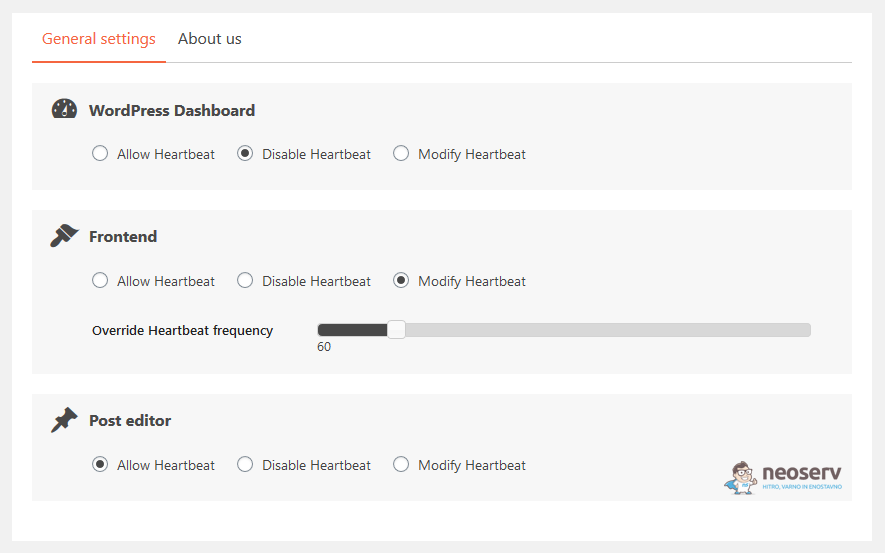
We advise you to enable the Heartbeat API at the Post editor level, as this will keep the auto-save feature. However, disable Heartbeat at Dashboard and Frontend level, or at least reduce its frequency – e.g. from the default 15 seconds to 60 seconds.
12. Reinstall the wp-admin and wp-includes folders
While it is unlikely that any of the files that are critical to the WordPress administration are corrupted, it is worth checking this as well. The following steps may be the solution to your slow administration problem.
- Make a backup of your files. If you are hosted with us, a backup is already in place(instructions for restoring files from a backup), so you can skip this step.
- Download the latest version of WordPress from the official WordPress.org website.
- Using the cPanel control panel or FTP program , download the wp-admin and wp-includes folders to your hosting package. Overwrite the new files over the existing ones.
- Check the administration on your website.
13. Set up the appropriate CloudFlare rules
Is your website targeted at international visitors? If so, you may be using a Content Delivery Network( CDN ), which serves website content to visitors from different geographic areas from a server close to them. Chances are you are using the free CloudFlare solution.
The developers of this solution advise you to disable the CloudFlare functionality for WordPress administration (wp-admin) with the Page Rules settings. These rules allow you to specify which CloudFlare settings should be active on each part of your website.
- Log in to your CloudFlare user account.
- In the top menu, scroll to Page Rules.
- Click on Create Page Rule to create a new rule.
- Enter www.vasadomena.si/wp-admin* in the box above.
- Disable Performance and Apps by clicking + Add a Setting below.
- Confirm your selection by clicking on the blue Save and Deploy button.
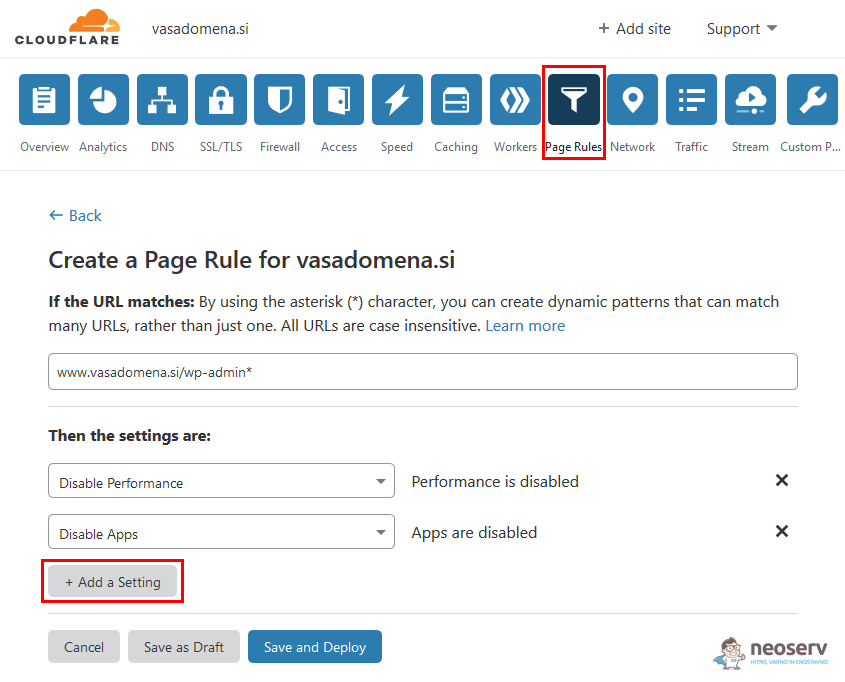
NOTE: In step 3, where we have used the domain “vasadomena.si” for the purpose of the example, enter your domain in the field. Do not forget to add an asterisk(*) at the end of the entry.
14. Check the speed of administration with another graphic template
Have you migrated your website to a reliable hosting provider, integrated the latest PHP version, updated your plugins and graphic template, optimised your database and gone through all the other tips, but WordPress administration is still slow?
There is another solution, but you probably won’t be too thrilled about it. Try running the administration in the default WordPress graphical template, e.g. Twenty Twenty. If you notice a significant improvement, the problem with the slow administration is obviously related to an inefficient graphic template.
What are you left with in this case? First of all, check whether there is an update for your graphical template. If you haven’t updated the theme for a long time, there is a good chance that an update will fix the errors in the code. And if that doesn’t help?
Then a change will be needed. You definitely don’t want to use a slow and “buggy” graphical template, as it probably affects not only the slowness of the administration, but the slowness of the whole website. It also drives your visitors away.
For a serious project, we advise you to use a paid WordPress theme purchased from the proven ThemeForest.net platform. Once you have found a graphic template that suits your website, take the time to check the opinions of existing users. This is the quickest way to find out if they are happy with the template you have chosen, if it works quickly and smoothly, if the developer is responsive and willing to help, etc.
Have any of the suggestions we’ve outlined in today’s post helped you speed up WordPress administration on your website? We’d be happy to hear from you which step you took to fix the problem.
COMMENT THE POST
Your comment has been successfully submitted
The comment will be visible on the page when our moderators approve it.