


- Your cart is currently empty.
How to Set Up Cloudflare for Your Website
Search results for: ""
Cloudflare is a service that uses a global network of servers to provide a Content Delivery Network (CDN). Web traffic passes through its network, while certain content is delivered to visitors from servers located closer to them. As a result, the website loads faster, especially for visitors who are farther away from the origin server, while also reducing the load on the origin server.
The service also provides security features, such as protection against DDoS attacks and hiding the IP address of the origin server. In this guide, we will cover the basic setup – from adding a domain and changing DNS servers to managing DNS records and configuring SSL/TLS.
Table of Contents
- Why Would You Need Cloudflare
- How to Connect a Domain to Cloudflare
- Managing DNS Records in Cloudflare
- Cloudflare and SSL/TLS Certificates
- Redirect Visitors to HTTPS
- Test Your Website
- Protection During an Attack: Under Attack Mode
Why Would You Need Cloudflare
One of the main advantages of Cloudflare is its global network of servers. If your website is visited by users from different parts of the world, certain content is delivered from a location that is closer to the visitor than the origin server. This reduces transfer times and the load on the origin server.
Another important advantage is additional website protection. If a DNS record is set to Proxied, web traffic passes through the Cloudflare network and the IP address of the origin server is not directly exposed to visitors. Security features and DDoS protection are also applied to this traffic.
Several plans are available. For basic use, the Free plan is usually sufficient and includes basic DNS, CDN, SSL/TLS and security features.
Cloudflare does not replace web hosting. Your website is still hosted on your hosting provider’s server, while Cloudflare routes web traffic through its network and acts as an intermediary between the visitor and the origin server.
How to Connect a Domain to Cloudflare
To use Cloudflare, you first need to create a Cloudflare account, add your domain and then change its DNS or name servers (nameservers) at your domain registrar.
1. Create a Cloudflare Account and Add Your Domain
Go to the Cloudflare website and create a new user account or log in to your existing account if you already have one.
- Create a new account: https://dash.cloudflare.com/sign-up
- Log in to an existing account: https://dash.cloudflare.com/login
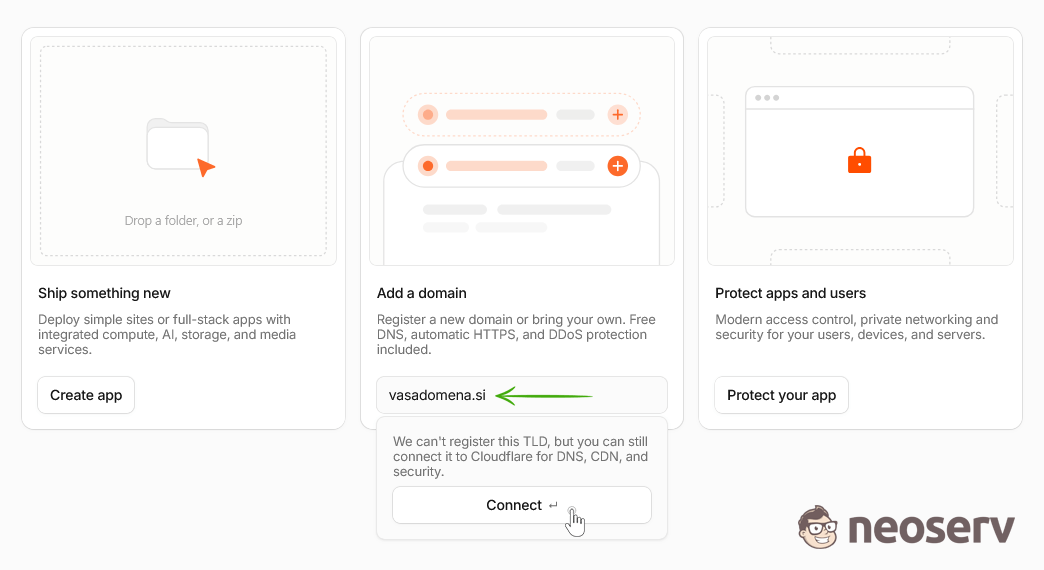
After logging in, the Cloudflare dashboard will open. In the Add a domain section, enter the domain you want to connect to Cloudflare and click Connect.
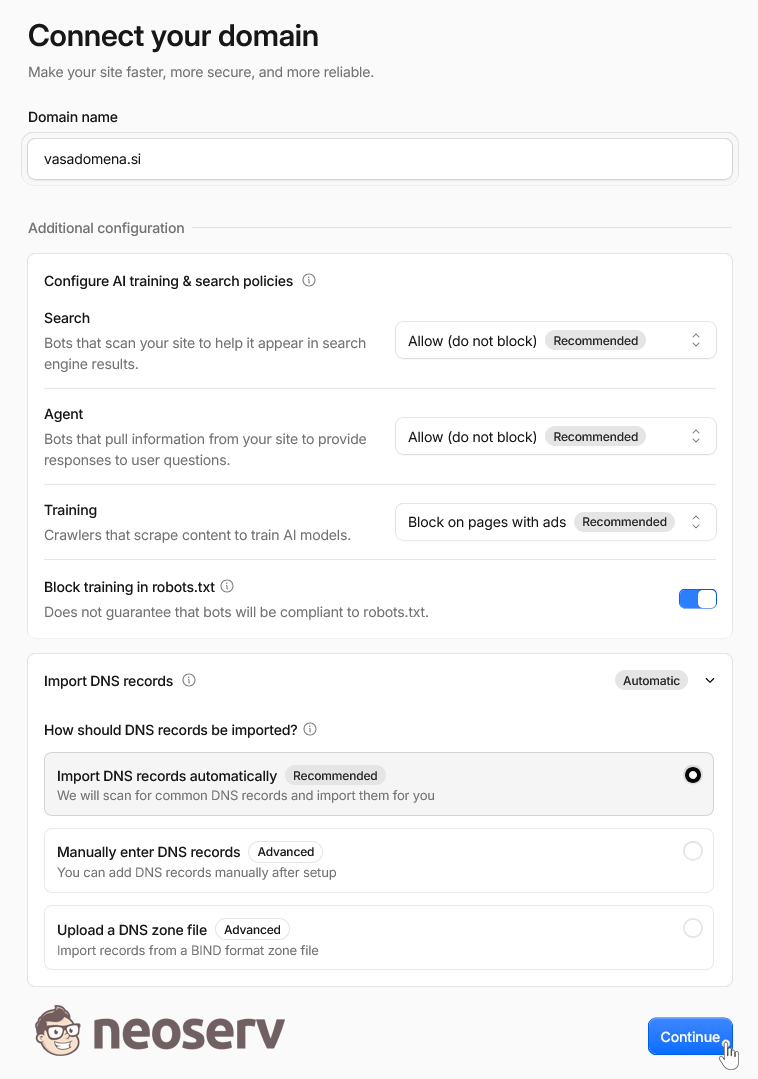
The Connect your domain page will open, where you can verify the domain you entered and configure additional settings. For a basic setup, you can leave the AI training & search policies options at their default values.
Under Import DNS records, leave Import DNS records automatically selected. Cloudflare will scan the domain’s existing DNS records and attempt to import them automatically. Click Continue.
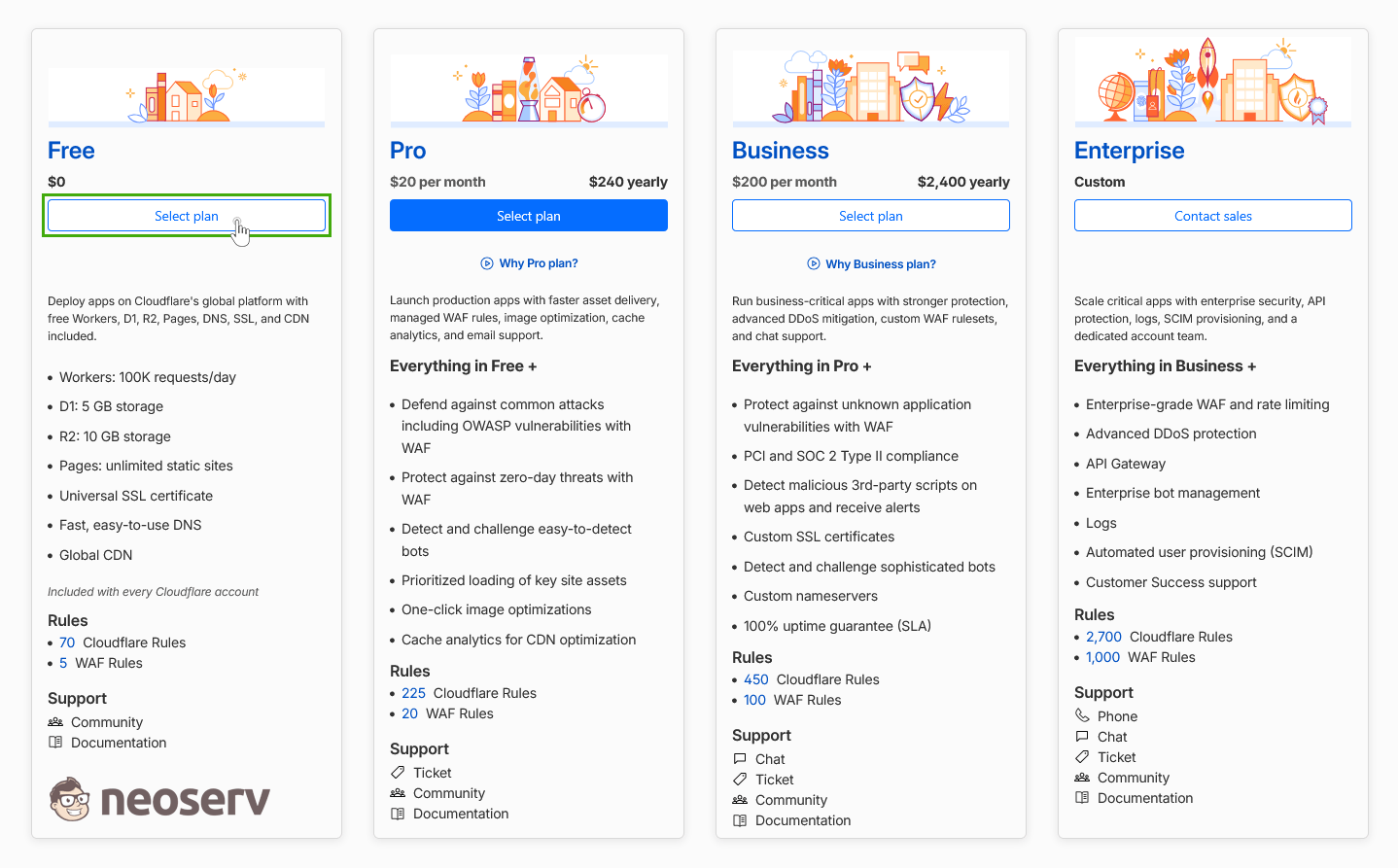
In the next step, Cloudflare will ask you to choose a plan. For basic use, the Free plan is sufficient, so click Select plan under this option.
Cloudflare will then scan the DNS records it detected at your existing provider and display the Review your DNS records page.
2. Review the DNS Records
On the Review your DNS records page, Cloudflare displays the DNS records it detected for your domain.
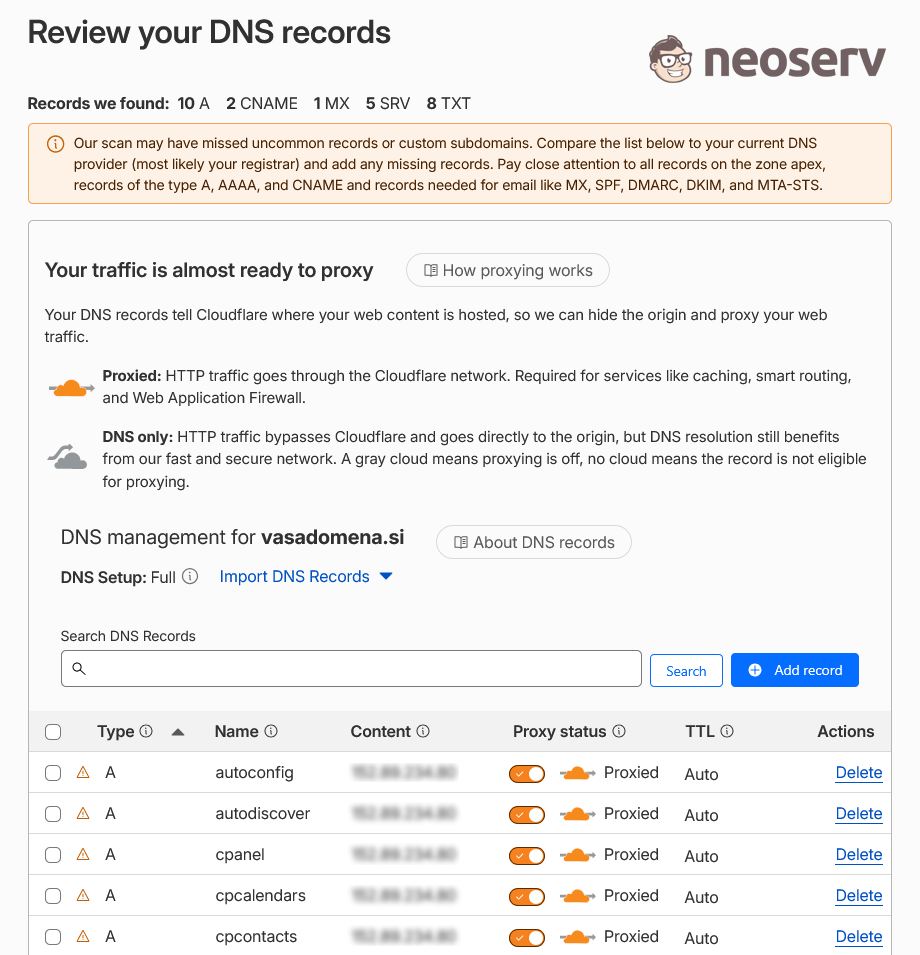
Before proceeding, check that all important records used by your domain are present. Pay particular attention to:
- A and CNAME records for your website and subdomains,
- MX records if you use email with your domain,
- TXT records related to email, such as SPF, DKIM and DMARC,
- other records for any services or subdomains you use.
If any required records are missing, you can add them by clicking Add record. Compare the records with the DNS records at your current DNS or hosting provider.
Cloudflare detects DNS records automatically, but there is no guarantee that it will find all of them. Before changing the name servers, make sure that all records required by your domain have been added to Cloudflare. For example, if an MX record is missing, incoming email may stop working after switching to Cloudflare.
The Proxy status is also displayed for individual records:
- For website records that you want to route through Cloudflare,
Proxiedis usually selected. - Records for services that should not be proxied through Cloudflare must be set to
DNS only.
We will explain the difference between Proxied and DNS only in more detail later in this guide.
Once you have reviewed the DNS records, click Continue to activation.
3. Change the Domain’s DNS Servers
Cloudflare will then display the Update your nameservers to activate Cloudflare page. It lists the two Cloudflare name servers assigned to your domain.
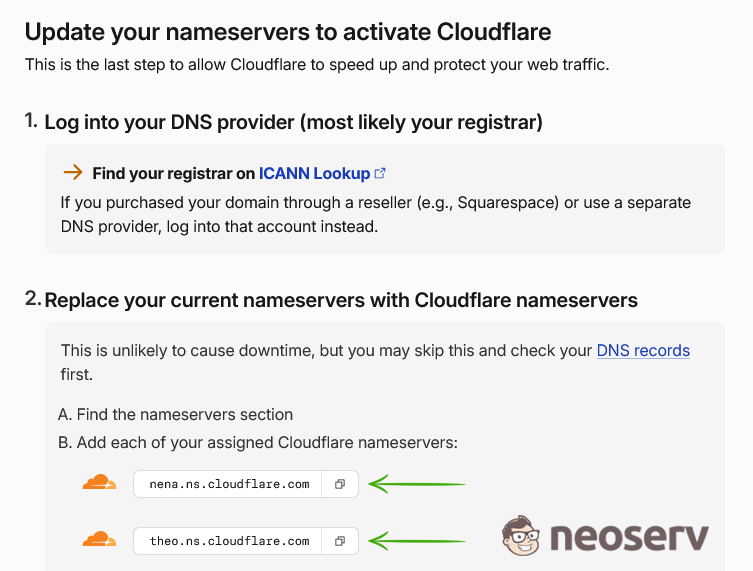
Do not copy the name servers from the example in the screenshot above. Cloudflare assigns its own name servers to each domain. You must use the ones displayed in your Cloudflare account.
Log in to the control panel of the provider where you manage your domain and find the option for changing DNS servers.
If your domain is registered with us, you can make this change in the My NEOSERV client area.
Instructions: How to Change DNS Servers
Replace the existing DNS servers with the DNS servers displayed in the Cloudflare interface and save the changes.
After changing the name servers, you will manage your domain’s DNS records in Cloudflare rather than in your previous provider’s control panel (e.g. cPanel). This applies to both records set to Proxied and records set to DNS only.
Once you have set the new name servers for your domain, return to Cloudflare and click I updated my nameservers.
4. Wait for the New DNS Servers to Take Effect
Cloudflare will start checking whether the domain is using the new name servers. While you wait, the Overview page will display the following message: Waiting for your registrar to propagate your new nameservers.
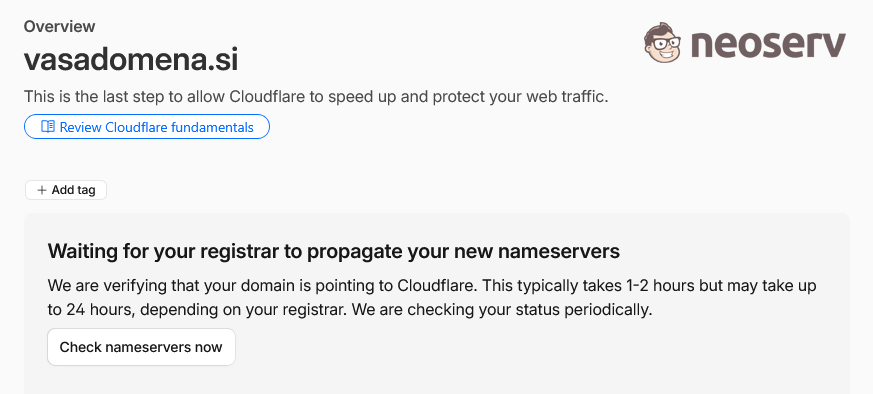
DNS server changes do not take effect immediately. According to Cloudflare, the process usually takes one to two hours, but in some cases it may take up to 24 hours, depending on the registrar and DNS propagation.
After some time, you can check the status again by clicking Check nameservers now.
Once Cloudflare detects the new name servers, the domain is activated. The Overview page will display the following message: Your domain is now protected by Cloudflare.
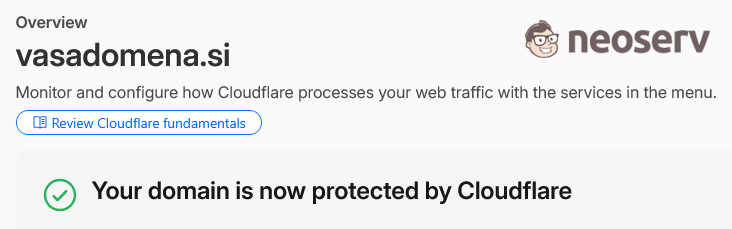
Your domain is now successfully connected to Cloudflare. From this point on, Cloudflare manages its authoritative DNS records, while web traffic for records set to Proxied is routed through the Cloudflare network.
Managing DNS Records in Cloudflare
Once your domain is connected to Cloudflare, you can manage its DNS records in the Cloudflare dashboard.
Select the domain and from the left-hand menu, go to: DNS → Records
A list of the domain’s DNS records will be displayed.
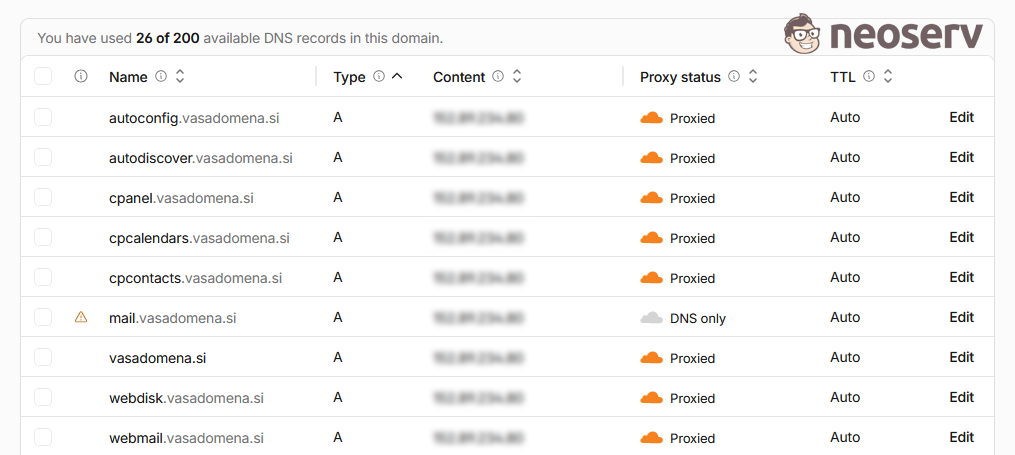
The list includes the following information:
- Name – the name of the domain or subdomain,
- Type – the type of DNS record (e.g. A, AAAA, CNAME, MX or TXT),
- Content – the destination of the record (e.g. an IP address),
- Proxy status – whether traffic passes through Cloudflare,
- TTL – how long the DNS record is cached.
You can add a new record by clicking Add record or modify an existing one by clicking Edit.
Proxy Status: Choose Proxied or DNS only
One of the more important settings for DNS records in Cloudflare is Proxy status. For records that Cloudflare can proxy, you can choose between Proxied and DNS only.
Proxied – Traffic Passes Through Cloudflare
When Proxied is selected, an orange cloud is displayed.
Cloudflare responds to DNS queries and routes web traffic through its network, enabling features such as CDN, caching and DDoS protection. When a DNS query is made, the origin server’s IP address is not exposed.
The Proxied setting does not guarantee that the origin server’s IP address is completely hidden. If another DNS record set to DNS only points to the same IP address, the origin IP address can still be discovered.
DNS only – Traffic Does Not Pass Through Cloudflare
When DNS only is selected, a gray cloud is displayed.
Cloudflare responds to DNS queries but does not route web traffic through its network. Features that rely on the Cloudflare proxy (CDN, caching, DDoS protection, etc.) are therefore not available for such DNS records.
The DNS only option is primarily used for services whose traffic cannot or should not be routed through the Cloudflare proxy.
Important: DNS Records for Email
Do not set DNS records for email to Proxied without careful consideration.
Cloudflare does not proxy MX records. If an MX record points to a mail server, its A or AAAA record should generally be set to DNS only.
Example: If the MX record for the domain yourdomain.com points to mail.yourdomain.com, check the A or AAAA record for mail.yourdomain.com and make sure its Proxy status is set to DNS only.
Cloudflare and SSL/TLS Certificates
When using Cloudflare, HTTPS traffic passes through two separate connections:
- Visitor ← HTTPS → Cloudflare
- Cloudflare ← HTTPS → origin server
Cloudflare provides an SSL/TLS certificate for the connection between the visitor and its network. For a secure connection between Cloudflare and the origin server, the server hosting the website must also support HTTPS.
From the left-hand menu in the Cloudflare interface, go to: SSL/TLS → Overview
The currently used encryption mode (Current encryption mode) is displayed here.
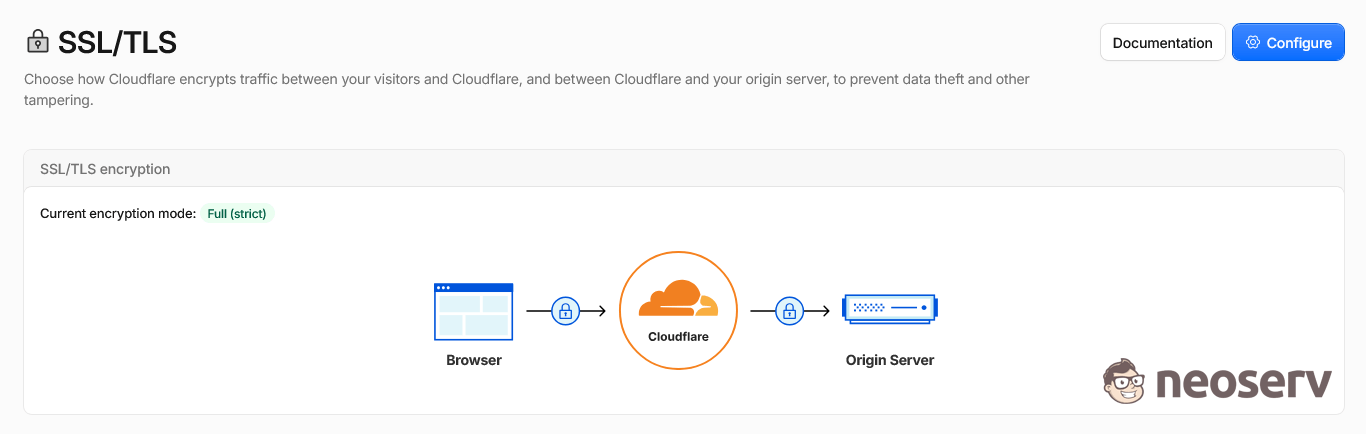
To change the mode, click Configure. The Encryption mode and origin connection settings page will open, where you can select the connection mode between Cloudflare and the origin server.
Automatic SSL/TLS – Recommended Setting
For basic use, we recommend leaving Automatic SSL/TLS selected, which Cloudflare also marks as recommended.
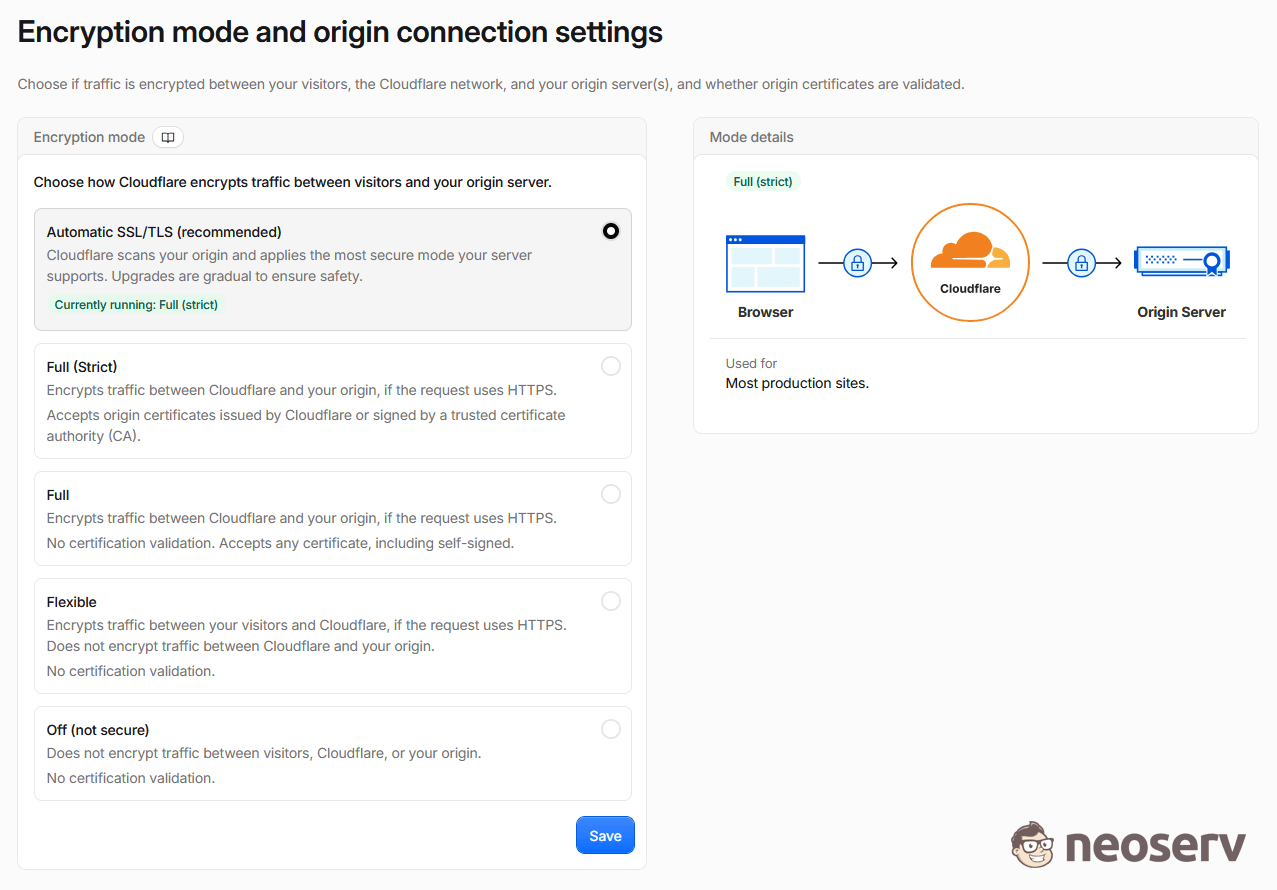
With this setting, Cloudflare checks which encryption modes are supported by the origin server and automatically applies the most secure supported mode. Upgrades to a more secure mode are performed gradually to reduce the risk of issues with the website.
Manual Encryption Mode Configuration
If you want to select the encryption mode manually, the following options are available:
- Full (strict) – the connection between Cloudflare and the origin server is encrypted and Cloudflare also verifies the validity of the server’s SSL certificate. This option is suitable when the origin server has a valid certificate issued by a trusted certificate authority or Cloudflare Origin CA.
- Full – the connection between Cloudflare and the origin server is encrypted, but Cloudflare does not verify the validity of the server’s SSL certificate. This option can be used, for example, with a self-signed certificate.
- Flexible – the connection between the visitor and Cloudflare is encrypted, while the connection between Cloudflare and the origin server uses HTTP. If the origin server supports HTTPS, we do not recommend this option.
- Off – SSL/TLS encryption is disabled, so we do not recommend this option for a modern website.
If you choose to configure the encryption mode manually, Full (strict) is generally the most suitable option for a website with a valid SSL certificate installed on the origin server.
Redirect Visitors to HTTPS
Once SSL/TLS is properly configured, we also recommend ensuring that visitors always access your website over HTTPS.
From the left-hand menu in the Cloudflare interface, go to: SSL/TLS → Edge Certificates
Find the Always Use HTTPS setting and enable it.
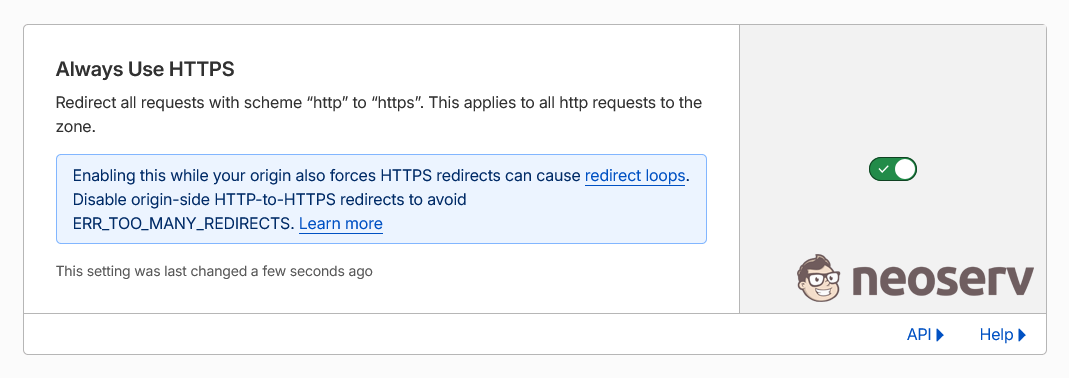
Cloudflare will now automatically redirect requests from HTTP to HTTPS. A visitor who accesses:
- http://yourdomain.com/
will be redirected to:
- https://yourdomain.com/
Before enabling Always Use HTTPS, make sure the website works properly over HTTPS.
Test Your Website
Once the domain is active in Cloudflare, the DNS records are configured correctly and SSL/TLS is properly set up, thoroughly test your website.
Do not check only the homepage. Open important subpages as well and test the features that communicate with the server.
Depending on the type of website, pay particular attention to:
- standard website – test contact and other forms as well as access to the administration area;
- online store – check the shopping cart, checkout process and connections to payment systems;
- website with user accounts – test registration, login and access to the account.
Also check that the website loads properly over HTTPS and that the browser does not display any SSL certificate warnings.
If you also use the domain for email, test sending and receiving messages. If you encounter any issues, check the MX record and the records for the mail server again. Make sure that records intended for email are set to DNS only.
Protection During an Attack: Under Attack Mode
In addition to its basic security features, Cloudflare also offers Under Attack Mode. You can use it when your website is the target of a DDoS or similar attack or receives an unusually high number of suspicious requests.
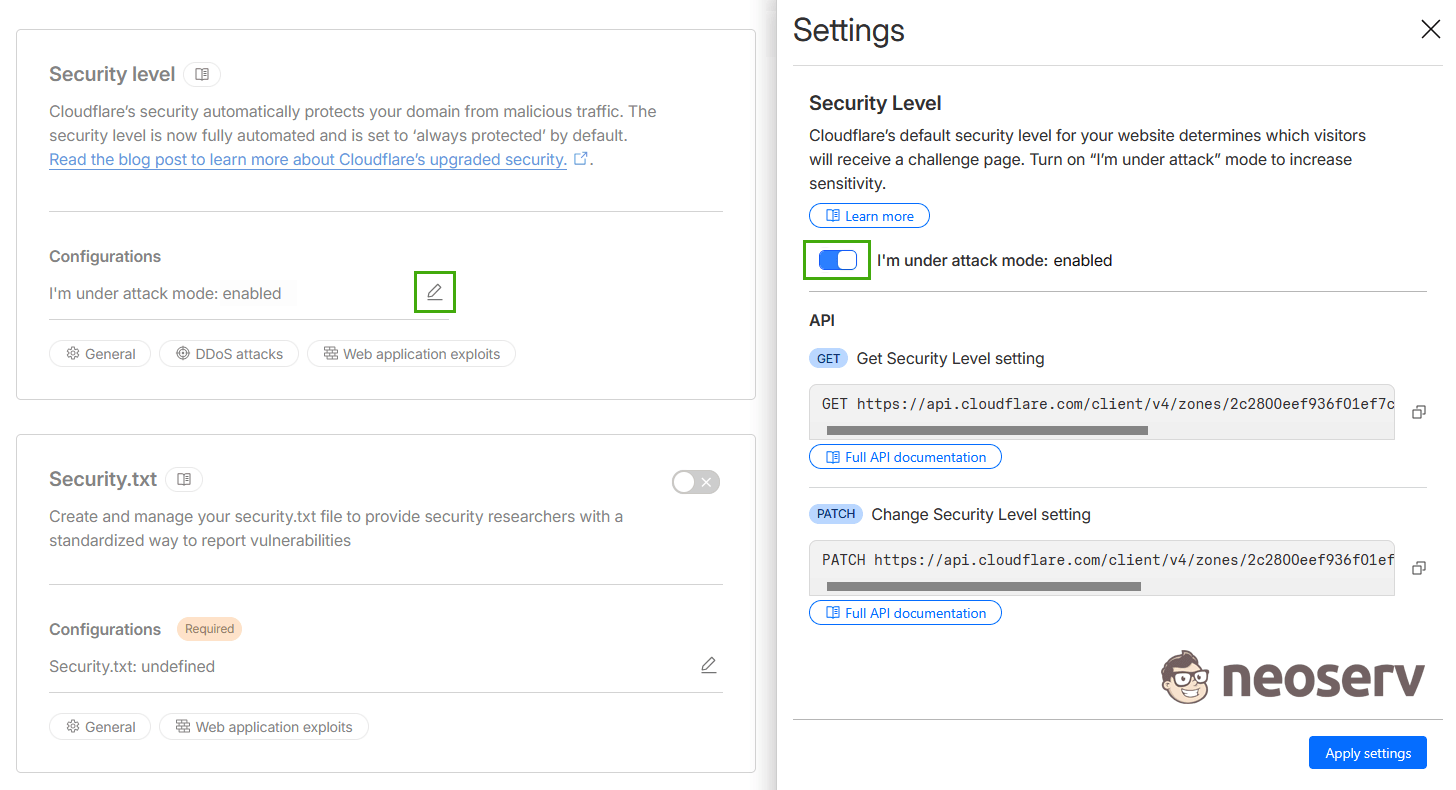
When this mode is enabled, Cloudflare uses additional security mechanisms to verify visitors before allowing them to access the website. Since this mode can also affect legitimate visitors and the operation of certain services, we do not recommend using it as a permanent setting.
Detailed instructions: How to Use Cloudflare Under Attack Mode
For further assistance, please call us on +386 59 335 000 or email us at info@neoserv.com.

COMMENT THE POST
Your comment has been successfully submitted
The comment will be visible on the page when our moderators approve it.