


- Your cart is currently empty.
How to Move Your Website from WordPress.com to WordPress.org

Have you set up your website on the wordpress.com CMS but found that it doesn’t offer you enough freedom in terms of management? Then you’re on the right page, because we’ll show you how to migrate your blog from wordpress.com (wp.com) to wordpress.org (wp.org) in five steps.
Why move from wp.com to wp.org?
As we wrote in the introduction, a blog set up on wp.com has a few limitations compared to the wp.org platform. You can read more about the differences between the two platforms in our post Comparing WordPress.com and WordPress.org.
The main advantage of a site built on wp.org is that it gives you full control over your site. Check below how to migrate your website to this environment.
Moving your site from wp.com to wp.org in five steps
Follow these steps to successfully make the move from wp.com to wp.org.
1. Export data from wp.com
First, you need to export all the data from your existing website.
- Log in to the wp.com administration.
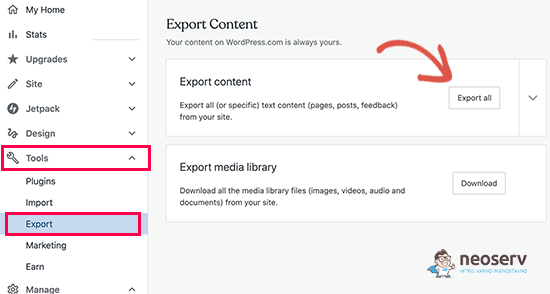
- In the left column, select Tools > Export.
- Click the Export all button.
- When the .ZIP file containing your site is ready, click on the Download button.
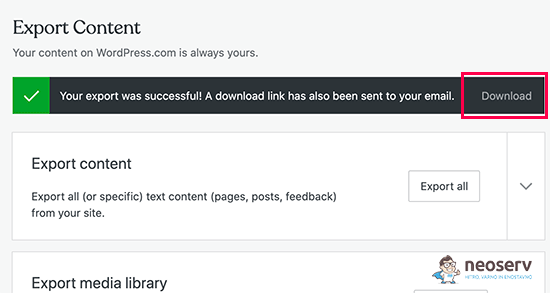
Wp.com will also send you an email with a link to the .ZIP file.
2. Setting up WordPress
To get your website running on wp.org, you will first need (if you don’t already have one) your domain and hosting package. We recommend choosing the Orange package, which is available for as little as €1.66 per month.
After activating your hosting package, you can install your WordPress site. To help you, here’s a post Setting up a WordPress website in 1 minute.
3. Importing content into a WordPress site
Log in to the administration of your new WordPress site and follow the steps below:
- Click on Tools > Import.
- Under WordPress, select Install Now to install the WordPress Importer feature.
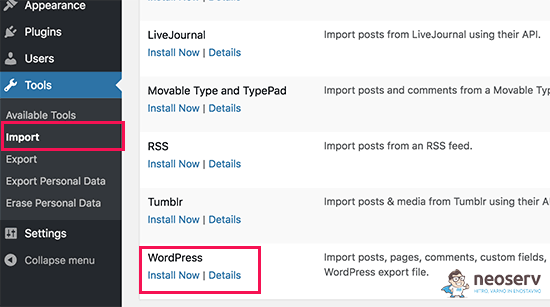
- Click on Run importer.
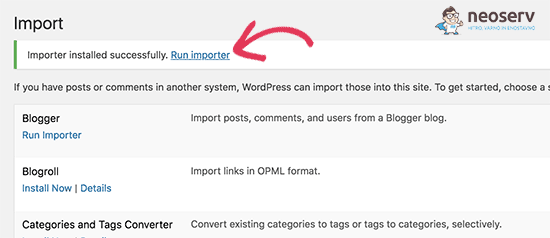
- In the newly opened window, load the wp.com XML file (located inside the ZIP file you created in step 1).
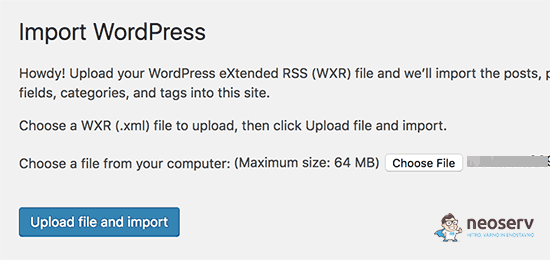
In case your XML file is larger than 2 MB, you can increase the limit on your hosting package or use the WXR File Splitter.
Once you have started the import process, you have the option to import the content to an existing user, or you can create a new one. You can also import file attachments.
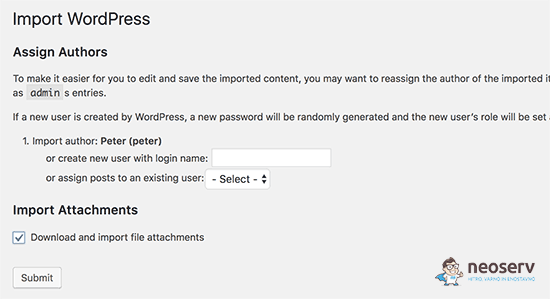
It is important to tick the Download and import file attachments option, as this will also allow you to correctly enter images for your page.
4. Privacy settings for the wp.com site
If you do not want to redirect users who have logged in to your page to a new page, follow these steps:
- Log in to the wp.com administration and select Manage > Settings.
- Under Privacy, select the Private option.
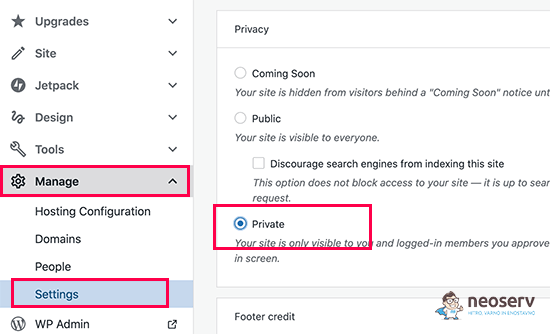
- Click on the Save settings button.
This way, your wp.com page will only be visible to you and to users who have logged in to your page in the past. In any case, it is recommended that you do not delete your old page, but simply redirect to your new page.
5. Redirect visitors and keep SEO settings
Permanent redirection (301) of visitors is a classic solution to keep your site’s positions in the search engine, regardless of the migration of the site (in this case from wp.com to wp.org). Follow this step if you are going to use your new site on a new domain.
Since you don’t have access to the .htaccess file on wp.com, you can’t do a 301 redirect yourself. WP.com therefore offers a paid option called Site Redirect that allows you to do this:
- Log in to the wp.com administration and click on Manage > Settings.
- Under Site address, click on the Redirect link.
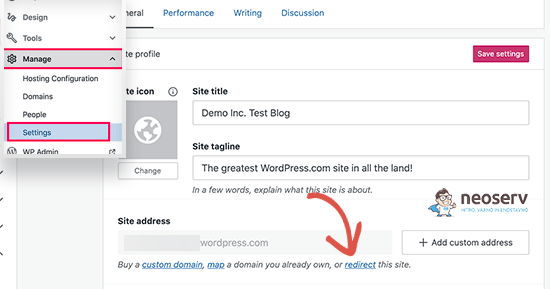
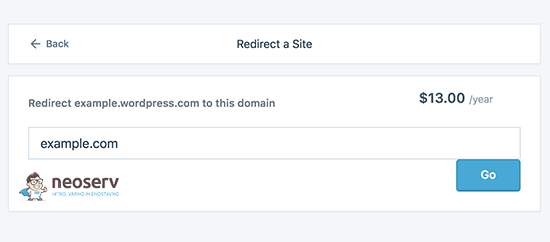
- In the new window that opens, enter the domain to which you want to redirect your visitors. This is a paid service (€13/year) that will add a permanent 301 redirect that will redirect visitors and search engines to your new site.
How long is it advisable to pay for this service? In most cases, two years is enough for users to remember your new domain.
If you are using a new domain, you should also take care to refresh the internal URL links. You may find it helpful to check the Setting permanent redirects (301) in .htaccess post.
If you were already using your own domain on wp.com, then all you need to do is change the DNS servers to the ones you use on your hosting package.
Now what? We’ve prepared additional posts to help you make your new WordPress site even more effective:
- WordPress “child” theme: why and how to create one?
- How to speed up a WordPress website?
- How to migrate a WordPress site to HTTPS?
- How to create a secure username and password in WordPress
- How to add Google Analytics code to WordPress?
Additional WordPress-related posts can be found on our blog.
COMMENT THE POST
Your comment has been successfully submitted
The comment will be visible on the page when our moderators approve it.