


- Your cart is currently empty.
How to Change Your Email Password in cPanel
Search results for: ""
1. Log in to the My NEOSERV Subscription Centre.
For more information on how to do this, see How do I log in to My NEOSERV?
2. Log in to the cPanel dashboard.
For more information on how to do this, see the article How do I log in to the cPanel?
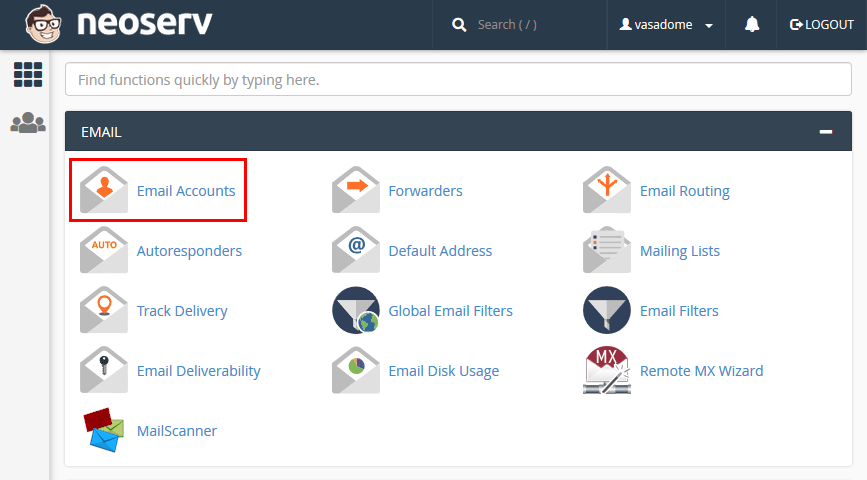
3. Under the EMAIL section, select the Email Accounts icon.
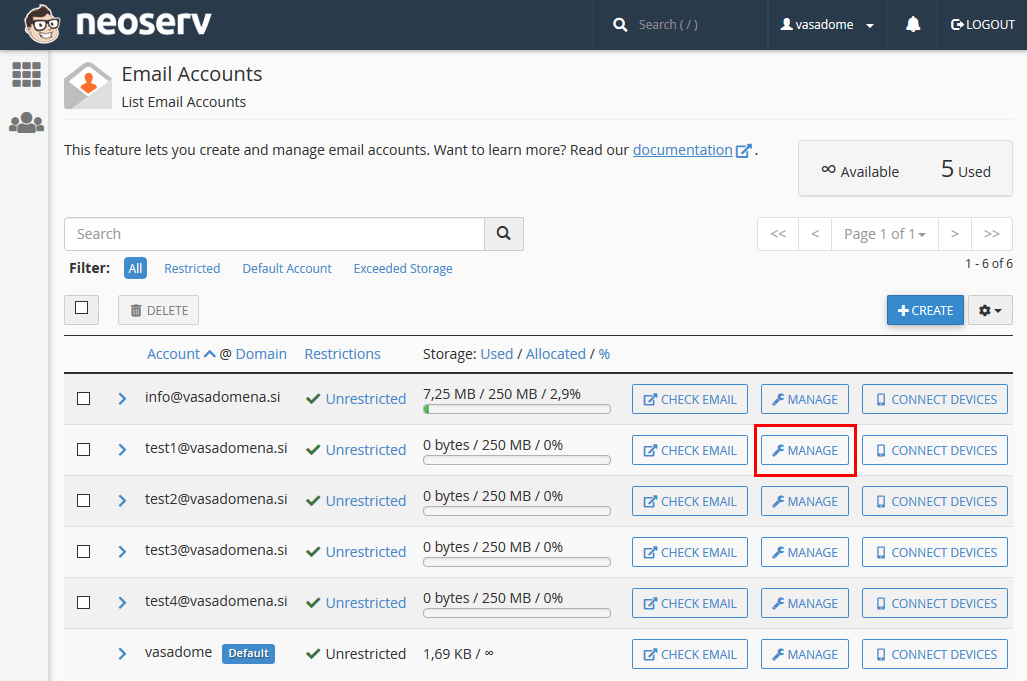
4. Select the email account you want to change the password for from the list and click on the MANAGE button.
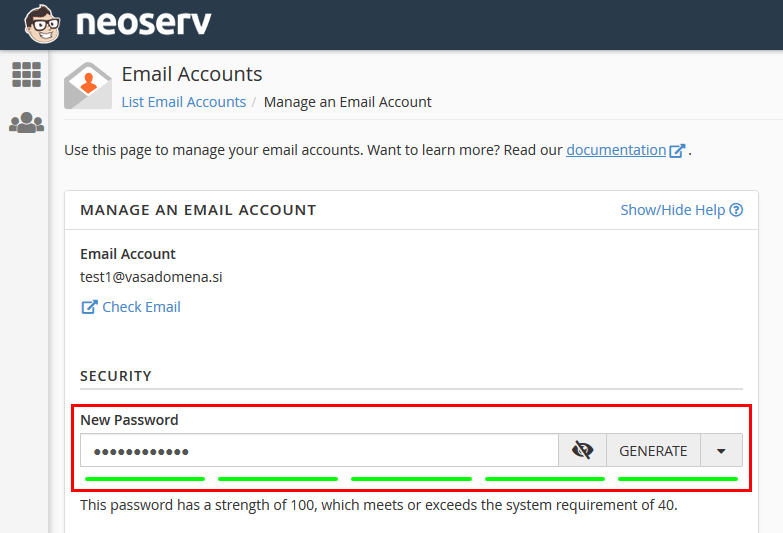
5. Enter the new password in the box. You can also use a password generator – click on GENERATE.
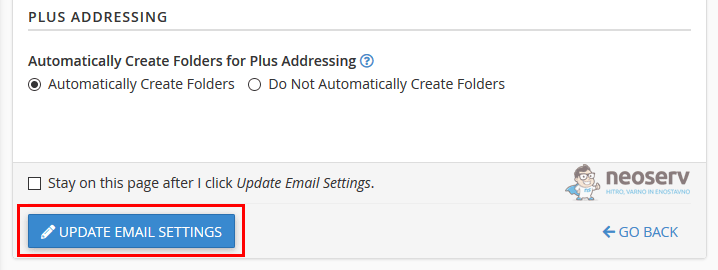
6. All you have to do is click on the UPDATE EMAIL SETTINGS button at the bottom of the settings.
Congratulations! You have successfully changed the password for your email account.
IMPORTANT: When you change your email account password, you must also enter the new password in all email clients you use (e.g. Outlook, Mail, Thunderbird, etc.).
We are also always available by phone or email for any further questions.

COMMENT THE POST
Your comment has been successfully submitted
The comment will be visible on the page when our moderators approve it.