


- Your cart is currently empty.
How to Create an Email Account in cPanel
Search results for: ""
Find out how to create a new email inbox in cPanel in just a few simple steps and how to access it via the Webmail web-based email viewer.
Creating a new email inbox
Log in to the cPanel Control Panel (login instructions). You will find your access details in the My NEOSERV Subscription Centre.
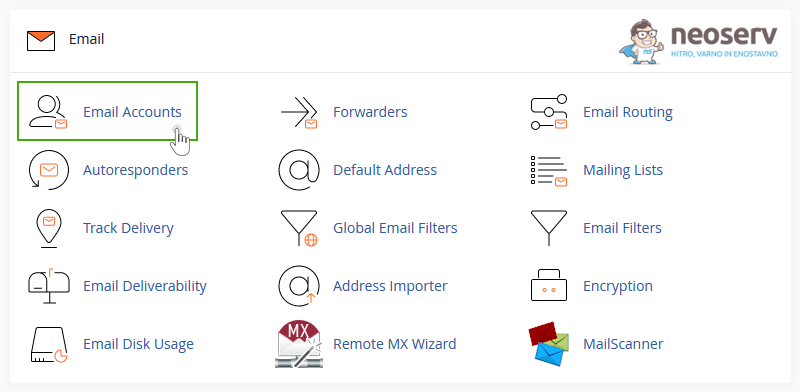
2. After you have successfully logged in to the Control Panel, locate the Email icons section and select Email Accounts.
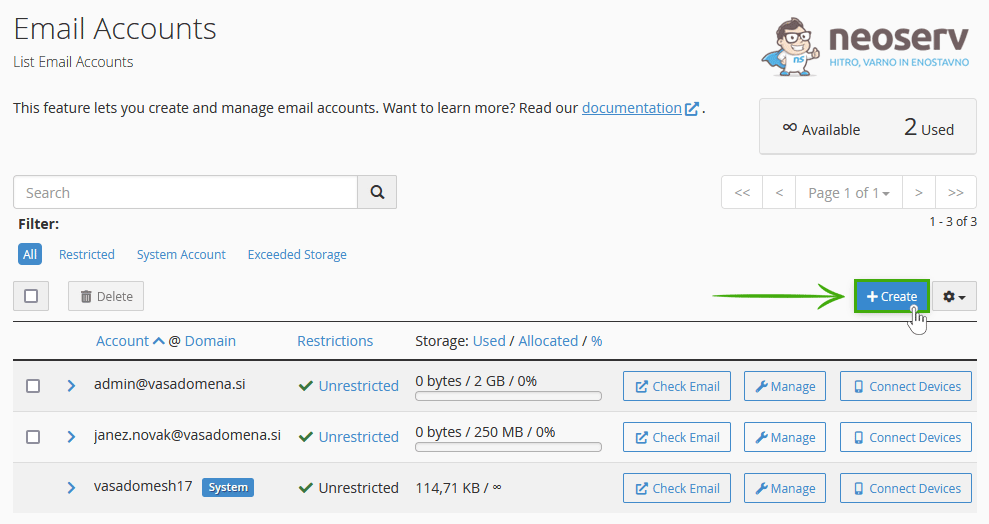
3. A new page will open and on the right side, look for the blue + Create button and click on it.
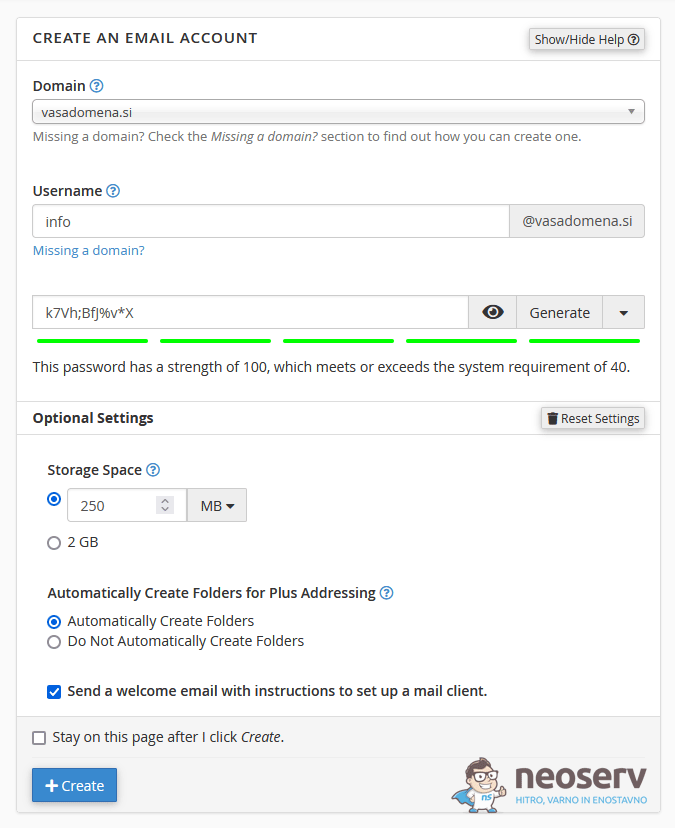
4. In the drop-down menu, select the domain to which your new mailbox will be linked. Specify the username or address of the email box and set a password. Within the optional settings, specify the size of the mailbox ( Storage Space) and click the blue + Create button again.
Have you encountered the problem that you can’t see the domain you want to bind your new mailbox to in the drop-down menu? If this is the case, you need to add the registered domain to your hosting package first. You can find instructions on how to add a domain to cPanel here.
NOTE: When selecting a username and password , please enter your details, not the details shown in the image below. You can help generate a secure password by clicking on the Generate button.
You have just created a new email account that can be accessed in different ways. Here’s how to access it from the cPanel control panel or the Webmail application.
Accessing a new email inbox
1. On the main page of the cPanel dashboard, locate the Email icons section and click on Email Accounts.
2. In the list of email accounts, find the one you want to open and click on the Check Email button.
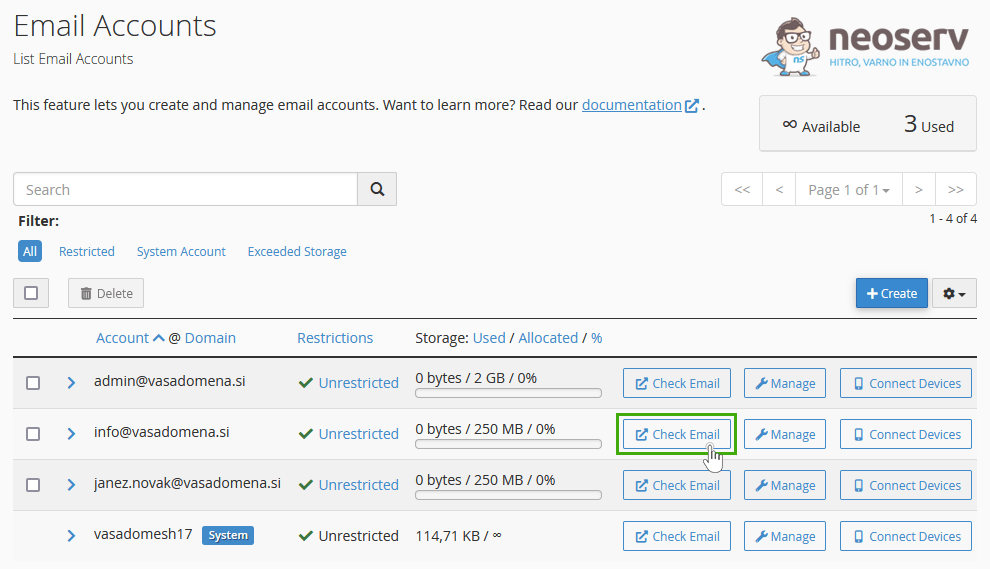
3. Click Open to open the Roundcube webmail client.
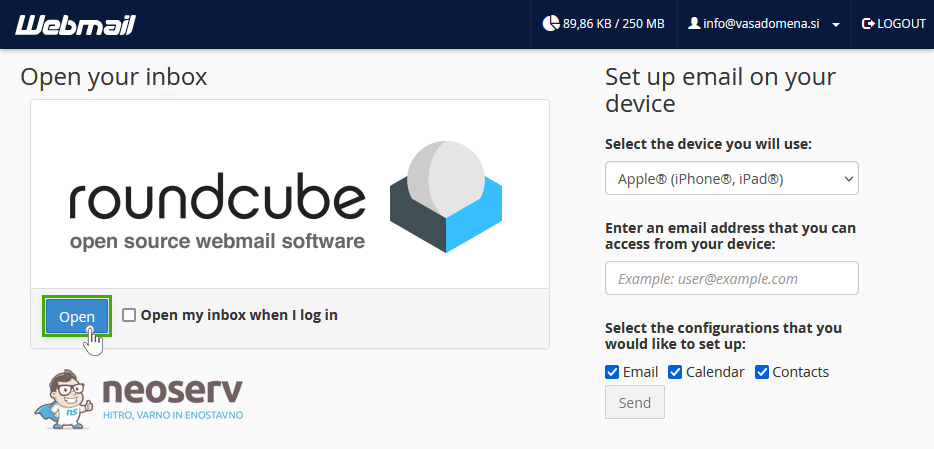
The Roundcube web email client allows you to manage your email inbox from within your web browser.
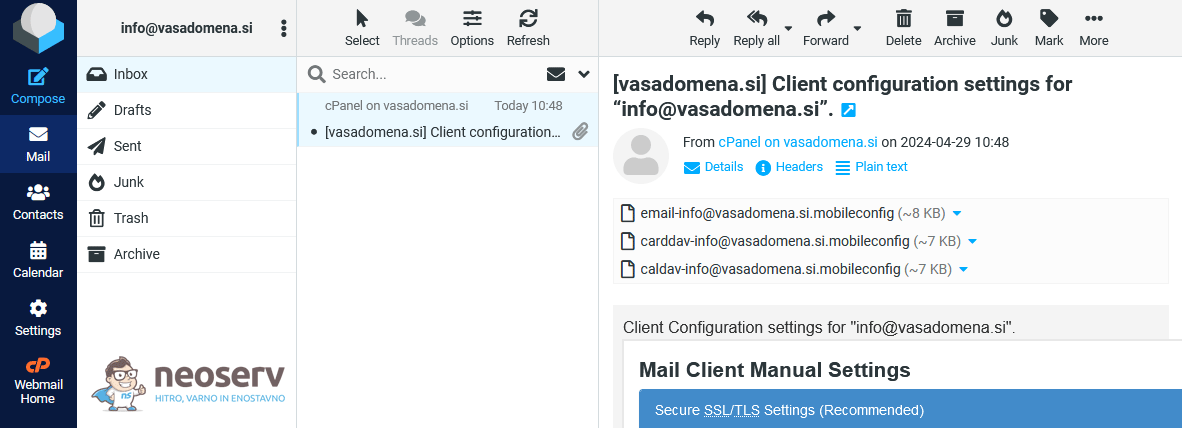
Interested in how to access your new email inbox via a client such as MS Outlook, Thunderbird, Airmail, Apple Mail, Android Mail or Windows Mail? Visit our support centre – EMAIL – and find the appropriate instructions for using email in your preferred email client.
We are also always available by phone (059 335 000) or email for any further questions.

COMMENT THE POST
Your comment has been successfully submitted
The comment will be visible on the page when our moderators approve it.