


- Your cart is currently empty.
How to Delete Emails Older Than X Days
Search results for: ""
Do you have a backlog of emails on your hosting package that are more than a certain number of days old and you no longer need them? If so, there are several easy ways to delete your messages:
- manually delete messages via the Webmail web interface;
- manually delete messages via the cPanel control panel;
- set up a system cron job to periodically delete emails older than the number of days you specify when creating the job.
Table of contents
1. Manual deletion of messages via Webmail
You can access the Webmail web interface directly via your internet browser (e.g. Google Chrome or Mozilla Firefox). All you need is your email address and the corresponding password.
1. Visit the website“vasadomena.si/webmail” (replace “vasadomena.si” with your actual domain name). You will be presented with a login window to enter the Webmail web interface.

2. In the first field of the entry box, enter your full e-mail address of the mailbox in which you want to free up space (e.g. info@vasadomena.si). In the second field, enter the corresponding password of the mailbox. Click on the Log in button.
If you are duly authorised, you will be granted access to the Webmail web interface. If you have not remembered your e-mail password, you can change it using the following instructions: How do I change my email password?
3. You can now sort your messages by date in the web-based email client:
- In the Roundcube web interface, select the filter for sorting emails by date by clicking on the Options icon – via the Sorting column setting.

- If you are using the Horde interface, you can sort your messages by simply clicking on“Date” on the right hand side.
4. Once the messages are sorted by date, tick the ones you want to delete. To select messages in bulk, click on the first message, hold down the “Shift” key and click on the last message. Move the highlighted messages to the recycle bin by clicking on the Delete icon.

5. To delete the messages permanently, select the Trash folder, mark them there and click the Delete icon again. This will delete the messages completely.
2. Manually deleting messages via the cPanel control panel
If you want to delete emails directly from your web hosting package, you can do this from the cPanel control panel. Follow the procedure below:
1. Log in to the cPanel Control Panel (login instructions).
2. Within the EMAIL icon section, select Email Accounts.
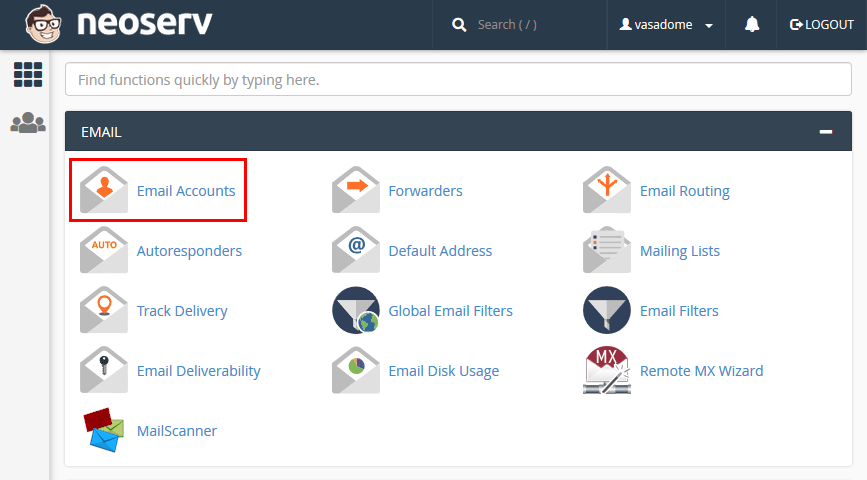
2. Click on the Check Email button next to the desired email account. The Webmail web interface for checking email (Roundcube or Horde) will open.

3. Click on Webmail Home (Roundcube – in the left menu) or cPanel Webmail Home (Horde – in the top menu). Then click on Manage Disk Usage.

You will see the folders of the selected e-mail box, which you can delete by clicking on the Manage button:
- Messages older than one (1) year or more;
- messages with large attachments (> 30 MB), which can significantly free up space on your hosting package.
3. Periodic deletion of messages via cron jobs
Before setting up a cron job and accidentally deleting an email that you want to keep, you can check which or how many emails will be deleted with a specific command. This can be checked via the SSH command line.
Testing email delete commands
Before setting up a cron job and accidentally deleting an email that you want to keep, you can check which or how many emails will be deleted with a particular command. This can be checked via the SSH command line.
After we have successfully connected, we can perform several different tests. We have written some examples below. When testing and later deleting, it is always necessary to replace the ##username## with the actual username (available in the My NEOSERV subscription centre or in the cPanel control panel).
The commands below will not delete emails until the “-delete” parameter is added to the end of the command.
List of all emails on the whole package:
find /home/###username###/mail -wholename "*/cur/*" -type fAll emails older than 333 days in all email accounts:
find /home/###username###/mail-wholename "*/cur/*" -type f -mtime +333
All emails older than 333 days on the specified domain (instead of ##domain## enter the domain name as it is written in the File Manager application):
find /home/###username##/mail-wholename "*/##domain##/*/cur/*" -type f -mtime +333
All emails older than 333 days in a specific mailbox (instead of ##domain## enter the domain name, instead of ##title## enter the actual name / mailbox name – e.g. “info” or “janez.novak”):
find /home/###username##/mail-wholename "*/##domain##/##username##/#username##/mail" -o -wholename "*/##domain##/#username##/#username##/#username##/#username##/#username##/#username##/#username##/#username###username##/##username##/mail
Below you will find an actual example that you would use to delete emails older than 333 days in the “janez.novak@vasadomena.si” email inbox:
find /home/vasadomena/mail -wholename "*/vasadomena.si/info/cur/*" -o-wholename "*/vasadomena.si/janez.novak/cur/*" -typef -mtime +333
Once we are satisfied with the output returned by the command, we can create a cron job that will regularly delete old emails. The “-delete” parameter must be added to the command at the end, otherwise the emails will not be deleted.
Creating cron jobs
Cron jobs can be created in your cPanel control panel under the Cron Jobs icon.
Example of an actual job with the “-delete” parameter added:
Before use, we advise you to really check the amount of messages that will be deleted with each command, so that important emails are not lost.
For further assistance, please call us on 059 335 000 or email us at info@neoserv.si.

COMMENT THE POST
Your comment has been successfully submitted
The comment will be visible on the page when our moderators approve it.